Improve Facial Recognition Sign-in for Your Windows 11 Account


Facial recognition sign-in in Windows 11 (Windows Hello Face) lets you unlock your PC by looking at the screen. It uses an infrared camera, so it works without a password or PIN. Dim room lighting, new glasses or a new haircut can sometimes confuse the sensor and cause failed sign-ins.
Retraining your facial profile updates the camera data Windows has saved, so it can recognize you faster and more reliably. You must set up a numeric PIN before you can turn on facial recognition, because the PIN is your backup sign-in method. Windows will also ask for that PIN during the steps below.
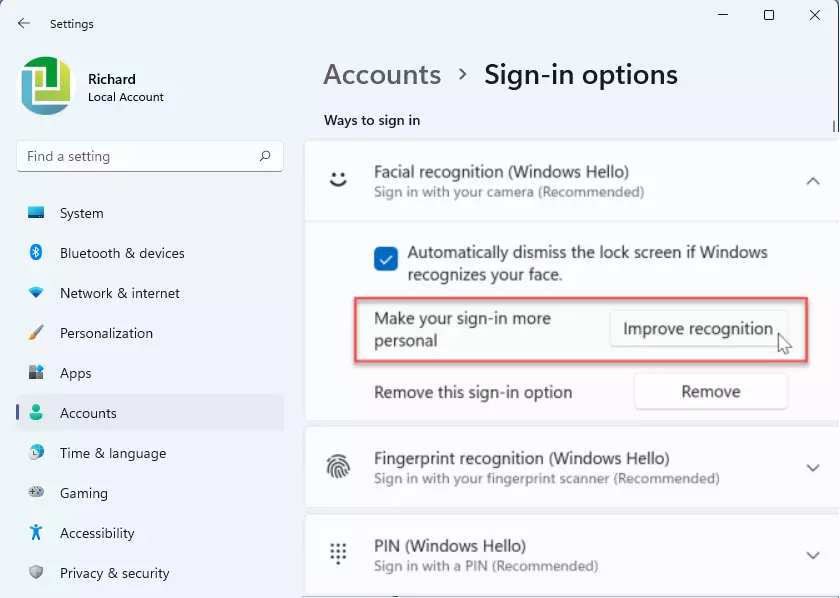
Windows Hello facial recognition improves when you retrain your face profile. Open Settings , go to Accounts Sign-in options, click Facial recognition (Windows Hello), press Improve recognition, enter your PIN, position your face centered in the camera frame, and click Close when finished.
Quick Links to Learn More:
These related guides cover the same topic:
Shifting lighting conditions or a new pair of glasses can cause recognition failures. Adding more profile data corrects most of those misfires. It takes about a minute, and you don’t need to restart the PC afterwards.
How to Improve Windows Hello Facial Recognition
- Open Settings : Press the Windows key + I on your keyboard. The Settings window should open.
- Go to Accounts: Click or tap Accounts on the left side, then select Sign-in options on the right. The path is Settings Accounts Sign-in options You should now see a list of sign-in methods.

- Find Facial Recognition: Under Ways to sign in, click Facial recognition (Windows Hello) to expand it.
- Click Improve Recognition: Press the Improve recognition button next to “Make your sign-in more personal.”
Your PC may not have a Windows Hello-compatible infrared camera. The camera driver may be missing or outdated. A work or school policy may be blocking Windows Hello. A regular webcam without infrared support will not work. If you haven’t set up face sign-in yet, you’ll see a Set up button instead of Improve recognition. Use that first, and the improve option will appear afterwards.
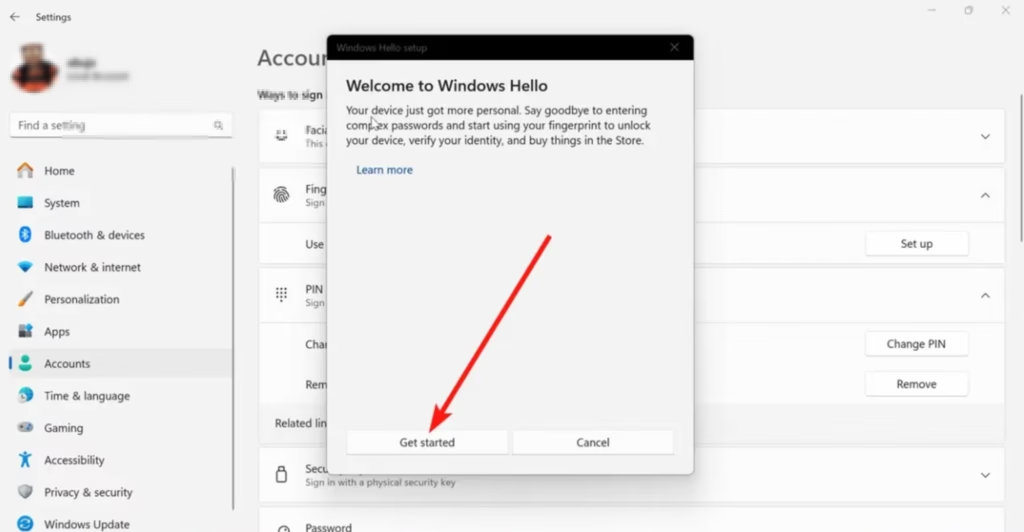
- Start the Process: Click Get started. Windows will ask you to confirm your identity.
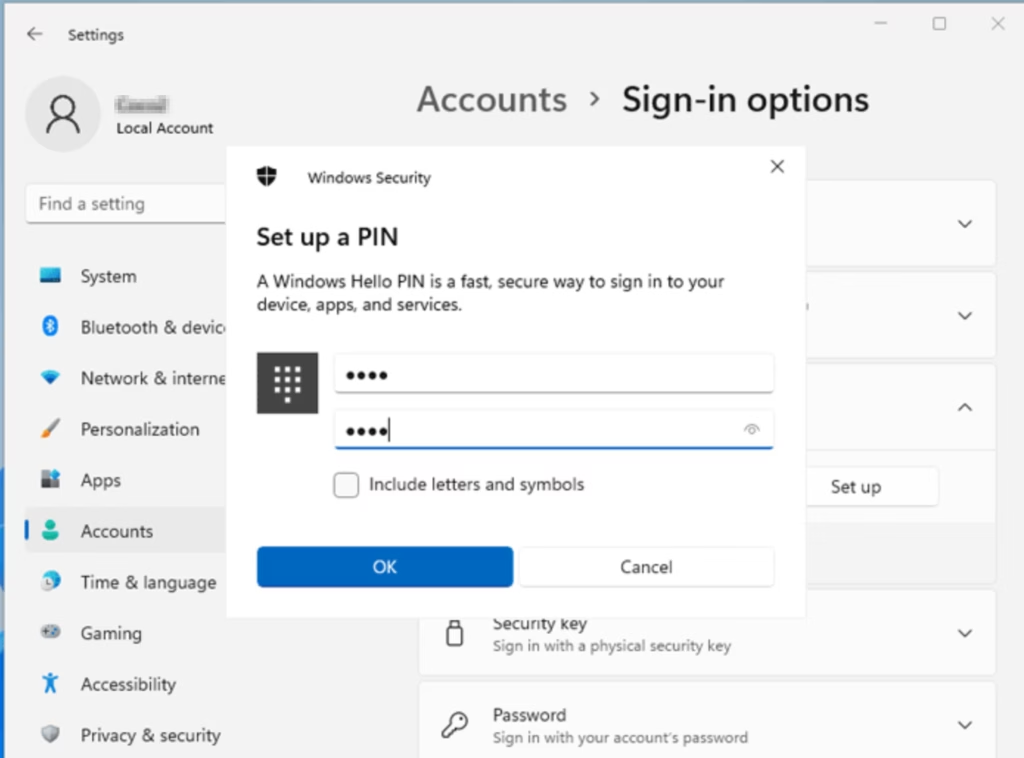
- Enter Your PIN: Type your account PIN to prove it’s you. If you forgot it, use the I forgot my PIN link on the same screen to reset it. After a correct PIN, the camera window should open.
- Position Your Face: Look straight at the screen with your face centered in the camera frame. Keep looking until the setup finishes. Sit at your normal distance and don’t tilt your head. If you usually wear glasses to sign in, keep them on for this scan. You can also run the process a second time without them, which gives Windows more data to work with.
- Finish: When you see the “All set” message, click Close.
- Close the Settings window. Your facial recognition should work better now. Lock your PC with the Win+L and try signing in to check.
This deletes your saved face data, and you can sign in with your PIN until you set up face sign-in again.
Windows Hello facial recognition gets faster and more reliable when you run the built-in training tool again. You can make Windows recognize your face better after a haircut, when you wear glasses, or if the camera struggles in dim rooms. Open Settings, go to your sign-in options, and use the built-in wizard to capture your face from a few new angles so your computer unlocks right away.
- Make sure your camera is clean and working properly.
- Try to do the setup in good lighting but avoid bright lights behind you.
- Keep your face centered and look directly at the camera.
- Wear glasses or hats you use regularly during setup to help Windows Hello recognize you better.
Summary
Windows Hello facial recognition relies on good lighting, the right hardware and a backup PIN to keep your PC secure. Keep the camera lens clean and sit directly in front of the screen, and the system will log you in faster each time. You always need a standard PIN set up as a backup before you can turn on face sign-in.
- Windows Hello makes signing in easy and safe using your face or PIN.
- You need a PIN set up before using facial recognition.
- Use an infrared camera for the best results.
- Good lighting and face position help Windows Hello recognize you better.
- Follow the steps above to improve your facial recognition setup anytime.
These adjustments lead to a faster and more reliable sign-in experience across Windows 11.
How do I enable face unlock in 🪟 Windows 11?
Open Settings, select Accounts, then choose Sign-in options. Set up a PIN first if you don't have one, since Windows requires it. Under Facial recognition (Windows Hello), select Set up, follow the prompts, and look at the camera as Windows asks. Your PC needs a camera that supports Windows Hello face, usually an infrared one.
Is there a difference between Windows Hello and Windows Hello for business?
Windows Hello for Business is the managed version of Windows Hello. An organization sets it up through Microsoft Entra ID or Active Directory, and its IT team controls the rules. Regular Windows Hello is for personal PCs and home accounts, and it stores sign-in data on the device.
Why is facial recognition not working anymore?
Facial recognition usually fails because the camera sees you differently than it did at setup. Check the lighting, and remove glasses if you added them recently. Then open Sign-in options, select Facial recognition (Windows Hello), and choose Improve recognition to add new face data. If it still fails, update the camera driver in Device Manager.
Which cameras are compatible with Windows Hello face?
Windows Hello face needs a camera with infrared (IR) sensing, which reads your face in dim light. Many laptops have one built in. Regular USB webcams without IR usually won't work. Look for Windows Hello compatible or Windows Hello face certified cameras, or check your PC maker's specifications for an IR camera.
Was this guide helpful?

About the Author
Richard
Tech Writer, IT Professional
Richard is a writer at Geek Rewind who turns complex IT tasks into clear, step-by-step guides. He draws on years of hands-on experience in system administration and enterprise IT operations, focusing on Windows, Linux and WordPress: the problems people actually run into, and the fixes that work. His server and WordPress guides come from systems he runs himself. Richard builds and maintains the platform behind Geek Rewind, from its Ubuntu servers and Nginx configuration to its custom WordPress plugins. Many new tutorials start with readers' questions, and he's always glad to answer them in the comments.



No comments yet — be the first to share your thoughts!