How to Select Preferred Windows Hello Camera for Facial Recognition in Windows 11

Windows 11 lets you choose which webcam handles Windows Hello facial recognition, so you can use the best sensor connected to your PC. Windows Hello is the built-in sign-in feature that lets you log in with your face, a fingerprint, or a PIN instead of typing a password.
The preferred camera setting is available in Windows 11 version 22H2 or later. It helps most when your monitor has a better camera than your laptop lid, or when you add an external infrared (IR) camera for more secure logins. It works the same way in Home and Pro.
Open Settings Accounts Sign-in options Facial recognition (Windows Hello) and select your preferred camera from the drop-down menu. The change takes effect immediately without a restart.
What is Windows Hello?
It uses your face, a fingerprint, or a PIN in place of a traditional password. Face sign-in needs a camera that supports Windows Hello, which in practice means an IR camera. An ordinary webcam without IR will not work for face sign-in.
Why Choose Your Preferred Camera?
If more than one Windows Hello-compatible camera is connected, you can tell Windows which one to use. Without that choice, Windows picks one for you, and it may not be the one that gives the best result.
Built-in IR sensors work well. An external IR camera is also a good choice for daily logins, especially if its position or image quality is better than the built-in one.
If you don’t see it, check that the external camera is plugged in, that its driver is installed, and that it supports Windows Hello. You may also need to set up facial recognition first.
How to Select Your Preferred Windows Hello Camera
- Press
Win+Ito open Settings. You should see the Settings window with the category list on the left. - Click Accounts on the left side, then click Sign-in options on the right side. You should see a list of sign-in methods.
- Make sure facial recognition is already set up on this PC. If it isn't, follow this guide first: Open Sign-in options settings
- Under Ways to sign in, click Facial recognition (Windows Hello) to expand it. You should see its options and settings.
- Select your preferred camera from the drop-down menu. The default is Let Windows choose. Pick the specific camera you want Windows to use instead, such as the external IR camera on your monitor. The change applies right away, and you don't need to restart.
- Close Settings. To undo the change later, return to the same drop-down and select Let Windows choose.
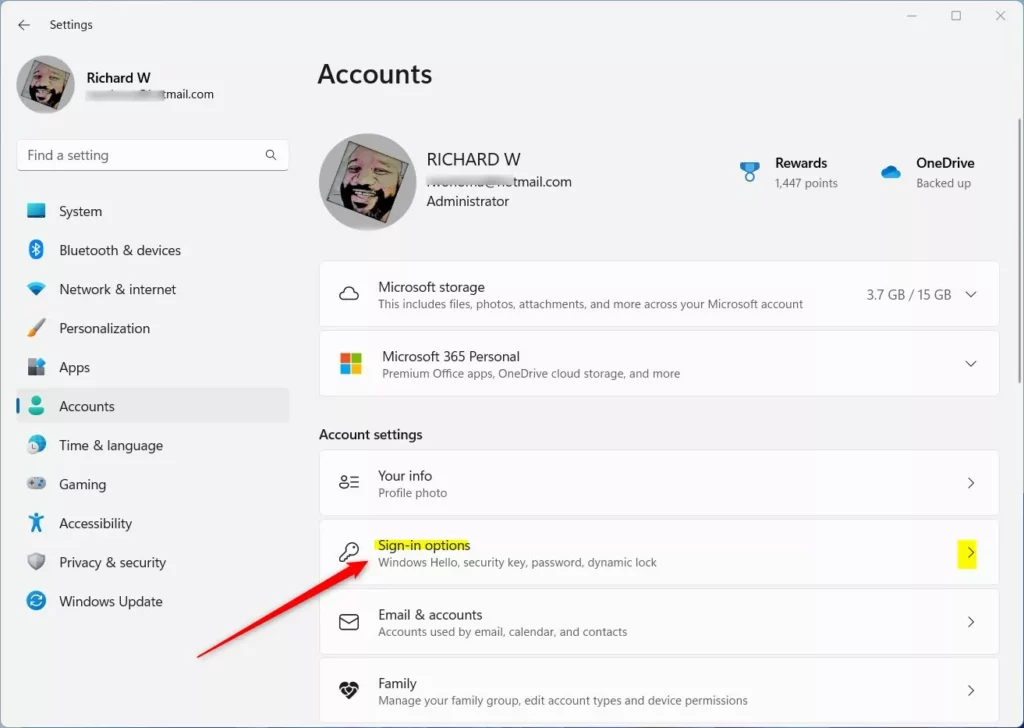
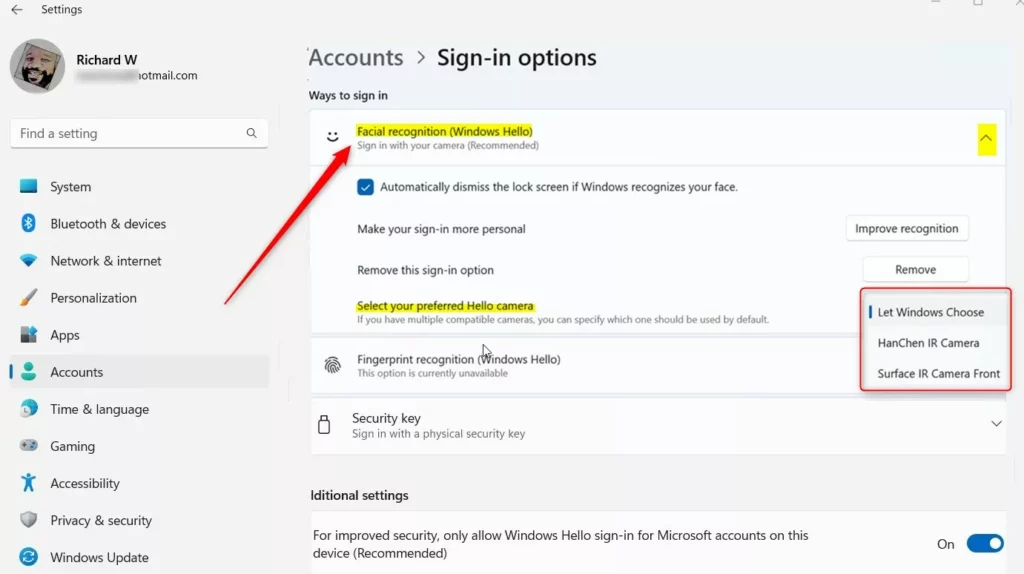
Windows now uses your chosen camera for facial recognition. To test it, lock your PC and look at the sign-in screen. If face sign-in fails, check that the camera is connected and that nothing is covering its lens.
Summary
Setting a preferred camera makes your PC use the sensor you picked for face logins. This stops Windows from falling back on a lower quality camera when more than one is connected.
To recap, the setting is at Settings Accounts Sign-in options Facial recognition (Windows Hello). Choose the camera from the drop-down menu. The default is Let Windows choose, and any change you make takes effect immediately.
Was this guide helpful?

About the Author
Richard
Tech Writer, IT Professional
Richard is a writer at Geek Rewind who turns complex IT tasks into clear, step-by-step guides. He draws on years of hands-on experience in system administration and enterprise IT operations, focusing on Windows, Linux and WordPress: the problems people actually run into, and the fixes that work. His server and WordPress guides come from systems he runs himself. Richard builds and maintains the platform behind Geek Rewind, from its Ubuntu servers and Nginx configuration to its custom WordPress plugins. Many new tutorials start with readers' questions, and he's always glad to answer them in the comments.




No comments yet — be the first to share your thoughts!