How to Turn On or off Reset PIN at Sign-in in Windows 11

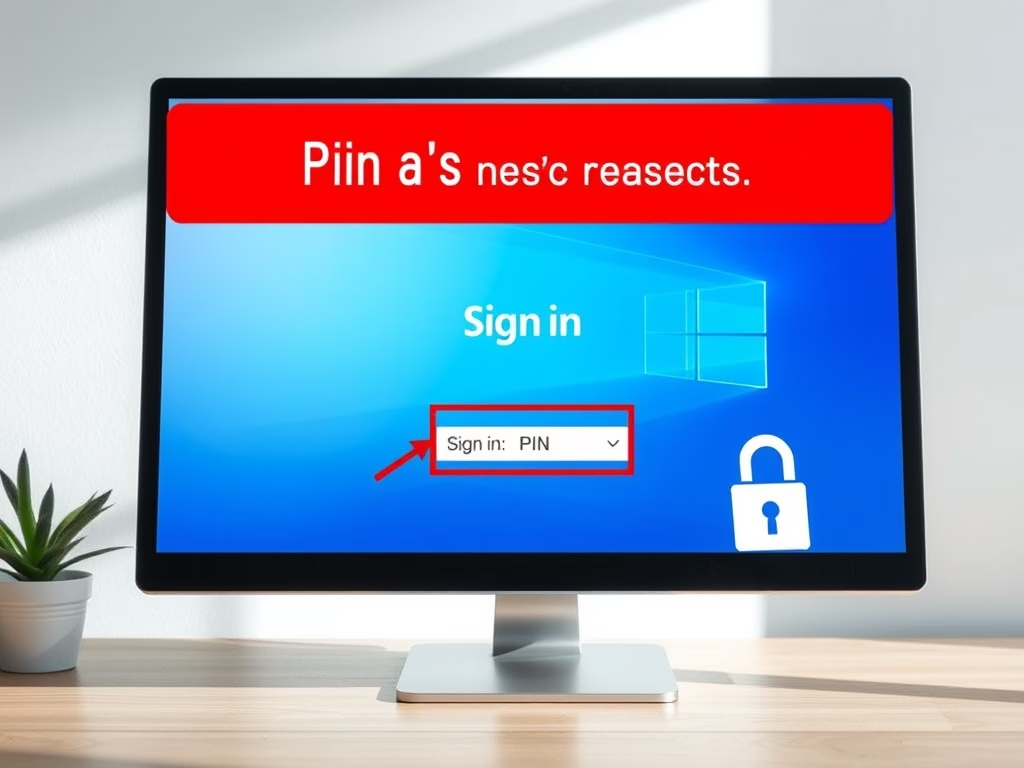
The I forgot my PIN link on the Windows 11 sign-in screen lets you reset a forgotten PIN without getting into your desktop first. Windows 11 Home and Pro both turn this recovery option on by default, so you can get back into your PC quickly if you forget your PIN.
If you turn the feature off, nobody can reset your PIN from the lock screen, even with physical access to the device. You can switch the link on or off at any time with the Registry Editor, a built-in tool for changing advanced system settings. Pick whichever setting fits your security needs. A shared or portable PC may be better with the link off. A home PC where you might forget the PIN is usually better with it on.
Open Registry Editor, navigate to 🗝️HKEY_LOCAL_MACHINE\
Why Use a PIN Instead of a Password?
A PIN is safer than a regular password because it stays on your computer and never travels across the internet. If someone steals your PIN, they still cannot use it to sign in to your account from another device. Here is why that holds up:
- PIN works only on your device: Your PIN only works on the computer where you set it up. If someone steals your PIN, they can’t use it on another device.
- PIN stays on your device: Unlike passwords, your PIN isn’t sent over the internet. This makes it harder for hackers to steal.
- PIN is protected by special hardware: Most modern devices have a chip called TPM (Trusted Platform Module) that keeps your PIN safe from attacks. Windows 11 requires a TPM, so this applies to nearly every supported PC.
- Complex PINs are possible: You can have simple or complex PINs with letters, numbers, and symbols, just like passwords.
- PIN helps when biometrics don’t work: If your fingerprint or face scanner isn’t working, you can still sign in with your PIN.
Learn more about why PINs are better than passwords here: Why PIN is better than password
Enable or Disable Reset PIN at Sign-in
If you forget your PIN, Windows 11 can let you reset it right on the sign-in screen. You can choose whether that option is available. When it is on, the I forgot my PIN link appears under the PIN box. When it is off, the link is gone, and anyone who forgets the PIN has to sign in another way, such as with a password.
If you are using a standard account, the changes in Registry Editor will be refused or will not save. Sign in with an administrator account first.
To Enable Reset PIN at Sign-in (default setting):
reg add "HKLM\SOFTWARE\Microsoft\Windows\CurrentVersion\Authentication\LogonUI\NgcPin" /v EnablePinReset /t REG_DWORD /d 15 /f
To Disable Reset PIN at Sign-in:
reg add "HKLM\SOFTWARE\Microsoft\Windows\CurrentVersion\Authentication\LogonUI\NgcPin" /v EnablePinReset /t REG_DWORD /d 0 /f
How to Edit the Registry Safely
Registry Editor changes deep system settings, and a mistake can cause computer problems. The method works the same on Windows 11 Home and Pro. Follow the steps below exactly and change only the one value described.
- Press Windows key + R to open the Run box. You should see a small Run window with a text field.
- Type
regeditin the text field and press Enter. - If a User Account Control message asks for permission, click Yes. If it asks for an administrator password instead, you are not signed in as an administrator, so cancel and sign in with an admin account. Registry Editor then opens.
- In the left pane of Registry Editor, go to this key. You can also paste it into the address bar at the top of the window:
HKEY_LOCAL_MACHINE\SOFTWARE\Microsoft\Windows\CurrentVersion\Authentication\LogonUI\NgcPin - Look at the right pane and double-click
EnablePinReset. A small edit window opens with the current value. - Change the Value data to
15to enable the link, or0to disable it. - Click OK, then close Registry Editor.
- Restart your computer to apply the change. After you restart, check the sign-in screen to confirm the I forgot my PIN link appears or is gone, depending on the value you chose.
To undo the change, open the same value again and set it back to the other number, then restart.
It’s a good idea to back up the registry before making changes, so you can roll back if something goes wrong.
Need Help Resetting Your PIN?
Windows 11 users can reset a forgotten sign-in PIN by verifying their account, usually with their Microsoft account password. This helps you regain access to the computer if you cannot remember your current PIN. The process sets up a new PIN, and the old one stops working.
If the I forgot my PIN link is missing, the option has probably been turned off with the setting above, or your device is managed by an organization that controls it. Check the registry value first if you are the administrator.
Learn how to reset your PIN on the Microsoft support site.
Summary
- Using a PIN makes your computer safer because it only works on your device.
- Reset PIN at sign-in helps you recover access if you forget your PIN.
- Administrators decide if users can reset their PIN from the sign-in screen. The change takes effect after a restart.
- Always keep your PC updated and use strong PINs for better security.
Managing your Windows 11 reset PIN settings helps keep your device secure while making sure you can get back into your account. A local PIN protects your sign-in details from online threats, and knowing how to control the reset option gives you full command over your sign-in screen.
Was this guide helpful?

About the Author
Richard
Tech Writer, IT Professional
Richard is a writer at Geek Rewind who turns complex IT tasks into clear, step-by-step guides. He draws on years of hands-on experience in system administration and enterprise IT operations, focusing on Windows, Linux and WordPress: the problems people actually run into, and the fixes that work. His server and WordPress guides come from systems he runs himself. Richard builds and maintains the platform behind Geek Rewind, from its Ubuntu servers and Nginx configuration to its custom WordPress plugins. Many new tutorials start with readers' questions, and he's always glad to answer them in the comments.



No comments yet — be the first to share your thoughts!