How to Reset Your PIN In Windows 11

- 2 ways to do it
- Needs administrator rights
- Includes a restart or sign-out
You can reset your Windows 11 PIN whether you forgot the current one or just want a new one. This guide covers both cases: resetting from Settings while you are signed in, and resetting from the sign-in screen when you are locked out. Neither takes more than a couple of minutes, and you don’t need to restart the PC.
Open Settings with Win+I, click Accounts, then Sign-in options. Expand PIN (Windows Hello), click I forgot my PIN, enter your Microsoft account password, then create your new PIN with at least 4 numbers and click OK. The new PIN works immediately.
What is Windows Hello and PIN?
Windows Hello is the sign-in system built into Windows. It lets you get into your PC without a traditional password, using a PIN, your face, or a fingerprint. Face and fingerprint need compatible hardware, such as an infrared camera or a fingerprint reader. A PIN works on any PC.
A standard password works anywhere. A Windows 11 PIN is tied to the one device where you set it up. It cannot be used on any other computer, which makes it more secure than a password.
Because the PIN belongs to that one device, resetting it on this PC does not change your Microsoft account password. It also does not change the PIN on any other PC you own. Each device keeps its own PIN.
Why use a PIN instead of a password?
- PIN works only on your device. If someone steals your password, they can use it anywhere. A PIN only works on your own PC, so a stolen PIN is useless without the machine.
- Your PIN stays on your device. It is not sent over the internet or stored on a Microsoft server, which keeps it safer.
- Your device has special hardware protection. A chip called TPM keeps your PIN very secure and protects it from hackers. Most PCs that run Windows 11 have one, because Windows 11 requires TPM 2.0.
- You can make your PIN more complex. You can use numbers, letters, and symbols for a stronger PIN.
- If your device is lost or stolen, it is very hard for anyone to guess your PIN, because the device locks after many wrong tries.
- You need a PIN even if you use your face or fingerprint. It is your backup way to sign in if the biometric sensor doesn’t work.
Using a PIN instead of a password boosts security. Your PIN stays private on your device, never sent online or stored on Microsoft servers. It is protected by hardware such as a Trusted Platform Module, a secure crypto-processor chip on your motherboard.
How to Reset Your PIN in 🪟 Windows 11
Option 1Reset PIN from Settings (When You Are Signed In)
Have your Microsoft account password ready. It is not the same thing as your PIN.
- Press Win+I to open Settings.
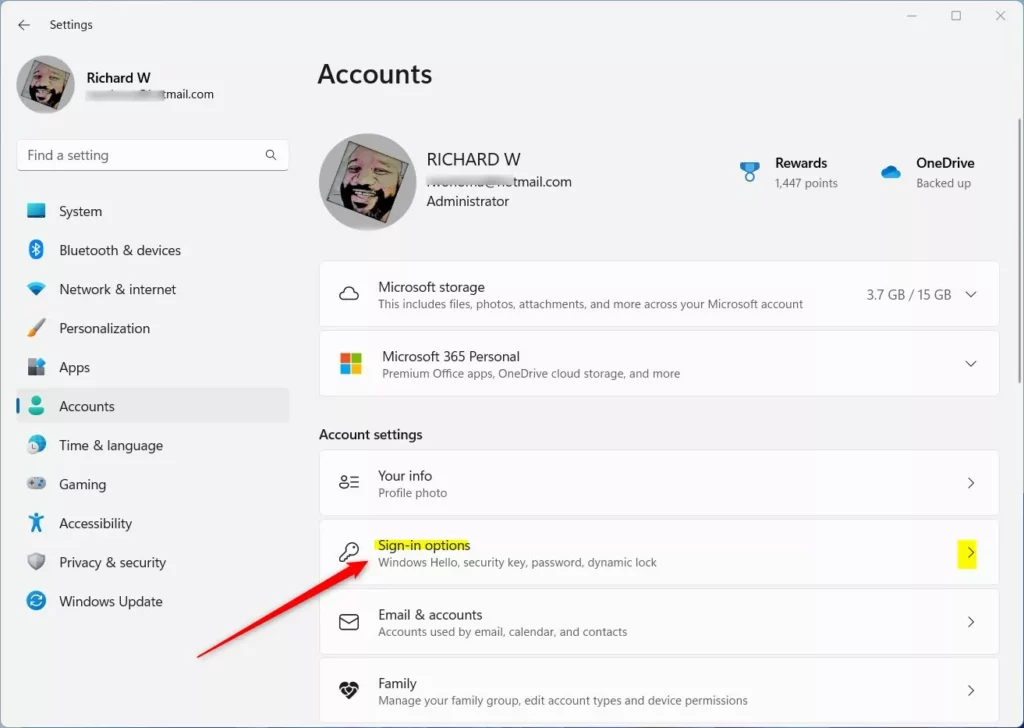
- Click Accounts on the left side.
- Click Sign-in options on the right. You will see a list of the ways you can sign in on this PC.
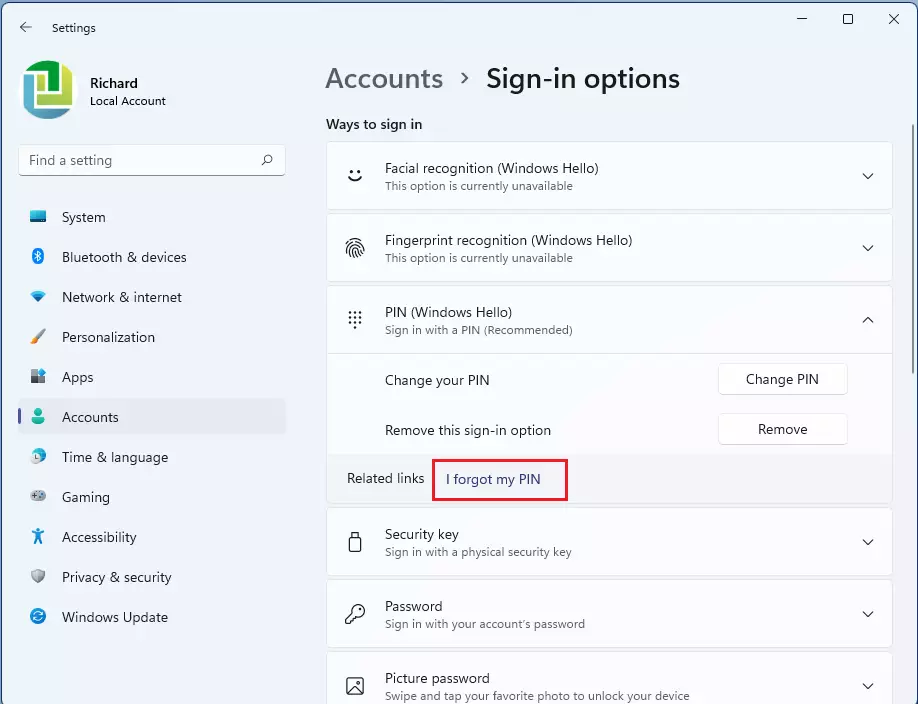
- Under Ways to sign in, click PIN (Windows Hello) to expand it. The options for your PIN appear underneath.
- Click the link that says I forgot my PIN.
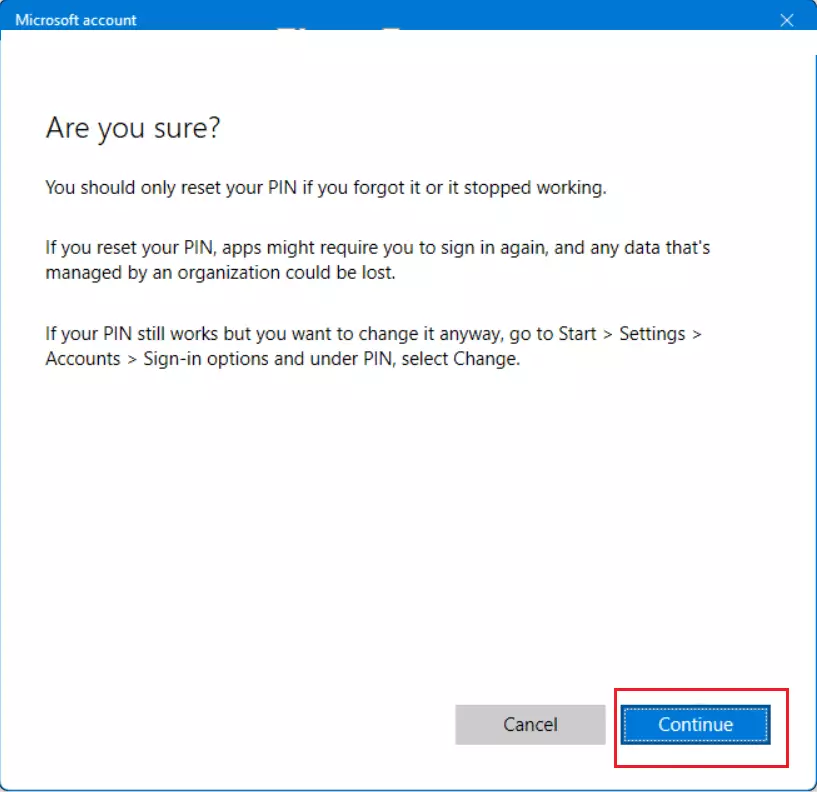
- Click Continue to confirm. A sign-in window opens and asks you to prove who you are.
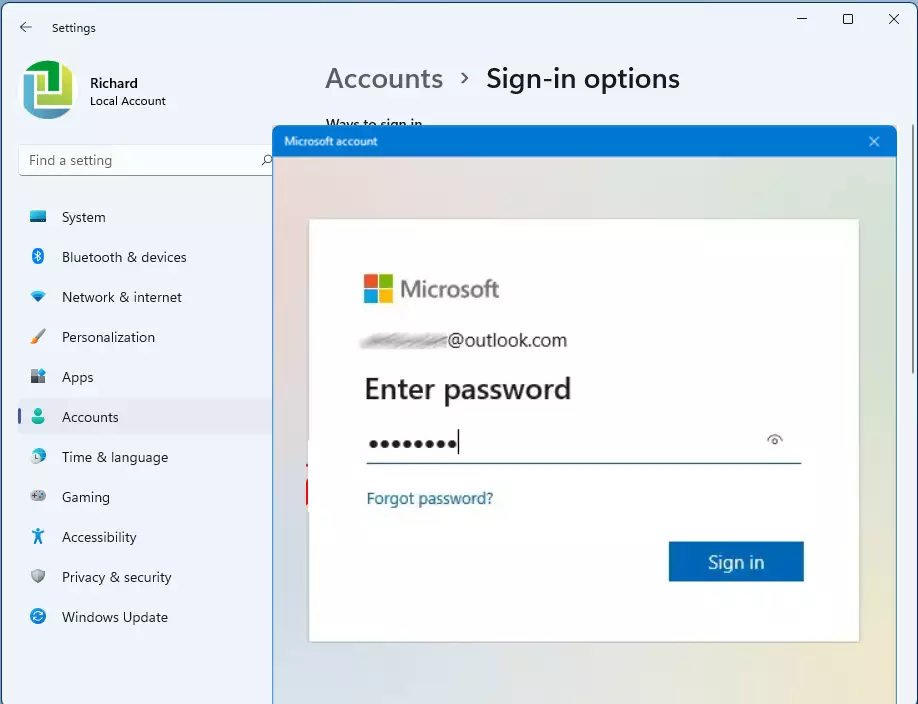
- Enter your Microsoft account password (not your PIN) and click Sign in. If your account has two-step verification, you may be asked for a security code as well.
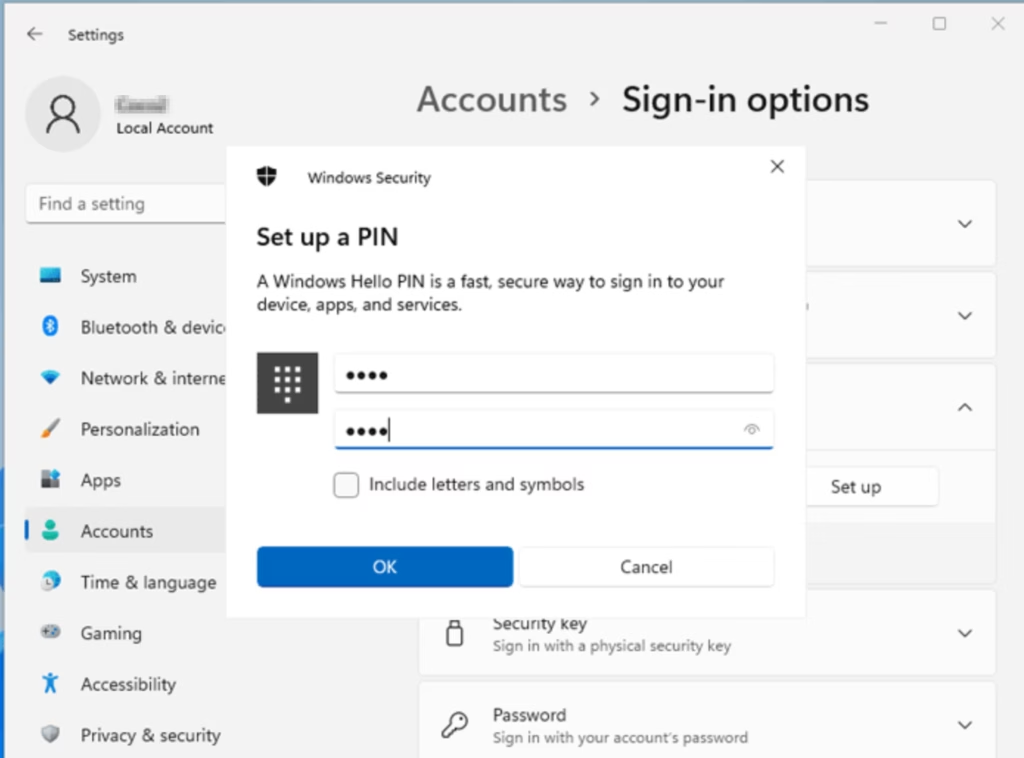
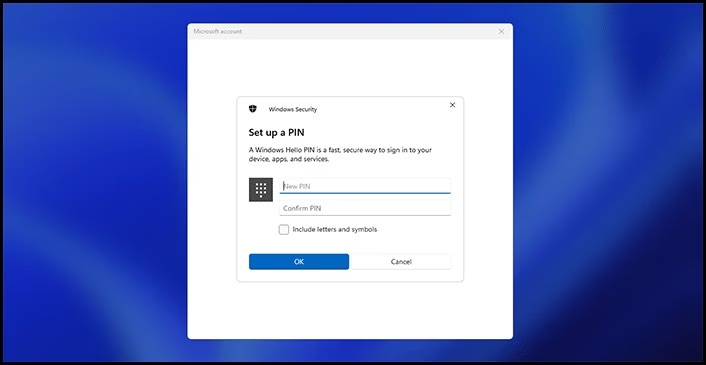
- Create your new PIN. You need to enter at least 4 numbers. You can also check Include letters and symbols if you want a longer, stronger PIN. Type the PIN again in the second box to confirm it.
- Click OK to save your new PIN.
- Close Settings. The new PIN works right away, the next time you lock the PC or sign in.
If you are signed in and just want a new PIN, you can follow these same steps. Open Settings with Win+I, go to Accounts, then Sign-in options. Expand the PIN (Windows Hello) section, click ‘I forgot my PIN’, and follow the prompts. Your Microsoft account password will be required. On some builds of Windows 11, a Change PIN option also appears in that section. It asks for your current PIN instead of your account password, so it only helps if you still remember it.
If the PIN options are missing or greyed out, check these things:
- If you sign in with a local account, the reset asks for your local account password instead of a Microsoft one.
- If the PC belongs to your employer or school, your administrator may control PIN settings and rules. Contact your IT department.
- If the PC is offline, connect to the internet first. Verifying a Microsoft account needs a connection.
To undo the change, run the same steps again and set a different PIN. Nothing is permanent.
Option 2Reset PIN from the Sign-in Screen (If You Can’t Sign In)
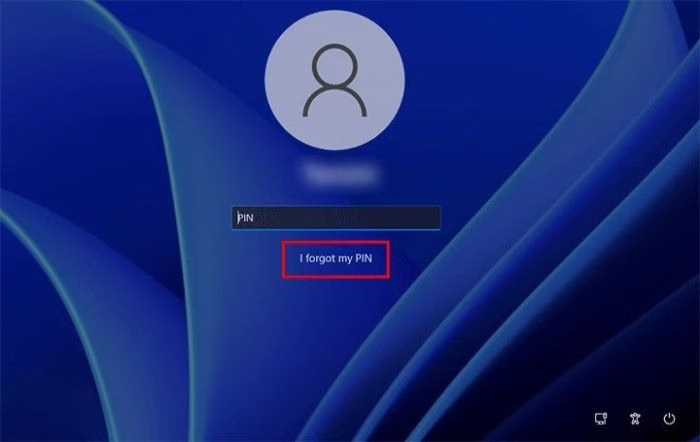
Forgetting your Windows 11 PIN and being unable to sign in happens often, but you can reset it directly from the lock screen. Look for the I forgot my PIN link below the PIN entry box on the sign-in screen. Clicking it starts the reset and asks you to verify your identity with your Microsoft account password.
On the sign-in screen, use the network icon in the bottom-right corner to connect to Wi-Fi if needed. Without a connection, Microsoft can’t verify your account and the reset will fail.
- On the sign-in screen, below the PIN box, click I forgot my PIN.
- Enter your Microsoft account password and click Sign in.
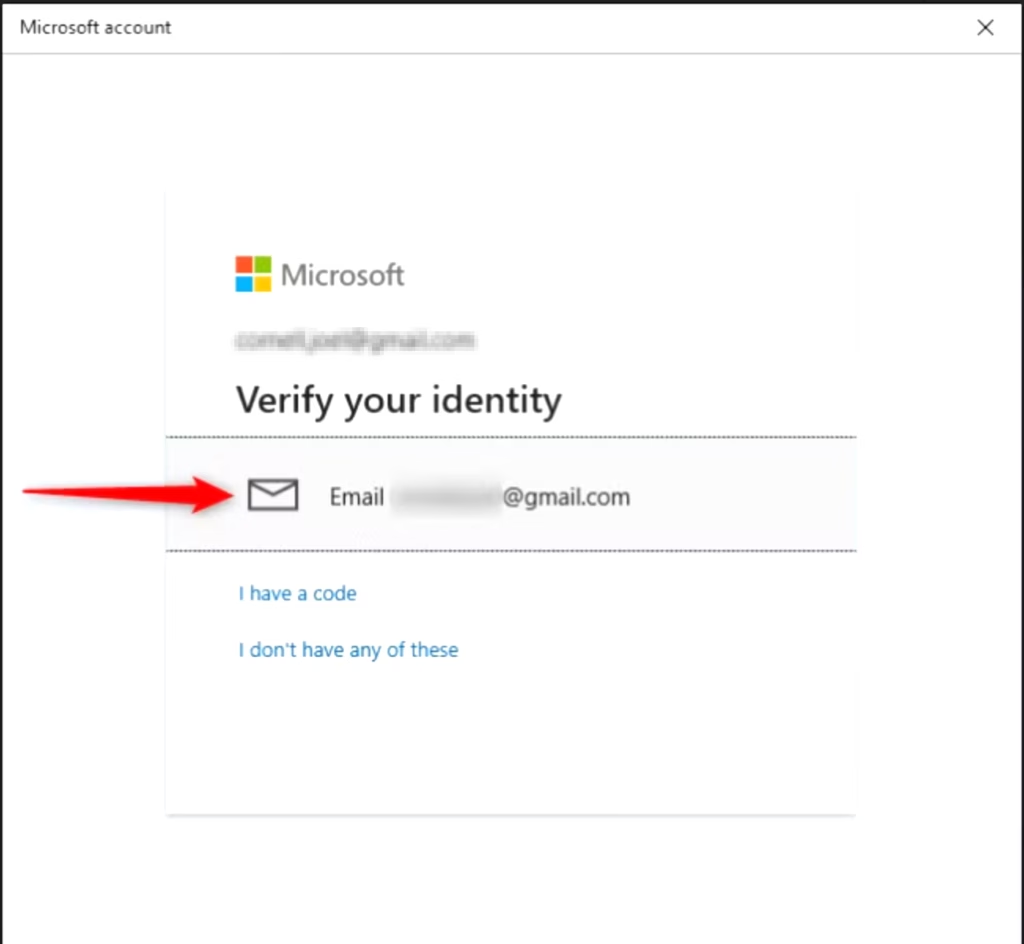
- If you have two-step verification on, choose how to get your security code (email or phone), then click Send code.
- Enter the code you received and click Verify. The code usually arrives within a minute. If it doesn’t, check your spam folder or choose another delivery method.
- Click Continue to proceed.
- Create a new PIN (minimum 4 digits). You can check Include letters and symbols if you want a stronger one.
- Click OK to finish.
- You will now sign in with your new PIN.
If the reset won’t work, you can still sign in another way. Click Sign-in options on the sign-in screen and choose your password. After you reach the desktop, use the Settings steps above to set a new PIN.
Summary
- Resetting your PIN is quick and gets you back into your PC without a restart.
- Windows Hello uses a PIN that only works on your device, which makes it safer than a password.
- You need your Microsoft account password to reset your PIN. A local account uses its local password instead.
- Use a strong PIN with numbers, letters, and symbols for better security.
- If you need more help, check Microsoft's official sign-in options page.
Resetting your PIN is a quick way to regain access to your PC, whether you do it from Settings or from the sign-in screen. Windows Hello PINs are unique to each device, which adds to their security, and finishing the reset requires your account password. A strong PIN that mixes numbers, letters, and symbols gives the best protection.
Frequently asked questions
I'm getting the error "Something happened and your PIN isn't available" on 🪟 Windows 10. What can I do to fix this?
Sign in with your password, then remove and re-add the PIN. Open Settings, go to Accounts Sign-in options, select Windows Hello PIN, choose Remove, and then select Add to set up a new one. The error usually means the PIN data on the PC has become damaged, often after an update. Restart the PC after you add the new PIN.
How do I change my lock screen password on 🪟 Windows 11?
Windows 11 has no separate lock screen password. The lock screen uses your account's sign-in password, PIN, or another sign-in method. To change the password, open Settings, go to Accounts Sign-in options, select Password, and choose Change. If you meant the lock screen picture, change it under Settings Personalization Lock screen.
I forgot my PIN and password for 🪟 Windows 11. How do I reset them?
Select the I forgot my PIN link on the sign-in screen, then sign in with your Microsoft account password to set a new PIN. If you also forgot the Microsoft account password, reset it at account.live.com/password/reset from another device. A local account has no online reset, so you need another administrator account or a password reset disk.
How do I reset my PIN in my Microsoft account?
A Microsoft account has no PIN. Your PIN belongs to one device, so you reset it on that PC. Select I forgot my PIN on the sign-in screen, or open Settings, go to Accounts Sign-in options, and select PIN (Windows Hello). To reset the Microsoft account password itself, go to account.live.com/password/reset.
Still have a question?
Answered by AI from this guide. Good questions may be added to this page — please don't include personal details.
Did this guide fix your problem?

About the Author
Richard
Tech Writer, IT Professional
Richard is a writer at Geek Rewind who turns complex IT tasks into clear, step-by-step guides. He draws on years of hands-on experience in system administration and enterprise IT operations, focusing on Windows, Linux and WordPress: the problems people actually run into, and the fixes that work. His server and WordPress guides come from systems he runs himself. Richard builds and maintains the platform behind Geek Rewind, from its Ubuntu servers and Nginx configuration to its custom WordPress plugins. Many new tutorials start with readers' questions, and he's always glad to answer them in the comments.
No comments yet — be the first to share your thoughts!