How to Change Your Microsoft Account Password

A Microsoft account password protects your Windows sign-in, OneDrive files, Outlook mail and Xbox services with one set of credentials. Changing it takes about two minutes in any web browser. Do it when you suspect someone else knows the password, when you reuse it on other sites, or when it is simply weak. Have your recovery phone number or alternate email handy before you start, because Microsoft may ask you to verify your identity with a code.
Go to account.microsoft.com and sign in with your Microsoft account email and current password. Click the Security tab, select Change password, enter your current password, type your new password twice, then click Save. The new password takes effect immediately across all your devices.
Getting Started: Signing In
The change is made on the official account page. It works from any device with a browser, not just the PC you are changing the password for.
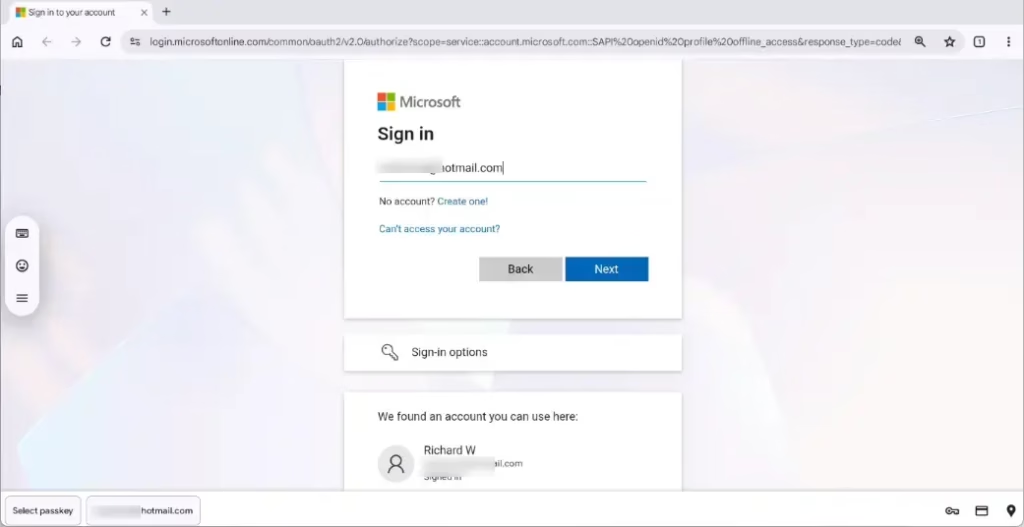
- Open a web browser and go to account.microsoft.com.
- Click Sign in if the page does not prompt you automatically.
- Type the email address for your Microsoft account and click Next. This is usually an address ending in Outlook.com, Hotmail.com or Live.com, though some accounts use a different address.
- Type your current password and click Sign in. You should now see your account dashboard with your name and a row of tabs across the top.
Check both entries for typos before you submit. Repeated failed attempts can trigger extra verification or a temporary lock. If you have forgotten the current password, use the Forgot password? link on the sign-in screen instead. That starts the recovery process, which also ends with you choosing a new password.
Navigating to the Security Settings
Your password settings are under the Security tab. Microsoft rearranges this page from time to time, so the labels may differ slightly from what is described here.
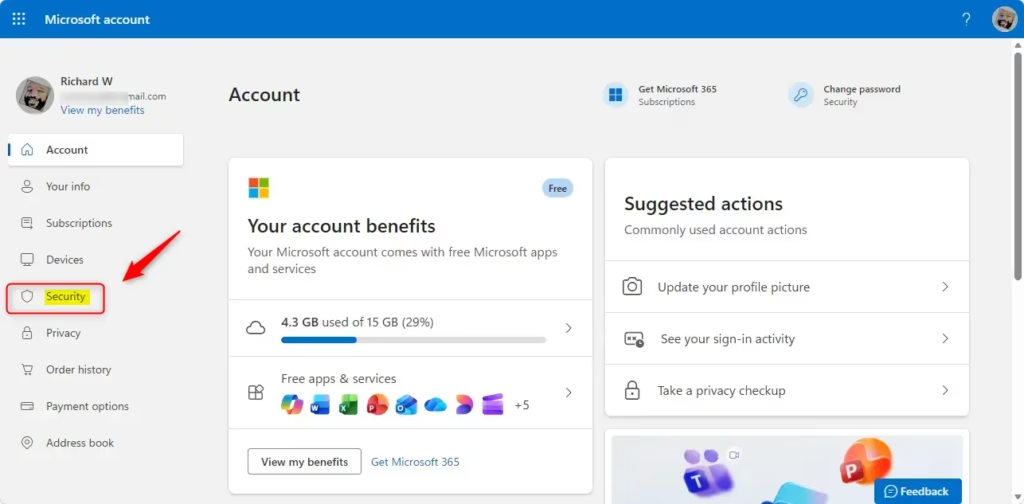
- Click the Security tab at the top of your account page. You should see a page of sign-in and protection options.
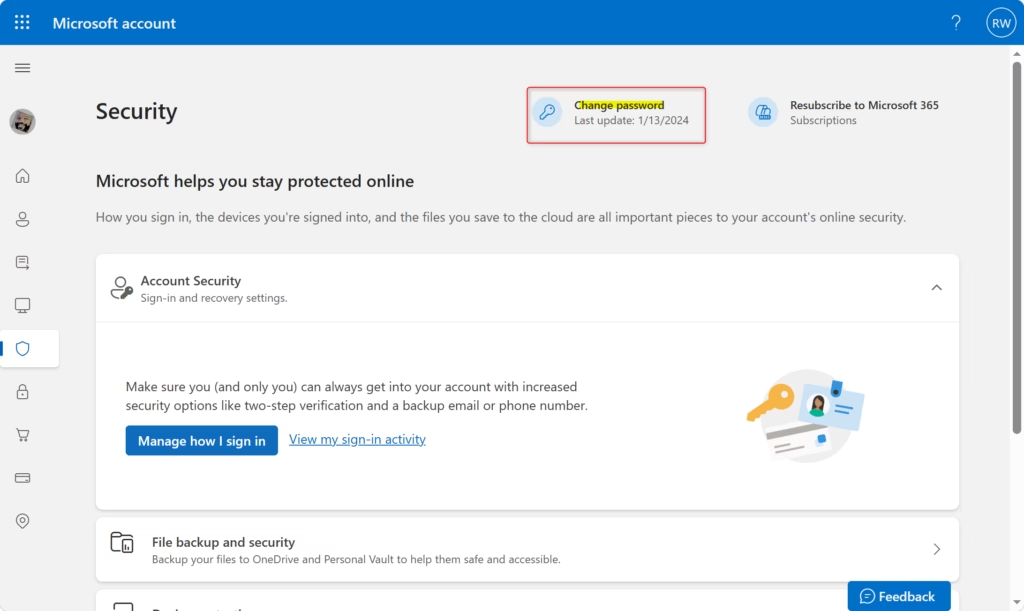
- Look for the password section and click Change password. If the wording differs, pick the link that clearly refers to changing your password.
- If Microsoft asks you to verify your identity, choose where to receive the code (email or phone), enter it and continue. This is normal, and it stops someone with a stolen session from changing your password.
You should now see a form asking for your current and new passwords.
Creating Your New Password
Fill in the form from top to bottom.
- Type your current password in the first box. This proves it is really you making the change.
- Type your new password in the next box. Microsoft requires at least 8 characters, and passwords are case-sensitive. A strong choice mixes uppercase and lowercase letters, numbers and symbols. Longer is better, and a short phrase of unrelated words works well.
- Retype the new password in the confirmation box. This catches typing mistakes and keeps you from locking yourself out.
If one of those sites is breached, attackers will try the same password against your Microsoft account.
Saving Your Changes
- Click Save. On some versions of the page the button is labeled Confirm. You should see a message that the password was changed, or be returned to the Security page.
Expect to be signed out on your other devices, such as your phone, tablet and other PCs. The next time you use Windows, Outlook, OneDrive, Xbox or any other service tied to this account, sign in with the new password. A device that is offline may keep accepting the old password until it next connects to the internet. When it does connect, it will ask for the new one.
If you ever forget the new password, you will have to go through the account recovery process. That means verifying your identity with a code or other proof, which can take a while. Save the new password in a password manager (software that stores your login details in an encrypted vault) so you do not get locked out. If you think the change was a mistake, you can repeat these steps and set another password at any time.
Summary
In short: sign in at account.microsoft.com, open the Security tab, choose Change password, enter your current password and then your new password twice, and click Save. Then sign back in on your other devices with the new password.
Have a question about this guide?
Answered by AI from this guide. Good questions may be added to this page — please don't include personal details.
Did this guide fix your problem?

About the Author
Richard
Tech Writer, IT Professional
Richard is a writer at Geek Rewind who turns complex IT tasks into clear, step-by-step guides. He draws on years of hands-on experience in system administration and enterprise IT operations, focusing on Windows, Linux and WordPress: the problems people actually run into, and the fixes that work. His server and WordPress guides come from systems he runs himself. Richard builds and maintains the platform behind Geek Rewind, from its Ubuntu servers and Nginx configuration to its custom WordPress plugins. Many new tutorials start with readers' questions, and he's always glad to answer them in the comments.
No comments yet — be the first to share your thoughts!