Tired of Typing Passwords? Let’s Make Your Microsoft Account Passwordless!

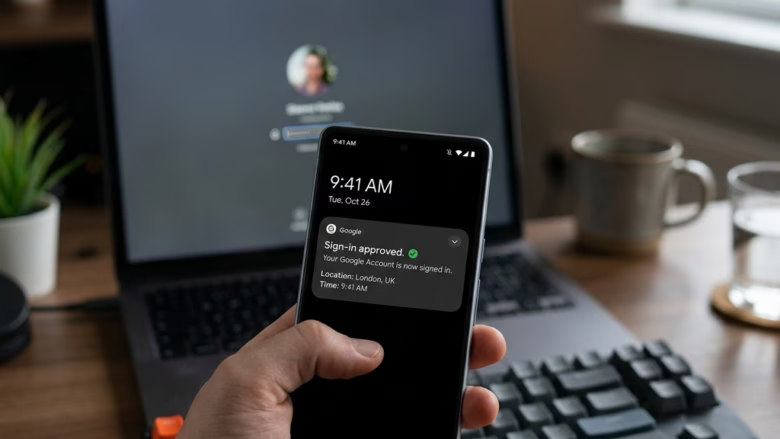
Going passwordless on Windows 10 and Windows 11 lets you sign in using a fingerprint, face scan, security key, or phone app instead of a traditional password. This setup cuts your sign-in time to under two seconds and blocks hackers from guessing your text-based credentials.
Windows Hello and the Microsoft Authenticator app do the heavy lifting to keep your personal data safe, meaning you never have to remember or type a long password again.
Enable passwordless sign-in through your Microsoft account’s security settings. Use the Microsoft Authenticator app on your phone to approve sign-ins with a tap, or set up Windows Hello with facial recognition or fingerprint. This enhances security and speeds up access.
Step 1Get Ready with the Microsoft Authenticator App
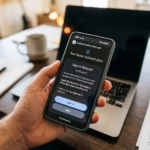
The Microsoft Authenticator app helps you go microsoft passwordless by letting you approve sign-in requests directly from your phone. Setting up this app replaces your standard password with a quick tap on your mobile device, which stops hackers from guessing stolen passwords and secures your account.
Passwordless sign-in adds an extra security layer by letting you approve requests from a mobile device.
Download and Set Up the Authenticator App
- Grab the app: Go to your smartphone’s app store (Google Play Store for Android or the App Store for iOS) and search for “Microsoft Authenticator.” Download and install it .
- Open the app: Once installed, launch the Microsoft Authenticator app.
- Add your account: Tap the option to add an account. You’ll likely see choices like “Personal account,” “Work or school account,” or “Other account.” For your main Microsoft account (the one you use for Outlook, Xbox, OneDrive, etc.), select “Personal account.”
- Link it to your Microsoft account: The app will guide you to link it to your Microsoft account. This often means signing into your Microsoft account within the Authenticator app. Follow the on-screen prompts. You might need to scan a QR code or enter a code shown on your computer screen.
To get the microsoft authenticator tool ready for microsoft passwordless sign-in, open the Google Play Store on Android or the App Store on iOS and search for the app. Download it to your phone, open it, and choose the option to add your personal Microsoft account to link your phone.
Step 2Turn On Passwordless Sign-In
Turning on microsoft passwordless sign-in removes your traditional password entirely and relies on your phone or biometrics to verify your identity. This upgrade keeps your account safe because hackers cannot steal a password you no longer have.
The process of going passwordless begins by removing your old credential entirely. This upgrade relies on modern sign-in methods. Account security improves drastically, dropping the risk of compromise from stolen passwords. Activating passwordless sign-in offers better protection overall.
How to Go Passwordless
- Sign in to your Microsoft account: Open a web browser on your computer and go to the Microsoft account sign-in page. Enter your email address and current password. You can usually find this by searching for "Microsoft account sign in" or going to
account.microsoft.com. - Navigate to security settings: Once logged in, look for a section called "Security" or "Security & privacy." Click it to see your account's security options.
- Find the "Manage how I sign in: In the security settings, under Additional security, you should see an option labeled "Passwordless" or something like "Turn on passwordless sign-in." Click this.
- Start the process: You'll be asked to begin. Click the button that says "Turn on" or "Get started."
- Verify your identity: Microsoft needs to confirm it's really you making this change. You'll likely be asked to verify your identity using the Microsoft Authenticator app. A notification will be sent to your phone. Open the app and approve the request.
- Confirm the change: After approving on your phone, follow the final prompts on your computer to confirm you want to make your account passwordless.
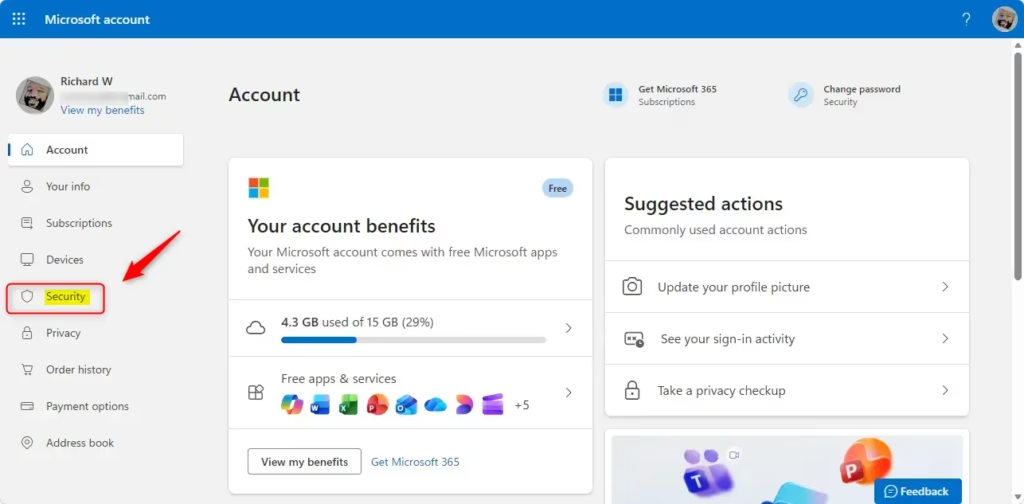
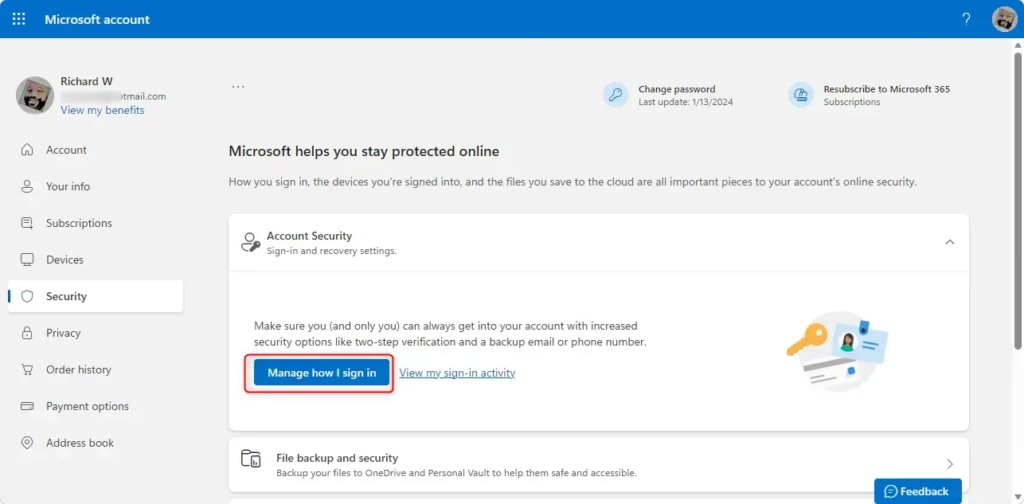
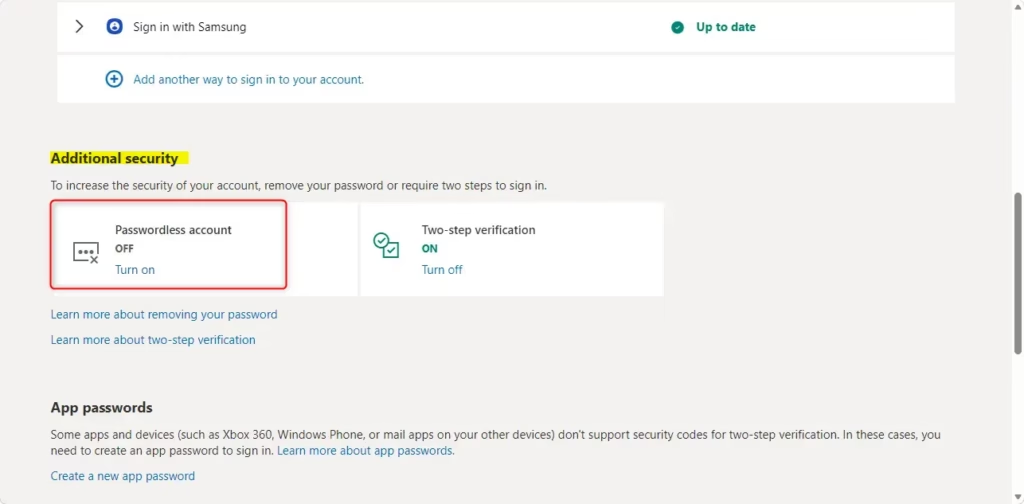
Making your microsoft passwordless setup active requires you to sign in at account.microsoft.com using your current credentials. Once you log in, open your security settings and select the option to turn on passwordless account access, then follow the prompts on your screen.
Step 3Understand How You'll Sign In Now
Your new microsoft passwordless account uses secure verification methods like phone prompts or biometrics instead of a typed password. Setting up more than one sign-in method ensures you do not get locked out if your primary device is lost or broken.
Microsoft offers several ways to prove identity without a password, and accounts typically feature a mix of these options. Backups matter—if one method encounters a problem, alternative options keep access open.
Your New Sign-In Options
- Microsoft Authenticator App: This is the most common method. When you try to sign in, you'll get a notification on your phone through the Authenticator app. Just tap "Approve" to sign in. It's very fast and secure.
- Windows Hello: If you use Windows 10 or 11 on a compatible device, you might have Windows Hello set up. This lets you sign in using your fingerprint, face recognition, or a PIN you set up for your Windows login. When signing into your Microsoft account on that device, you'll be asked to use your Windows Hello option.
- Outlook for Android: Like the Authenticator app, the Outlook mobile app can also be set up to approve sign-in requests for your Microsoft account.
- Physical Security Keys: These are small USB devices (or NFC/Bluetooth devices) you can use to sign in. Plug them in or tap them when asked, and they provide very strong security.
- SMS Codes (Less Recommended): Microsoft is moving away from SMS codes for security reasons (they can be intercepted). They might still be an option for some accounts as a backup. You'd get a code via text message to enter on the sign-in screen. However, relying only on this is less secure than other methods.
Your microsoft passwordless setup gives you a few different ways to log in without a traditional password. You can use the Microsoft Authenticator app to tap approve on your phone, or use Windows Hello to sign in with your fingerprint or face.
Summary
This guide helps switch your Microsoft account to passwordless sign-in by configuring the Authenticator app and enabling the feature in security settings for faster, safer logins.
Was this guide helpful?

About the Author
Richard
Tech Writer, IT Professional
Richard is a writer at Geek Rewind who turns complex IT tasks into clear, step-by-step guides. He draws on years of hands-on experience in system administration and enterprise IT operations, focusing on Windows, Linux and WordPress: the problems people actually run into, and the fixes that work. His server and WordPress guides come from systems he runs himself. Richard builds and maintains the platform behind Geek Rewind, from its Ubuntu servers and Nginx configuration to its custom WordPress plugins. Many new tutorials start with readers' questions, and he's always glad to answer them in the comments.



No comments yet — be the first to share your thoughts!