Get Your Phone Set Up with Microsoft Authenticator

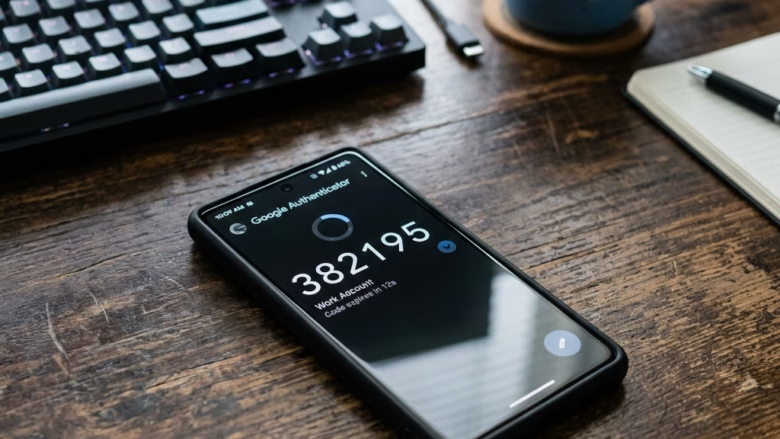
Microsoft Authenticator is a free phone app for iPhone and Android. Once it is set up, you can sign in to your Microsoft account by approving a prompt on your phone instead of typing a password. It adds two-factor authentication, which means you prove who you are with two things: your password (or your phone’s lock) and the phone itself.
Setup takes about 5 minutes. You link your phone to your account once. After that, you tap an approval prompt on your screen whenever you sign in somewhere new. You need your phone, a working internet connection, and the password for the account you want to protect.
Microsoft Authenticator setup takes about 5 minutes. Download the app from the App Store (iOS) or Google Play Store (Android), checking that the developer is Microsoft Corporation. Launch it, accept the privacy screens, grant permissions for notifications and camera access, then link your Microsoft account by scanning a QR code or entering your email when prompted.
Step 1Find the Microsoft Authenticator App
The first step is to find the real Microsoft Authenticator app in your phone’s app store. Fake apps with similar names and icons exist, and a malicious copy defeats the whole point of adding security.
For iOS (iPhone and iPad) Users:
On an iPhone or iPad, install the app from the App Store:
- Open the App Store on your home screen.
- Tap Search and type Microsoft Authenticator.
- Find the app with the blue icon showing a shield and the letter “A”.
- Check that the developer name reads Microsoft Corporation.
- Tap Get, then confirm with Face ID, Touch ID or your Apple ID password if asked. The button changes to Open when the install finishes.
Always double-check the download source before you tap Get.
The real app has a very large number of ratings and mostly positive feedback. A copy with few ratings is a red flag.
If you would rather skip the search, use the direct link below. It takes you straight to the official listing.
For iOS (Apple App Store): Download Microsoft Authenticator on the App Store
For Android Users:
On an Android phone, install the app from the Google Play Store:
- Open the Play Store from your home screen or app drawer.
- Tap the search bar and type Microsoft Authenticator.
- Find the app with the blue shield icon and the letter "A".
- Check that the developer name reads Microsoft Corporation. This is how you avoid a fake app.
- Tap Install. The button changes to Open when the download finishes.
The official app appears near the top of the search results. If you see several similar apps, go by the developer name, not the icon alone.
Installing from other websites risks putting malware on your phone, and an authenticator app is a particularly bad place to take that risk.
The direct link below takes you straight to the official listing.
For Android (Google Play Store): Get Microsoft Authenticator on Google Play
Step 2Launch the App and Get Started
Setup starts as soon as the app is installed. When you launch Microsoft Authenticator for the first time, it walks you through the first screens. You will see a privacy notice and a prompt to add your first account. Follow those on-screen instructions, and use the steps below for the permissions and account linking.
Opening on iOS:
- Tap the Microsoft Authenticator icon on your home screen or in the App Library.
- Read and accept the privacy and data-use screens when they appear.
- When the app asks for permission to send notifications, tap Allow. This is what lets sign-in approval prompts show up on your screen right away.
- When the app asks for camera access, tap OK or Allow. This lets you scan the setup codes (QR codes) that websites show you.
Granting both permissions gives you the full app experience. If you tapped Don't Allow by mistake, you can fix it later in the iPhone Settings app. Scroll down to Authenticator and switch on Camera and Notifications.
Opening on Android:
- Find the Microsoft Authenticator icon in your app drawer or on your home screen and tap it.
- Accept the privacy and data-use screens when they appear.
- If your phone asks to send notifications, tap Allow. Newer Android versions (Android 13 and later) ask for this explicitly. On older versions, notifications are on by default.
- When you first scan a code, tap While using the app (or Allow) on the camera permission prompt. The wording varies a little between phone makers.
Android asks for permissions in much the same way as iOS. Allow the camera if you plan to scan QR codes, and allow notifications so sign-in alerts arrive immediately.
Warning: If you deny a permission the app needs, some features stop working. Without camera access, for example, you cannot scan a QR code to add an account. You can change this later in your phone's Settings, under the app's permissions.
Step 3Add Your Accounts (The Fun Part!)
Connecting your accounts to the app is the main part of the setup. There are several ways to do it, but scanning a QR code is the most common and the easiest.
For a Microsoft account, the usual routine looks like this:
- In the app, tap the + (add) button, or tap Add account on the first screen.
- Choose the account type: Personal account, Work or school account, or Other account (for Google, Facebook and similar services).
- Follow the prompt to sign in, or scan the QR code that the website displays on your computer screen.
- When the account is added, you should see it listed in the app with a rotating code or an approval option.
For a work or school account, your organization may control whether you are allowed to use the app. If the option is missing or fails, contact your IT department.
Adding Accounts Manually:
If the QR code scanner fails, you can add an account manually with a secret key from the service. This also helps when you are setting up the app on the same phone you are browsing on, since you cannot scan your own screen.
- Open the app and tap the + (add) button.
- Pick the account type, usually Other account for non-Microsoft services.
- Choose Or enter code manually below the camera view.
- Type the account name and the secret key given by the website you want to protect.
- Tap Finish. The account should appear in your list.
Recovery codes and backups matter here. Recovery codes give you access to an account if your phone or the Authenticator app is lost. Store them in a secure place, such as a password manager or a printed copy kept somewhere safe. Without them, regaining access can be very difficult or impossible. The app also offers a cloud backup option in its settings, which can help you restore your accounts on a new phone. Check that option once your accounts are added.
Step 4Configure Two-Step Verification
Adding an account to the app is not enough on its own. You also need to turn on multi-factor authentication (a security system that requires two or more forms of verification) in the service's own security settings. Go to the security page of the website or email service you want to protect and find the sign-in settings. Then turn on the prompt approval option.
- Sign in to the Microsoft account or service you are protecting and open its Security settings. The exact menu names vary by service and change over time.
- Find the option for two-step verification, also known as multi-factor authentication (MFA), and turn it on.
- When asked how you want to verify your identity, select Authenticator app as the method.
- Follow the prompts to link the app, scanning a QR code if one is shown.
A test notification then arrives on your phone through the Authenticator app. Approve the sign-in attempt to complete the test. If the approval goes through, the connection works. If nothing arrives, check that notifications are allowed for the app and that your phone is online.
Warning: Do not turn off two-step verification unless you have to. It is one of the best defenses against someone else getting into your account, even if they know your password.
Summary
This guide covered setting up Microsoft Authenticator on your smartphone. It took you from installing the app, through allowing permissions and linking your accounts, to turning on two-step verification.
Did this guide fix your problem?

About the Author
Richard
Tech Writer, IT Professional
Richard is a writer at Geek Rewind who turns complex IT tasks into clear, step-by-step guides. He draws on years of hands-on experience in system administration and enterprise IT operations, focusing on Windows, Linux and WordPress: the problems people actually run into, and the fixes that work. His server and WordPress guides come from systems he runs himself. Richard builds and maintains the platform behind Geek Rewind, from its Ubuntu servers and Nginx configuration to its custom WordPress plugins. Many new tutorials start with readers' questions, and he's always glad to answer them in the comments.
No comments yet — be the first to share your thoughts!