How to Link Your Google Account and Microsoft Account

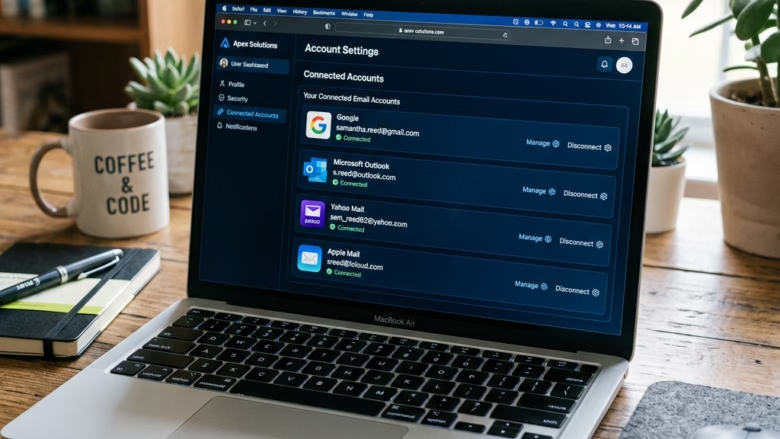
Linking your Google account to a Microsoft account lets you sign in to Microsoft services with your Gmail address. The link works by adding your Gmail address to your Microsoft account as an alias, which is an extra email address that points to the same account. After that, you can use the Gmail address to sign in to services like Outlook.com and OneDrive.
You still sign in with your Microsoft account password. Your Google password is not used or stored by Microsoft, and it does not give anyone access to your Windows PC. Your existing Microsoft password and your PC’s sign-in security do not change.
Open account.microsoft.com and sign in with your Microsoft account. Go to Security Signing in with Microsoft Add a sign-in method, select Email, enter your Gmail address, then verify it through the confirmation message Microsoft sends to that Gmail inbox. Your Gmail address becomes an alias and you can use it to sign in to Outlook.com and OneDrive.
Why Link Your Gmail to Your Microsoft Account?
A linked Gmail address gives you a second way to identify yourself to Microsoft. If you forget your main sign-in name, or you are unsure which address you used to create the account, you can try the Gmail address instead. You can also use it to receive security codes and recovery messages. That is the main protection against an accidental lockout.
Here is what the link does and does not do:
- Another Way to Sign In: If you forget your main Microsoft account password, having your Gmail address linked means you have another way to prove who you are. This can be very helpful if you need to get back into your account.
- Things Feel More Connected: This doesn’t merge your emails or services together. But, it does create a connection. You can use your familiar Gmail address to access things linked to your Microsoft account. This can feel more organized for some people.
- Helps Recover Your Account: It gives you an extra way to recover your account. If someone gets into your Microsoft account, having a linked Gmail address can help you prove it’s yours and secure it better.
Adding Gmail as an alternative sign-in name leaves Google and Microsoft separate. Your Gmail inbox stays in Gmail, and your Outlook.com mail stays in Outlook.com. Google Drive storage and OneDrive storage are counted separately, and nothing is copied or merged between them.
What You Need to Get Started
The setup takes only a few minutes if you have everything ready. You need your current Microsoft account email address and password, access to your Gmail inbox so you can open the verification message, and a web browser.
- Your Microsoft Account Details: This is the email address and password you usually use for services like Outlook.com, Xbox Live, or Windows.
- Your Gmail Account Details: You will need to be able to log into your Gmail account, including its password, to prove you own it.
- A Web Browser: Any current web browser like Edge, Chrome, or Firefox will work.
- An Internet Connection: You will need to be online to make these changes.
Before you start, sign in to both services in your browser to confirm that your passwords work. If you cannot get into either account, fix that first. Otherwise you will get stuck partway through, usually at the verification step. Also, if your Microsoft account has two-step verification turned on, keep your phone or authenticator app nearby. Microsoft may ask for a code when you change sign-in settings.
How to Link Your Gmail Address Step-by-Step
The process has five parts: sign in to your Microsoft account, open the sign-in settings, add Gmail as an alias, verify the address from your Gmail inbox, and decide whether to make it your primary alias.
Step 1Go to Microsoft Account Management
First, sign in to the page where you manage your Microsoft account. That is where your profile details and security options live.
- Open your browser and go to account.microsoft.com.
- Click Sign in if the page does not take you straight to a login box.
- Type your Microsoft account email address and click Next.
- Type your password and click Sign in. Complete any two-step verification prompt if one appears.
You should now see your account dashboard, with your name and the account's services and security options.
https://account.microsoft.com/
Use the Microsoft profile you actually rely on. If you are not sure which one that is, check which address you use to sign in to Windows, which one your Xbox profile uses, or which one holds your Microsoft 365 subscription. Linking Gmail to the account you use most gives you the most benefit.
Signing in to the wrong one is the most common mistake here.
Step 2Find the "Sign-in preferences" Section
Next, find the sign-in settings. This is where Microsoft keeps your password, your alternative sign-in methods, and your account aliases.
- On the account dashboard, look at the left-hand menu.
- Click the sign-in option. Depending on when Microsoft last updated the site, it is labeled Sign-in preferences or something close to it, such as Your info followed by a link to manage how you sign in.
- Re-enter your password or a security code if Microsoft asks you to confirm it is you.
You should now see a page that lists the email addresses and phone numbers you can use to sign in.
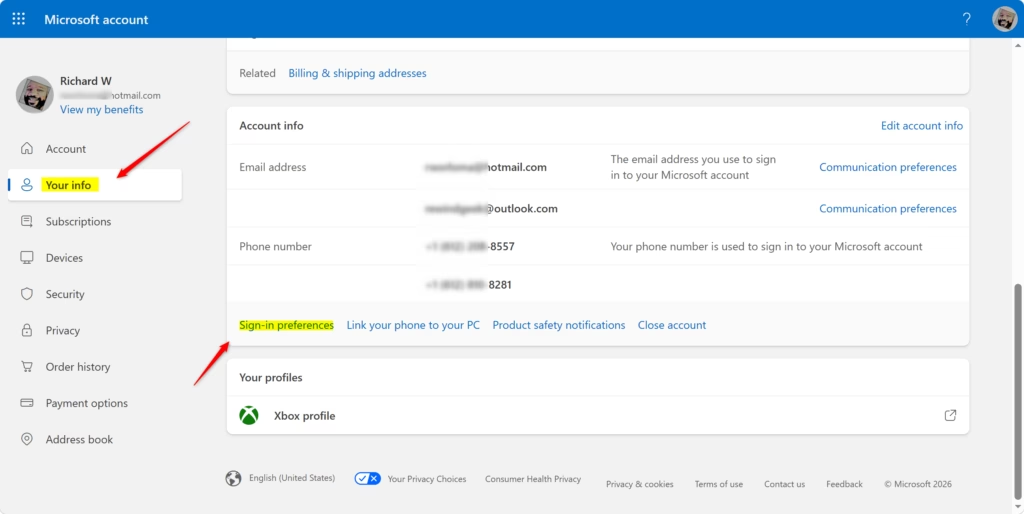
You manage everything on this page, including adding and removing sign-in methods. Add the new one before you remove any existing method. Microsoft advises this because removing a method first can leave you with no way to sign in. For this tutorial you only need to add, so leave your current addresses alone.
Step 3Add Your Gmail Address as an Alias
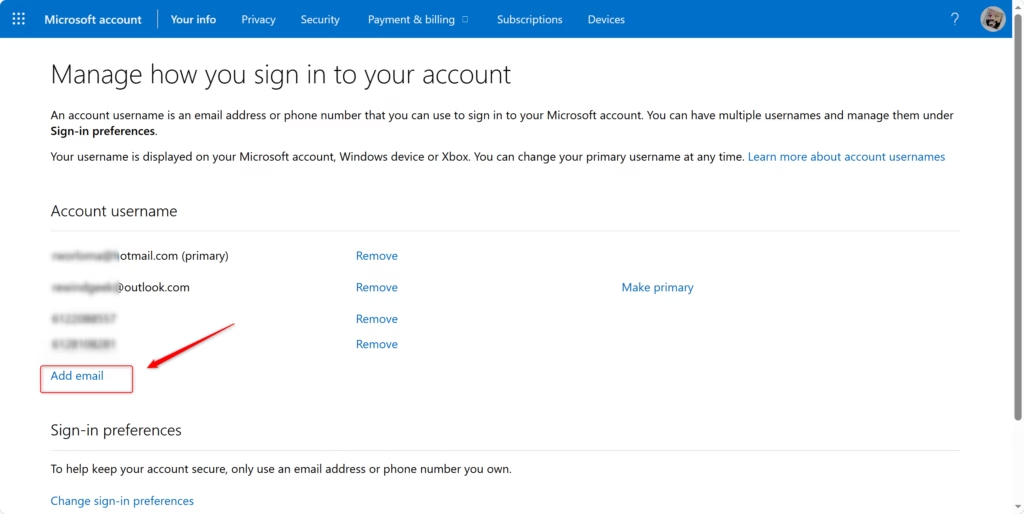
Now add your Gmail address as an alias. Once it is added and verified, it works as a sign-in name for your Microsoft account.
- On the sign-in page, click Add an alias.
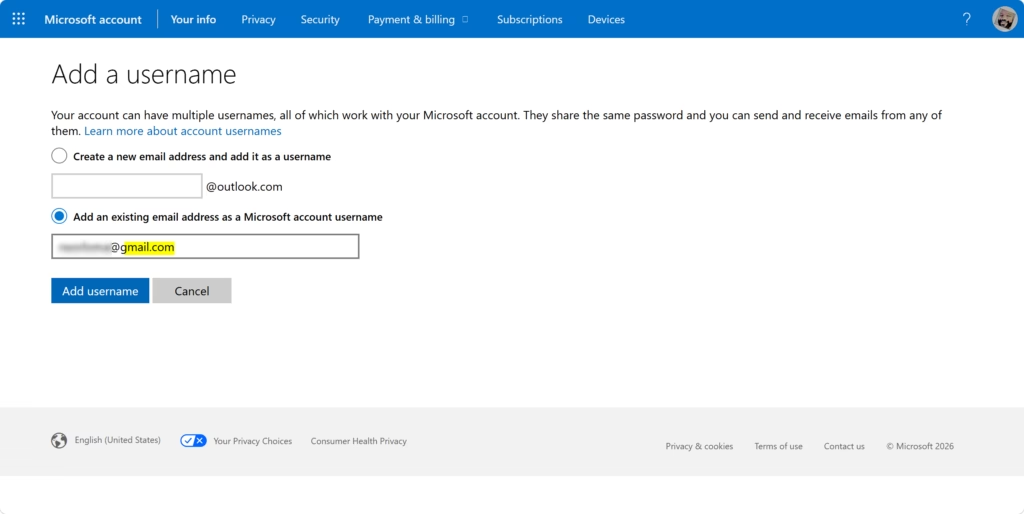
- Microsoft usually offers two choices: create a new Outlook.com email address, or use an existing one. Select Use an existing email address.
- Type your full Gmail address into the box, for example yourname@gmail.com.
- Click Add alias.
Microsoft should now say it has sent a verification message to that address, and the Gmail address appears in your alias list as unverified.
If you get an error saying the address is already in use, that Gmail address is probably already tied to another Microsoft account. You will need to remove it from that account first, or use a different address.
An alias is just an alternative address for the same account. You do not need to create any other kind of alias. Adding your Gmail address is enough.
Step 4Verify Your Gmail Account
The verification step proves to Microsoft that you own the Gmail address you just entered. Until you finish it, the address will not work for signing in.
- Open a new browser tab or window. Leave the Microsoft page open in the other tab.
- Go to the Gmail address shown below.
https://mail.google.com/
- Sign in to your Gmail account if you are not signed in already.
- Look in your inbox for the message from Microsoft. The subject line usually reads "Verify your email address" or "Confirm your alias."
- Open the message and click the verification link or button inside it.
A Microsoft page should open and tell you the address has been verified. If you cannot find the email, wait a minute or two, then check your Spam and Promotions folders. If it still has not arrived, go back to the Microsoft sign-in page and request a new message.
Important Warning: Do not click the link if the email looks suspicious. Check that the sender is Microsoft and that the message matches what you just did. If you did not ask for it, ignore it. Phishing emails often copy Microsoft's look.
Step 5Finish Verification and Make it Primary (Optional)
Once you verify the address, your Gmail address is connected to your Microsoft account. The last decision is whether to make it your primary alias. The primary alias is the address Microsoft uses for notifications and shows as your main sign-in name.
Your Gmail address now appears on the sign-in page under your list of aliases. Several aliases can exist at once, but only one can be primary. Outlook.com also uses the primary alias for system messages and for outgoing mail sent from Outlook.com.
To make Gmail the primary alias:
- Go back to the Microsoft sign-in page and find your Gmail address in the list.
- Click Make primary beside it.
- Confirm the change when Microsoft asks you to.
The Gmail address should now be marked as primary. If you do not see the Make primary button, check that the address has been verified.
If you would rather keep things as they are, skip this step. Your original Microsoft address still works for signing in either way, and you can switch the primary alias back at any time.
Using Your Linked Gmail Address
After verification, you can use the Gmail address as your sign-in name for Microsoft services such as Outlook, Xbox, or Windows. On the sign-in screen, type your linked Gmail address and your Microsoft account password. Do not enter your Google password. It is not used here, and your Google account settings are not changed.
The link gives you another sign-in name without changing the password on either account. You get the convenience of a familiar address, and each service keeps its own password.
If you ever want to undo the link, go back to the sign-in page. Remove the Gmail alias there, but only after you are sure you can sign in with another address. If the Gmail address is your primary alias, make a different address primary first.
Reference:
Summary
Linking Gmail to your Microsoft account gives you another way to sign in and another route for recovering the account. It only adds a sign-in name. Your emails, files, and services on each platform stay where they are.
To check the setup, return to the sign-in page. Confirm that your Gmail address is listed and verified, and that the primary alias is the one you want. Then try signing in once with the Gmail address and your Microsoft password. If that works, you are done.
Have a question about this guide?
Answered by AI from this guide. Good questions may be added to this page — please don't include personal details.
Did this guide fix your problem?

About the Author
Richard
Tech Writer, IT Professional
Richard is a writer at Geek Rewind who turns complex IT tasks into clear, step-by-step guides. He draws on years of hands-on experience in system administration and enterprise IT operations, focusing on Windows, Linux and WordPress: the problems people actually run into, and the fixes that work. His server and WordPress guides come from systems he runs himself. Richard builds and maintains the platform behind Geek Rewind, from its Ubuntu servers and Nginx configuration to its custom WordPress plugins. Many new tutorials start with readers' questions, and he's always glad to answer them in the comments.
No comments yet — be the first to share your thoughts!