How to View Microsoft Account Sign-In Activity

The Microsoft account sign-in activity page tracks every login attempt made to your Microsoft account over the past 30 days. This history log lists the exact date, time, approximate location, and device used for each sign-in.
Checking this list helps you spot any unauthorized access right away. If something looks wrong, you can change your password and keep your personal information safe from hackers. It takes a couple of minutes, and it is worth doing every few months even if nothing seems off.
Go to https://account.microsoft.com, sign in with your email and password, click Security at the top, then select See your sign-in activity or Review recent activity. You will see every login to your account from the past 30 days, including date, time, location, and device used.
Why Check Your Sign-In Activity?
Checking your sign-in activity helps you spot unknown logins and keep your personal data safe from hackers. You can see the date, time, and location of every successful and failed sign-in attempt from the past thirty days, so you can catch suspicious access attempts early.
- Spotting Unwanted AccessIf you see a login from a place you’ve never visited, or at a time you know you weren’t using your account, treat it as a warning sign. It could mean someone else has your password.
- Understanding Your UsageYou might forget when you signed in from a new device or a different web browser. The history can remind you, and it helps you tell your own logins from strangers’ logins.
- Securing Your DataIf you find suspicious activity, you can act quickly to protect your information. The sooner you change your password, the less time an intruder has.
Microsoft’s “Recent activity” page gives you this log. It shows when and where your account was accessed over the past month.
Getting Started: Accessing Your Microsoft Account Online
This option is not available inside Windows Settings, so it works the same on Windows 11, Windows 10, or any other computer, phone, or tablet. Open a browser such as Microsoft Edge or Google Chrome, go to the official Microsoft account website, and sign in with your email address and password.
- Open your web browser. Start Microsoft Edge, Chrome, Firefox, or whichever browser you normally use. If you are on a shared or public computer, open a private or InPrivate window so your sign-in is not kept afterwards.
- Go to the Microsoft account page. Click the address bar at the top of the browser, type the following web address, and press Enter:
https://account.microsoft.com/
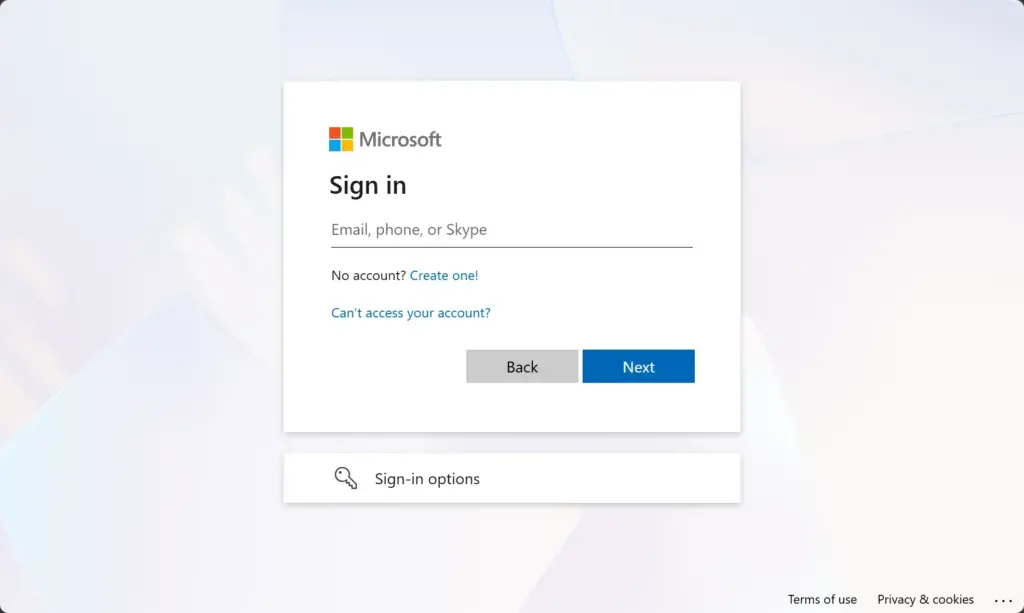
You should now see the main page for managing your Microsoft account settings and information, or a sign-in prompt. - Sign in. Type the email address (or phone number or Skype name) for your account, then enter your password. If you have two-step verification turned on, approve the sign-in in your authenticator app or enter the code you receive. Once you are in, you will see your account dashboard.
Finding Your Sign-In Activity
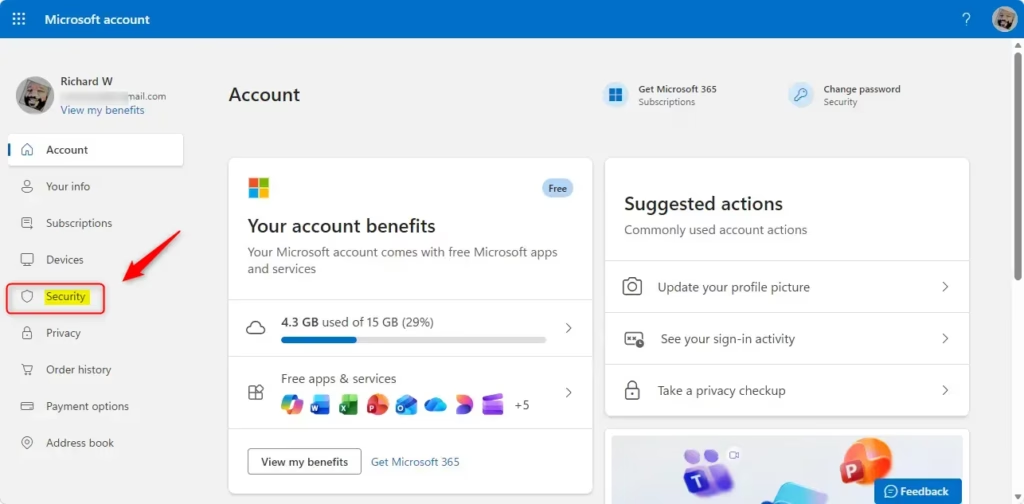
The sign-in history sits under the Security tab of your online account. After you sign in to your Microsoft account page, click the Security menu at the top of the page, then select the option to view your activity or sign-in history. The wording of menu items on Microsoft’s site changes from time to time, so look for the closest match.
- Find the Security section. On your Microsoft account page, look for Security. It is usually in a menu near the top or side of the page. Click it. The page now shows options for keeping your account safe.
- Open your sign-in activity. Look for a link or button that says something like See your sign-in activity or Review recent activity. Click it. If you cannot see it right away, scroll down the Security page, because it may sit below other options.
- Confirm your identity again. Microsoft often asks you to verify yourself again before it shows security information, even though you just signed in. Enter your password and complete any two-step verification prompt that appears. This stops someone from viewing your history if they only have your password and not your phone or other verification method. When you pass the check, the activity list opens.
If you never get a verification prompt, or the code never arrives, check that the security info on your account (phone number or backup email) is still current. If you no longer have access to those, use the account recovery option on the sign-in page.
Understanding the Activity Log
The activity log shows the history of sign-in attempts from the past thirty days. Each entry lists the date, the approximate location, the IP address (a number your internet connection assigns to your network), and the device or browser used to reach your account.
What You Will See: Each entry usually shows:
- Date and TimeWhen the activity happened.
- LocationThe approximate place where the login or activity happened. This is usually based on the IP address used, so it can be off by a city or more. Mobile data connections and VPNs often show a location far from where you actually are, so don’t panic over one odd city. Look for patterns.
- Device/ApplicationHow the account was accessed, for example through a web browser (like Chrome or Edge), a phone app, or a service like Xbox.
Entries can show more detail. You will often see a small arrow or a plus (+) sign next to an activity. Click it to reveal more about that login or action. The expanded view might include the exact browser version, such as Chrome 114, or more precise location data. Compare these details with what you know about your own devices.
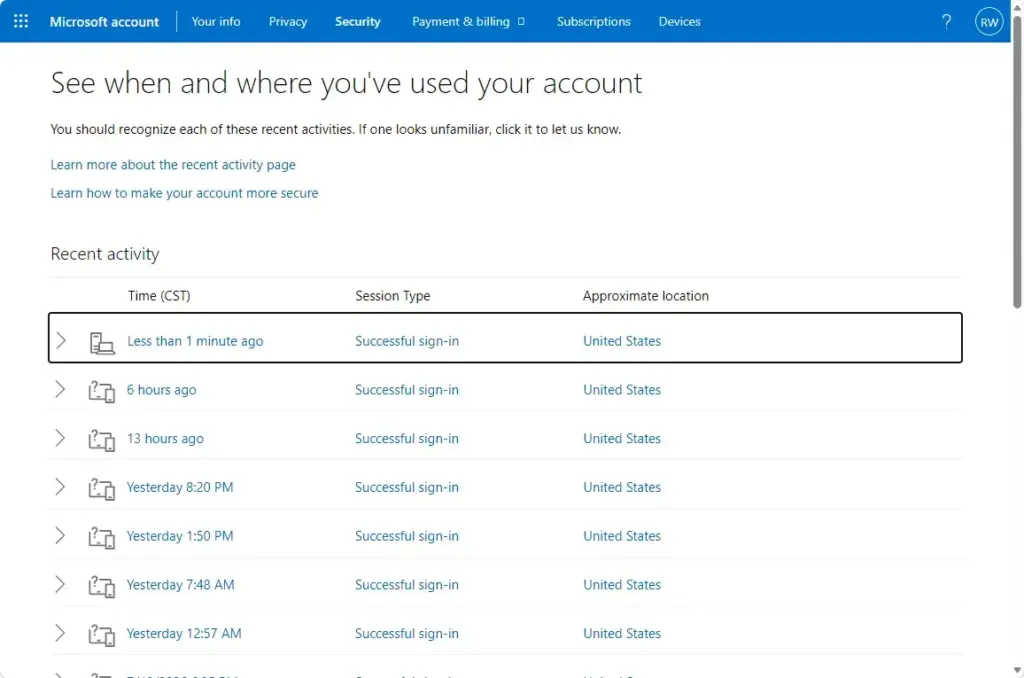
Two sections help you make sense of the list. The “Recent activity” section logs your normal logins and actions. The “Unusual activity” or “Unsuccessful sign-in activity” section shows attempted logins that were not successful. Check this section carefully, because repeated failures from places you don’t recognize can mean someone is guessing your password.
If you see a sign-in you don’t recognize, do these things right away:
- Change your password from the Security page, using one you don’t use anywhere else.
- Check that your security info (phone number and backup email) is still yours and remove anything you don’t recognize.
- Turn on two-step verification if it is not already on.
References:
https://support.microsoft.com/en-US/accounts-billing/security/what-is-the-recent-activity-page
Summary
Checking your Microsoft account’s sign-in activity is an important security step. Visit the Microsoft account website and go to the Security section to review the last 30 days of logins. That lets you spot unauthorized access early and act before it becomes a bigger problem, which keeps your personal information safe.
Frequently asked questions
How to see recent logins on Microsoft account?
Go to account.microsoft.com and sign in. Select Security at the top of the page, then select Recent activity. The list shows each sign-in from the past 30 days, with the date, time, approximate location, and device used. If you see a sign-in you don't recognize, change your password right away.
Where is recent activity page Microsoft?
The Recent activity page sits inside the Security section of your Microsoft account. Sign in at account.microsoft.com, select Security, then select Recent activity. It lists sign-ins and other account actions from the past 30 days, so you can check for anything you don't recognize.
Where to see where my Microsoft account is logged in?
Open account.microsoft.com and sign in. Select Devices to see the PCs, phones, and other gadgets linked to your account. For sign-in details, select Security, then Recent activity, which shows the device, browser, and approximate location of each recent sign-in.
How to see login activity Microsoft?
Go to account.microsoft.com, sign in, and select Security. Then select Recent activity. Each entry shows the date, time, device, and approximate location of a sign-in over the past 30 days. Check the list every few months, and change your password if a login looks wrong.
Where to see where my mircosoft account is logged in?
The Devices page on your Microsoft account shows the computers, phones, and tablets linked to it. To see sign-in history, go to account.microsoft.com, select Security, then Recent activity. It lists each sign-in from the past 30 days with its device and location.
How to review recent activity on Microsoft?
To review recent activity on your Microsoft account, go to account.microsoft.com and sign in. Select Security, then choose Recent activity. Scan the entries for unfamiliar dates, times, locations, or devices. If one looks wrong, change your password, then check the list again in a few days.
Still have a question?
Answered by AI from this guide. Good questions may be added to this page — please don't include personal details.
Did this guide fix your problem?

About the Author
Richard
Tech Writer, IT Professional
Richard is a writer at Geek Rewind who turns complex IT tasks into clear, step-by-step guides. He draws on years of hands-on experience in system administration and enterprise IT operations, focusing on Windows, Linux and WordPress: the problems people actually run into, and the fixes that work. His server and WordPress guides come from systems he runs himself. Richard builds and maintains the platform behind Geek Rewind, from its Ubuntu servers and Nginx configuration to its custom WordPress plugins. Many new tutorials start with readers' questions, and he's always glad to answer them in the comments.
No comments yet — be the first to share your thoughts!