How to Set Up Windows 11 Phone Link: Connect Your Phone

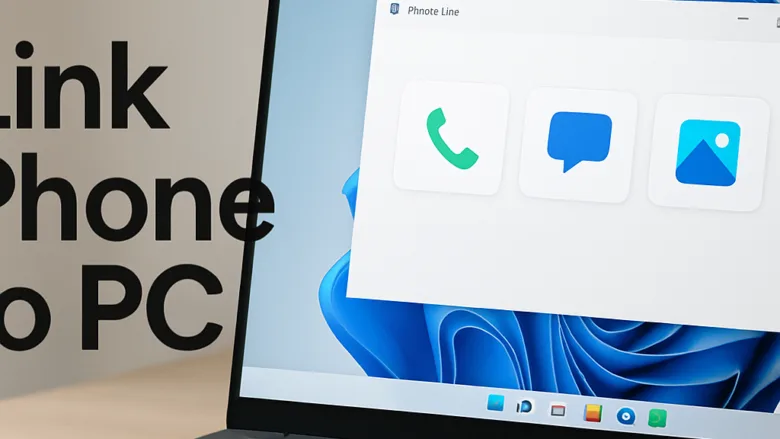
Phone Link in Windows 11 lets you read text messages, make phone calls, and view mobile photos on your computer screen. Microsoft builds the app into Windows 11 version 22H2 and later, so you can connect an Android phone or an iPhone without cables.
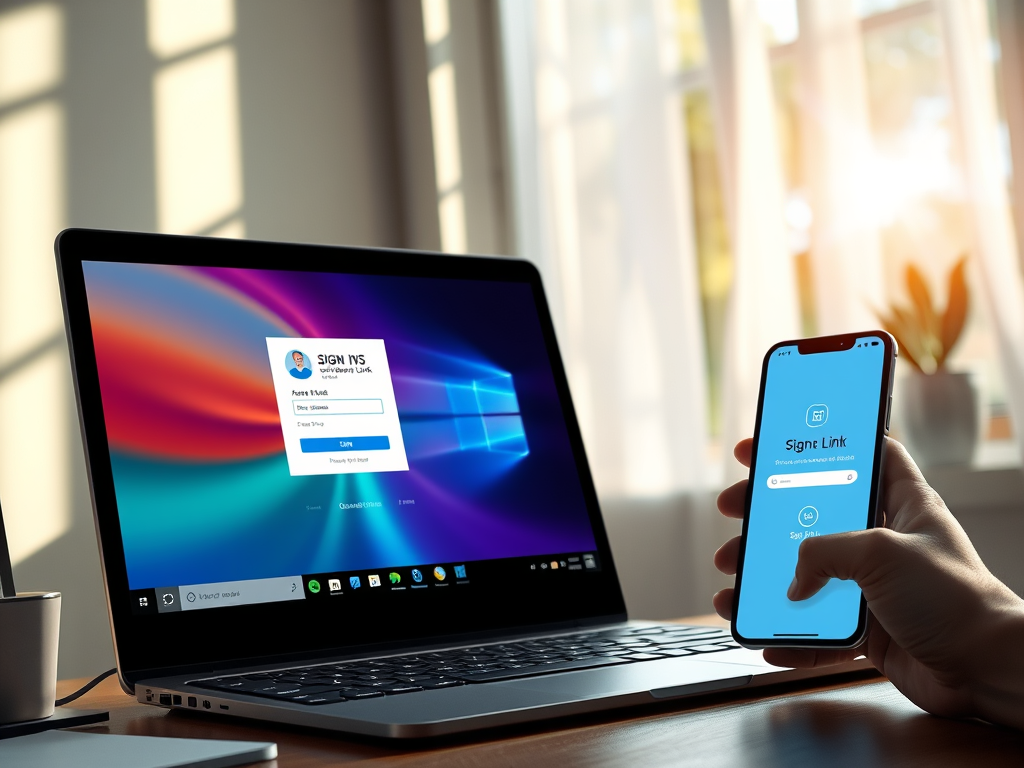
Pairing takes about two minutes. On Android you scan a QR code with the phone camera. Once connected, your PC shows your notifications and handles calls and messages, so you can stay at your desk without picking up the phone. Both devices need an internet connection, and the PC and phone should be on the same Wi-Fi network while you pair.
Open Phone Link on your PC from the Start menu, choose Android or iPhone, scan the QR code shown on screen with your phone’s camera, then grant the requested permissions. Your phone and PC must be on the same Wi-Fi network and both have internet access during setup.
Getting Started with Phone Link
Start here if you are setting up the app for the first time or need to pair your phone again. If the phone no longer connects, remove the old link on both devices first, then pair again from scratch. This is usually faster than troubleshooting a half-broken pairing.
Managing Calls, Texts, and Notifications
A linked phone needs a little attention to keep calls and alerts working. These guides cover how to handle incoming calls, send text messages, and review phone notifications from the desktop.





Accessing Photos and Files
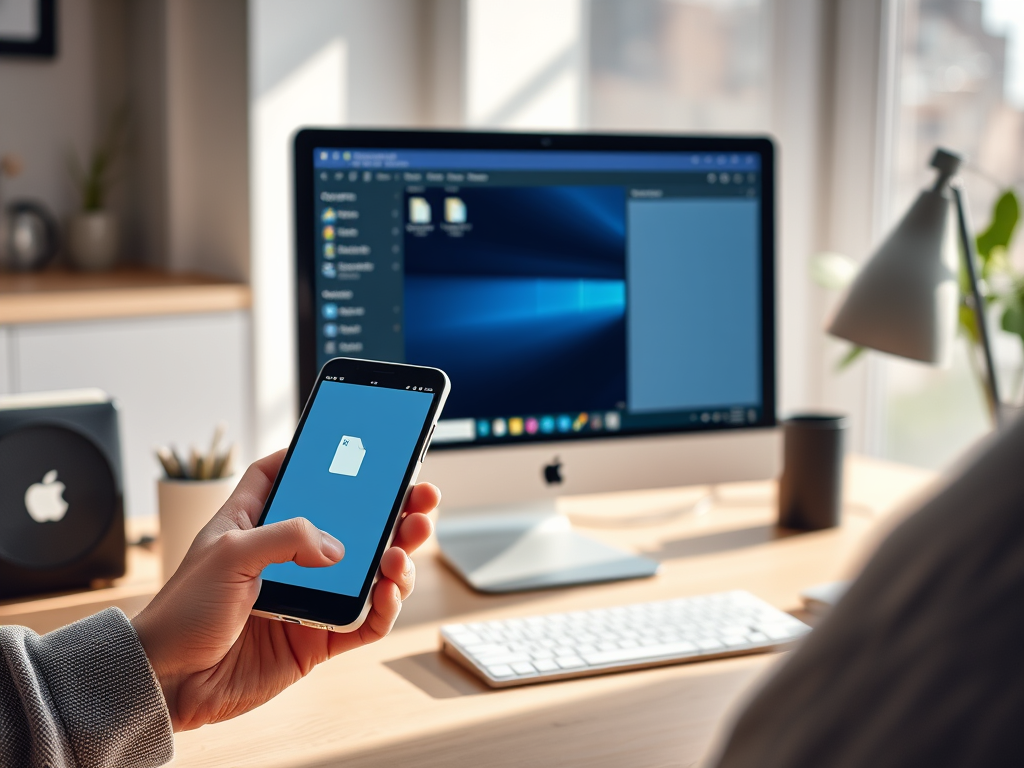
Photos and files move between the phone and PC through the app. These guides cover reviewing pictures, adjusting the file access permissions, and transferring media and documents.
If no photos appear, the usual cause is that the phone has not been given access to its photos and media. Check the permissions on the phone first. Photo access is an Android feature. An iPhone linked to Phone Link does not show its photos on the PC.
Advanced Features and Customization
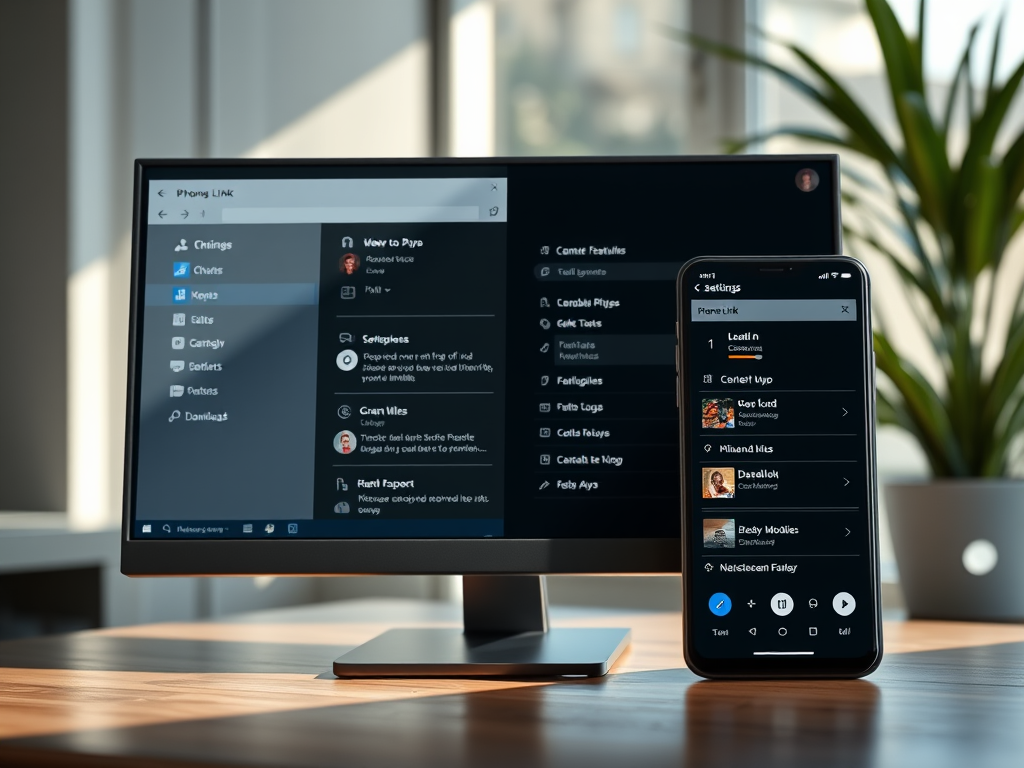
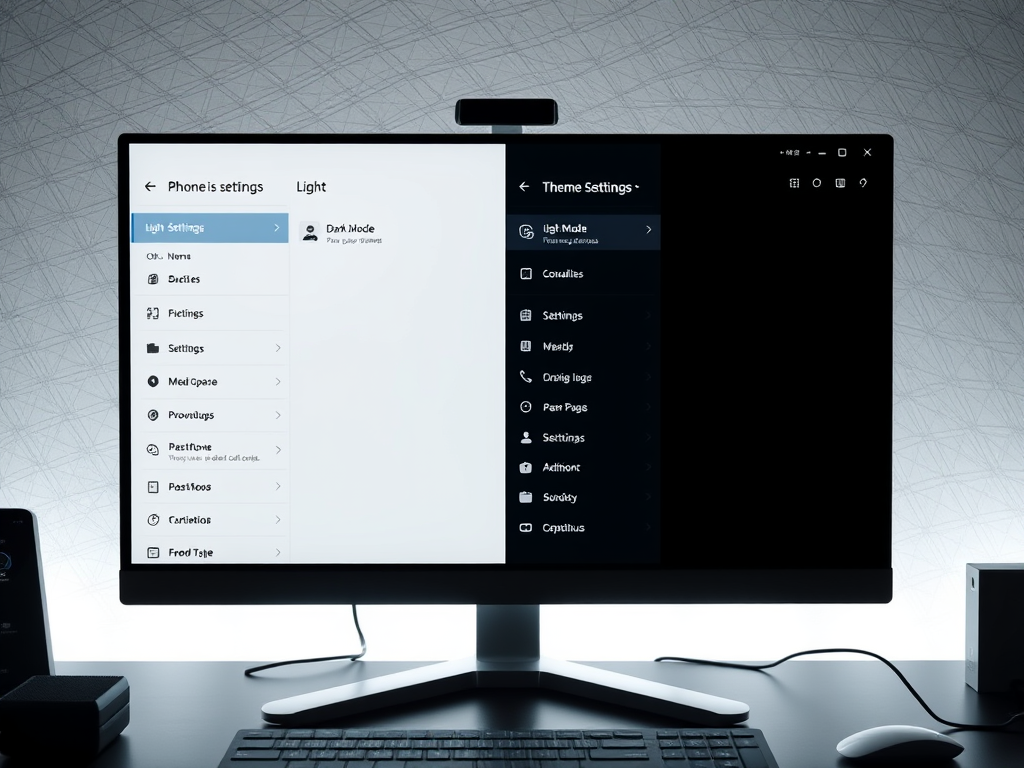
Advanced features include screen mirroring and desktop shortcuts for your phone apps. You can also change how the app looks so it fits in better with the rest of Windows.
Some of these features depend on the phone model and Android version. If an option is missing or greyed out, it is usually because the phone does not support it, not because something is wrong on the PC.
More on 🪟 Windows 11 Phone Link
Common questions
How do I link my Android phone to 🪟 Windows 11?
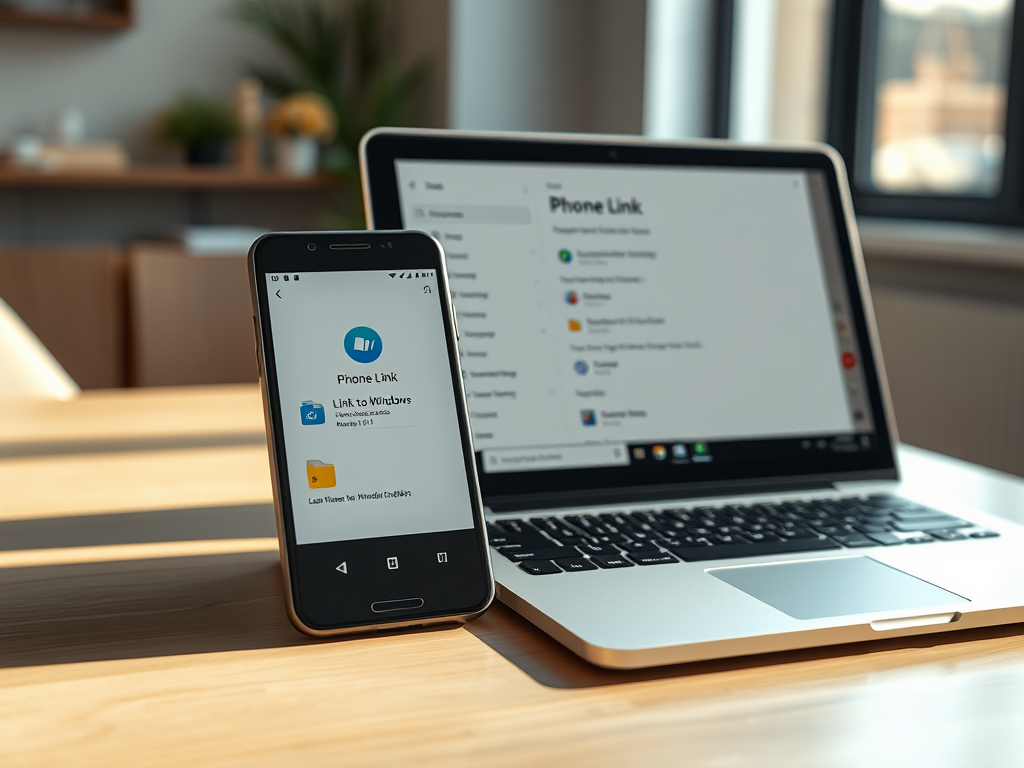
To pair an Android phone, you need the Phone Link app on the PC and the Link to Windows app on the phone. Many Samsung phones already include Link to Windows. Follow these steps:
- Open the Phone Link app on the PC. Search for it in the Start menu if it is not pinned.
- Choose Android when the app asks which type of phone you have. The app now shows a QR code.
- Pick up the phone and open its camera or the Link to Windows app, then scan the QR code on the PC screen.
- Follow the prompts on the phone. Some versions ask you to confirm a numerical code that matches the one shown on the PC.
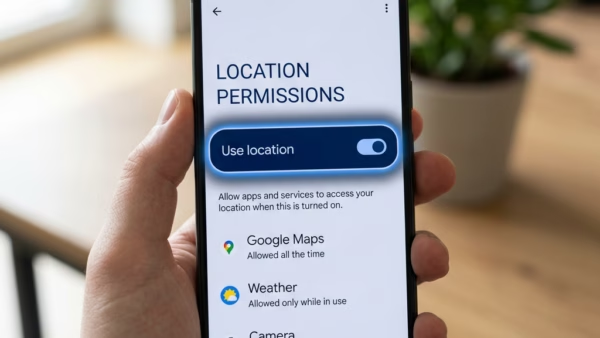
- Grant the permissions the phone asks for, such as access to contacts, messages, phone calls, and photos. Each permission turns on the matching feature, so skipping one disables that feature later.
When pairing finishes, the Phone Link window shows your messages, calls, photos, and notifications. If the QR code expires or fails to scan, close the code and ask the app to generate a new one.
Can I link my iPhone to 🪟 Windows 11?
Apple devices also connect to Windows 11 through Phone Link. Install the Link to Windows companion app on the iPhone first, since it covers the phone side of the pairing. Then start the pairing sequence in Phone Link on the desktop and follow the prompts on both screens.
The iPhone connection relies on Bluetooth, so turn Bluetooth on for both devices and keep them close together during setup. An iPhone has fewer features than Android. Expect messages, calls, contacts, and notifications to work, but not photo browsing or screen mirroring.
Where do files downloaded from my phone go on 🪟 Windows 11?
Files transferred from a smartphone go to the Downloads folder on Windows 11 by default. You can change this target folder in the app’s settings. Open Phone Link, select the gear icon for Settings, and look for the file-saving option. Menu wording can vary between app versions, so if you cannot find it, look through each settings category.
How do I see my phone's notifications on my PC?
Notifications depend on two things. The desktop app must have notification permission, and the Link to Windows service must be running on the phone with its own notification access granted.
Configured alerts appear on the Windows taskbar or inside the app. If alerts stop arriving, work through this list:
- Confirm the phone is still linked and connected in Phone Link.
- Check that Link to Windows still has notification access on the phone.
- Turn off any battery-saver mode on the phone that stops background apps from running.
- Check that Windows notifications or Focus mode on the PC are not blocking Phone Link.
Can I mirror my phone screen on my 🪟 Windows 11 PC?
Screen mirroring is built into Phone Link on Windows 11. When you turn it on, the phone’s interface appears on the desktop monitor, and you can control it with the mouse and keyboard.
This feature works only with Android phones, and only some models support it. If the option does not appear, the phone is likely unsupported or not fully linked. Keep the phone unlocked and nearby while you use it.
Frequently asked questions
What do I do for my phone to connect?
Install Phone Link on your PC, open it, and select Get started. Choose Android or iPhone. On an Android phone, scan the QR code on the PC screen with your phone's camera and follow the prompts. Keep both devices on the same Wi-Fi network and connected to the internet until pairing finishes.
How can I attach my phone to my wridt?
Phone Link cannot pair with a smartwatch. Connect your watch through its own app on your phone, such as the Wear OS app, Galaxy Wearable, or the Watch app on an iPhone. Phone Link on your PC only mirrors your phone's notifications, messages, and photos, not your watch.
How to link phone to PC?
Open Phone Link on your Windows 11 PC and select your phone type. On Android, scan the QR code with your phone's camera. On iPhone, follow the pairing steps shown on screen. Both devices need internet access and should share the same Wi-Fi network while you pair.
How can I connect my phone number to my PC without my phone?
You cannot link your phone number to your PC without your phone. Phone Link needs the phone to scan a QR code or approve the pairing. Once it is linked, you can send and receive texts and calls from the PC, but the phone must stay connected to the internet and nearby.
How do I send to my phone on 🪟 Windows 11?
Open Phone Link on your PC and go to the Messages tab. Open a conversation, then drag the file into the message box or select the attachment icon and choose the file. The file is sent to the phone through the linked conversation. Your phone must be connected and the link active.
How to add my photos to Windows phone link?
You cannot add photos to Phone Link by hand. The Photos tab shows the recent photos stored on your linked phone. To see them, make sure the phone is paired and connected. To move a photo to your PC, open it in Phone Link and save it to your computer.
Still have a question?
Answered by AI from this guide. Good questions may be added to this page — please don't include personal details.
Did this guide fix your problem?

About the Author
Richard
Tech Writer, IT Professional
Richard is a writer at Geek Rewind who turns complex IT tasks into clear, step-by-step guides. He draws on years of hands-on experience in system administration and enterprise IT operations, focusing on Windows, Linux and WordPress: the problems people actually run into, and the fixes that work. His server and WordPress guides come from systems he runs himself. Richard builds and maintains the platform behind Geek Rewind, from its Ubuntu servers and Nginx configuration to its custom WordPress plugins. Many new tutorials start with readers' questions, and he's always glad to answer them in the comments.
No comments yet — be the first to share your thoughts!