How to See Phone Companion Activity in the Start Menu in Windows 11

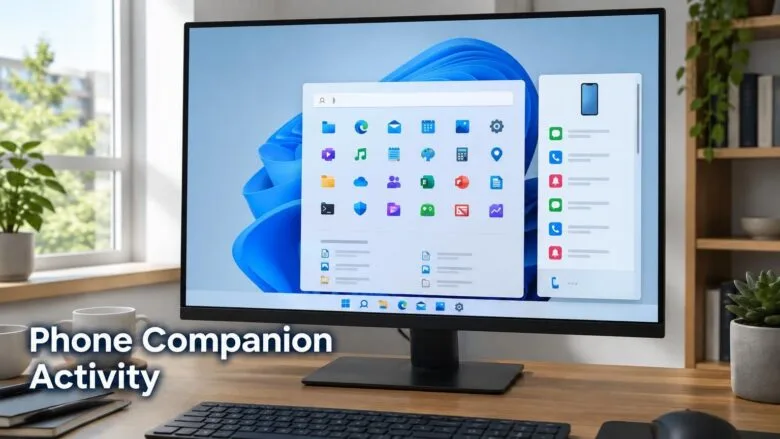
Phone companion activity in the Windows 11 Start menu is a preview feature that shows your recent phone activity in a scrollable side pane, so you can browse more of it without leaving Start. It appears only in Windows Insider preview builds, and Microsoft lists it for the Experimental channel.
The quickest way to see it is to run a preview build that includes it, open the Start menu , and look for the pane beside it. This article covers how to check your build, join the right channel, find the pane, and fix the common reasons it does not show up.
To see phone activity in the Start menu in Windows 11, you need a preview build that includes it, found in the Insider Program’s Experimental channel. Open Settings , select Windows Update , then Windows Insider Program, and choose the Experimental channel. After installing the build, open Start and look for the scrollable side pane beside it.
What Phone companion for the Start menu does
Phone companion is the part of Start that connects to your phone. In a recent Insider build, Microsoft expanded it to show more of your recent activity in a scrollable side pane. Before, you saw less; now you scroll through more items without opening another app.
Microsoft announced the change in its Windows Insider announcement for 25 September 2026. The feature sits in the Start menu and is available on the Experimental channel.
Availability: Insider preview builds only
This feature is not in the stable release of Windows 11 yet. It exists only in Windows Insider preview builds. Microsoft can change it, move it, or remove it before it reaches everyone, so what you see may differ from what is described here.
If you run a standard Windows 11 install, you will not find a setting that turns it on. Wait for Microsoft to release it, or join the Windows Insider Program as described below.
Before you start
Check three things first. They explain most cases where the pane does not appear.
- Your Windows build. The feature needs a preview build that includes it. A stable build does not have it.
- Your Insider channel. Microsoft lists this feature for the Experimental channel. Another channel may not receive it.
- Your administrator access. Joining the Windows Insider Program and installing updates requires an administrator account.
Check which Windows build you run
The winver tool (a small window that reports your Windows edition and build number) tells you what you have installed. Press Win+R, type winver, and press Enter. A window shows the version and OS build.
Compare that build number with the one in Microsoft’s announcement for the feature. If yours is older, you need to update. If you are on a stable release, you need to join the Insider Program first.
How to see phone activity in the Start menu in 🪟 Windows 11
Microsoft’s announcement does not describe any setup beyond running a build that includes the feature, so the steps below cover enrolling in the right channel, installing the build, and opening the pane. If you already run a qualifying Experimental channel build, skip to step 6.
Use a spare PC or back up your files first. Steps 1 to 5 require administrator privileges.
These steps show you how to see phone activity in the Start menu on Windows 11:
- Open Settings . Press Win+I. The Settings app opens on the System page.

- Select Windows Update . It is near the bottom of the left-hand list. The page shows your update status.

Settings › Windows Update - Select Windows Insider Program. This page shows whether your PC is enrolled. If you see a Get started button, your PC is not enrolled yet. Select it and sign in with your Microsoft account when prompted.
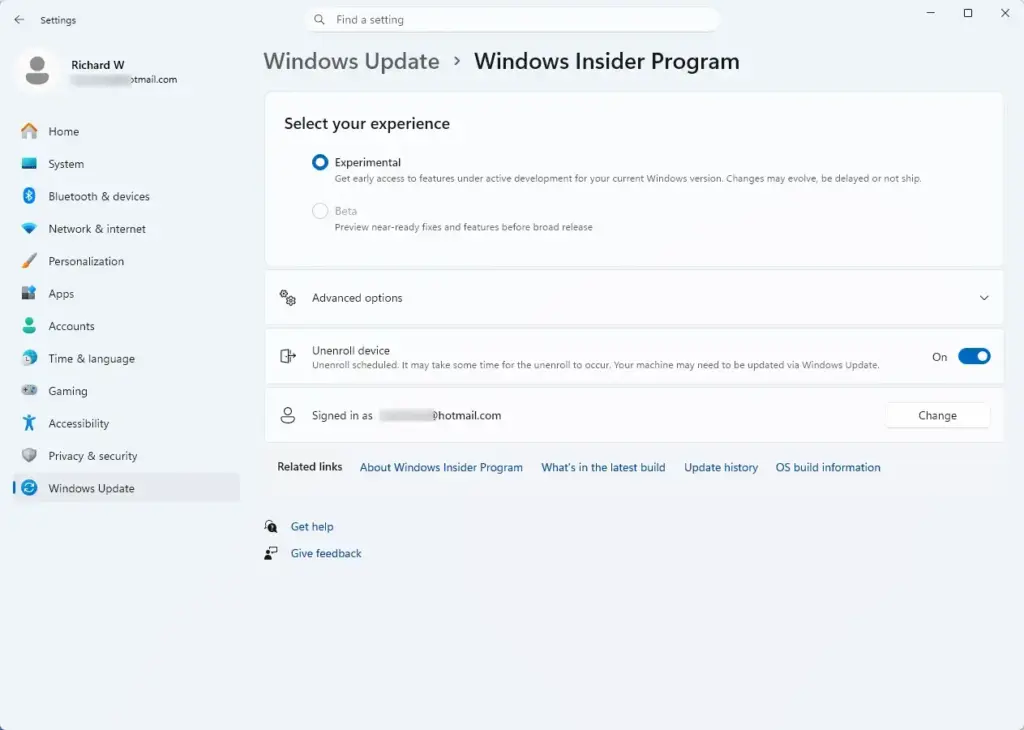
Settings › Windows Update › Windows Insider Program - Choose the Experimental channel. Microsoft lists the feature for this channel. If the channel does not appear in your list, your PC may not be eligible, or Microsoft may have renamed it. Check the announcement for the current name.
- Install the preview build and restart. Go back to Windows Update , select Check for updates , and let the build download and install. Restart when prompted. Preview builds are large, so allow time for the download.
- Open the Start menu . Press the Win or select the Start button on the taskbar . The Start menu opens with your pinned apps.
- Find the Phone companion pane. Look for it beside the main Start menu . Where it appears depends on the build, so check both sides of the menu.
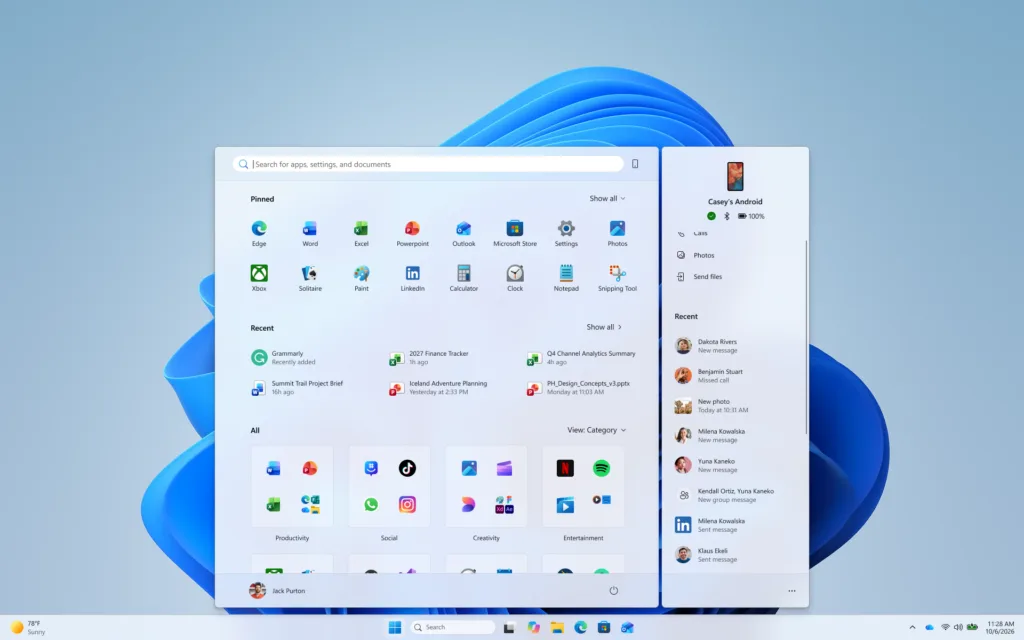
- Scroll the side pane. Use the mouse wheel, a touchpad gesture, or the scroll bar to move through your recent activity. More items load as you scroll, so you stay in Start the whole time.
If you see the pane and a list of recent items, you are done. If you do not, move on to the next section.
If the pane does not appear
Insider features reach devices in stages, so two PCs on the same build can behave differently. Work through the checks below in order.
Confirm you are on a qualifying build
Run winver again after the update and restart. If the build number is older than the one in Microsoft’s announcement, return to Settings Windows Update and select Check for updates until nothing further is offered.
Confirm the channel
Open Settings Windows Update Windows Insider Program and read which channel you are on. Microsoft lists this feature for the Experimental channel. A different channel may not include it yet.
Wait for the rollout
Microsoft may enable a feature for some Insiders first and expand it later, even on the same build. The announcement does not say how fast this feature rolls out, so the pane may not appear on your PC immediately. Check Windows Update again over the next few days.
Check whether your phone needs to be connected
Phone companion shows activity from your phone, so the pane may have nothing to display until a phone is linked. Microsoft’s announcement does not say what setup the feature requires. Read the linked release notes for any requirement that applies to your build, and do not rely on a setting you cannot find in Windows itself.
Restart the Start menu process
If Start opens but looks wrong or does not show the pane, a stuck Start process can be the cause. Follow the steps in How to Restart Start Menu Process in Windows 11. This closes and reopens Start without restarting the whole PC.
Repair a Start menu that misbehaves
Preview builds can introduce Start menu bugs. If Start fails to open or freezes, work through Windows 11 Start Menu Not Working? 9 Ways to Fix It. If those fixes do not help, How to Repair the Windows 11 Start Menu covers a reset.
Make room for the pane in Start
The Start menu also shows pinned apps and a Recommended section, and these affect how much space you have. The following changes do not turn the phone pane on or off. They change how the rest of Start looks around it.
- To fit more on screen, see How to Change Start Menu Size in Windows 11.
- To see more pinned apps or more content at once, see How to Enable Expanded Start Menu in Windows 11.
- To change what the Recommended section shows, see Why Does Windows 11 Show Recommended Apps in the Start Menu .
- To hide recent files from Start, see How to Hide Recent Files in Windows 11 Start Menu .
- To change the overall layout, see How to Change Your Start Menu Layout and Personalization in Windows 11.
Recent files and phone activity are separate things. Hiding recent files in Start does not necessarily affect the phone pane, and Microsoft’s announcement does not say how the two interact.
How to undo this
You cannot turn off the phone pane from a setting that Microsoft documents. The reliable way to stop seeing it is to leave the Windows Insider Program. Open Settings Windows Update Windows Insider Program and look for the options to stop receiving preview builds.
Depending on the options shown, you may have to wait for the next stable release or reinstall Windows. Back up your files before you decide. Because preview features can change before release, the pane may also look different or disappear in a later Insider build without any action on your part.
What to do next
Watch Microsoft's Windows Insider announcements for the next build, since this feature may move, change, or reach more devices. If your Start menu behaves strangely after a preview update, try the process restart first, then the repair steps. If you also want Start to look cleaner, start with the layout and personalization options for your pinned apps.
Have a question about this guide?
Answered by AI from this guide. Good questions may be added to this page — please don't include personal details.
Did this guide fix your problem?

About the Author
Richard
Tech Writer, IT Professional
Richard is a writer at Geek Rewind who turns complex IT tasks into clear, step-by-step guides. He draws on years of hands-on experience in system administration and enterprise IT operations, focusing on Windows, Linux and WordPress: the problems people actually run into, and the fixes that work. His server and WordPress guides come from systems he runs himself. Richard builds and maintains the platform behind Geek Rewind, from its Ubuntu servers and Nginx configuration to its custom WordPress plugins. Many new tutorials start with readers' questions, and he's always glad to answer them in the comments.
No comments yet — be the first to share your thoughts!