How to Use Phone Controls in Quick Settings in Windows 11

- 11 steps
- Needs administrator rights
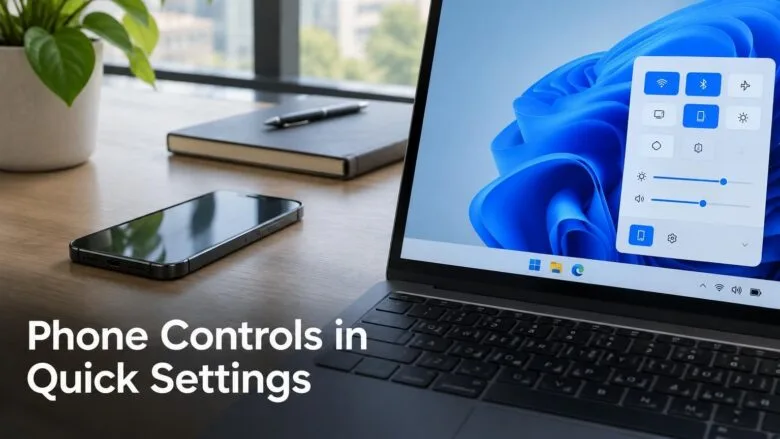
Phone controls in Quick Settings let you change common phone settings from the Windows 11 taskbar panel. Examples include turning on Do Not Disturb before a meeting, changing the ringer mode, or playing a sound to find a phone nearby. Microsoft calls the feature the Mobile devices experience in Quick Settings, and the quickest way to reach it is to press Win+A.
This feature is only in Windows Insider preview builds so far. Those are early test versions of Windows 11 that Microsoft gives to people in its Windows Insider program. It is not in the regular release of Windows 11, and Microsoft may change it before it ships widely.
Supported Android phones get the most complete set of controls. iPhone support starts with a more limited experience that focuses on showing status.
Open the Quick Settings panel by pressing Win+A, then use the phone controls to turn on Do Not Disturb, change the ringer mode, or play a sound to find your phone. This needs a linked phone and a Windows 11 Insider preview build, since the Mobile devices experience is not in the regular release yet.
What the phone controls in Quick Settings do
Quick Settings is the panel that opens when you click the network, volume and battery icons on the right side of the taskbar. It normally holds toggles for Wi-Fi, Bluetooth, Night light and similar settings. The Mobile devices experience adds a place in that panel for your linked phone.
Microsoft describes three quick actions:
- Do Not Disturbsilences calls and alerts on the phone, so a ringing phone does not interrupt a meeting.
- Ringer modechanges how the phone alerts you, without picking it up.
- Play a soundmakes the phone play a sound so you can find it nearby.
These controls sit alongside the phone features already in Windows 11, such as notifications and Phone Link (the Windows app that connects your phone to your PC). They do not replace them. To learn about those existing features, see the guide on managing mobile devices in Windows 11: how to manage mobile devices and Phone Link in Windows 11 Bluetooth settings.
Before you start
Three things decide whether you see the controls at all. Check each one before you look for the feature.
Use a Windows Insider preview build
Microsoft announced it in its Windows Insider blog post for the 23 October 2026 builds. A normal, non-Insider install of Windows 11 does not have it yet.
To see which build you run, open Settings System About and read the Version and OS build entries under Windows specifications. The OS build is the exact version number of your Windows 11 install. To join the program, open Settings Windows Update Windows Insider Program. Enrolling needs an administrator account, so you must sign in as an administrator for that part.
Microsoft rolls this out gradually, so even on an Insider build with the feature, it may appear on some PCs before others.
Link your phone to your PC
The controls act on a phone that Windows already knows about. If your phone is not linked, link it first. The guide to setting up Windows 11 Phone Link covers the process step by step. Settings Bluetooth & devices Mobile devices is where linked phones are managed.
Know which phone you have
A supported Android phone gets the fullest set of controls. An iPhone gets a more limited experience that shows status, so expect fewer actions on an iPhone. Microsoft has not published a list of supported Android models in the announcement, so this guide cannot confirm whether a specific model qualifies.
How to use phone controls in Quick Settings in 🪟 Windows 11
Once your phone is linked, you can control it from Quick Settings. Microsoft may change the labels during preview. The names below follow the announcement, so they may differ slightly on your build.
- Open Settings . Press Win+I. The Settings app opens.

- Select Bluetooth & devices. This is in the left pane. The page lists your Bluetooth and other connected devices.
- Select Mobile devices. This page manages phones linked to the PC. If you do not see this entry, your build may not have the feature yet. Go to “If the phone controls do not appear” below.
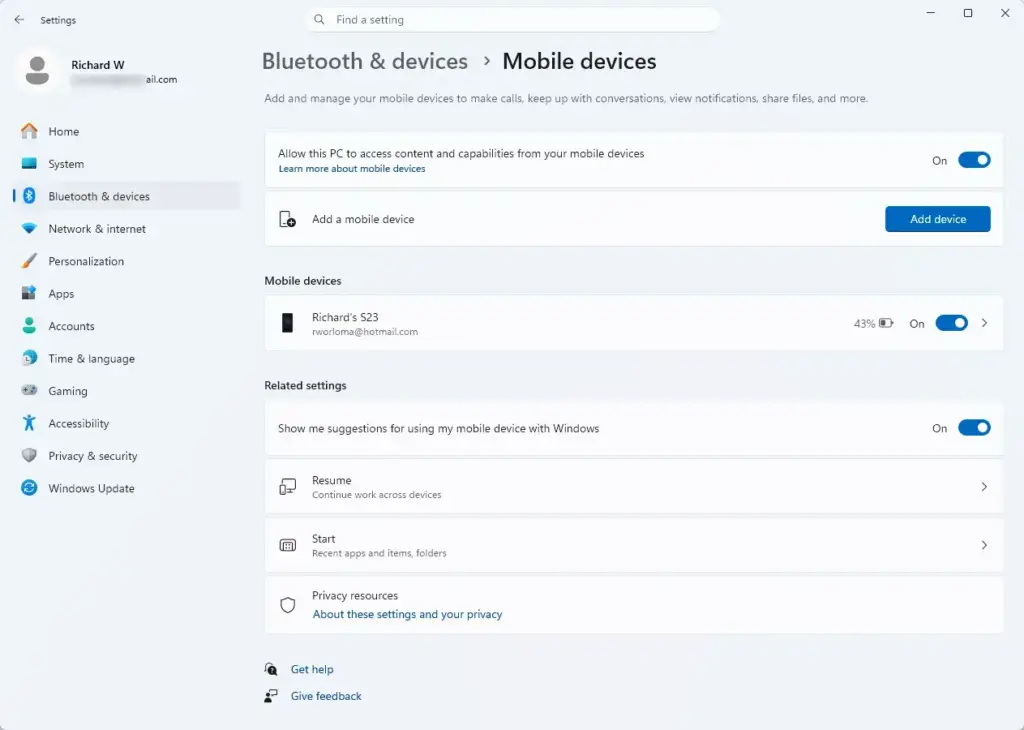
Settings › Bluetooth & devices › Mobile devices - Check that your phone is listed. If it is missing, link it using the Phone Link connection guide, then return to this step.
- Open Quick Settings. Press Win+A, or click the network, volume and battery icons on the taskbar . The Quick Settings panel opens above the taskbar.
- Find the Mobile devices control. Look for your phone’s name or a Mobile devices entry in the panel. If you do not see it, select the pencil icon (Edit quick settings) and check whether it is offered in the list. Microsoft has not said that this method works for this control.
- Select your phone. The panel shows the controls available for it. On a supported Android phone, you see the full set. On an iPhone, you see status information and fewer actions.
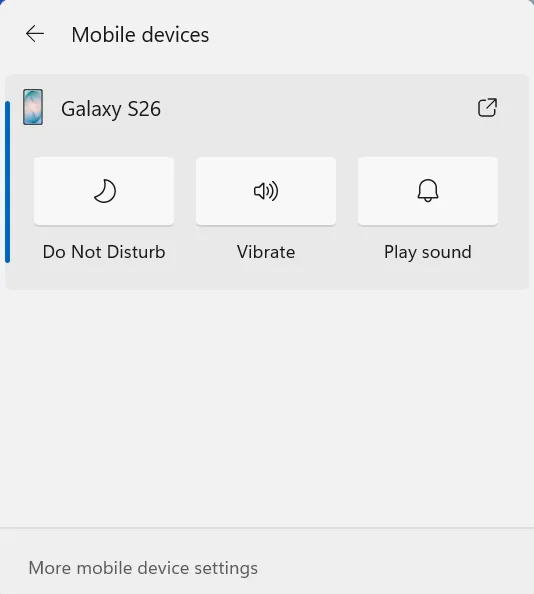
- Turn on Do Not Disturb. Select the Do Not Disturb control to silence the phone before a meeting. The control changes state to show it is on.
- Change the ringer mode. Select the ringer control and pick a mode from the options Windows shows. The phone switches to that mode without you touching it.
- Play a sound to find your phone. Select the option that plays a sound on the phone. The phone makes a noise so you can locate it nearby.
- Close Quick Settings. Press Esc or click anywhere outside the panel. Your phone keeps the settings you changed.
Using each control
Do Not Disturb
Do Not Disturb stops the phone from interrupting you with calls and alerts. Use it right before a call or meeting, when your attention is already on the PC. Turn it on from Quick Settings so you do not have to reach for the phone.
Turn it off the same way when the meeting ends. Quick Settings does not remind you that it is on, so check it before you wait for an important call.
Ringer mode
Ringer mode is the setting that decides how the phone alerts you, such as with a ring or a vibration. Change it from the PC when you want the phone louder or quieter, for example before you leave the desk. The modes you see depend on what your phone and Windows support, and Microsoft’s announcement does not list them.
Play a sound to find the phone
This control makes the phone play a sound, so a phone lost under papers or in another room becomes easier to find. It works for a phone nearby, which matches how Microsoft describes it. It does not locate a phone that is far away or switched off.
Think about where you are before you use it. A sound from your phone can be loud in a quiet office or a meeting.
What an iPhone gets
iPhone support starts with a more limited, status-focused experience. Quick Settings can show information about the phone, but it does not offer the same set of actions as a supported Android phone. Do not expect to switch Do Not Disturb or the ringer mode from the PC on an iPhone.
Microsoft has not said which iPhone status items appear. It describes this as a starting point, so the iPhone experience may grow in later builds.
If the phone controls do not appear
Work through these causes in order. They cover the most likely reasons the control is missing.
- Your PC is not on an Insider build. Check Settings System About. Regular Windows 11 does not have this feature yet.
- The rollout has not reached your PC. Microsoft is rolling the experience out in stages. Install the latest Insider update from Settings Windows Update, restart, and check again.
- Your phone is not linked. Open Settings Bluetooth & devices Mobile devices and confirm the phone is listed. If it is not, link it again. If it behaves oddly, signing out of and back in to Phone Link can help.
- Your phone is not supported for these actions. An iPhone has fewer controls. Only supported Android phones get the complete set.
- The control is not on the panel. Open Quick Settings and select the pencil icon to see which items you can add. If the Mobile devices control is not offered, your build does not include it yet.
The announcement does not mention an edition restriction, such as Windows 11 Home versus Pro. It does not say whether Windows 11 Home or Pro is affected, so the build and rollout are the deciding factors.
How to undo or stop using the controls
You can reverse each action from the same panel. Turn Do Not Disturb off, set the ringer back to the mode you want, and the phone returns to normal. Playing a sound needs no undo. The sound stops by itself, or you can stop it on the phone.
If you no longer want the phone connected to the PC at all, unlink it. The steps are in how to unlink your phone from Windows 11 Phone Link. Unlinking removes the phone from the PC, so the Quick Settings controls for it go away.
Because this feature exists only in preview builds, moving back to a regular release channel would likely remove it. Changing channels can affect your whole system, so read every option on screen before you choose one. Check Settings Windows Update Windows Insider Program for the options your device offers, then choose the channel you want.
What to do next
If Quick Settings now shows your phone, try the other features that work with a linked phone. See what happens when you enable phone notifications in Windows 11 Mobile devices settings to get phone alerts on your PC. You can also project your phone screen to your PC or link a phone as a webcam.
Because the Mobile devices experience is still in preview, check the Windows Insider blog after each new build. Microsoft may add controls or change where they appear.
Have a question about this guide?
Answered by AI from this guide. Good questions may be added to this page — please don't include personal details.
Did this guide fix your problem?

About the Author
Richard
Tech Writer, IT Professional
Richard is a writer at Geek Rewind who turns complex IT tasks into clear, step-by-step guides. He draws on years of hands-on experience in system administration and enterprise IT operations, focusing on Windows, Linux and WordPress: the problems people actually run into, and the fixes that work. His server and WordPress guides come from systems he runs himself. Richard builds and maintains the platform behind Geek Rewind, from its Ubuntu servers and Nginx configuration to its custom WordPress plugins. Many new tutorials start with readers' questions, and he's always glad to answer them in the comments.
No comments yet — be the first to share your thoughts!