How to Use Windows 11 Phone Link to Connect Your Phone

- 16 steps
- Includes a restart or sign-out
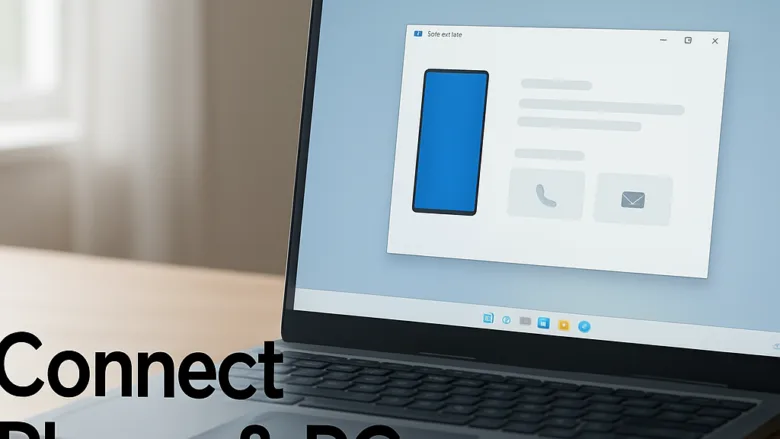
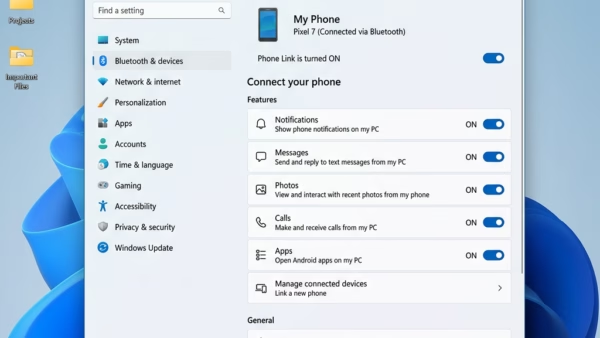
Phone Link in Windows 11 lets you connect your Android phone or iPhone to your PC. From the desktop you can read text messages, make calls, and (on Android) open mobile apps. Microsoft includes the Phone Link app for free on Windows 11. It also shows your phone’s notifications and, on Android, your recent photos, so you don’t have to pick up the phone.
Pairing takes a few minutes. You use the Phone Link app on your PC and the Link to Windows app on your Android phone, or the Phone Link pairing flow on an iPhone. Once the devices are connected over Bluetooth and Wi-Fi, you can type replies with your PC keyboard and check the phone’s battery level on screen.
Before you start, make sure your PC is running Windows 11 with Bluetooth turned on. Keep the phone nearby and signed in to its Wi-Fi network. Use the same Microsoft account on both devices if the app asks you to sign in.
Open Phone Link on your Windows 11 PC, select Android or iPhone, scan the QR code with your phone’s Link to Windows or Phone Link app, then approve the permission prompts. Your messages, calls, and notifications sync to your PC within a minute.
Get Started with Phone Link Basics
Get started with Phone Link basics. If you are new to Phone Link, or you just want to confirm the core features work, start with the guides in this section. They cover first-time setup and the essential integrations: messages, calls, and notifications.
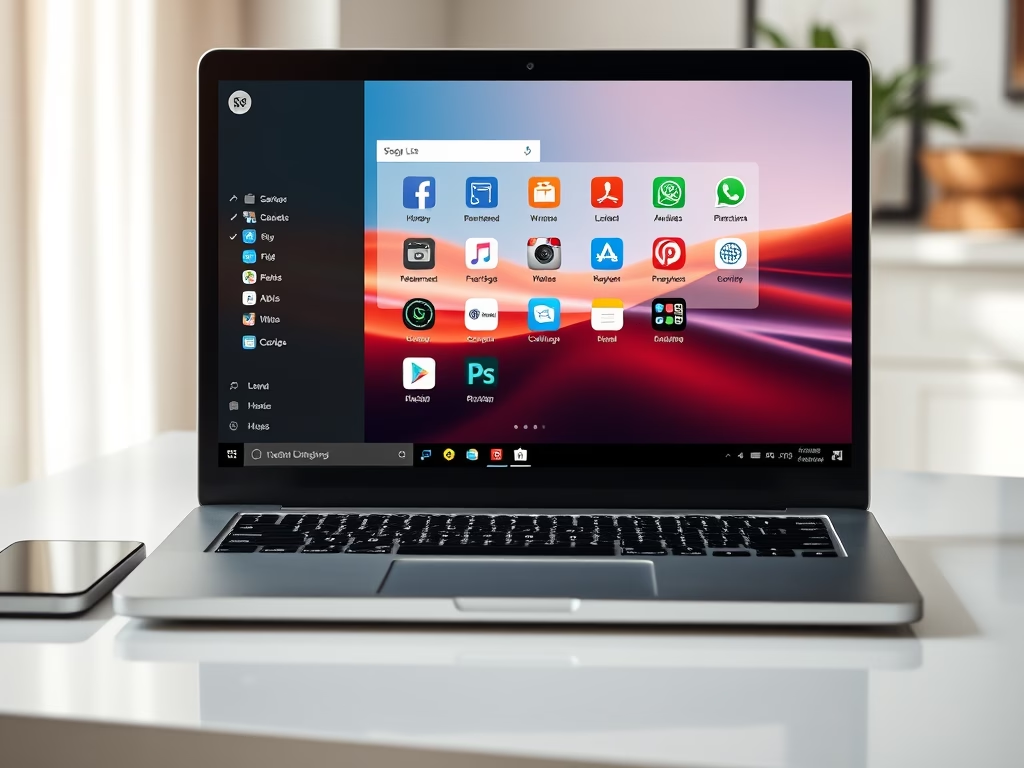


Use Your Phone Apps and Media on PC
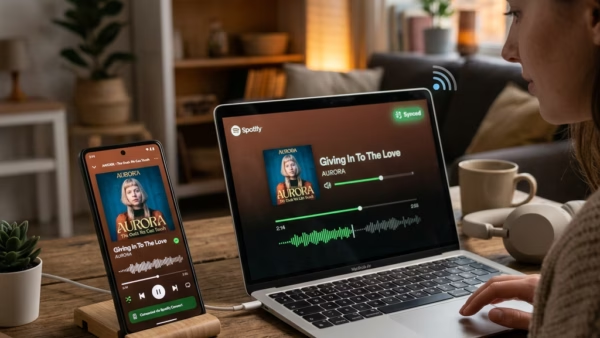
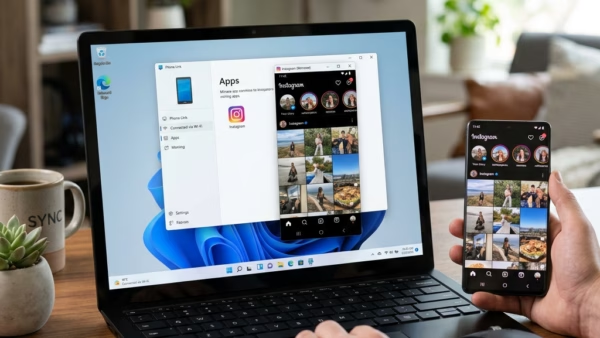
Once your phone is connected, you can work with its apps and content from your Windows 11 PC. The guides in this section show you how to open and manage apps, control music, and view photos without touching the phone.
Keep these limits in mind:
- Running phone apps and browsing photos work on Android only.
- App streaming is not available on every Android phone, so if the Apps option is missing, check whether your phone model supports it.
- The phone usually needs to be on and connected to the internet for photos and apps to show up.
Customize Notifications and Appearance
You can tailor how Phone Link behaves on your PC, from which app notifications reach your desktop to how the interface looks. These options help you stay informed without being buried in alerts, and they let you set up the workspace to suit your day.
Changes made in the Phone Link settings take effect right away. You don’t need to restart the PC. If you don’t like a change, open the same setting and switch it back.
Advanced Features and Cleanup
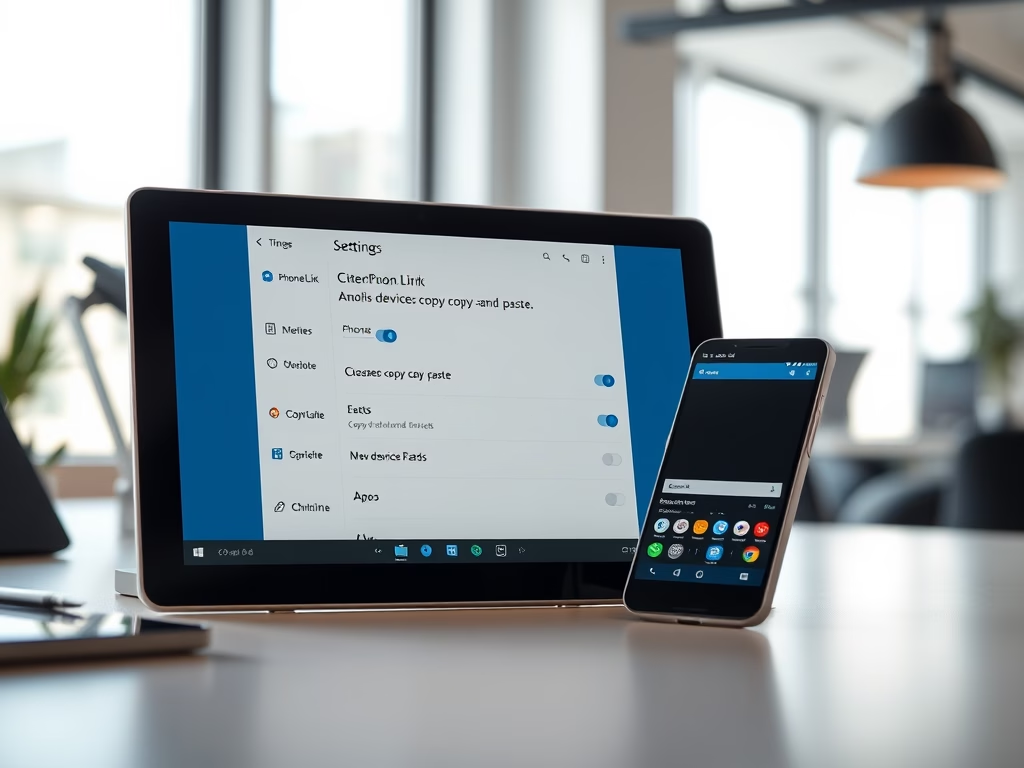
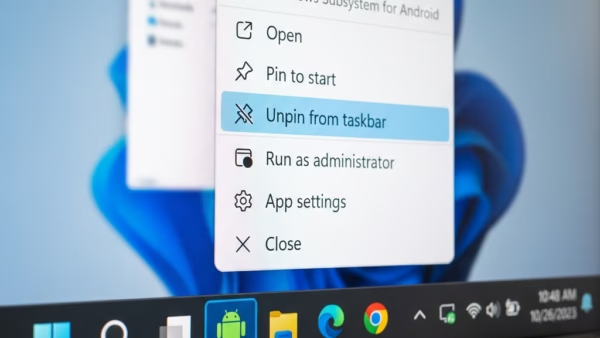
The advanced features include cross-device copy and paste and custom layouts for the apps you pin to the taskbar. This section also covers cleanup: removing configurations you no longer use, such as an old phone or an app you no longer want pinned.
Common questions
How do I connect my Android phone to my 🪟 Windows 11 PC?
To make the first connection, you need an app on each device. Follow these steps for an Android phone:
- Install the Link to Windows app on your Android phone from the Google Play Store. Some Samsung phones already have it installed.
- On your PC, open the Start menu, type Phone Link, and open the app. It is included with Windows 11, but if it is missing or out of date, update it from the Microsoft Store.
- Choose Android as your phone type and sign in if you are asked to.
- When the PC shows a QR code, open Link to Windows on the phone and scan the code with the phone’s camera.
- Approve the permission prompts on the phone, such as access to contacts, messages, phone calls, and photos.
Can I use Phone Link with an iPhone?
Phone Link has limited functionality with iPhones. You can make calls, view notifications, and access messages normally. The connection runs over Bluetooth, so keep Bluetooth turned on for both devices and accept the pairing and sharing prompts on the iPhone when they appear. Running phone apps and browsing photos are available on Android only. The same applies to a few other features that rely on the Android app.
Why isn't Phone Link showing my apps?
If apps don’t show up in Phone Link, work through these checks in order:
- Confirm your phone supports app streaming. Apps are Android-only and not available on every model.
- Check the permissions on both devices. On Windows 11 (version 23H2 and later), open Settings Bluetooth & devices Mobile devices and make sure your PC is allowed to access your mobile devices. On the phone, open the Link to Windows app settings and confirm it has the permissions it asked for.
- Restart both the PC and the phone.
- Update both apps to their latest versions: Phone Link from the Microsoft Store, and Link to Windows from the Google Play Store.
- Reopen Phone Link and see whether the Apps option has returned.
Restarting and updating clears most lingering glitches. If it still fails, remove the phone from Phone Link and pair it again.
How do I stop my phone's notifications from appearing on my PC?
To control which alerts reach your PC, follow these steps:
- Open the Phone Link app on your PC.
- Select Settings, the gear icon in the app window.
- Choose Messages or Notifications, depending on which alerts you want to adjust.
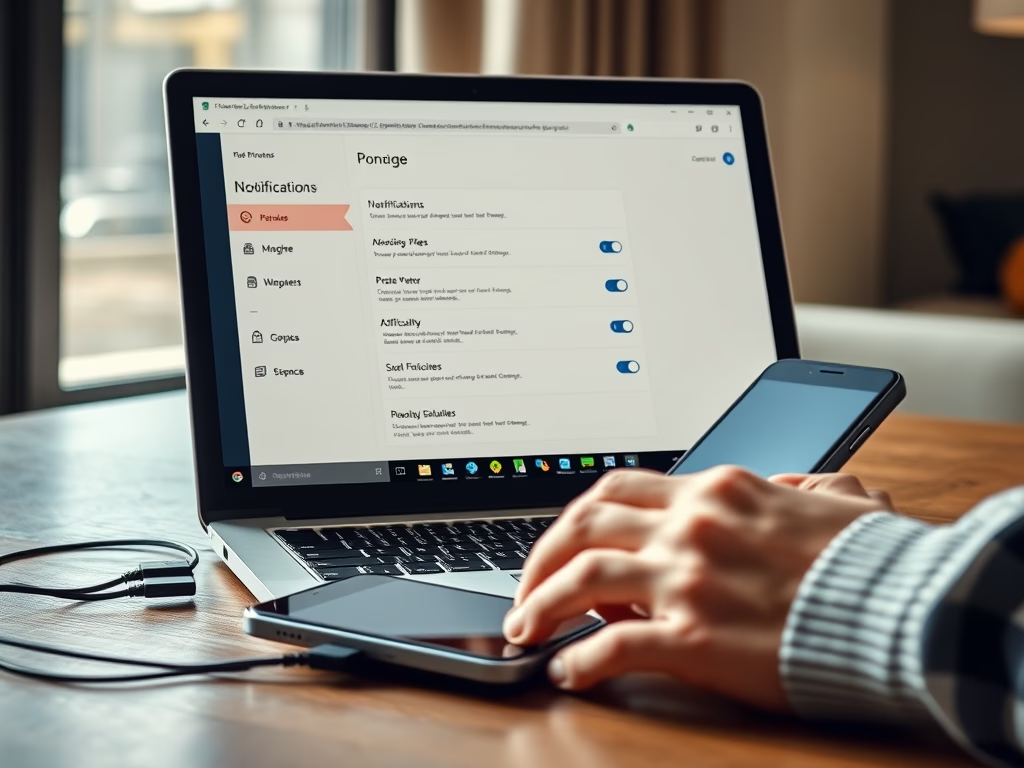
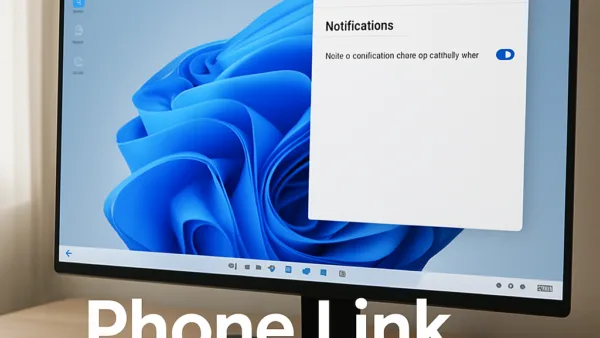
This menu gives you granular control. You can turn off alerts for specific apps, or shut off all notifications from the phone on the computer. The phone itself keeps notifying you as usual. To bring an alert back, return to the same menu and switch it on again.
Can I copy and paste between my phone and PC?
Cross-device copy and paste only works while the feature is turned on. To enable clipboard sharing:
- Open the Phone Link app on your PC.
- Select Settings.
- Find the Cross-device capabilities section and turn on the copy and paste option. In some app versions this section may be labeled differently, such as Features, so look for the cross-device copy and paste switch.
After you turn it on, text you copy on one device can be pasted on the other. It needs a working connection between the two, and it is available on supported phones only. To stop sharing the clipboard, switch the same option off.
Have a question about this guide?
Answered by AI from this guide. Good questions may be added to this page — please don't include personal details.
Did this guide fix your problem?

About the Author
Richard
Tech Writer, IT Professional
Richard is a writer at Geek Rewind who turns complex IT tasks into clear, step-by-step guides. He draws on years of hands-on experience in system administration and enterprise IT operations, focusing on Windows, Linux and WordPress: the problems people actually run into, and the fixes that work. His server and WordPress guides come from systems he runs himself. Richard builds and maintains the platform behind Geek Rewind, from its Ubuntu servers and Nginx configuration to its custom WordPress plugins. Many new tutorials start with readers' questions, and he's always glad to answer them in the comments.
No comments yet — be the first to share your thoughts!