How to Pin Android Apps to Your Windows 11

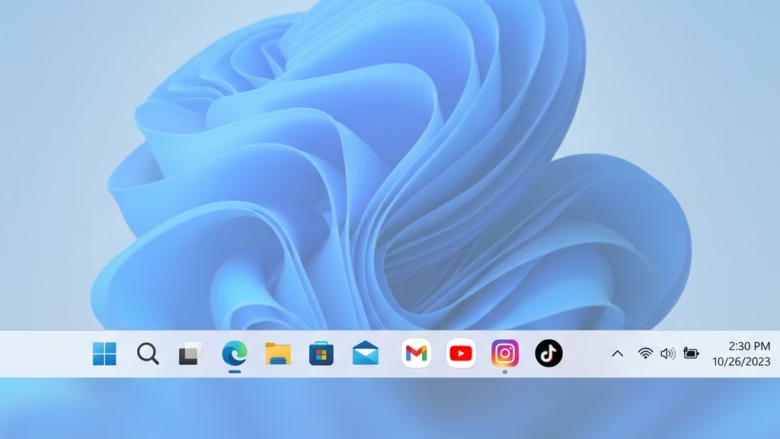
Pinning an Android app to your Windows 11 taskbar or Start menu lets you open it from the desktop without picking up your phone. The feature relies on the Phone Link app, which connects your Android phone to your PC. It needs Windows 11 version 22000.778 or newer.
Once it is set up, you control the phone app with your mouse and keyboard. That makes it quick to switch between a phone app and your PC work.
Open Phone Link, click Apps, find the Android app you want, right-click its icon and select Pin to Start or Pin to taskbar. The app’s shortcut appears in your Start menu or taskbar within seconds, ready to launch from your desktop.
How to Pin Android Apps to 🪟 Windows 11
A pinned Android app sits in your Start menu or on your taskbar like any regular PC app. You don’t have to open Phone Link first and hunt for the app each time.
Here is how to pin an Android app:
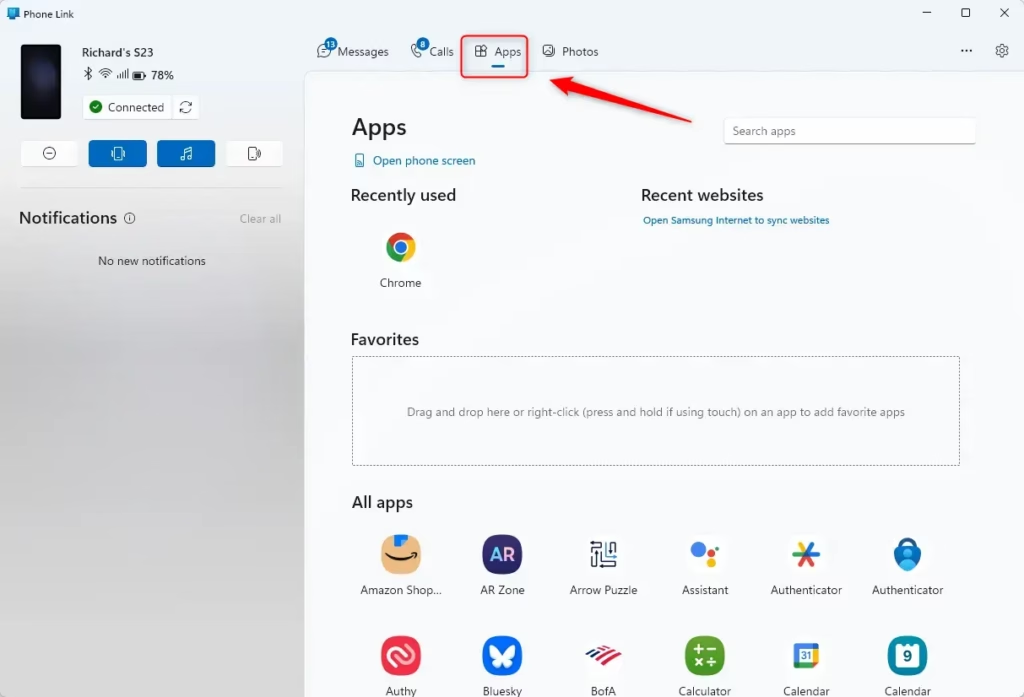
- Open the Phone Link app. Click the search box on the taskbar, type “Phone Link” and press Enter. You can also find it in the Start menu under All apps. The Phone Link window opens and shows your connected phone.
- Go to the Apps section. In the Phone Link window, click Apps. You should see a list of the Android apps that work with Phone Link. The list can take a moment to load, especially the first time. If it stays empty, check that the phone is connected and that Phone Link has the permissions it asked for on the phone.
- Choose the app to pin. Scroll through the list and find the app you want. Move your mouse cursor over its icon.
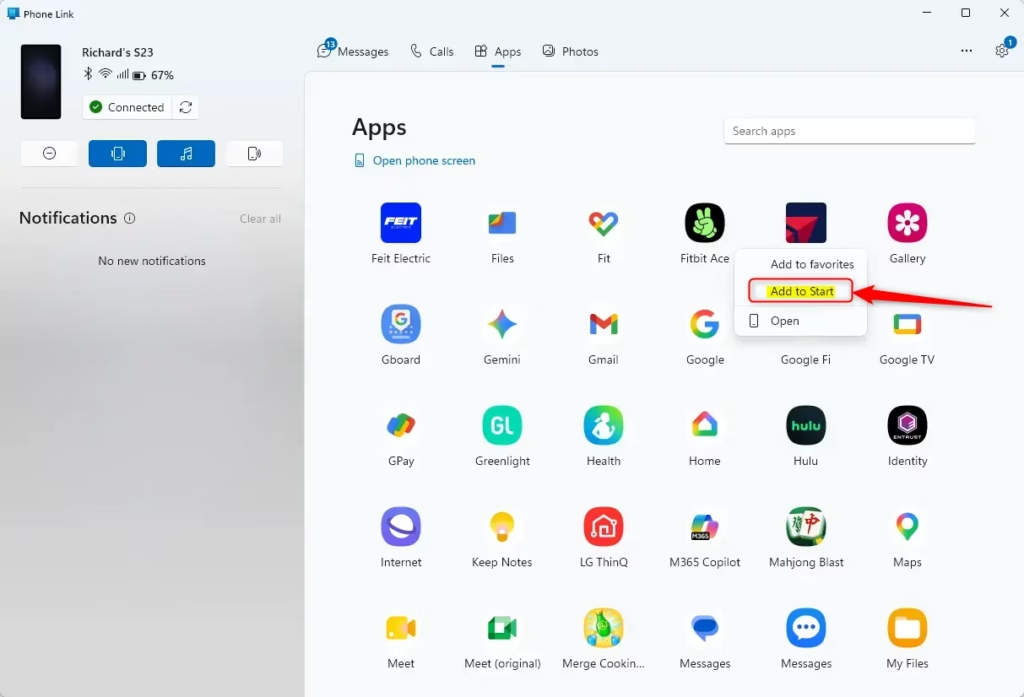
- Right-click the app and choose where to pin it. Right-click the icon and a menu appears. It should offer Pin to Start, Pin to taskbar and Add to favorites. Pick the one you want:
- Pin to Startadds the app’s icon to your Windows Start menu.
- Pin to taskbarputs a shortcut for the app directly on your taskbar for quick access.
- Add to favoritesusually adds the app to a favorites list inside Phone Link itself. It does not create a shortcut on the desktop side of Windows.
- Confirm the pin. After you choose, the app’s icon should appear in the Start menu or on the taskbar within a few seconds. Click it like any other Windows app. The Android app opens in its own window, and your phone needs to stay connected for it to work.
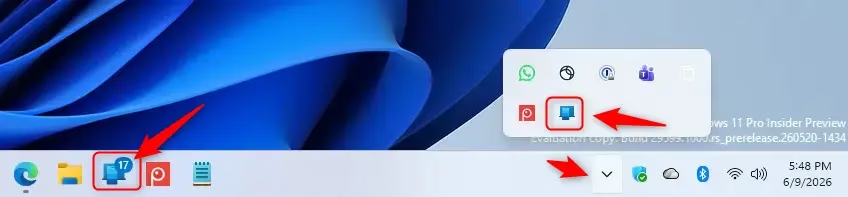
To check that the pin worked, look at the Start menu or the taskbar for the new icon. Windows places the shortcut in whichever spot you picked from the right-click menu. Click the icon to open the app and use it like any standard Windows program.
If the icon is missing, go back to Phone Link, open Apps and try the right-click step again. Also check that Phone Link is still connected to your phone.
Summary
With Phone Link, you can pin your favorite Android apps to the Start menu or taskbar in Windows 11 and open them straight from your PC. If you change your mind, unpinning takes one right-click.
Have a question about this guide?
Answered by AI from this guide. Good questions may be added to this page — please don't include personal details.
Did this guide fix your problem?

About the Author
Richard
Tech Writer, IT Professional
Richard is a writer at Geek Rewind who turns complex IT tasks into clear, step-by-step guides. He draws on years of hands-on experience in system administration and enterprise IT operations, focusing on Windows, Linux and WordPress: the problems people actually run into, and the fixes that work. His server and WordPress guides come from systems he runs himself. Richard builds and maintains the platform behind Geek Rewind, from its Ubuntu servers and Nginx configuration to its custom WordPress plugins. Many new tutorials start with readers' questions, and he's always glad to answer them in the comments.
No comments yet — be the first to share your thoughts!