How to Add Mobile Device in Start Menu on Windows 11

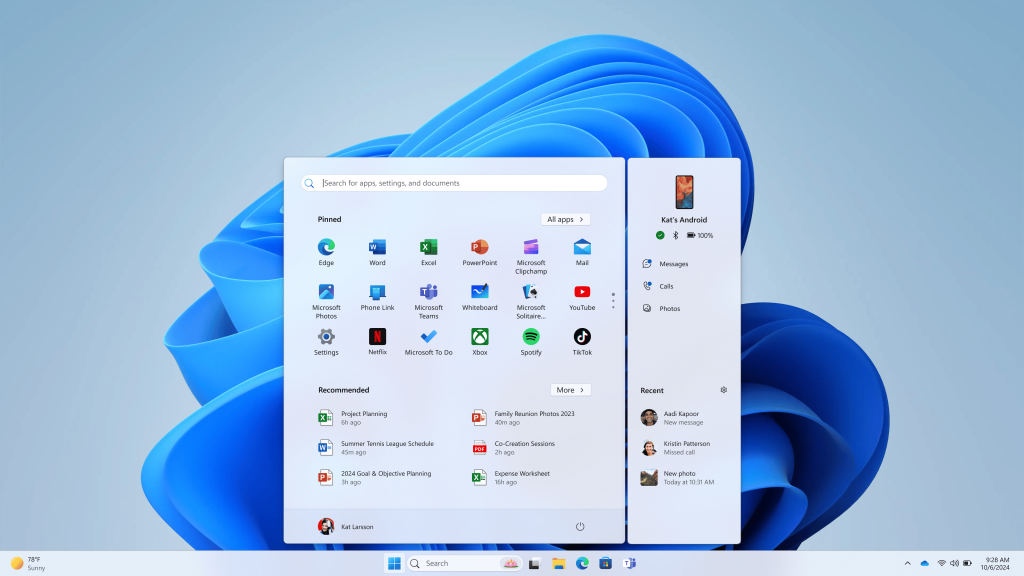
The mobile device panel in the Start menu on Windows 11 lets you open phone apps, check text messages, and see your battery level without picking up your handset. It relies on Phone Link, a free Microsoft tool that connects Android phones and iPhones to Windows 11. You need version 22H2 or newer, and the Start menu panel appears on builds that include the newer Start menu.
Once your phone is linked, you no longer have to reach for it each time a notification arrives. Recent photos, calls, and messages are a click away. Before you start, make sure the PC and the phone are on the same Wi-Fi network and that Bluetooth is turned on for both devices. You also need to sign in to Phone Link with a Microsoft account.
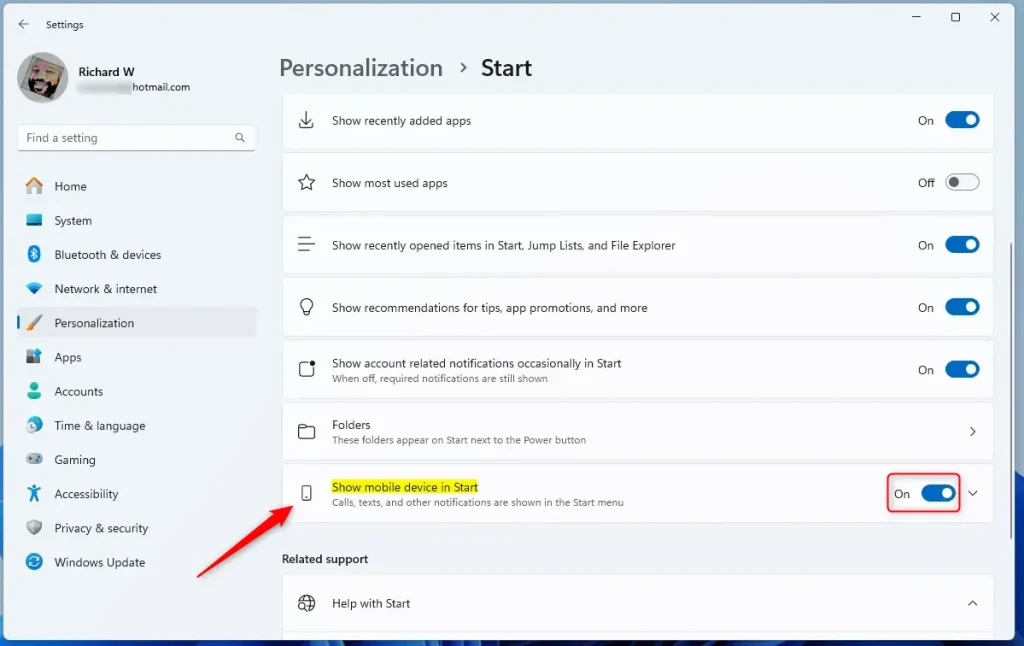
Open Settings , select Personalization, choose Start, then toggle Show mobile device to On. The phone panel appears next to the Start menu once your device is linked in Phone Link.
Features for Android Users
If you link an Android phone, the mobile device panel shows its battery level and connection status. You can also read incoming text messages on the desktop. On Android you pair through Phone Link on the PC and the companion app on the phone (the Link to Windows app). After pairing, you can make calls, browse recent photos, and manage notifications from the PC. Calls need Bluetooth , and some features vary by phone model and Android version.
- Messages: Read and reply to your text messages without picking up your phone.
- Calls: Make and receive calls directly from your PC.
- Photos: View recent photos from your phone.
- Recent Activities: Get a snapshot of recent actions on your phone.
- Send Files: Easily transfer files between your phone and PC.
Features for iPhone Users
If you use an iPhone, the setup is similar, but it connects over Bluetooth and Apple limits what Windows can reach. You can monitor battery life and connection status from the Start menu panel. You can also make and receive calls and read and reply to text messages. If something does not show up, check that Bluetooth is on and that you allowed the notification and contact sharing prompts on the iPhone when pairing.
- Battery and Connectivity Status: Keep an eye on your iPhone’s battery life and connection status.
- Messages: Access and reply to your text messages.
- Calls: Make and receive calls through your PC.
- Recent Activities: See a summary of recent actions.
- Send Files: Transfer files between your iPhone and Windows PC.
Managing Mobile Device Visibility in the Start Menu
The same setting controls whether the panel appears at all. If you do not want your phone status in the Start menu , you can turn it off. Windows 11 has a simple toggle for this, and it is the same one you use to turn the panel on. The steps below work for both Home and Pro, and no restart is needed.
Step 1Open Windows Settings
- Press Win+I to open Settings . You can also right-click the Start button and select Settings.
The Settings window should open on the System page.
Step 2Navigate to Personalization
- Select Personalization from the left-hand sidebar.
This page controls how the Start menu and taskbar look and behave.
Step 3Go to the Start Menu Settings
- Select Start in the Personalization panel.
This page controls the elements that appear alongside the Start button and the Start menu.
Step 4Toggle Mobile Device Visibility
- Find the Show mobile device switch and set it to On.
The phone panel should now appear next to the Start menu the next time you open it. To hide it again, set the same switch to Off.
Run Windows Update and check again. The panel also only shows useful information once a phone is linked in Phone Link, so finish the pairing first if nothing appears.
Reference:
Conclusion
If you ever want a cleaner Start menu, one toggle in Settings hides the panel again.
Was this guide helpful?
0% of readers found this helpful (1 votes)

About the Author
Richard
Tech Writer, IT Professional
Richard is a writer at Geek Rewind who turns complex IT tasks into clear, step-by-step guides. He draws on years of hands-on experience in system administration and enterprise IT operations, focusing on Windows, Linux and WordPress: the problems people actually run into, and the fixes that work. His server and WordPress guides come from systems he runs himself. Richard builds and maintains the platform behind Geek Rewind, from its Ubuntu servers and Nginx configuration to its custom WordPress plugins. Many new tutorials start with readers' questions, and he's always glad to answer them in the comments.
No comments yet — be the first to share your thoughts!