How to Make File Explorer Open to Mobile Device in Windows 11

- 2 ways to do it
- Needs administrator rights
File Explorer in Windows 11 normally opens to Home. If you often connect your phone to copy photos or files, you can change the start folder so File Explorer opens to a location where the phone is one click away. File Explorer is the built-in program you use to find, open, and manage files on your computer.
The setting lives in Folder Options and takes less than a minute. It applies to your user account only and needs no restart. One caveat first: the “Open File Explorer to:” list offers a fixed set of choices, such as Home and This PC, and has no entry for a phone. A connected phone shows up under This PC, so that is the closest start location.
Open File Explorer, click the three dots menu at the top, and select Options. On the General tab, change “Open File Explorer to:” from Home to This PC, where your connected phone appears as a device. Click Apply, then OK. File Explorer now opens to This PC instead of Home.
Option 1The Simple Way – Using Folder Options
This method is the quickest way to make the change. It works the same on Windows 11 Home and Pro, and it needs no administrator rights.
Open File Explorer
- Open File Explorer. Click the folder icon on your taskbar, or press
Windows key + Eon your keyboard.
You should now see a File Explorer window. It will most likely open to Home, which is the screen you are changing. If the folder icon is not on your taskbar, the keyboard shortcut is the easier route.
Find the Menu
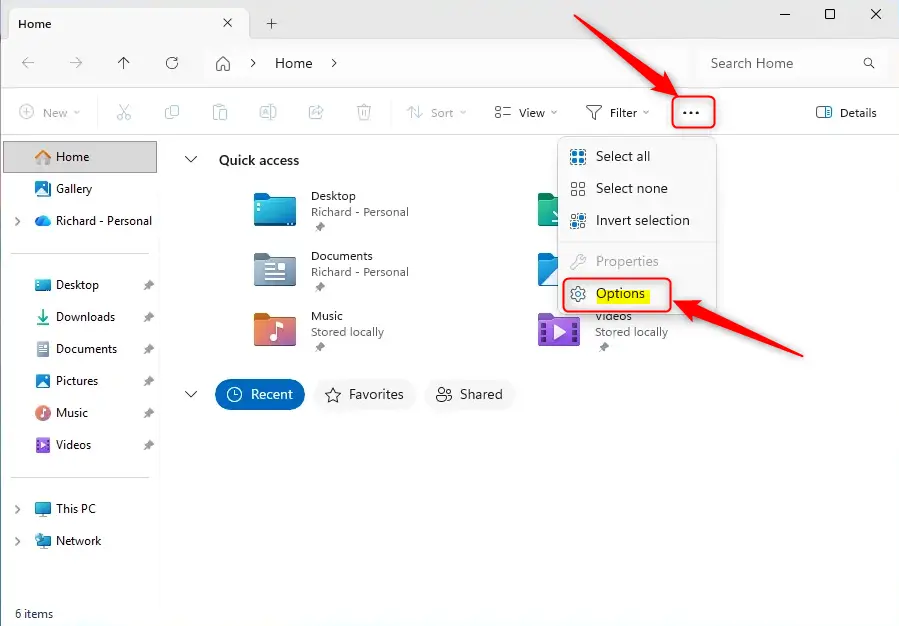
- Look at the toolbar at the top of the File Explorer window and find the three dots (
...). Hovering over them shows the label See more. - Click the three dots to open the main menu.
A menu drops down with a list of commands. If the window is narrow, the toolbar can look different, so widen the window if you do not see the dots.
Click “Options”
- In the menu, click Options.
- Wait for the Folder Options window to open.
This small window holds the settings for how File Explorer behaves. It opens on top of File Explorer, so check your taskbar if you do not see it right away.
Find the Setting
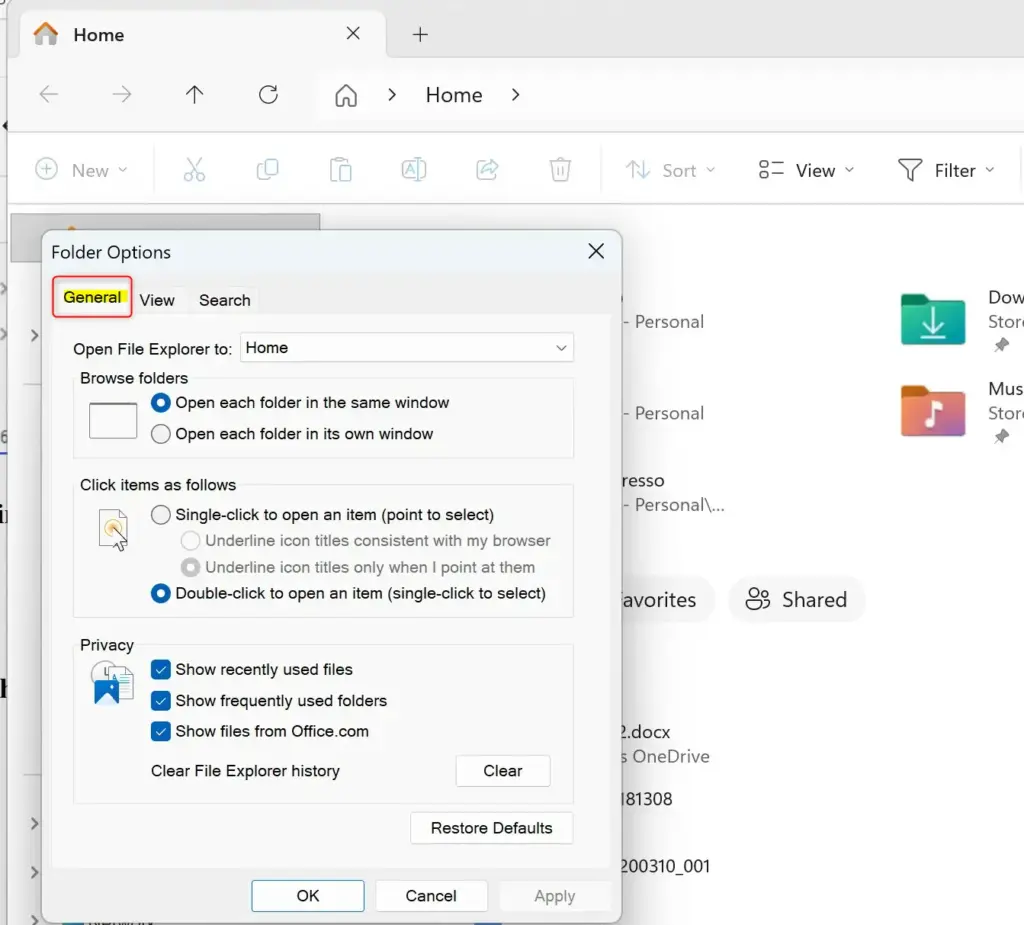
- At the top of the Folder Options window, look at the tabs. Make sure you are on the General tab.
- Find the setting Open File Explorer to:. It is a drop-down list, and it currently shows Home.
- Click the drop-down list and choose This PC. Your connected phone appears there under devices, once the phone is unlocked and set to file transfer mode.
- Click Apply, then click OK.
The change takes effect the next time you open File Explorer. Close the window and open it again to check. You should land on This PC instead of Home.
If your phone does not show up, unlock it and check the USB notification on the phone. Choose File transfer if it asks what the USB connection is for. A phone left on charging only will not appear as a storage device.
To undo the change, repeat these steps and set Open File Explorer to: back to Home.
Choose Where It Opens
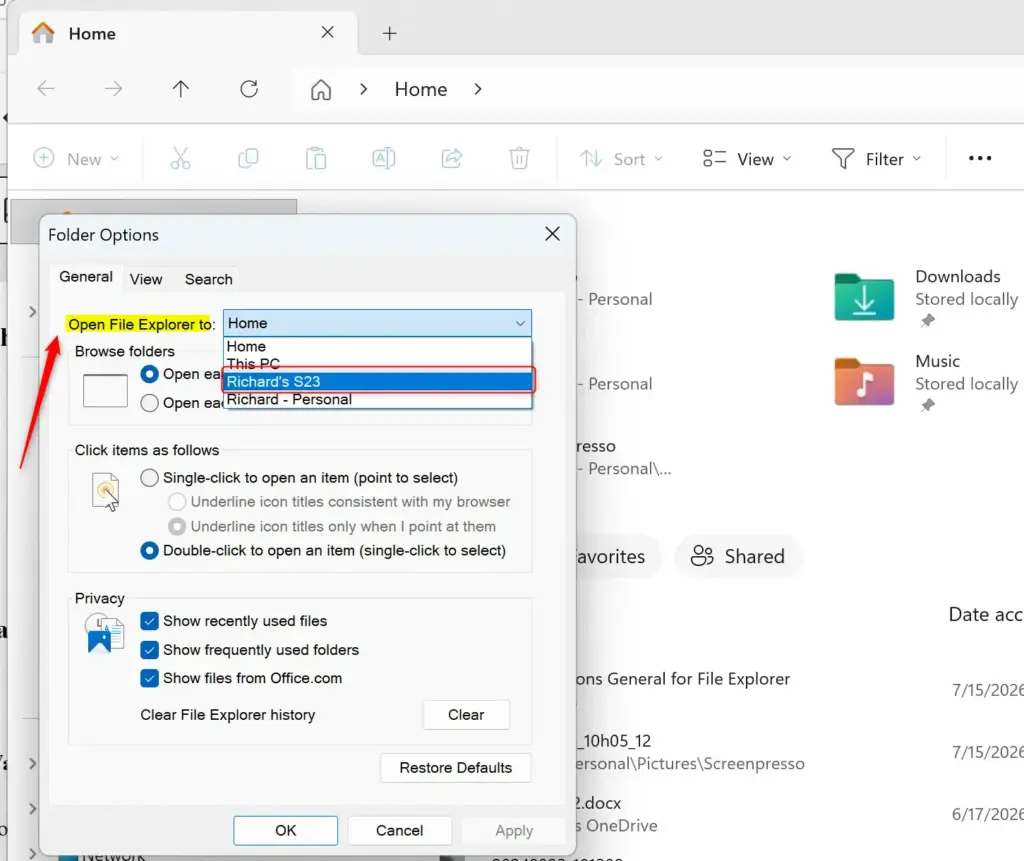
File Explorer mobile device settings let you change your startup folder so that your phone or tablet appears right when you launch the app. Open File Explorer, click the three dots at the top to open the menu, and choose Options. Under the General tab, look for the Open File Explorer to section to pick your default view.- Next to “Open File Explorer to:”, click the dropdown menu.
- You will see several choices:
- HomeThis is the default. It shows your most used folders and recent files.
- This PCThis opens to your computer’s main drives and common folders like Documents and Downloads.
- Mobile deviceIf your phone or tablet is connected, you might see an option to open directly to its storage.
- OneDriveIf you use Microsoft’s cloud storage, this opens your OneDrive folder.
- Select the option you prefer. For example, if you often use your computer’s drives, “This PC” is a good choice.
Save Your Choice
- Click the “OK” button at the bottom of the “Folder Options” window.
File Explorer now opens to the selected location when you close and reopen the File Explorer window. This change ensures File Explorer consistently starts at the chosen location, for example, the "This PC" view or a specific folder.
Option 2The Advanced Way – Using the Registry Editor
If you’re comfortable making changes in Windows’ system settings, you can use the Registry Editor to make File Explorer open to your mobile device. Back up your important data before editing the registry, as mistakes can cause system instability.
Why Use the Registry Editor?
Registry Editor (a database for Windows system settings) helps you force a file explorer mobile device startup when the standard settings menu does not work or show your connected phone. This advanced method lets you write custom registry keys to override the default startup folder and point directly to your connected hardware.
Steps to Change the Registry
Open the Run Box
- Press
Windows key + Ron your keyboard at the same time. The “Run” box will appear.
Start the Registry Editor
- In the “Open:” field of the Run box, type
regedit. - Press
Enteror click “OK.”
Opening the Registry Editor for your file explorer mobile device setup starts by pressing the Win and R on your keyboard at the same time. Type regedit into the Run box that pops up on your screen, and then press Enter to launch the system tool where you can make your changes.
Go to the Right Place
- The Registry Editor looks a bit like File Explorer. You need to go to a specific section called a “key.”
- Carefully type or copy and paste this path into the address bar at the top of the Registry Editor:
HKEY_CURRENT_USER\Software\Microsoft\Windows\CurrentVersion\Explorer\Advanced - Press
Enterafter you paste the path. This will take you to the correct spot.
Find or Create “LaunchTo”
- Look at the right side of the Registry Editor window. You are looking for something called
LaunchTo. - It might already be there. If not, don’t worry.
How to create it if it’s missing:
- Right-click on an empty space on the right side.
- A menu will appear. Move your mouse over “New.”
- Click on “DWORD (32-bit) Value.”
- A new item will appear. Type
LaunchToand press Enter.
Set the Value
- Double-click on
LaunchTo(whether you found it or created it). - A new window will open. Here you tell Windows where to open File Explorer.
- In the “Value data:” box, enter a number. Each number means something different:
- 0Opens to Home (the default).
- 1Opens to This PC.
- 2Opens to Downloads.
- 3Opens to Documents.
- 4Opens to This PC (sometimes used for other locations, but 1 is standard for This PC).
- 5Opens to Mobile device or OneDrive. Which one shows depends on your system.
- Enter the number for the location you want File Explorer to open to. For example, to open to Downloads, enter
3.
You can record the specific numbers or take a photo to avoid memorizing them. These numbers are important for accessing your mobile device's storage directly in File Explorer.
Save and Close
- Click “OK” in the “Edit DWORD (32-bit) Value” window.
- You can now close the Registry Editor window.
See the Changes
- To see the changes, you usually need to restart File Explorer. Close any open File Explorer windows and then open a new one.
- It should now open to the location you chose.
Summary
You can change where File Explorer opens by default. The accessible way is using “Folder Options” in File Explorer itself. For more specific locations, you can use the Registry Editor, but be careful when making changes there.
Have a question about this guide?
Answered by AI from this guide. Good questions may be added to this page — please don't include personal details.
Did this guide fix your problem?

About the Author
Richard
Tech Writer, IT Professional
Richard is a writer at Geek Rewind who turns complex IT tasks into clear, step-by-step guides. He draws on years of hands-on experience in system administration and enterprise IT operations, focusing on Windows, Linux and WordPress: the problems people actually run into, and the fixes that work. His server and WordPress guides come from systems he runs himself. Richard builds and maintains the platform behind Geek Rewind, from its Ubuntu servers and Nginx configuration to its custom WordPress plugins. Many new tutorials start with readers' questions, and he's always glad to answer them in the comments.
No comments yet — be the first to share your thoughts!