How to Change File Explorer Default Folder to Open in Windows 11

File Explorer default folder settings let you open Windows 11 file management directly to This PC, Downloads, or OneDrive instead of the standard Home view. By default, pressing Win+E displays Home with your recent files and frequent folders, but you can override this behavior in just a few clicks.
Open File Explorer, click the three dots (…), select Options, and choose your preferred folder from the “Open File Explorer to” dropdown menu. Click OK to save.
Changing this startup view saves you time if you mostly work inside a specific drive or folder on your computer. The change applies to your user account only, needs no restart, and works the same on Windows 11 Home and Pro. The steps are at the end of this section. First, here is what each starting view shows, so you can pick the right one.
Home is the default view. It is split into three parts:
- Frequent foldersShows up to 11 folders you have pinned or opened often.
- FavoritesShows files you have pinned.
- Recent filesShows up to 26 files you opened most recently.
Home suits you if your work moves around a lot. If you always start in the same place, one of the options below is faster.
This PC shows your Desktop, Documents, Downloads, Music, Pictures, and Videos folders. It also displays your computer’s drives (like your hard drive) and any network locations you can access. Pick this if you often jump between drives or need to reach a network location quickly.
OneDrive synchronizes files between your computer and the cloud, allowing you to access them from anywhere. Changes made on your computer update on the website, and vice versa. You can work with these synced files in File Explorer, and they remain available even offline. Online, any updates sync automatically. This option is only useful if you already sign in to OneDrive on this PC and keep most of your work there.
Downloads opens directly to the Downloads folder associated with your account. It is a good choice if you spend most of your time sorting through files you have just downloaded.
To change the folder File Explorer opens to:
- Press Win+E to open File Explorer .
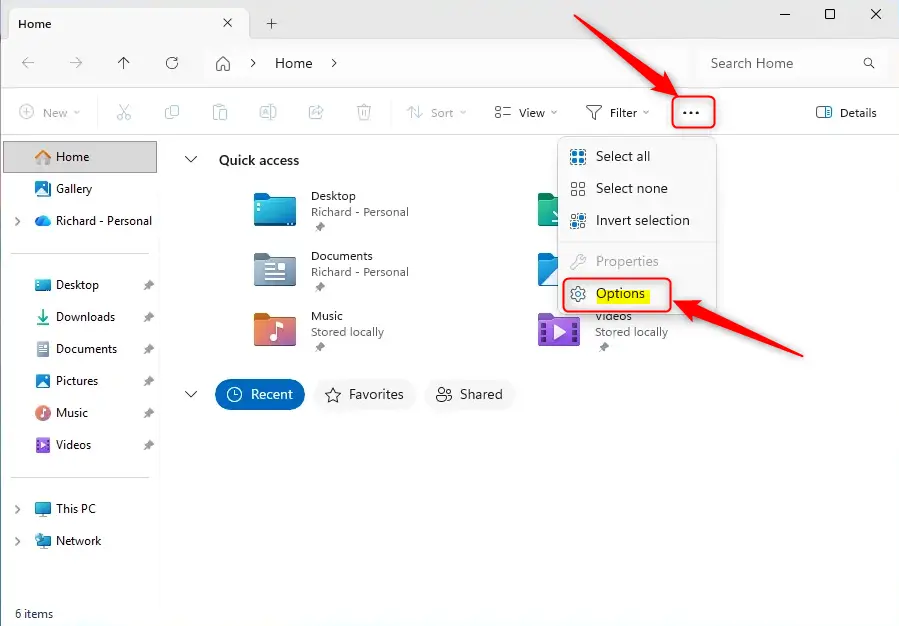
- Click the See more button (the three dots) in the toolbar at the top of the window. A menu opens.
- Click Options. The Folder Options window opens on the General tab.
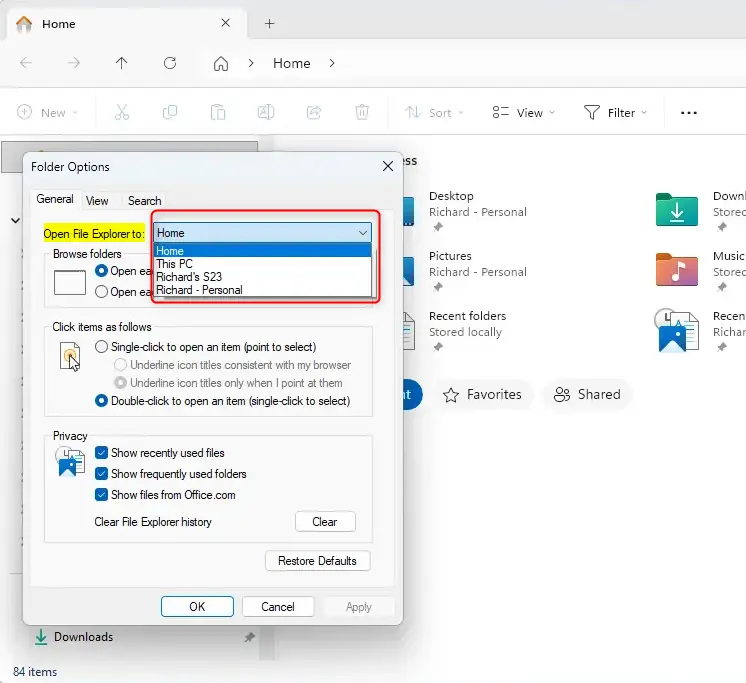
- Find Open File Explorer to: at the top of the tab and click the drop-down list next to it.
- Choose Home, This PC, Downloads, or OneDrive. If you do not see OneDrive, make sure you are signed in to OneDrive on this PC.
- Click Apply, then click OK. The window closes.
- Close File Explorer , then press Win+E again. It should now open in the location you picked.
Windows 11 version 21H2 (the original release) calls the default view Quick access instead of Home, and the list has fewer choices. If your drop-down looks different, check for updates in Settings Windows Update
The built-in list does not offer an arbitrary folder. If you need File Explorer to start in a specific folder, such as a project folder, the usual workaround is a shortcut to that folder that you pin or open directly.
To undo the change, repeat the steps above and set Open File Explorer to: back to Home.
How to Change the Default Folder for File Explorer
Option 1Using Folder Options
File Explorer opens to Home by default, but you can change file explorer folder settings to open directly to This PC instead. Open File Explorer, click the three dots at the top of the window, and choose Options. Under the General tab, find the Open File Explorer to dropdown menu and pick your preferred startup folder.- First, open Folder Options. To do this, open File Explorer , click the three dots (…) in the toolbar, and select Options.
- In the General tab, look for the setting that says “Open File Explorer to”.
- Click the dropdown menu next to it. You can choose Home (this is the default), This PC, Mobile device (it might show your phone’s name), or OneDrive.
- After you make your selection, click OK to save the changes.
Option 2Using the Registry Editor (Advanced Users)
Registry Editor (a tool that lets you view and change system settings) gives you advanced ways to change file explorer folder locations beyond the standard options menu. Back up your registry first, as mistakes can cause serious system problems. Press the Win+R on your keyboard to open the Run dialog box and start making your changes.
To change where File Explorer opens, adjust a setting within the Windows Registry. Follow these steps:
- Press the Windows key + R on your keyboard to open the Run dialog box.
- Type
regeditand press Enter. If prompted by User Account Control, click Yes. - Navigate to the following location in the Registry Editor:
HKEY_CURRENT_USER\Software\Microsoft\Windows\CurrentVersion\Explorer\Advanced - In the right-hand pane, find a value named
LaunchTo. If it doesn't exist, you'll need to create it. Right-click on an empty space in the right pane, select New, then DWORD (32-bit) Value, and name itLaunchTo. - Double-click on the
LaunchTovalue. - Enter one of the following numbers in the "Value data" field, depending on where you want File Explorer to open:
- 2: To open File Explorer to Home (default).
- 1: To open File Explorer to This PC.
- 4: To open File Explorer to Mobile Device or OneDrive. (Which one opens depends on the order they appear in a specific system setting.)
- 3: To open File Explorer to Downloads.
- After selecting your choice, click OK to save your changes.
- Close the Registry Editor and restart File Explorer to see the changes take effect.
Summary
Changing the default folder File Explorer opens to in Windows 11 takes little effort. The quickest method uses Folder Options, where you can pick Home, This PC, OneDrive, or your phone. For more advanced options, like setting it to Downloads, use the Registry Editor.
Frequently asked questions
How to change file explorer personal?
To personalize File Explorer, change where it starts. Open File Explorer Options, then on the General tab choose Home or This PC from the Open File Explorer to list. Click Apply, then OK. The change applies to your user account and takes effect the next time you press Win + E.
How to choose what folder I open to on Windows?
Search the Start menu for File Explorer Options, open the General tab, and pick This PC or Home from the Open File Explorer to dropdown. Click Apply, then OK. To open one specific folder every time, you need a shortcut that points to that folder instead.
How to switch file explorers?
Windows 11 includes one File Explorer, and you cannot swap it for another. To change how it starts, open File Explorer Options and select Home or This PC under Open File Explorer to. To use a different file manager, install one and set it as your default app.
How to set my file explorer open as default?
Open File Explorer Options, go to the General tab, and select Home or This PC in the Open File Explorer to list. Click Apply, then OK. Your choice is saved to your user account and stays after you restart. Press Win + E to check it.
How to make file explorer open to certain file each time?
Windows has no built-in setting for a specific folder, so create a shortcut. Right-click the desktop, choose New, then Shortcut. In the location box, type explorer.exe shell:Downloads, or explorer.exe C:\Users\YourName\Folder for any folder. Name it, then open that shortcut to start in that folder.
How to set when open up explorer to go to specific folder?
Use a shortcut, because File Explorer Options only offers Home or This PC. Right-click the desktop, select New, then Shortcut. Enter explorer.exe followed by the folder path, such as explorer.exe C:\Users\YourName\Documents. Pin the shortcut to the taskbar for quick access.
Still have a question?
Answered by AI from this guide. Good questions may be added to this page — please don't include personal details.
Did this guide fix your problem?

About the Author
Richard
Tech Writer, IT Professional
Richard is a writer at Geek Rewind who turns complex IT tasks into clear, step-by-step guides. He draws on years of hands-on experience in system administration and enterprise IT operations, focusing on Windows, Linux and WordPress: the problems people actually run into, and the fixes that work. His server and WordPress guides come from systems he runs himself. Richard builds and maintains the platform behind Geek Rewind, from its Ubuntu servers and Nginx configuration to its custom WordPress plugins. Many new tutorials start with readers' questions, and he's always glad to answer them in the comments.
No comments yet — be the first to share your thoughts!