How to Show or Hide Status Bar in File Explorer in Windows 11

- 11 steps
- Needs administrator rights
The status bar in Windows 11 File Explorer is the thin strip at the bottom of every window. It shows the number of items in the current folder. When you select files, it shows how many you picked and, for files, their total size.
On the right side of the bar are two buttons for changing the view. One switches to the detailed list view (keyboard shortcut Ctrl+Shift+6). The other gives you larger previews of your files (Ctrl+Shift+2). These shortcuts work whether or not the status bar is visible, so hiding the bar does not take them away.
You can turn the status bar on or off for all your folders at once. There are two ways to do it, and both are covered below. The setting applies to your user account, not to individual folders, so you do not have to repeat it folder by folder.
Open File Explorer, click the three dots in the toolbar, select Options, go to the View tab, scroll to Show status bar, and check or uncheck the box to show or hide it. Click OK. Close and reopen File Explorer windows to see the change.
Option 1Use Folder Options
Folder Options is the easiest way to show or hide the status bar. It is a normal settings window, so you do not need to touch the registry. It works the same on Windows 11 Home and Pro.
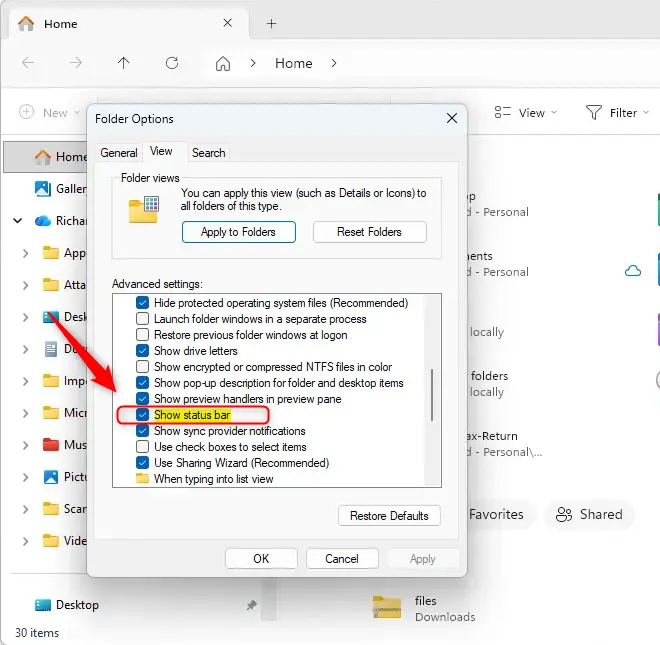
- Open File Explorer, then click the See more button (the three dots) in the toolbar and choose Options. The Folder Options window opens.
- Click the View tab. You will see a list called Advanced settings.
- Scroll down the list until you find Show status bar.
- To show the status bar, put a checkmark in the box next to Show status bar. This is the default setting. To hide it, clear the checkmark.
- Click OK. The window closes and the change applies to your File Explorer windows.
If you hid the bar, the strip at the bottom of the window is gone and the file list reaches the bottom edge. If you showed it, the item count appears again at the bottom left. To undo the change, open Folder Options again and set the checkbox back.
Option 2Use Registry Editor
You can also change the status bar by editing the registry directly. Use this method if the Folder Options setting is missing or does not seem to take effect. It writes the same setting that Folder Options changes, so you are setting the value by hand instead of through the checkbox.
- Type regedit.exe in the Windows search bar and press Enter to open Registry Editor. You may need administrator permission for this step. If Windows asks whether to allow the app to make changes, click Yes.
- In Registry Editor, go to this location in the left-hand list. You can expand each folder in turn, or paste the path into the address bar at the top of the window:
HKEY_CURRENT_USER\Software\Microsoft\Windows\CurrentVersion\Explorer\Advanced
- In the right-hand side of the window, find an item named ShowStatusBar. Double-click on it.
- A small window will appear. It has a Value data box showing the current value.
- To show the status bar, type 1 and click OK.
- To hide the status bar, type 0 and click OK.
Close Registry Editor. Then close any open File Explorer windows and open a new one so it reads the new value. If the bar still does not change, sign out of Windows and sign back in.
You have now updated the status bar setting. To reverse it, open the same value again and enter the opposite number.
Summary
In short, turn the status bar on or off using Folder Options. This is the quickest method and the one to try first. If you prefer advanced settings, or Folder Options does not work for you, change the ShowStatusBar value in the Windows Registry Editor.
Have a question about this guide?
Answered by AI from this guide. Good questions may be added to this page — please don't include personal details.
Did this guide fix your problem?

About the Author
Richard
Tech Writer, IT Professional
Richard is a writer at Geek Rewind who turns complex IT tasks into clear, step-by-step guides. He draws on years of hands-on experience in system administration and enterprise IT operations, focusing on Windows, Linux and WordPress: the problems people actually run into, and the fixes that work. His server and WordPress guides come from systems he runs himself. Richard builds and maintains the platform behind Geek Rewind, from its Ubuntu servers and Nginx configuration to its custom WordPress plugins. Many new tutorials start with readers' questions, and he's always glad to answer them in the comments.
No comments yet — be the first to share your thoughts!