How to Check Folder Size in Windows 11

- 7 steps
- Needs administrator rights
Folder size checking in Windows 11 tells you how many gigabytes a directory takes up on your drive, so you know what to clean up when storage runs low. File Explorer does not show total folder sizes in its normal views. Working out those totals for every folder would slow it down, so you need the Properties window, a tooltip or the command line to see them.
Any of the methods below can help you find a space hog, such as a 50 GB game install or a pile of old movie downloads. This guide covers three of them:
- The Properties window in File Explorer, which gives the most detail.
- The hover tooltip, which is the fastest check.
- The dir /s command in Command Prompt, for people who prefer text.
None of them need extra software, and all work on Windows 11 Home and Pro.
Right-click the folder in File Explorer, choose Properties, and read the Size and Size on disk fields on the General tab. For a faster check, hover your pointer over the folder for about a second and a tooltip shows its total size. Windows does not display folder totals in normal views, so one of these two methods is needed.
View folder size in File Explorer
The Properties window is the most reliable way to check folder size in Windows 11. It shows the exact size in bytes and gigabytes, plus the number of files and subfolders inside. Follow the steps below, which are shown in the list that comes next.
The Properties window opens on the General tab. For a large folder, the numbers may take a few seconds to appear while Windows counts the contents.
- Open File Explorer.
- Find the folder you want to check.
- Right-click on the folder.
- Select “Properties” from the menu that appears.
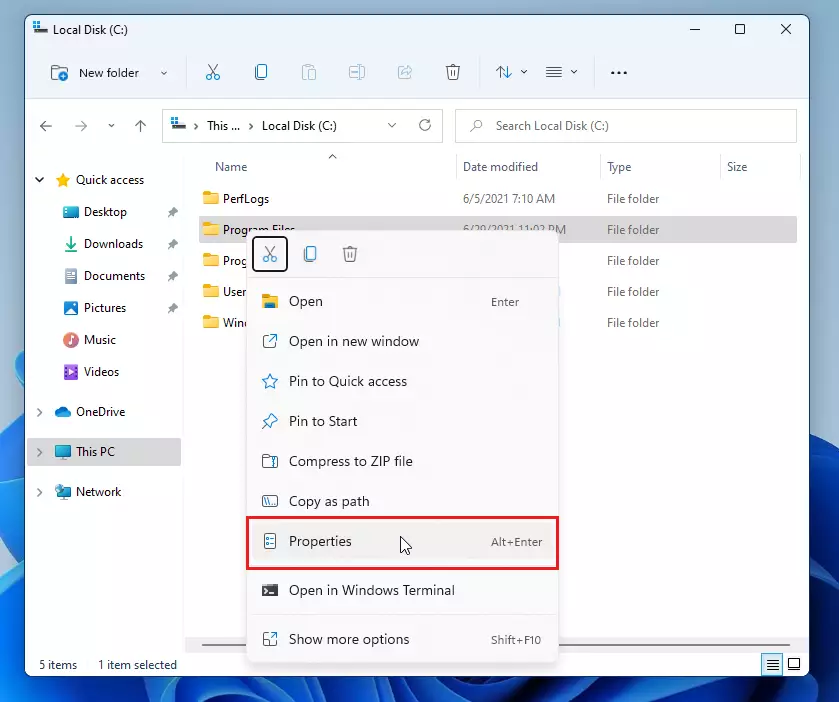
Look at the Size and Size on disk fields to see how much space the folder uses. The two numbers are often different, and that is normal.
- Size is the combined size of the data in the files.
- Size on disk is the space the files actually occupy. Windows stores files in fixed-size blocks, so a small file still uses a whole block. Folders with many tiny files show a bigger gap between the two numbers.
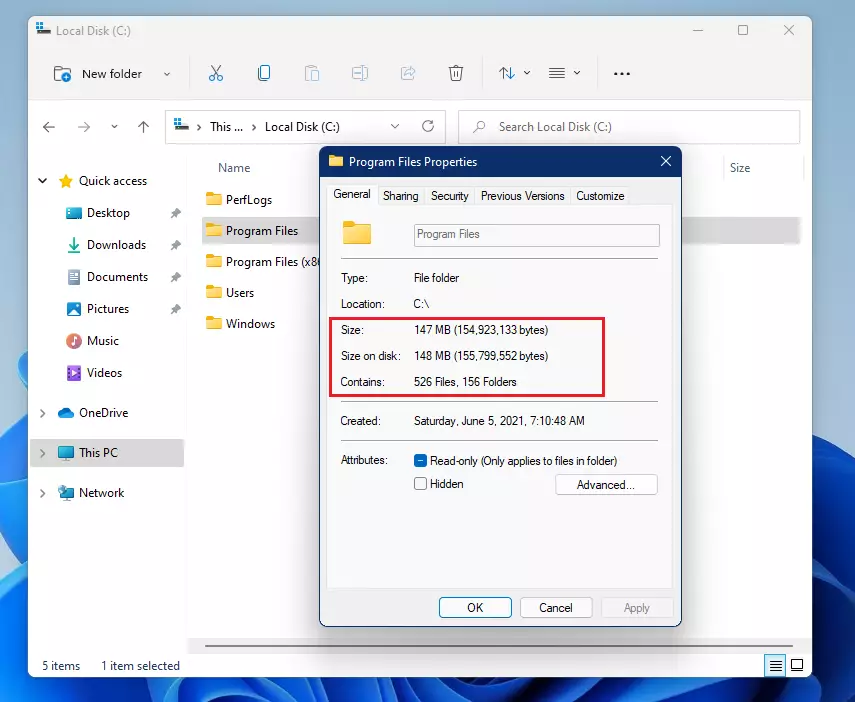
The same window also shows the Contains line with the number of files and folders inside, and the Created date. This helps you judge how much content a folder holds and when it was first made. An old folder with thousands of files is often a good candidate for cleanup.
How to view folder size by hovering your mouse
Hovering your mouse pointer over a folder is the quickest way to check folder size in Windows 11. You do not open any menu or window. The steps are shown in the list below.
Point your cursor at the folder in File Explorer and hold it still for about a second. A small tooltip appears next to the pointer. It shows the total size of everything inside the folder, and usually the number of files and subfolders as well.
- Open File Explorer.
- Move your mouse cursor over the folder you want to check.
- Wait a second, and a small box will pop up showing the size.
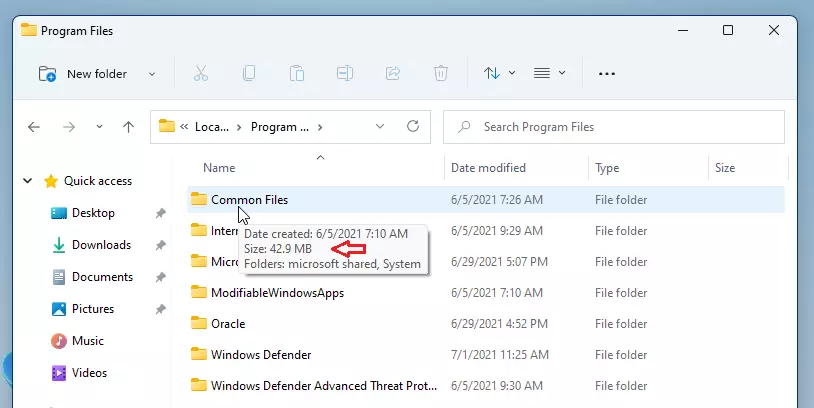
This tip does not work for every folder on your computer, but it is fine for a quick look. If no tooltip appears, the folder tips setting may be turned off. In File Explorer, click the See more (three dots) button, then choose Options. Open the View tab and check that Display file size information in folder tips is ticked. Click Apply, then OK. Some special locations, such as libraries and network folders, may still show no size. Use the Properties window for those.
Advanced Tip: Using the Command Prompt
Command Prompt lets you check folder size in Windows 11 with a text command instead of the graphical interface. Click Start, type Command Prompt and open it. You do not need administrator rights for a folder you can already open in File Explorer.
The command you need is dir /s. It lists every file and subdirectory (another word for a folder) inside the path you give it, and then prints a total. The example below shows the format.
dir /s C:\Users\GenericUser\DocumentsReplace the path in the example with your own folder. If the path contains spaces, wrap it in quotation marks. Press Enter and Windows lists the contents of that path, including everything in its subfolders.
For a large folder the list can scroll for a while. When it stops, look at the lines near the bottom. They show the total number of files and the total space they use, counted in bytes. Note that this total matches the Size field in Properties, not Size on disk.
Summary
- Checking folder sizes helps you manage your storage space and improve PC performance.
- You can view folder size by right-clicking a folder and selecting “Properties.”
- Hovering your mouse over a folder is a quick way to see its size without opening extra windows.
- Regularly checking your folders prevents your computer from getting clogged with unnecessary data.
Checking folder size in Windows 11 helps you find large files and manage your storage space. You can open the Properties window in File Explorer, hover your mouse pointer over the folder, or run a quick command in Command Prompt. Use Properties when you need the full detail, the tooltip for a fast check, and Command Prompt when you want a text result you can copy.
Have a question about this guide?
Answered by AI from this guide. Good questions may be added to this page — please don't include personal details.
Did this guide fix your problem?

About the Author
Richard
Tech Writer, IT Professional
Richard is a writer at Geek Rewind who turns complex IT tasks into clear, step-by-step guides. He draws on years of hands-on experience in system administration and enterprise IT operations, focusing on Windows, Linux and WordPress: the problems people actually run into, and the fixes that work. His server and WordPress guides come from systems he runs himself. Richard builds and maintains the platform behind Geek Rewind, from its Ubuntu servers and Nginx configuration to its custom WordPress plugins. Many new tutorials start with readers' questions, and he's always glad to answer them in the comments.
And 3th? How to show folder size in the column ‘Size’. That would be handy too.
We the People have been begging MS to allow Folder Size to be represented in the Size column Since before Windows 95!!!! We are still waiting….This is 2022….are you kidding me!
This post lacks how to show the size of a selection of folders. By default, selecting several folders only shows the size of the first folder.
Sadly, this information is rather useless. This is neither a “handy” way to view folder sizes, nor is it practical when checking many folders for their size, for instance when wanting to free disk space. Which I would say is one of the very few times that you need to see a folder’s size in the list.
Is there no way to display the folder size in the “size” column? Not even third party programs can do that (if you manage to find one, “Folder Size” is impossible to locate and needs a secondary window to display what you want to see, nothing changes in the native explorer window).
What I see is, a “size” column. But it has been empty for all folders in existence for decades, for no apparent reason. If the reason is that calculating the size of a folder would take so long (because you need to scan the entire directory, which can take some time) then why not add a checkbox in the explorer options menu? “Display folder sizes. []” Easy. Just why does it have to be so complicated, and why does Windows seem to just deliver useless updates, for such a long time now? Since Win7, it has been going down. Win7 is best Windows, change my mind.
[…] This drive can also be mounted in a folder. To do that, create an empty folder. […]
[…] might use File Explorer to determine the size of directories to look at your files, but it does not count the size correctly. To get the real number, you must […]