How to Access Your Phone’s Files Directly in Windows 11 File Explorer

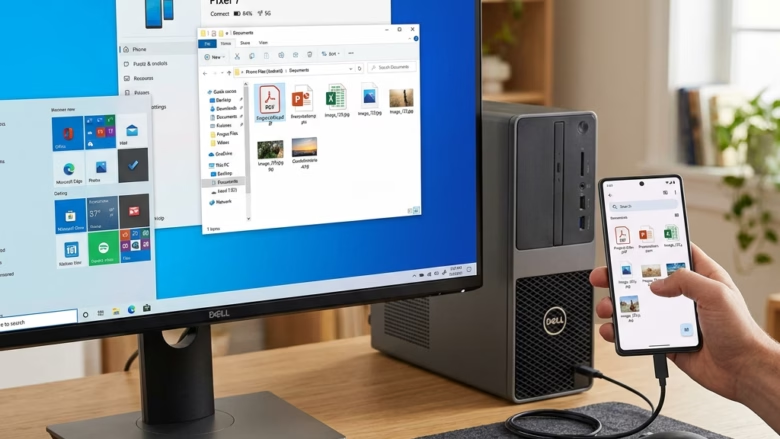
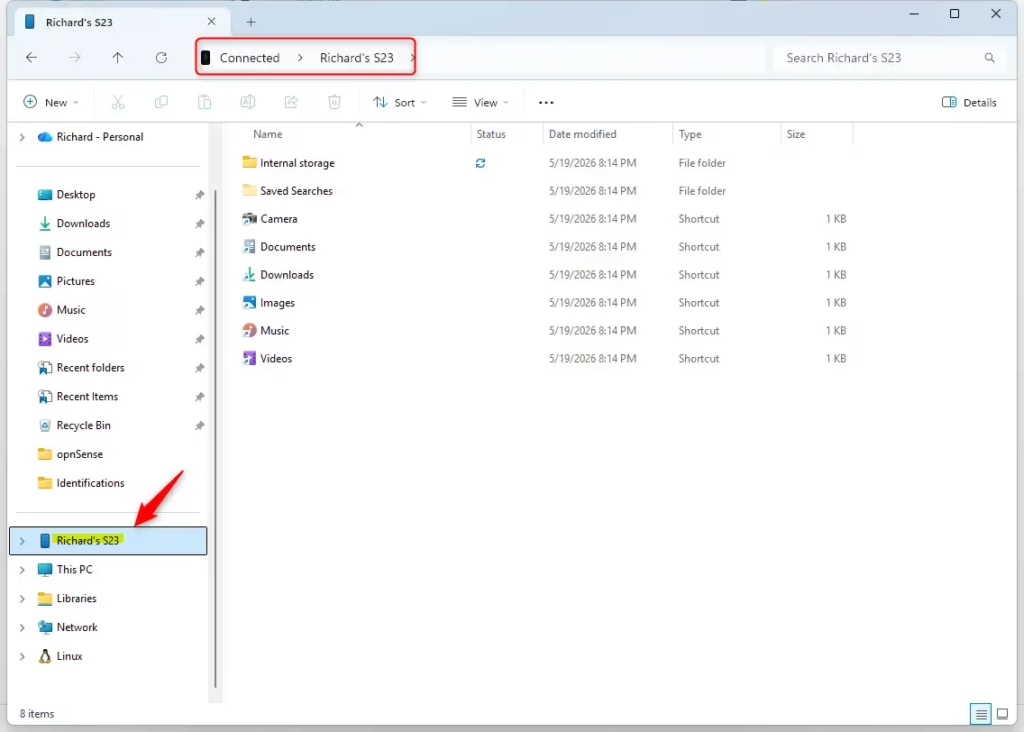
Accessing your phone’s files directly in Windows 11 File Explorer lets you browse photos and download documents from your mobile device without USB cables or cloud storage. The connection shows your paired phone in File Explorer next to your 📁C:\
Your phone needs Android 11 or newer to set up this link. Once it is connected, you can review photo galleries and manage your device storage from the desktop. The setup takes a few minutes, and most of it is checking that both devices are signed in and linked.
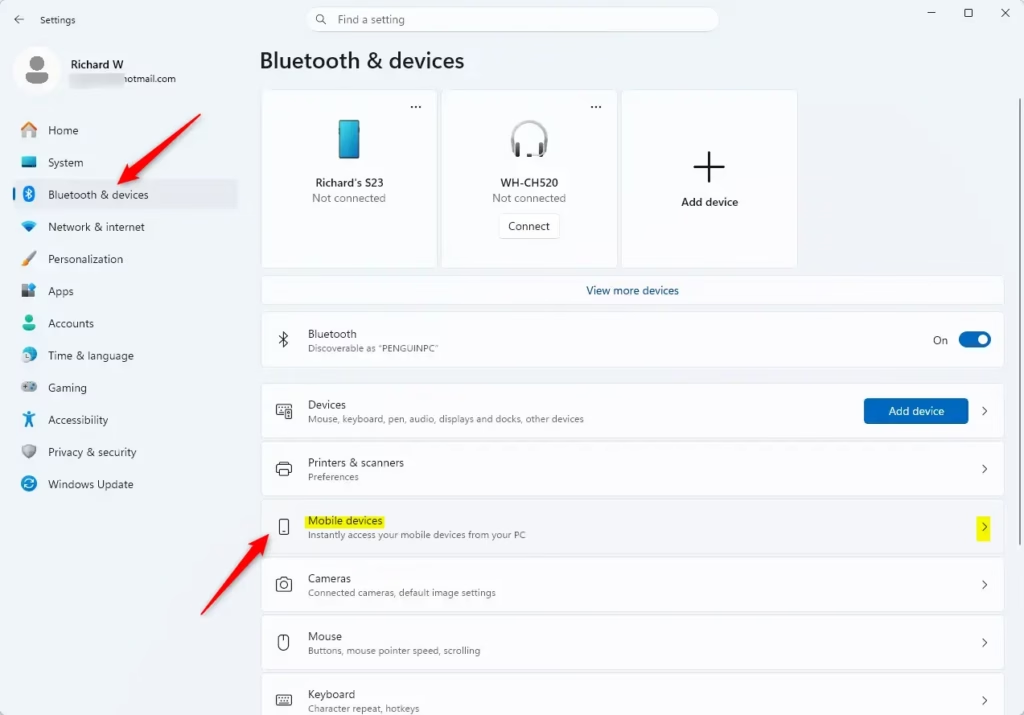
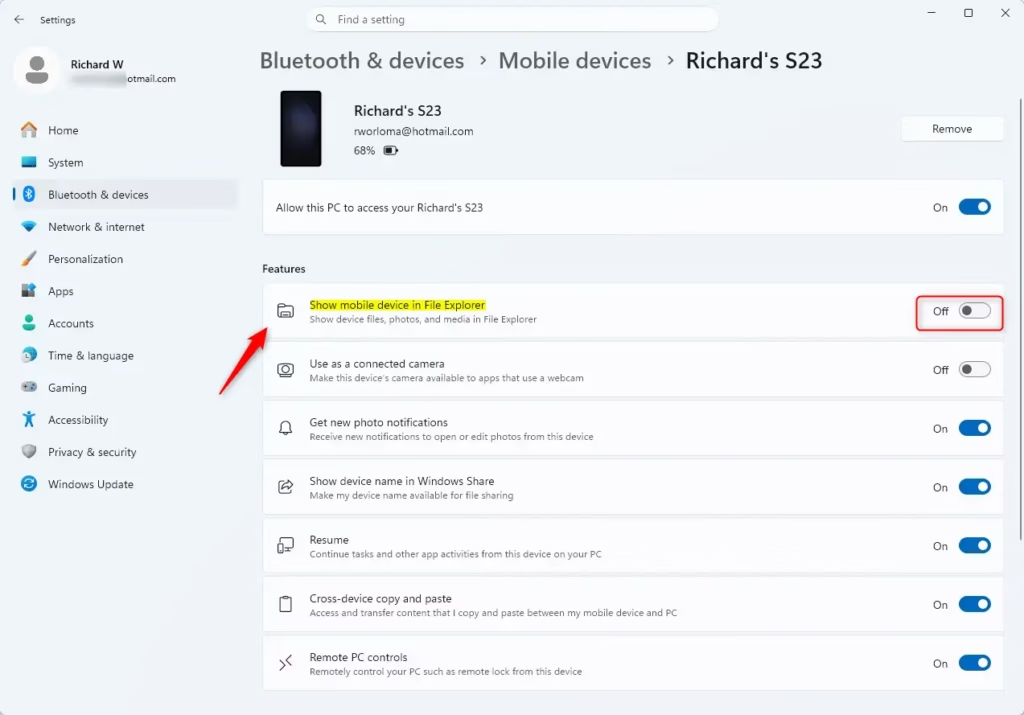
Open Windows Settings , go to Bluetooth & devices, select Mobile devices, then turn on Show mobile device in File Explorer next to your phone’s name. Your phone’s storage appears in File Explorer immediately, letting you browse and transfer files wirelessly.
What You Need to Get Started
Your phone needs Android 11 or newer and the latest Link to Windows app. Both devices must be on the same Wi-Fi network. Both must be signed in with the same Microsoft account. Without these, your computer cannot view your phone’s storage. If the option is missing or fails later, one of these four is almost always the cause.
Your Android Phone
- Operating System: Your phone needs Android 11 or newer. To check, open your phone’s Settings and look under the About phone section for the Android version. Older versions cannot expose their storage to your computer in this way.
- Link to Windows App: You need the “Link to Windows” app on your phone, updated to version 1.24072.258.0 or newer. Open your phone’s app store, search for the app, and tap Update if the button appears. On many Samsung phones the app is already built in, but it still needs to be up to date.
Your Windows PC
- Operating System: This feature only works with Windows 11. On an older version of Windows you cannot use it. It does not matter whether you run Home or Pro. If you are on Windows 11 and the Mobile devices page is missing, run Windows Update first, because the page only exists in newer Windows 11 builds.
Step-by-Step: Connecting Your Phone in File Explorer
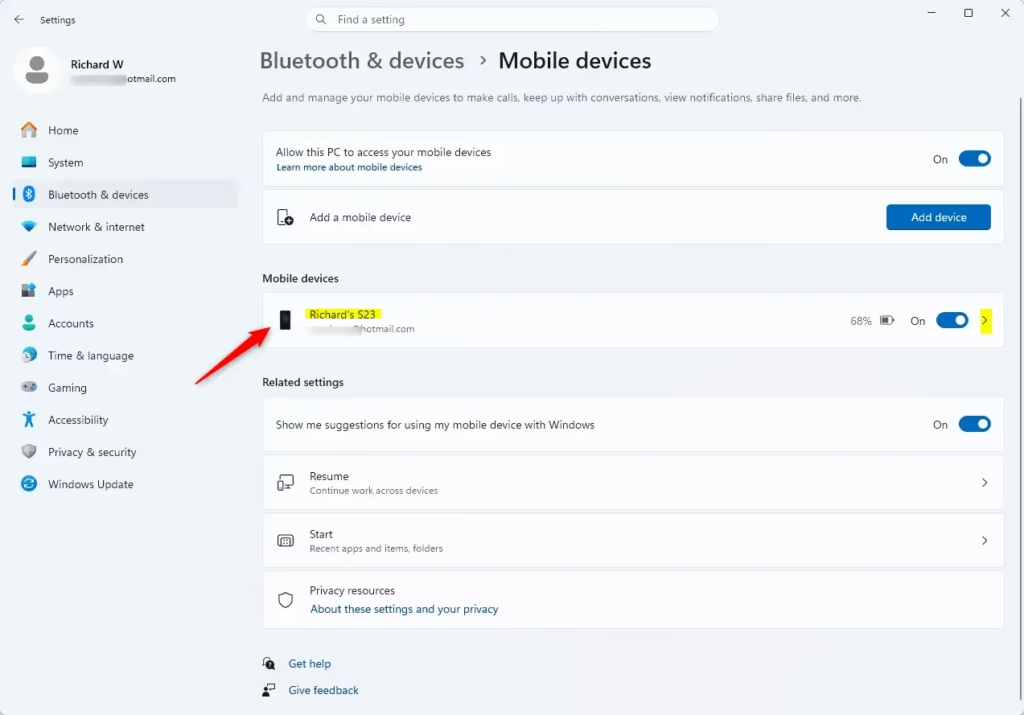
To set this up, open Windows Settings , go to Bluetooth & devices, and select Mobile devices to manage your linked phone. Turn on the setting that lets Windows access your mobile device, then approve the prompt that appears on your phone screen. The steps below walk through it.
- Open Windows Settings
Click the Start button (the Windows logo) on your taskbar , then click the Settings gear icon. You can also press
Windows key + Ion your keyboard. The Windows Settings app opens. - Go to Bluetooth & devices
In the Settings window, click Bluetooth & devices on the left side. This is where you manage the devices connected to your PC.
- Find Mobile devices
Scroll down on the right side of the Bluetooth & devices page, find Mobile devices, and click it. If you do not see it, update Windows and check that you are on Windows 11.
- Manage Your Paired Devices
Under My Devices, you should see your paired Android phone listed. If you have more than one phone paired, all of them appear here. If your phone is missing, open the Link to Windows app on the phone, sign in with the same Microsoft account as the PC, and finish the pairing prompts. Then come back to this page.
- Turn on the File Explorer Option⚠️WarningNext to your phone's name, find the switch labeled Show mobile device in File Explorer and set it to On.
Your phone's storage is now available in File Explorer. Your phone may show a prompt asking you to allow access to its files. Tap to approve it. No restart should be needed. To undo this later, return to this page and switch it back to Off.
What Can You Do Once Your Phone is in File Explorer?
Once the connection is working, you can view, copy, move, and delete photos, documents, and videos directly from your PC. Your phone shows up much like a USB flash drive under This PC, so you can drag and drop items between your computer and the phone without a cable. Keep the phone unlocked, awake, and on the same Wi-Fi network while you work, because the link can drop if the phone goes to sleep or leaves the network.
Browse Folders and Files Easily
- Open File Explorer. Press
Windows key + E. The File Explorer window opens. - Look under This PC. On the left-hand side, find This PC. Your phone appears in this section much like a secondary drive.
- Open the phone. Click the device icon to explore internal storage and any removable media. You should now see the phone's folders listed as you would on a local drive.
- Browse as usual. Folder navigation works the same as on local directories. Review pictures, check the download folders, locate documents, and manage other file types.
If your phone is not listed, confirm that the Show mobile device in File Explorer switch is on, then check that the phone is awake and online.
Manage Your Files Like Never Before
You can do more than just view files. These are the main actions:
- Open Files: Double-click any file (pictures, videos, documents, or audio) to open it with its default app on your PC. Large files may take a moment to open because they are read over Wi-Fi.
- Copy and Move: Drag and drop files from your phone to your PC, or from your PC to your phone. You can also use the standard copy (
Ctrl + C) and paste (Ctrl + V) commands. Moving a file copies it to the new location and then removes it from the old one, so check that the copy finished before you rely on it. - Rename Files: Right-click a file on your phone in File Explorer and choose Rename. Type the new name and press Enter.
- Delete Files: Need to free up space? Select the files or folders you no longer need and press the
Deletekey, or right-click and choose Delete. Files deleted from a phone may not go to the Windows Recycle Bin, so confirm you have a copy of anything important first.
Accessing phone files directly in File Explorer is practical for transferring large video files or many photos. Local transfers over your own network are usually much faster than cloud uploads, and you do not need a USB cable.
Reference:
Summary
To recap, accessing your phone inside Windows 11 File Explorer requires Android 11 or newer, the Link to Windows app on the phone, and a Windows 11 PC. Both devices need the same Wi-Fi network and the same Microsoft account. Once the Show mobile device in File Explorer switch is on, your phone appears under This PC.
Have a question about this guide?
Answered by AI from this guide. Good questions may be added to this page — please don't include personal details.
Did this guide fix your problem?

About the Author
Richard
Tech Writer, IT Professional
Richard is a writer at Geek Rewind who turns complex IT tasks into clear, step-by-step guides. He draws on years of hands-on experience in system administration and enterprise IT operations, focusing on Windows, Linux and WordPress: the problems people actually run into, and the fixes that work. His server and WordPress guides come from systems he runs himself. Richard builds and maintains the platform behind Geek Rewind, from its Ubuntu servers and Nginx configuration to its custom WordPress plugins. Many new tutorials start with readers' questions, and he's always glad to answer them in the comments.
No comments yet — be the first to share your thoughts!