How to Change “All File Access” on Linked Mobile Device for Phone Link


The “All File Access” setting in the Windows Phone Link app controls whether your PC can open photos, videos, and documents stored on your Android phone. Phone Link connects your phone to Windows 11 version 22H2 or newer, so you can reply to texts and check notifications on your PC screen.
You can turn this permission on or off at any time to keep your personal files private. If you gave your PC full access during setup, turning it off stops your PC from seeing everything on the phone. The change takes effect on the phone, and you can reverse it later by switching the permission back on.
Open the Link to Windows app on your Samsung phone, tap the settings gear icon, find Permissions, locate All File Access, and toggle it off. The change takes effect immediately and you can reverse it anytime by toggling it back on.
How to Change “All File Access” on Your Linked Samsung Device
You manage “All File Access” on your Samsung phone, not on your PC. That means working in the phone’s settings and in the “Link to Windows” app. Menu names vary a little between Samsung models and One UI or Android versions, so treat the labels below as close guides rather than exact matches. Here is the process:
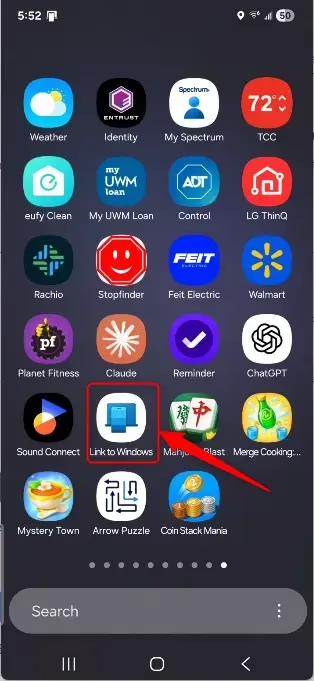
- Open the “Link to Windows” app on your Samsung phone. It comes pre-installed on most Samsung phones. If you can’t find it on the home screen, swipe up to open the app drawer and look there. If it isn’t installed, get it from the Google Play Store or the Samsung Galaxy Store. You should see the app’s main screen, which shows your linked PC.
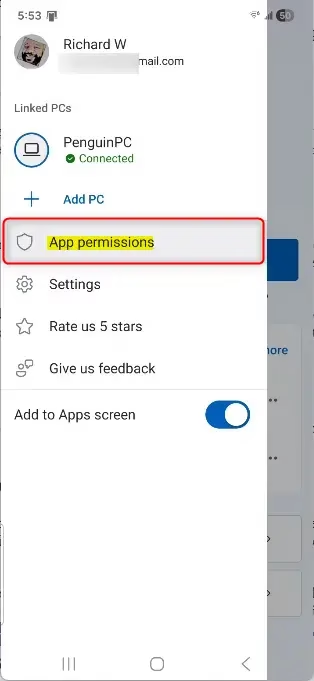
- Open the app’s settings. Look for a gear icon or a three-dot menu in the top or bottom corner of the app. Tap it. A settings or options list should appear.
- Find the permissions area. Look for an entry named something like Permissions, Privacy, Access, or Connected devices. The label depends on your Samsung model and Android version. If the app only offers a link out to Android’s own settings, follow it. You can also go there directly through Settings Apps Link to Windows Permissions.
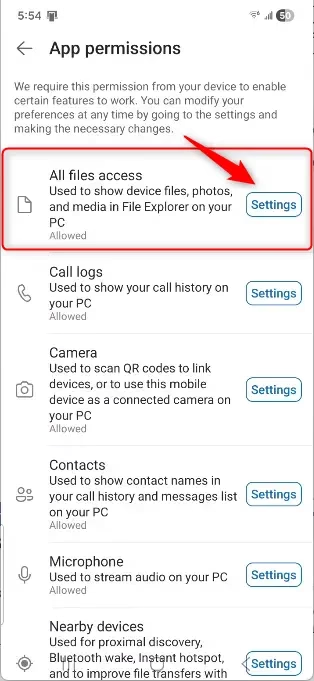
- Find the file or storage permission. Look for All File Access, All files access, or a broader Storage or Files and media category. It may be a toggle, or you may need to tap it to see more options. If you don’t see “All File Access” on its own, check inside the storage category.
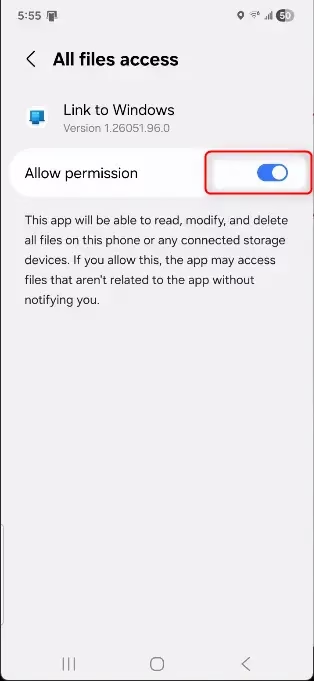
- Change the permission. If “All File Access” is on, tap the switch next to it to turn it off. Some phones show a list of choices instead. In that case, pick the most limited option that still does what you need, such as access to media only or to specific folders instead of all files. The switch should now show as off, or your new choice should be marked.
- Confirm your changes. The phone may ask you to confirm. Follow any on-screen prompts so the new setting is saved. Then go back and check that the permission still shows the value you chose.
- Refresh the connection (optional but recommended). Permission changes don’t always register right away. Close the “Link to Windows” app on your phone and open it again. Then close and reopen the Phone Link app on your Windows PC. If the PC still shows old access, restart both devices. After that, the PC should only reach the files you allowed.
If something stops working on the PC afterwards, such as browsing photos or opening files from the phone, a restricted permission is the first thing to check.
Understanding Android’s Permission System
Android has a built-in permission system that protects your personal data from apps you connect to your computer. The “All File Access” setting works like a master switch. When it is on, your PC can read, open, or edit everything saved in your phone’s storage. When it is off or limited, the PC only sees what the narrower permission allows.
Phone Link permissions are what let the phone and PC work together. After setup, you can change them from inside the app or from the phone's main system settings. On Samsung phones, the system route usually looks like this:
- Settings Apps Link to Windows Permissions
Tap any permission to turn it on or off. Turning one off may disable the matching feature in Phone Link. For example, blocking Contacts can affect calls and messages, while limiting file access affects photos and files.
Reference:
Conclusion
Managing "All File Access" through the "Link to Windows" app gives you control over your phone's data for Phone Link. You decide how much your PC can see, and you can change that whenever you like.
Have a question about this guide?
Answered by AI from this guide. Good questions may be added to this page — please don't include personal details.
Did this guide fix your problem?

About the Author
Richard
Tech Writer, IT Professional
Richard is a writer at Geek Rewind who turns complex IT tasks into clear, step-by-step guides. He draws on years of hands-on experience in system administration and enterprise IT operations, focusing on Windows, Linux and WordPress: the problems people actually run into, and the fixes that work. His server and WordPress guides come from systems he runs himself. Richard builds and maintains the platform behind Geek Rewind, from its Ubuntu servers and Nginx configuration to its custom WordPress plugins. Many new tutorials start with readers' questions, and he's always glad to answer them in the comments.
No comments yet — be the first to share your thoughts!