What to Do When Mobile Devices Fail to Link in Windows 11

Mobile device connection failures in Windows 11 happen when Bluetooth glitches, account mismatches, or background permission blocks stop your PC and phone from talking to each other. Phone Link (a tool that connects your phone to your PC so you can get texts and calls on your screen) relies on steady wireless signals and matching account sign-ins to stay online.
Fixing these sync errors takes a few minutes using built-in Windows tools like the Settings app and Task Manager (a tool that lets you force-close frozen apps). Restarting the app, updating your software, and resetting your Bluetooth connection usually get your devices linked again right away. Work through the sections below in order, because they go from the quickest checks to the more drastic resets.
If you want a fast first attempt before anything else, do this:
- Press Ctrl+Shift+Esc to open Task Manager.
- Find Phone Link in the list of apps, select it, and click End task. The app window closes.
- Open Phone Link again from the Start menu and see whether your phone reconnects.
When mobile devices fail to link in Windows 11, the problem usually comes from mismatched Microsoft accounts, different Wi-Fi networks, or outdated apps. To fix it, open the Settings app on your PC, select Accounts, and verify that the email address matches the one signed into the Link to Windows app on your phone.
Understanding the Basics of Phone Link and Link to Windows
Phone Link and Link to Windows connect your mobile device to your computer by pairing the Phone Link app on Windows 11 with the Link to Windows app on your phone. These two programs share messages, photos, and notifications across your devices by using your local Wi-Fi network and a secure Microsoft server connection.
- The Phone Link app living on your Windows 11 computer.
- The Link to Windows app running on your mobile device (such as an Android phone or a compatible iPhone).
When the Link to Windows app and your mobile device communicate, the two devices use your local Wi-Fi network and a secure internet connection tied to your Microsoft account. If network interference disrupts that communication channel, your mobile devices lose connection. The troubleshooting steps below target the most common roadblocks that break this device bridge in Windows 11.
Keep in mind that features differ by phone. Android phones get the full set, including photos and notifications. iPhones get a smaller set of features and pair over Bluetooth, so on an iPhone also make sure Bluetooth is on and the phone is close to the PC.
Checking Your Microsoft Account Credentials
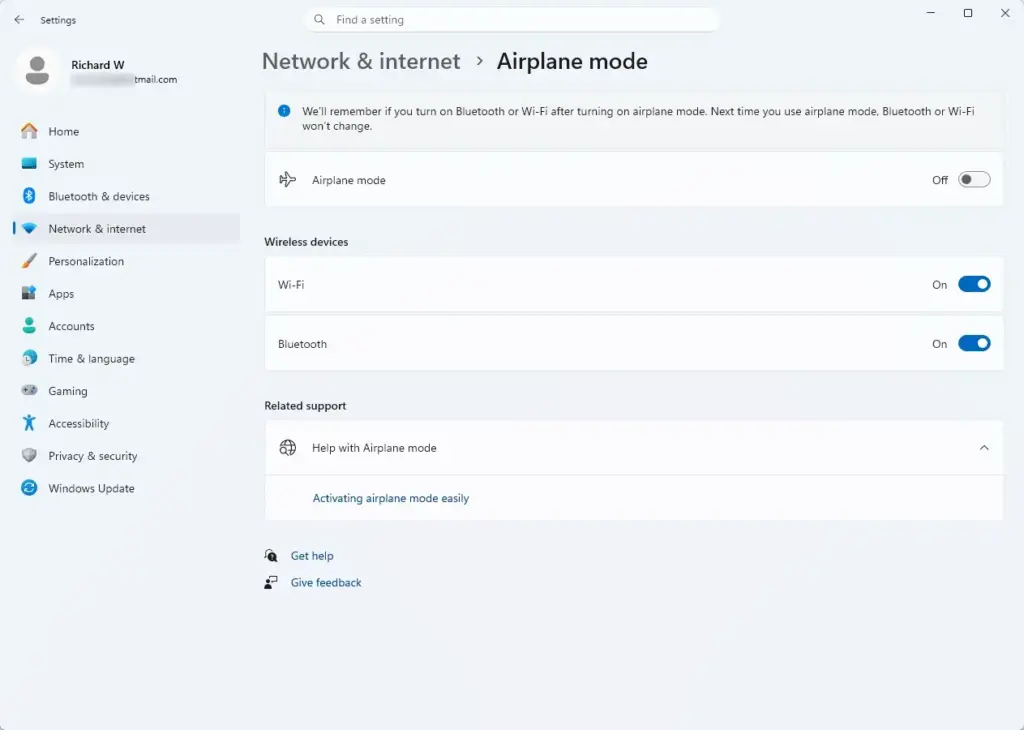
Checking your Microsoft account credentials on both devices fixes connection errors because Phone Link requires your computer and your phone to use the exact same login. Open Settings on Windows 11 and check your account details under Accounts, then verify that your mobile device uses that same login information. A very common cause is a personal account on one device and a work or second personal account on the other.
Follow these steps to check your account on your computer:
- Click the Start button on your Windows 11 taskbar and open the Settings app.

Taskbar - Select Accounts from the left-hand menu. The Accounts page opens.
- Look at the top of the window to verify the email address listed for your profile (for example, user@example.com). This is your primary Microsoft account. If you see “Local account” instead of an email address, your PC is not signed in with a Microsoft account, so sign in with one before trying again.
Next, check your mobile device:
- Open the Link to Windows app or your phone settings.
- Verify that the Microsoft account email displayed matches the one on your Windows 11 PC.
If they do not match, sign out of the incorrect account on one of the devices and sign back in using the correct credentials. Then restart Phone Link on the PC and check that the phone shows up.
Fixing Data Syncing and Network Connectivity Issues
A stable network connection is vital. If your phone and computer are on different Wi-Fi networks, or if your local network blocks device communication, syncing fails immediately. Guest networks and some public or office networks isolate devices from each other, which breaks the link even when both devices show they are online.
Are Your Devices on the Same Wi-Fi Network?
If your router broadcasts separate names for its 2.4 GHz and 5 GHz bands, pick the same one on both devices. Also turn off any VPN on the PC or phone while you test, since a VPN can route traffic away from your local network.
Can You Use Mobile Data Instead of Wi-Fi?
Phone Link prefers a Wi-Fi connection for heavier tasks like syncing photos, but basic features can use mobile data if configured. However, if you experience constant drops, make sure your mobile data settings do not restrict background data usage for the Link to Windows app. Data saver or low-data modes on the phone are the usual culprits. If you find one, exempt Link to Windows from it.
Resolving Update Required Errors and App Version Mismatches
Outdated software causes many mobile connection failures in Windows 11. If you see an “Update Required” page, update both the Windows app and the mobile app to their latest versions to restore your connection. Update the PC side and the phone side, because a version mismatch between the two can stop pairing even when everything else is correct.
How to Check for Updates on 🪟 Windows 11

- Open the Microsoft Store app on your computer.
- Click Library in the bottom-left corner. A list of your installed Store apps appears.
- Click the Get updates button to check for new versions of the Phone Link app. Wait for the updates to finish, then reopen Phone Link.
How to Update Link to Windows on Your Mobile Device
- Open the Google Play Store (for Android) or the App Store (for iOS) on your mobile device.
- Search for Link to Windows.
- If an update is available, tap Update. If you only see Open, the app is already current.
Optimizing Battery and Background App Settings
Optimizing battery and background app settings stops Android from putting the Link to Windows app to sleep in the background. Go to your phone settings, find the battery optimization options for Link to Windows, and set it to unrestricted so your devices stay connected all day. If the connection works for a while and then drops when the phone sits idle, this is the most likely cause.
To fix this on Android devices, adjust your battery optimization settings:
- Open your phone’s Settings app.
- Go to Apps or Apps & notifications.
- Find and select Link to Windows.
- Tap Battery or Optimize battery usage and select the option that allows the app to run freely without restrictions. The exact wording differs by phone maker, for example “Unrestricted” or “Don’t optimize”.
On your Windows 11 PC, check your background app permissions to ensure the Phone Link app has permission to run in the background:
- Open Settings Apps Installed apps.
- Find Phone Link, click the three-dot menu next to it, and select Advanced options.
- Under Background apps permissions, set the dropdown to Power optimized or Always. Avoid Never, because that stops the app from receiving anything while it is minimized.
Troubleshooting QR Code and Pairing Failures
Troubleshooting QR code and pairing failures requires unlinking your devices in both the Phone Link app and your phone settings, then restarting both devices. Clearing out old pairing data lets you scan a fresh QR code and set up a brand new connection without timeout errors.
- On your computer, open the Phone Link app and select the option to unlink your device or remove your phone.
- Go to your phone settings, locate the linked services or Link to Windows integration, and remove your computer.
- Restart both your phone and your Windows 11 PC.
- Open Phone Link on your PC again and generate a fresh QR code. Scan it carefully using your phone’s camera or within the Link to Windows app setup screen. Hold the phone steady and make sure the whole code is on screen. Pairing codes expire after a short time, so if the scan times out, generate a new code and try again.
Advanced Troubleshooting: Conflicts with Samsung DeX and Dual-User Modes
Advanced features like Samsung DeX and dual-user modes conflict with Phone Link by overloading your phone’s communication channels. Closing Samsung DeX and using a single user profile on your mobile device removes these software conflicts and helps your computer establish a stable connection. After you close DeX, restart Phone Link on the PC and try the connection again.
Additionally, if your phone uses multiple user profiles or dual-messenger features (common in certain regions), the Link to Windows service may fail to identify the primary user account. Ensure you are setting up the app from the primary owner profile on your mobile device.
Expert Tips: Unlocking Hidden Fixes for Stubborn Connections
When standard troubleshooting fails, you need deeper methods to clear corrupted data. Here are two expert-level strategies that fix stubborn linking failures. Both remove saved pairing data, so you will need to sign in and pair your devices again afterward.
Clearing App Cache and Residual Data
Clearing app cache and residual data fixes broken connections caused by corrupted temporary files stored by the Link to Windows app. Open your phone settings, select your app storage menu, and tap clear cache and clear data to reset the application and build a fresh connection profile.
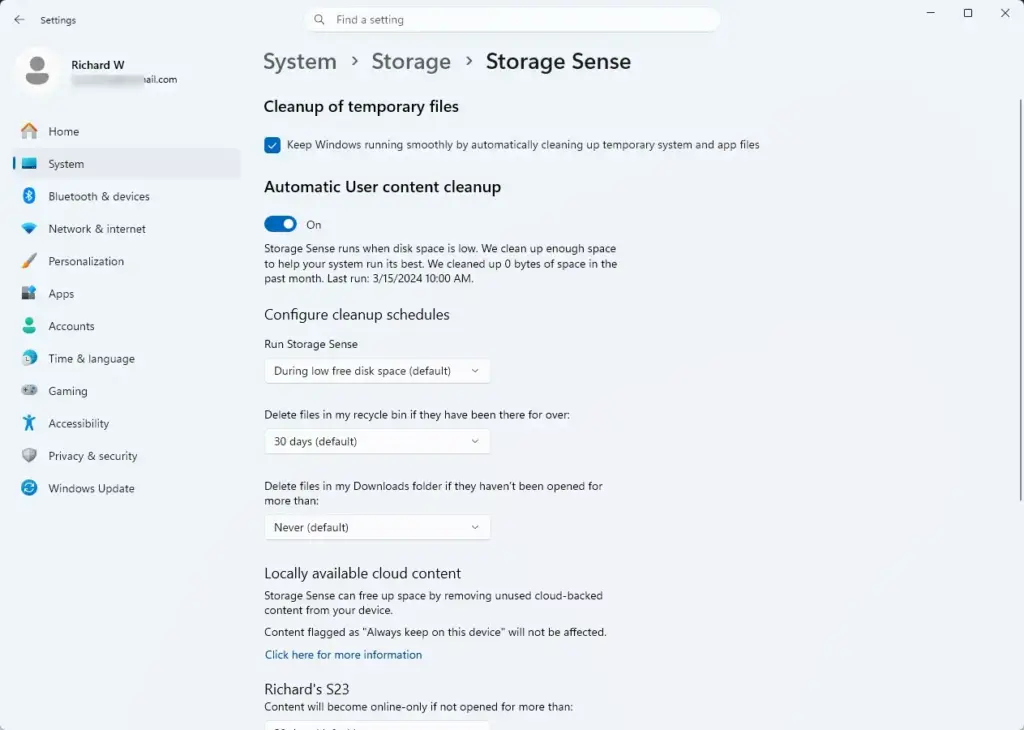
- On your mobile device, open Settings and tap Apps.

Settings - Select Link to Windows from the list.
- Tap Storage, then tap Clear Cache and Clear Data. (Note: This will require you to sign in and pair your devices again from scratch.) Menu names vary a little between Android versions and phone makers.
On your Windows 11 PC, you can reset the Phone Link app via the system settings:
- Open Windows 11 Settings and click Apps.
- Select Installed apps (or Apps & features).
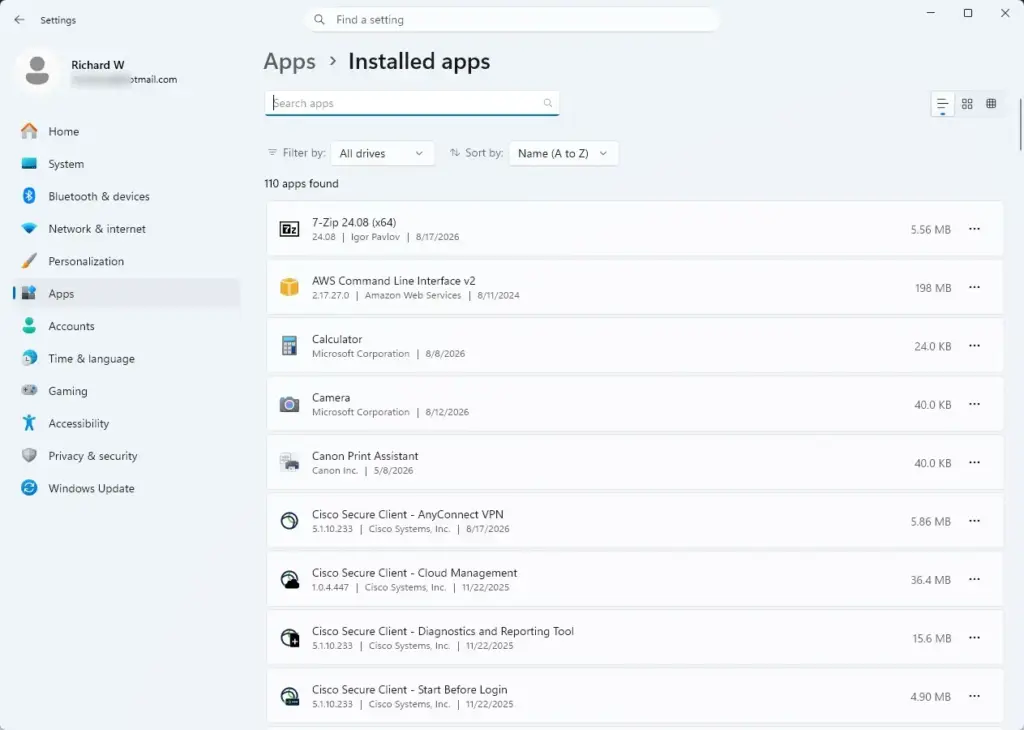
Settings › Apps › Installed apps - Scroll down to find Phone Link, click the three-dot menu icon next to it, and select Advanced options.
- Scroll down and click the Reset button. This clears out corrupted app data on the PC side. If you would rather try something gentler first, click Repair, which fixes the app without deleting its data. A confirmation message appears when either action finishes.
After the reset, open Phone Link and pair your phone again. No restart of Windows is needed.
Checking Windows Firewall and Network Profile Settings
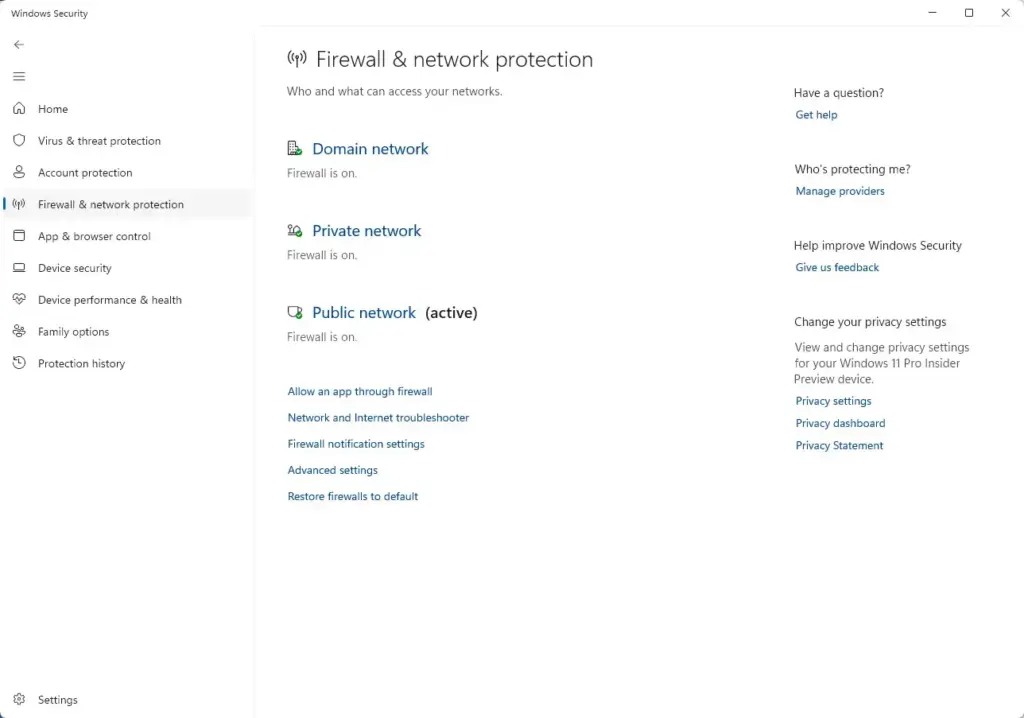
Checking your Windows Firewall and network profile settings ensures that Windows 11 treats your home connection as a private network rather than a public one. Open your network settings, click your Wi-Fi properties, and set your network profile type to private so your computer allows internal device discovery.
- Open Windows 11 Settings and click Network & internet.
- Click Wi-Fi, then click your connected network name. The properties page for that network opens.
- Ensure your network profile type is set to Private network rather than Public network. A private network allows connected devices to discover and talk to each other safely. Only do this on a network you trust, such as your home network. On a public Wi-Fi, leave it as Public.
If you ever want to undo the change, return to the same page and select the other option.
Summary
Fixing mobile devices that fail to link in Windows 11 is easy when you verify your Microsoft account, match your Wi-Fi networks, adjust battery settings, and clear corrupted app caches. Taking these few troubleshooting steps restores a stable connection between your computer and your phone in just minutes.
Have a question about this guide?
Answered by AI from this guide. Good questions may be added to this page — please don't include personal details.
Did this guide fix your problem?

About the Author
Richard
Tech Writer, IT Professional
Richard is a writer at Geek Rewind who turns complex IT tasks into clear, step-by-step guides. He draws on years of hands-on experience in system administration and enterprise IT operations, focusing on Windows, Linux and WordPress: the problems people actually run into, and the fixes that work. His server and WordPress guides come from systems he runs himself. Richard builds and maintains the platform behind Geek Rewind, from its Ubuntu servers and Nginx configuration to its custom WordPress plugins. Many new tutorials start with readers' questions, and he's always glad to answer them in the comments.
No comments yet — be the first to share your thoughts!