How to Link Android Mobile Device to Windows 11


Phone Link is a built-in Windows app that connects your phone to your PC. It lets you read and send text messages, make calls, see notifications and open phone apps on your Windows 11 screen. Pairing takes about two minutes with a QR code scan.
Once linked, you can check notifications, copy photos and manage phone apps from the PC without picking up the phone. You need a Windows 11 PC and an Android phone running Android 8.0 or newer.
Open Settings Bluetooth & devices Mobile devices, click Manage devices, then Add device. Scan the QR code with your Android phone’s camera using the Link to Windows app in Quick Settings. Confirm the verification codes match and approve permissions on your phone to complete the link.
What You Need
- A PC running Windows 11. Home and Pro both work, and Phone Link is already installed.
- An Android phone running Android 8.0 or newer. To check, open the phone’s Settings and look under About phone.
- Your phone and PC must be connected to Wi-Fi network (either directly or through a router). If pairing fails later, a mismatched network is one of the first things to check.
Which Devices Work?
- Android phones running Android 8.0 or newer.
- Link to Windows app version 1.23112.189 or newer. Windows normally updates this app through the Microsoft Store. If your copy is older, update it before you start.
How to Connect Your Android Phone to 🪟 Windows 11
Android users can connect their phones to Windows 11 using the Link to Windows app. You start on the PC, scan a QR code with the phone, then approve a few permissions on the phone.
Keep the phone next to you and unlocked, because you will need it partway through.
Step 1Open the Settings App
- Press Win+I on the PC.
The Settings app opens.
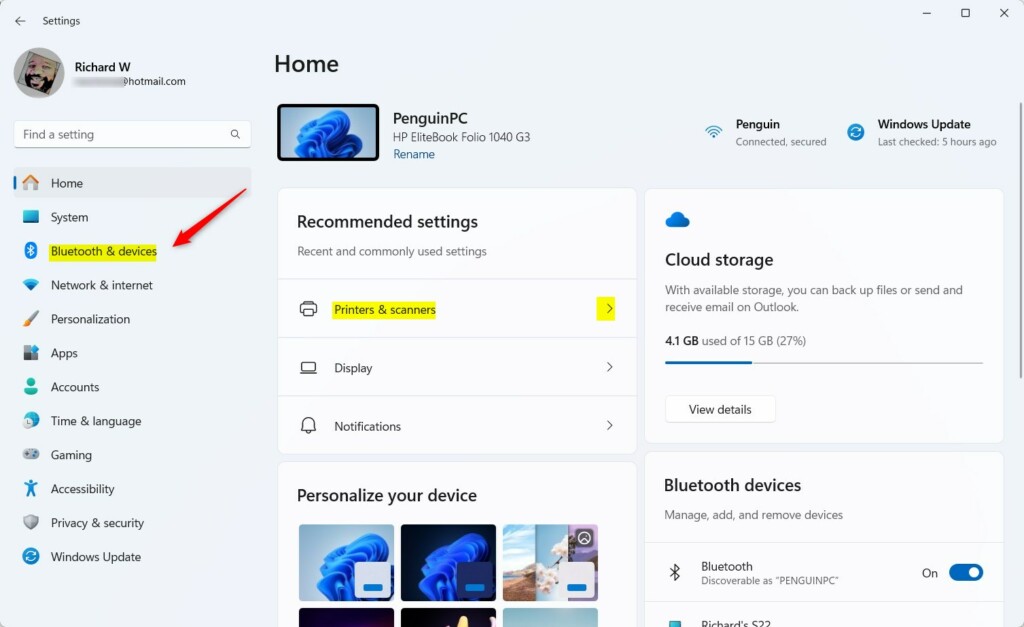
Step 2Go to Bluetooth & Devices
- In the Settings app, click Bluetooth & devices in the left sidebar.
The device options for the PC appear on the right.
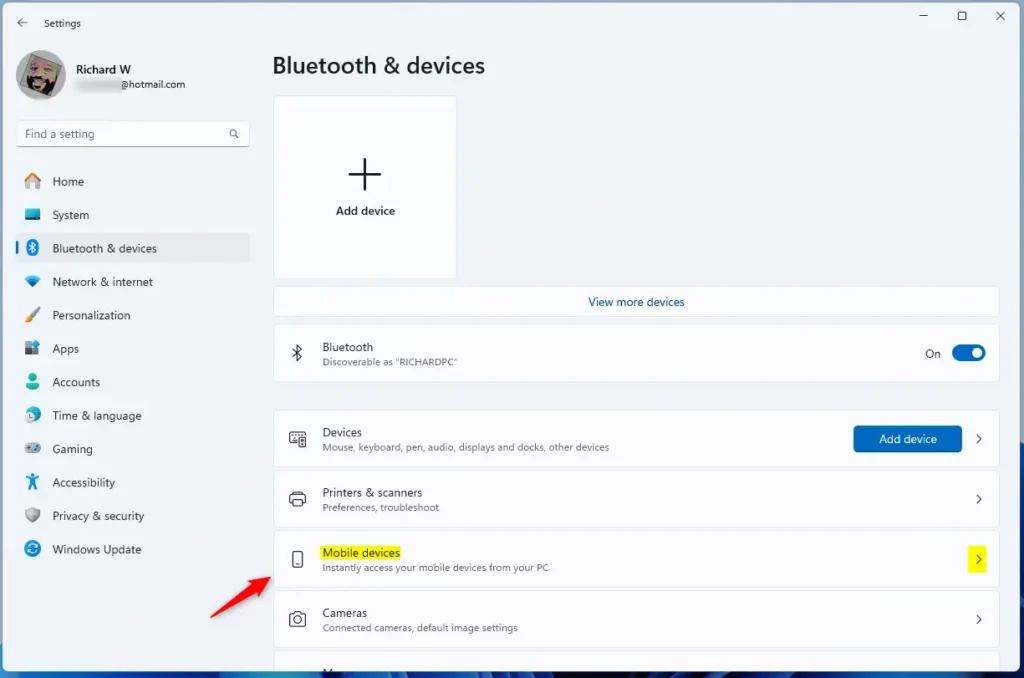
Step 3Select Mobile Devices
- On the right side, find Mobile devices under Bluetooth & devices and click it to expand it.
You should see a toggle that lets the PC access your mobile devices, plus a Manage devices button. If you can’t find the entry, update Windows through Settings Windows Update , because older builds of Windows 11 may not show it in this place.
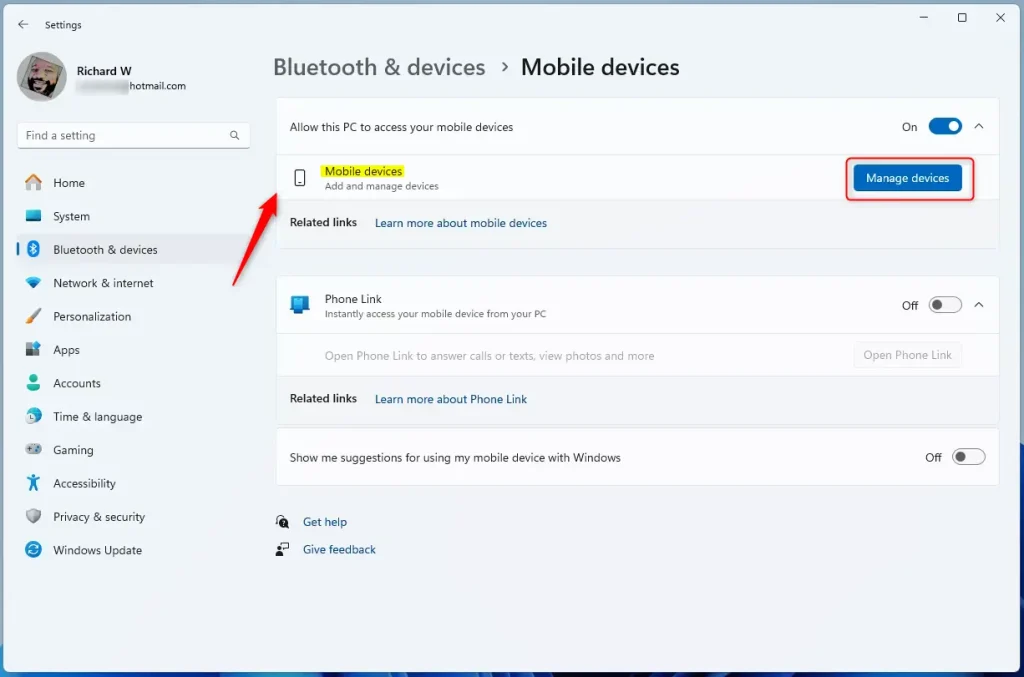
Step 4Manage Your Devices
- If the toggle for allowing this PC to access your mobile devices is off, turn it on. Without it, the button below may not work.
- Click the “Manage devices” button under “Allow this PC to access your mobile device.”
A new window opens. It lists any phones already linked to this PC, or it is empty if this is your first one.
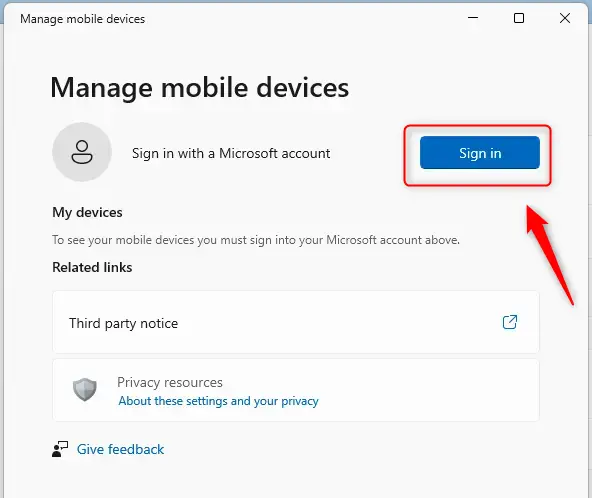
Step 5Sign In to Your Microsoft Account
- If the window asks you to sign in, click the Sign in button. This happens when no Microsoft account is signed in on the PC. Finish the sign-in and return to the window.
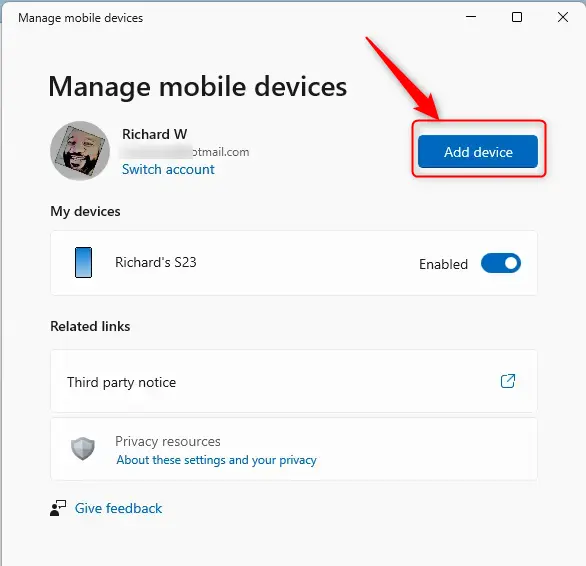
- Click the “Add device” button to link the phone.
If Add device is greyed out, check that the sign-in completed and that the PC is online.
Step 6Scan the QR Code
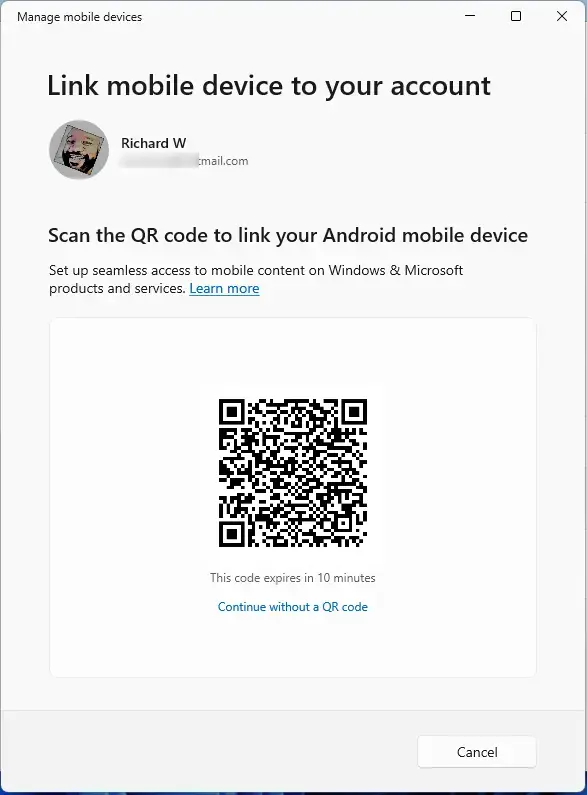
Leave it open and scan the code with the phone camera in the next steps. If the popup closes or the code stops working, click Add device again to get a fresh one.
Step 7Open Link to Windows on Your Phone
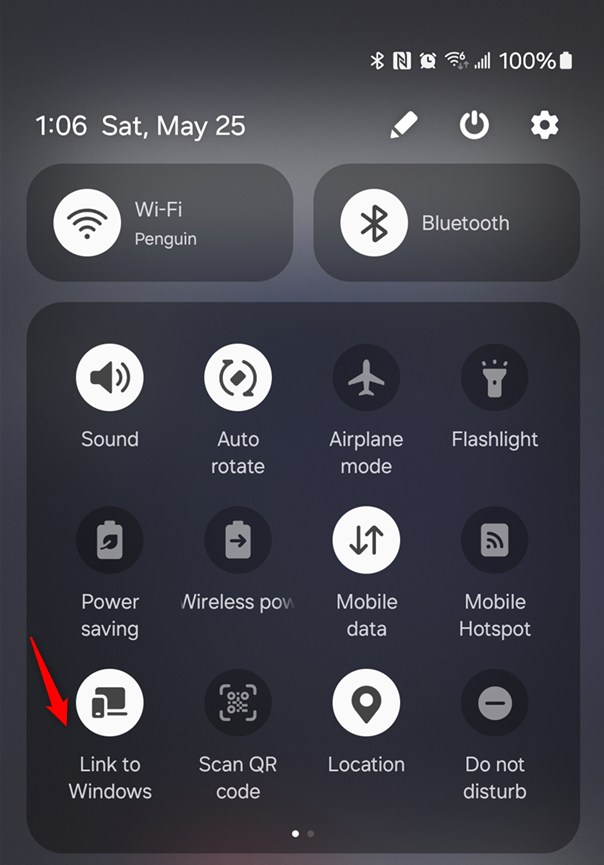
- On the phone, swipe down from the top of the screen to open the Quick Settings panel.
- Find the Link to Windows icon.
On many Samsung phones the app is already installed. If you don’t see the icon, swipe down again to expand the panel and look for an edit (pencil) button. Use it to add the Link to Windows tile. On other phones, install the Link to Windows app from the Google Play Store first.
- Press and hold the Link to Windows button inside Quick Settings.
- Select “Sign in using the QR code on your PC.”
The phone camera opens, ready to scan. If prompted, allow the app to use the camera. Point it at the QR code on the PC screen.
Step 8Confirm Your Connection
- After the scan, check that the verification code on your phone matches the code shown on the PC screen.
- If the codes match, approve the permission requests that pop up on the phone. These let the PC access your phone content, such as messages, contacts and notifications.
If the codes don’t match, stop and start the pairing again from the PC.
The phone may also ask for special permissions, such as File Access, so you can browse its content from the PC. Follow the on-screen prompts on the phone to grant them. You can skip a permission, but the matching feature in Phone Link won’t work until you grant it. You can change these later in the phone’s app settings.
- Tap Done on the phone to finish.
Step 9Check Your Windows PC
- Go back to the mobile devices settings on the PC: Settings Bluetooth & devices Mobile devices
The connected phone should now appear in the list as active and ready to use. If it doesn't show up right away, give it a moment, then reopen the page.
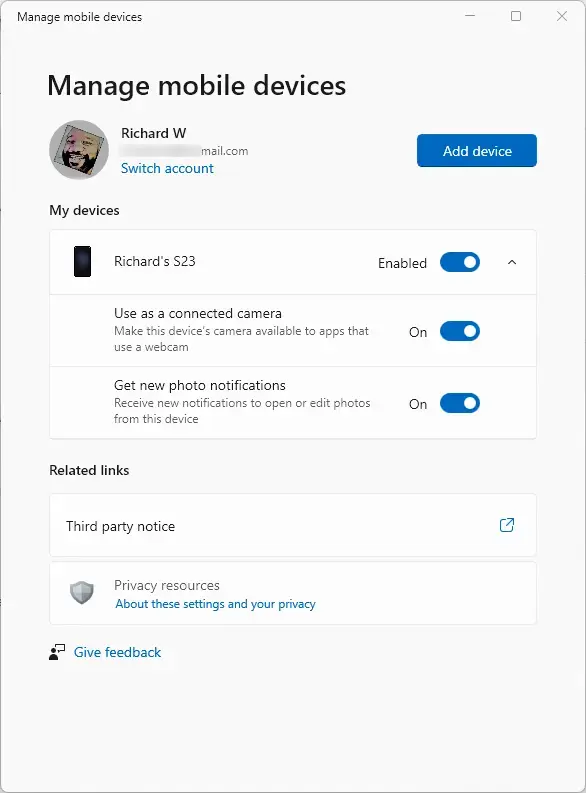
Setup is complete. To unlink the phone later, go back to Manage devices in the same Settings page and remove it there. No restart of the PC or phone is needed for linking or unlinking.
Summary
Linking an Android phone to Windows 11 lets you control mobile features directly from the PC. The key requirements are Android 8.0 or newer, a current Phone Link app, and both devices on the same network during pairing. If something fails, check those three things first.
Have a question about this guide?
Answered by AI from this guide. Good questions may be added to this page — please don't include personal details.
Did this guide fix your problem?

About the Author
Richard
Tech Writer, IT Professional
Richard is a writer at Geek Rewind who turns complex IT tasks into clear, step-by-step guides. He draws on years of hands-on experience in system administration and enterprise IT operations, focusing on Windows, Linux and WordPress: the problems people actually run into, and the fixes that work. His server and WordPress guides come from systems he runs himself. Richard builds and maintains the platform behind Geek Rewind, from its Ubuntu servers and Nginx configuration to its custom WordPress plugins. Many new tutorials start with readers' questions, and he's always glad to answer them in the comments.
[…] Learn more about linking your phone to Windows 11. […]
[…] your phone to Windows 11 with the Phone Link […]
[…] Here’s a helpful article on linking your Android device to your PC: Link Your Android Mobile Device to Your Microsoft Account. […]
[…] How to Link Your Android Mobile Device to Your Microsoft Account on Windows 11 […]