How to Find Windows Recovery (WinRE) Version in Windows 11

- 12 steps
- Needs administrator rights
Windows Recovery Environment (WinRE) is a built-in troubleshooting toolkit that helps fix startup problems. It acts like your PC’s emergency repair kit. It gives you advanced options such as Startup Repair, System Restore, Reset this PC and a Command Prompt that runs outside normal Windows.
You might need to check your WinRE version to see if it’s the latest available, especially if you’re following specific repair instructions. For example, knowing if you have WinRE version 10.0.22621.x can be important for certain advanced fixes. The WinRE version is not always the same as your Windows version, because the recovery image is stored separately and is not always updated at the same time as Windows.
This guide shows you exactly how to find the Windows Recovery (WinRE) version on your Windows 11 machine. Knowing the WinRE version helps ensure your system has the latest troubleshooting tools available for fixing startup problems. The steps are the same on Windows 11 Home and Pro.
Open Windows Terminal as administrator, then paste and run the command reagentc /info. The output displays your WinRE version number, status, and storage location without making any changes to your PC.
Getting Ready: What You’ll Need
- Administrator AccessYou need to be logged in as an administrator on your Windows 11 PC. The command we will use needs special permission to get system information. If you are on a standard account, Windows will ask for an administrator’s password when you open the elevated window. If you don’t have one, ask whoever manages the PC to run the check for you.
- Windows TerminalWe will use a tool called Windows Terminal. This is a modern app that can run different command tools, like Command Prompt and PowerShell. It’s the best place to run the command we need. It is included in current Windows 11 builds. If it is missing on an older install, you can use Command Prompt opened as administrator instead.
Step 1Open Windows Terminal as an Administrator
Opening Windows Terminal as an administrator gives you the permissions needed to check your WinRE version in Windows 11. Follow these steps to open it with elevated rights.
- Click the Start button on your taskbar, or press the Win on your keyboard. The Start menu opens with the search box ready for typing.
- Type Windows Terminal in the search bar. You should see Windows Terminal at the top of the results.
- Right-click Windows Terminal in the search results. A small menu will appear.
- Select Run as administrator from the menu.
- If a User Account Control prompt appears, click Yes. If you are on a standard account, enter an administrator’s credentials instead.
A new Windows Terminal window opens. The title bar should say Administrator, which confirms you have the right permissions. It is fine if the window defaults to PowerShell or Command Prompt, because either command-line shell can be used to find the WinRE version.
If Run as administrator is missing from the menu, look at the options in the right-hand pane of the search results. You can also right-click the Start button and pick the Terminal (Admin) entry.
Step 2Enter the Command to Check WinRE Info
- Click inside the Windows Terminal window. You will see a blinking cursor after the prompt. This is where you type or paste the command.
- Copy the command shown below.
reagentc /infoWhat’s happening here?reagentc
This command asks Windows to show you information about your Windows Recovery Environment. It reports whether WinRE is turned on, where its image is stored, and which version is installed.
- Paste the command into the Windows Terminal window. You can usually do this by right-clicking inside the window or by pressing Ctrl+V.
- Press the Enter key on your keyboard. Several lines of text should appear below the command within a second or two.
Step 3Read Your WinRE Version
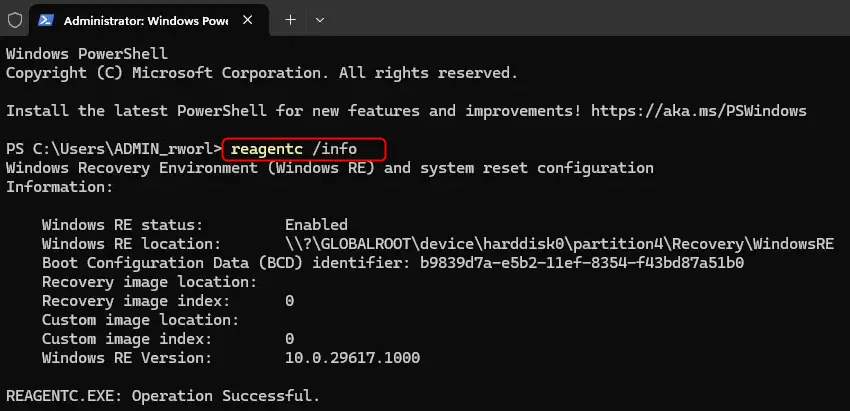
Reading your WinRE version in Windows 11 is done by looking for the Windows RE Version line in the command results. The numbers listed next to it show the exact build version of your recovery environment currently installed on your computer.
- Look at the text below the command you entered. You should see several lines of information about your Windows Recovery Environment, including a line for Windows RE status.
- Find the line that says Windows RE Version. Next to it, you will see a series of numbers. It might look like 10.0.26100.8770 or something similar.
- Compare the number with the one you need. For example, if your instructions call for WinRE version 10.0.22621.x, the first parts of your number should match, and the last part can differ.
If the Windows RE status line says Disabled, WinRE is turned off and the recovery image location will be blank, so there may be no version to read. If you don’t see a version line at all, your Windows build may not report it in this output. In that case, check the status and location lines instead.
Example Output Snippet:
The Windows Recovery (WinRE) version 10.0.26100.8770 is the specific number you were looking for to identify your system's recovery environment. This version number helps ensure you have the correct recovery tools for troubleshooting.
Once you have the version number, you can close the Windows Terminal window. Click the X in the top-right corner of the window. Nothing was changed, so there is nothing to undo and no restart is needed.
References:
Summary
To find your Windows Recovery (WinRE) version in Windows 11, open Windows Terminal as an administrator. Then, type or paste the command reagentc /info and press Enter. Look for the line that says “Windows RE Version” to see the specific version number./info
Have a question about this guide?
Answered by AI from this guide. Good questions may be added to this page — please don't include personal details.
Did this guide fix your problem?

About the Author
Richard
Tech Writer, IT Professional
Richard is a writer at Geek Rewind who turns complex IT tasks into clear, step-by-step guides. He draws on years of hands-on experience in system administration and enterprise IT operations, focusing on Windows, Linux and WordPress: the problems people actually run into, and the fixes that work. His server and WordPress guides come from systems he runs himself. Richard builds and maintains the platform behind Geek Rewind, from its Ubuntu servers and Nginx configuration to its custom WordPress plugins. Many new tutorials start with readers' questions, and he's always glad to answer them in the comments.
No comments yet — be the first to share your thoughts!