How to Check Your Computer Specifications in Windows 11

Checking your computer specifications (the hardware and software details of your PC) shows your processor model, installed memory, and Windows 11 version in under a minute. The tools are built into Windows, so you don’t need to download anything. They help you check whether a machine meets a game’s requirements, or find out why it feels slow.
Open Settings, click System, scroll down and click About to see your processor, RAM, Windows version, and system type. For more details like graphics card or BIOS version, press Win+R, type msinfo32, and press Enter to open System Information.
How to check computer specifications in 🪟 Windows 11
The Settings app is the quickest way to see the basics. It works the same on Windows 11 Home and Pro.
- Press Win+I to open Settings .
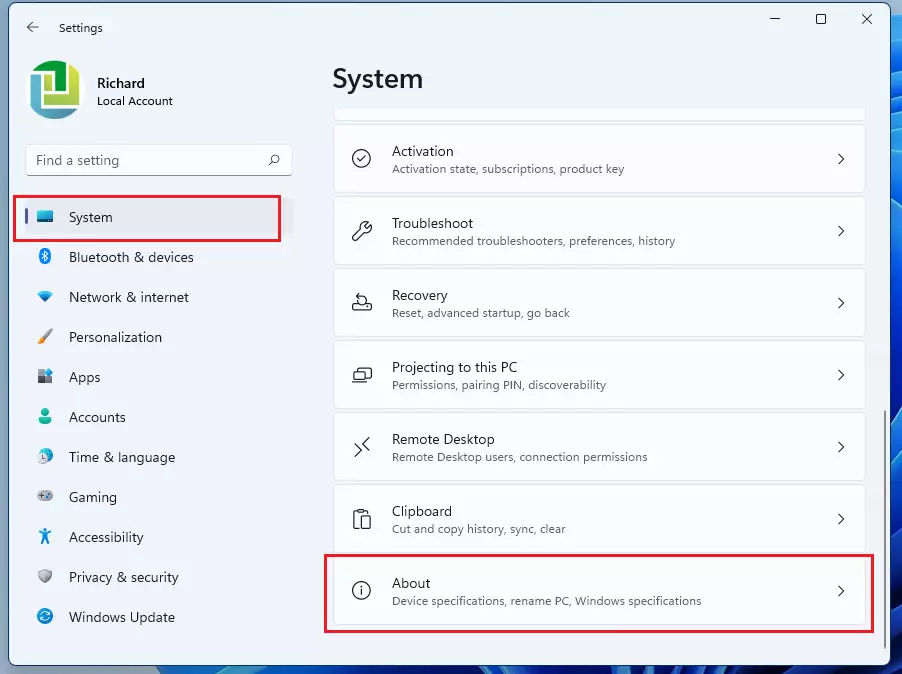
- Click System in the left pane.
- Scroll down and click About. You should now see your device name at the top, followed by two sections.
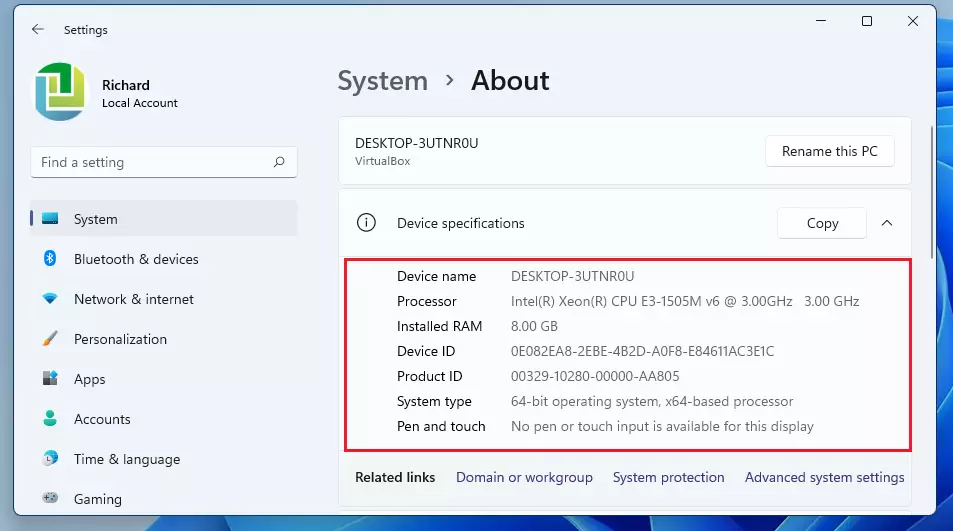
- Read the Device specifications section. It lists the processor (with its base speed), installed RAM, device ID, and system type, which tells you whether you run a 64-bit operating system.
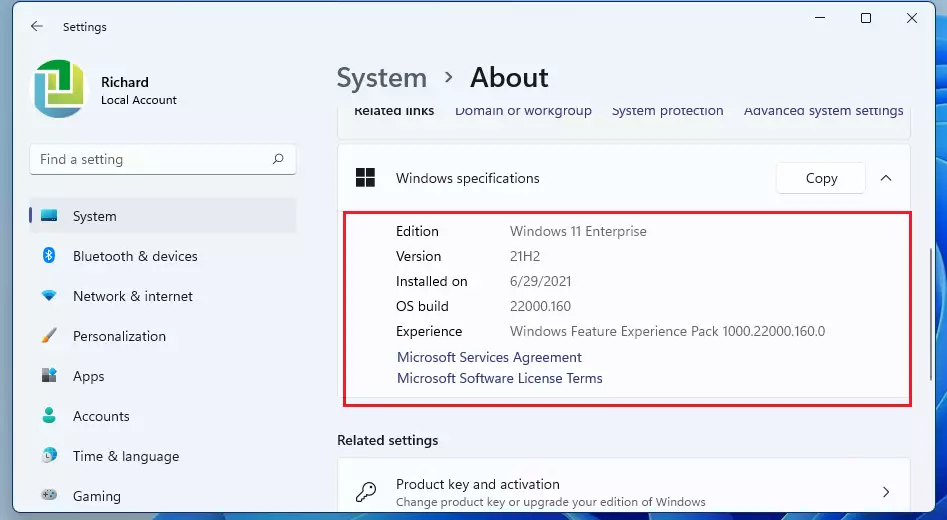
- Read the Windows specifications section. It shows your edition (Home or Pro), version, and OS build.
Each section has a Copy button. Use it to paste the details into an email or a support ticket. This page shows the essentials only. It does not name your graphics card or the exact model of your drives, so use the tools below if you need those.

Using the System Information (msinfo32) tool
You can check your computer specifications in Windows 11 by opening the System Information tool, also known as msinfo32. This built-in app gives you a complete list of your processor, memory, and hardware details, so you can see exactly what is inside your computer without installing extra software.
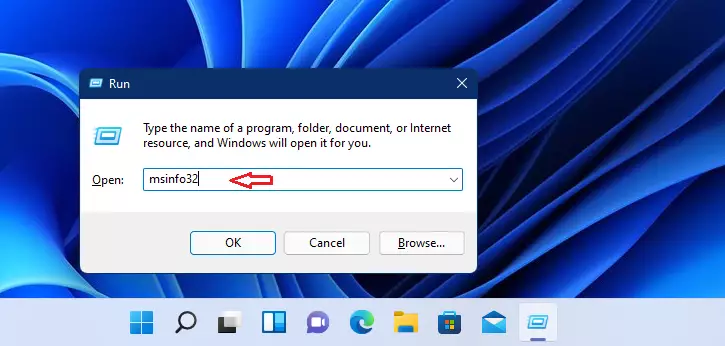
- Press Win+R to open the Run box.
- Type msinfo32 and press Enter. The System Information window opens with System Summary selected in the left pane.
- Read the right pane. It lists the OS name and version, system manufacturer and model, system type, processor, BIOS version and date, and installed physical memory (RAM).
- Expand Components in the left pane when you need more detail, such as display, storage, or network adapters.
You don’t need administrator rights to open this tool. If you only need the quick facts, the Settings page above is faster. msinfo32 is better when you need the BIOS version, the exact system model, or a full report.
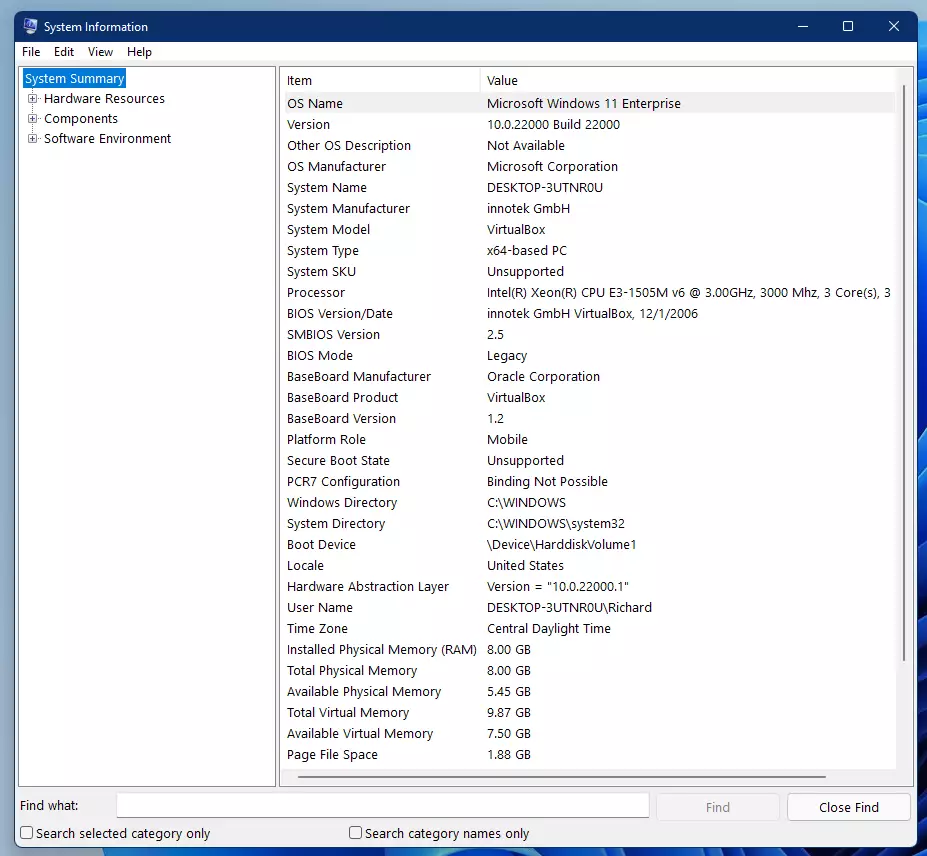
Pick a folder, name the file, and save it. This is ideal for sharing your specs with tech support, and it saves you from reading values out over the phone.
Advanced diagnostic methods
For specific details about your display or audio, the DirectX Diagnostic Tool is your go-to. This tool is essential for checking your graphics card model and driver version.
- Press Win + R.
- Type dxdiag and press Enter. On the first run, Windows may ask whether it can check that your drivers are digitally signed. Choose either answer to continue.
- Wait a few seconds while the tool collects data. The System tab opens with your processor, memory, and DirectX version.
- Click the Display tab to see the graphics card name, its video memory, and the driver version and date.
- Click the Sound tab for your audio devices and their drivers.
Many laptops have two graphics chips, so you may see more than one Display tab. To save the report, click Save All Information at the bottom of the window. This gives you a text file you can send to support.
Using Command Prompt and PowerShell
You can check your computer specifications in Windows 11 by typing commands into Command Prompt or PowerShell. These text tools let you quickly pull up detailed hardware information and system details without clicking through the graphical settings menus. They also make it easy to copy results straight from the window.
It needs administrator rights (elevated permissions required to view certain hardware IDs).
- Right-click the Start button and choose Terminal (Admin). You can also search for PowerShell, right-click it, and choose Run as administrator.
- Click Yes when User Account Control asks for permission. A window opens with a prompt.
- Type the following command and press Enter: `Get-CimInstance win32_pnpentity | Select-Object DeviceName, PNPDeviceID`
- Wait a moment. The window fills with a list of devices, each with a device name and a PNPDeviceID.
This command lists all hardware devices and their unique identification numbers, helping you identify exact components. The list can be long, so scroll up to read it all. If a device has no clear name, search the ID online to find out what it is. Closing the window is enough to finish. The command only reads information and changes nothing on your PC.
Get-CimInstance Win32_Processor | Select-Object Name, NumberOfCores
How to check 🪟 Windows 11 minimum requirements
To see if your PC is ready for future updates, download the official Microsoft PC Health Check app. It automatically scans your hardware against the official Windows 11 system requirements.
- Download the app from the link above and run the installer.
- Open PC Health Check from the Start menu.
- Click Check now if the Windows 11 banner is shown.
- Read the result. If a requirement fails, the app tells you which one, so you know whether the fix is a firmware setting or a hardware upgrade.
The app matters most on a PC that has not moved to Windows 11 yet. A machine already running Windows 11 normally passed these checks when it was installed.
Summary
Knowing how to check your computer specifications in Windows 11 is key for managing your PC. Use Settings System About for a quick look at your processor and RAM. Use System Information or DirectX Diagnostic Tool when you need a detailed report. Use PowerShell when you need exact hardware IDs for troubleshooting.
Have a question about this guide?
Answered by AI from this guide. Good questions may be added to this page — please don't include personal details.
Did this guide fix your problem?

About the Author
Richard
Tech Writer, IT Professional
Richard is a writer at Geek Rewind who turns complex IT tasks into clear, step-by-step guides. He draws on years of hands-on experience in system administration and enterprise IT operations, focusing on Windows, Linux and WordPress: the problems people actually run into, and the fixes that work. His server and WordPress guides come from systems he runs himself. Richard builds and maintains the platform behind Geek Rewind, from its Ubuntu servers and Nginx configuration to its custom WordPress plugins. Many new tutorials start with readers' questions, and he's always glad to answer them in the comments.
[…] and use the Android Nearby app, your Windows computers (i.e., desktops and laptops) must run a 64-bit version and up—ARM devices not currently […]