How to Check UEFI BIOS Version in Windows 11

- 15 steps
- Needs administrator rights
The UEFI BIOS (Unified Extensible Firmware Interface Basic Input/Output System) is the low-level software that starts your computer and checks your hardware before Windows loads. Its version number tells you which hardware and updates your PC supports. You can find it in under a minute with tools already built into Windows 11. You don’t need to restart or open the BIOS setup screen.
Checking your current BIOS version tells you whether you need a firmware update to fix bugs or support new parts. Write the version down before you do anything else. You will need it to compare against the version on your manufacturer’s support page.
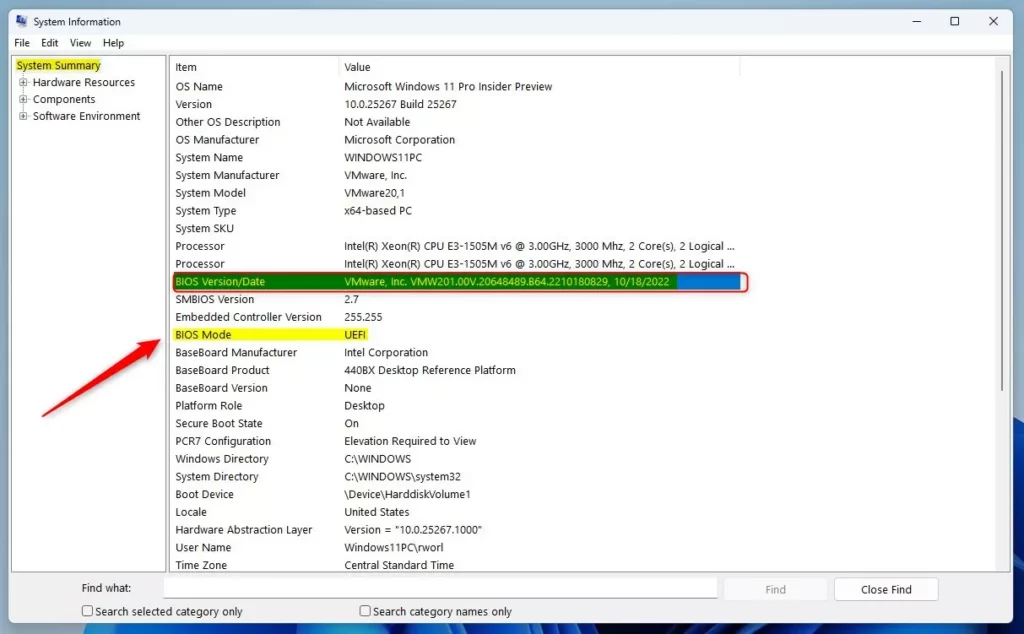
Open System Information by clicking Start and typing msinfo32, then press Enter. In the right pane under System Summary, find the BIOS Version/Date line, which shows your UEFI BIOS version and release date. No restart is needed.
1Using the System Information App
System Information is the most complete of the built-in tools. It needs no extra software and works the same on Windows 11 Home and Pro. It shows the BIOS version, its release date, and whether the PC is booting in UEFI mode.
- Click the Start button and type
System Informationormsinfo32, then press Enter. The System Information window opens. - Make sure System Summary is selected in the left pane. It is normally selected by default. The right pane then lists your system details.
- Look for these items in the right pane. The list is long, so you may need to scroll down a little:
- BIOS ModeIt should say UEFI. If it says Legacy, the PC is running in older compatibility mode.
- BIOS Version/DateThis shows the manufacturer, your BIOS version and its release date. Note all three.
The version string often starts with the maker’s name, such as the motherboard or PC brand. Use it exactly as shown when you search for updates.
2Using Device Manager
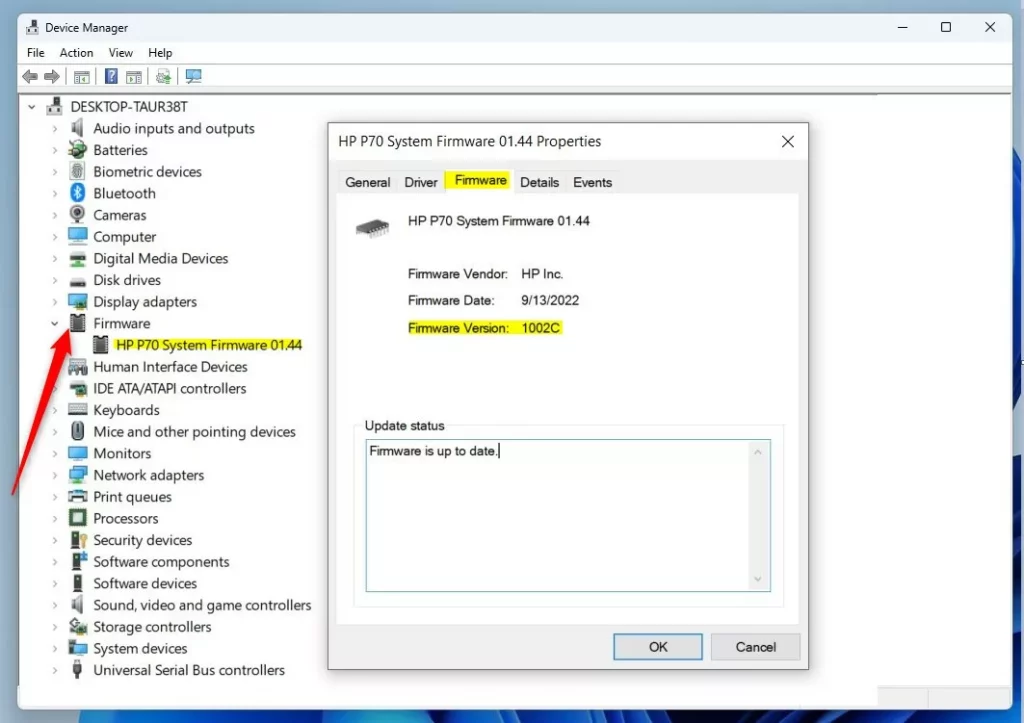
It shows the version without a restart. One catch: the Firmware category only appears on PCs whose firmware can be updated through Windows. If you don’t see it, use one of the other methods in this guide.
- Right-click the Start button and select Device Manager. The device list opens.
- Scroll down to Firmware and click the arrow beside it to expand it. You should see one or more entries underneath.
- Double-click System Firmware. Its Properties window opens.
- Go to the Details tab, or look for the Firmware Version. On many PCs the Driver tab also lists a version number that matches the firmware version.
3Using DirectX Diagnostic Tool
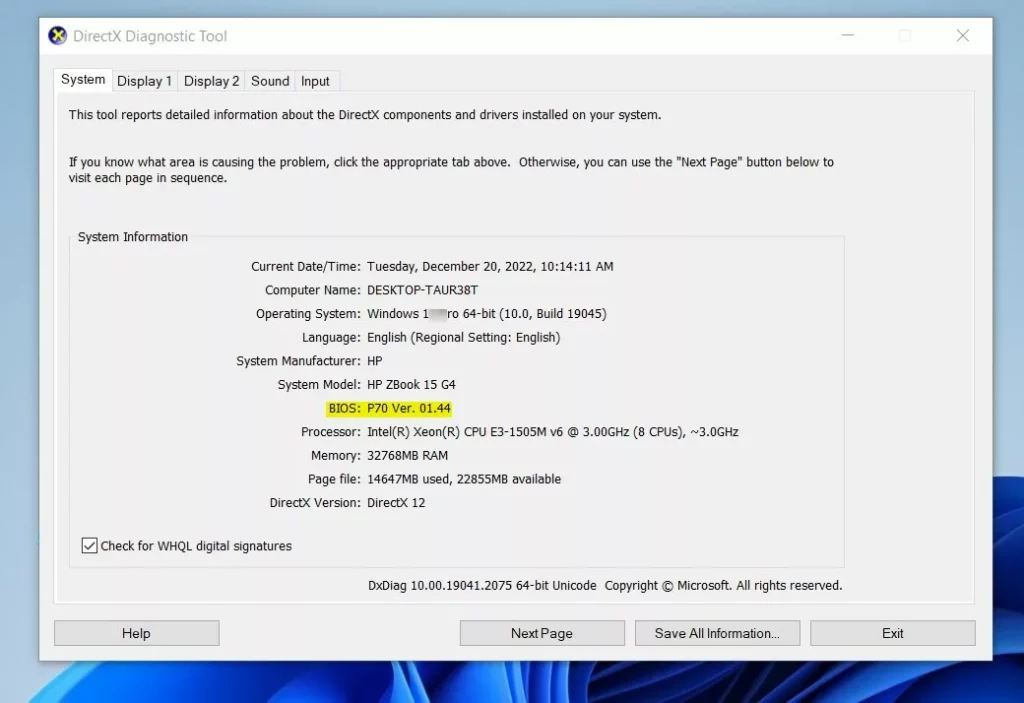
The DirectX Diagnostic Tool is mainly meant for graphics and sound problems, but its first tab also lists the BIOS. It’s a quick option if you already have it open for another reason.
- Press Win+R to open the Run box.
- Type
dxdiagand press Enter. If Windows asks whether to check that your drivers are digitally signed, you can answer either way. The tool opens regardless. - On the System tab, look under System Information for the BIOS line. It shows the version, and on many PCs the date and the word UEFI as well.
Close the window when you have the number. Nothing is changed by viewing it.
4Using Command Prompt or PowerShell
If you prefer typing to clicking, the systeminfo command prints your system’s details, including firmware, as a text list. It works in Command Prompt and in PowerShell. You don’t need administrator rights.
- Right-click the Start button and select Windows Terminal. You can also search the Start menu for Command Prompt or PowerShell.
- If Windows Terminal opens, check which tab you are in. It should be a Command Prompt or PowerShell tab. Either one runs the command.
- Type the following command and press Enter:
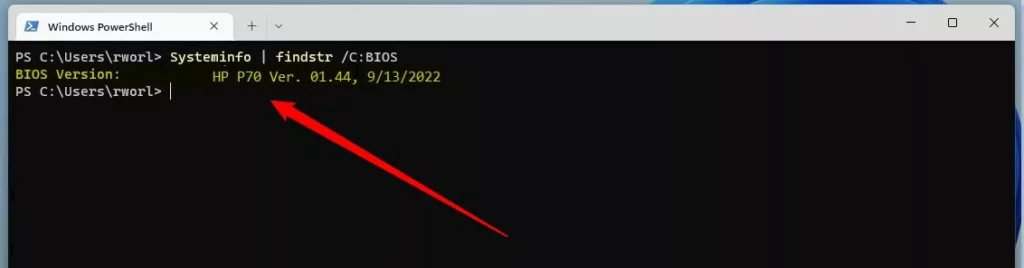
systeminfo | findstr /C:BIOS
Wait a few seconds while Windows gathers the data. The window then prints a long list. Scroll up to the BIOS Version line, which holds your firmware version and date.
Summary
- You can check your UEFI BIOS version in Windows 11 with System Information, Device Manager, the DirectX Diagnostic Tool, or Command Prompt.
- Knowing your BIOS version helps you decide whether to update your PC or troubleshoot a problem. Compare it with the latest version on your manufacturer's support page before you flash anything.
- If you want to learn more about UEFI, you can visit the official Microsoft page: UEFI Information on Microsoft.com.
Built-in tools such as System Information, Device Manager and Command Prompt can each show your UEFI BIOS version in a few seconds. System Information is usually the easiest, because it also confirms the BIOS Mode. Once you have the version number, you can check for a newer firmware release or fix hardware problems with confidence. Pick whichever method suits you.
Have a question about this guide?
Answered by AI from this guide. Good questions may be added to this page — please don't include personal details.
Did this guide fix your problem?

About the Author
Richard
Tech Writer, IT Professional
Richard is a writer at Geek Rewind who turns complex IT tasks into clear, step-by-step guides. He draws on years of hands-on experience in system administration and enterprise IT operations, focusing on Windows, Linux and WordPress: the problems people actually run into, and the fixes that work. His server and WordPress guides come from systems he runs himself. Richard builds and maintains the platform behind Geek Rewind, from its Ubuntu servers and Nginx configuration to its custom WordPress plugins. Many new tutorials start with readers' questions, and he's always glad to answer them in the comments.
No comments yet — be the first to share your thoughts!