Check Bluetooth Versions on Windows 11

Find out your PC’s Bluetooth version to troubleshoot accessory problems or to check that your hardware works with newer devices. A pair of earbuds that stutters, or a headset that will not offer its best audio mode, often comes down to an older Bluetooth radio in the PC. The steps below show you how to read the version from Device Manager in a couple of minutes.
To check your Bluetooth version on Windows 11, open Device Manager from the Start menu , expand the Bluetooth category, right-click your Bluetooth adapter, select Properties, then go to the Advanced tab and find the LMP (Link Manager Protocol) version number. That LMP number maps to your Bluetooth version—for example, LMP 9 means Bluetooth 5.0.
How to check a Bluetooth device version in 🪟 Windows 11
To check your Bluetooth version on Windows 11, open Device Manager from the Start menu and look at the properties of your Bluetooth adapter. On the Advanced tab you will find the LMP (Link Manager Protocol) version number. That number maps to the Bluetooth Core Specification your hardware supports, such as 4.0, 5.0 or a newer release.
These steps work the same on Windows 11 Home and Pro. You are only reading information, so nothing changes on the PC and you do not need to restart.
- Make sure Bluetooth is turned on in Windows. If it is off, the adapter can be harder to find in the next steps.
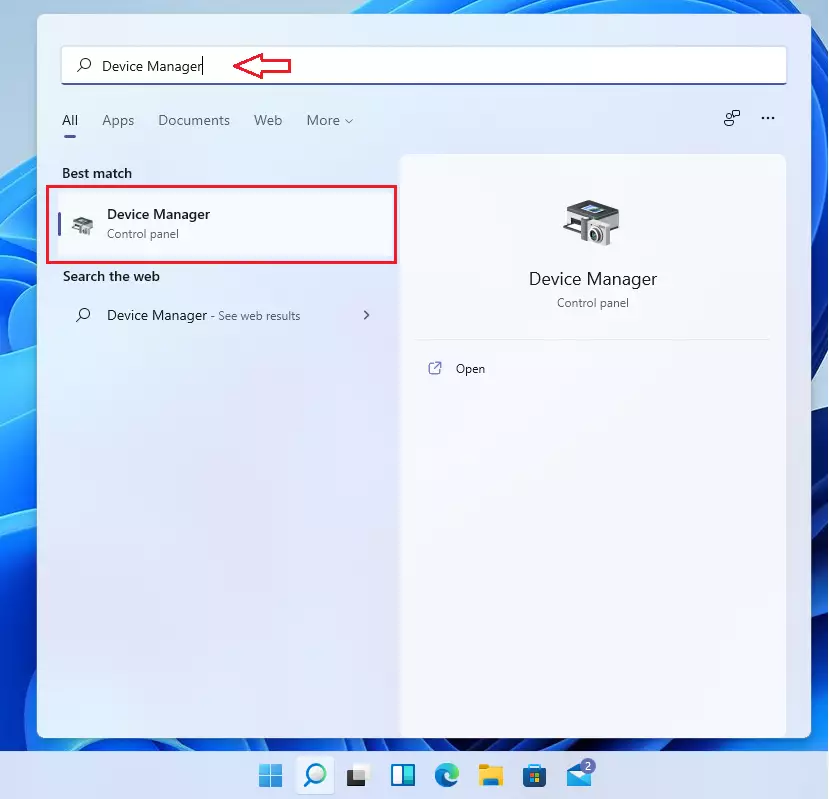
- Open the Start menu and type Device Manager into the search box. You can also right-click the Start button and pick Device Manager from the list.
- Select the matching result under Best match. The Device Manager window opens with a list of hardware categories.
- Click Bluetooth to expand that category. You should now see one or more entries underneath it, such as your Bluetooth adapter and any paired devices.
A desktop without a Bluetooth card or USB dongle will not list one. You can also try View Show hidden devices in Device Manager.
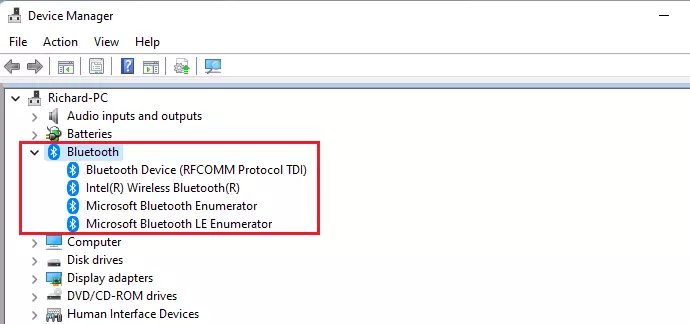
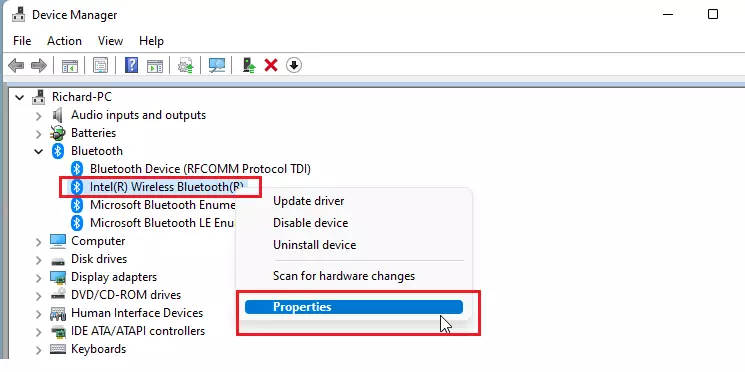
- Right-click your Bluetooth adapter. This is the radio itself, for example Intel(R) Wireless Bluetooth (R), not a headset or mouse listed beneath it.
- Choose Properties from the menu. This is shown below. A properties window for the adapter opens.
- In the properties window, select the Advanced tab.
- Look for the LMP entry (Link Manager Protocol, the underlying standard your hardware uses) inside the Firmware or Firmware version section.
It depends on the manufacturer’s driver, and Intel adapters usually include it. If the tab is missing, search for your adapter’s exact model name and read the Bluetooth version on the manufacturer’s specification page. A driver update from the PC or adapter maker can also add the tab on some models.
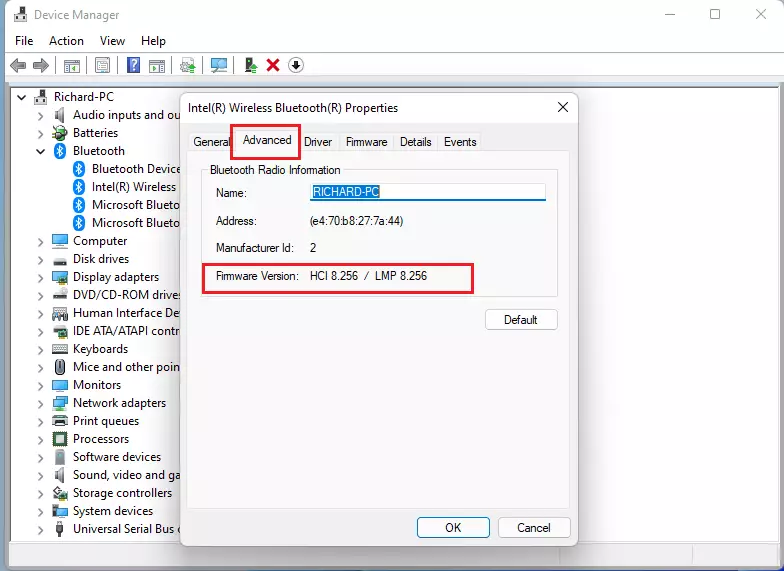
This listing displays your Bluetooth device’s firmware version. The number after “LMP” is the one that matters. It is not the same as a driver version or a Windows version. For example, LMP 9.x means a Bluetooth 5.0 radio.
These are the LMP numbers you are most likely to see:
- LMP 6 is Bluetooth 4.0.
- LMP 7 is Bluetooth 4.1.
- LMP 8 is Bluetooth 4.2.
- LMP 9 is Bluetooth 5.0.
- LMP 10 is Bluetooth 5.1.
- LMP 11 is Bluetooth 5.2.
- LMP 12 is Bluetooth 5.3.
Consult the chart below to help identify the version and its associated capabilities.
| Link Manager Protocol Version (LMP) | Bluetooth Core Specification |
|---|---|
| LMP 0 | Bluetooth Core Specification 1.0b (withdrawn) |
| LMP 1 | Bluetooth Core Specification 1.1 (withdrawn) |
| LMP 2 | Bluetooth Core Specification 1.2 (withdrawn) |
| LMP 3 | Bluetooth Core Specification 2.0 + EDR (withdrawn) |
| LMP 4 | Bluetooth Core Specification 2.1 + EDR (deprecated, to be withdrawn) |
| LMP 5 | Bluetooth Core Specification 3.0 + HS (deprecated, to be withdrawn) |
| LMP 6 | Bluetooth Core Specification 4.0 |
| LMP 7 | Bluetooth Core Specification 4.1 |
| LMP 8 | Bluetooth Core Specification 4.2 |
| LMP 9 | Bluetooth Core Specification 5.0 |
| LMP 10 | Bluetooth Core Specification 5.1 |
| LMP 11 | Bluetooth Core Specification 5.2 |
That completes the process! Close the properties window and Device Manager when you are done. Nothing was changed, so there is nothing to undo.
Checking your Bluetooth firmware from time to time helps you keep your hardware running properly and your connections stable.
- Knowing the Bluetooth version in Windows 11 tells you which features your PC can use, and whether a new accessory will work to its full ability.
- Updated firmware and drivers can resolve connectivity problems and add support for newer Bluetooth features. Check your PC or adapter maker for updates.
- Device Manager is the quickest built-in way to find the Bluetooth device's firmware version.
- The Link Manager Protocol (LMP) version tells you the Bluetooth Core Specification your device supports.
- Keep an eye on firmware updates and Bluetooth specifications so your Bluetooth devices perform at their best.
Have a question about this guide?
Answered by AI from this guide. Good questions may be added to this page — please don't include personal details.
Did this guide fix your problem?

About the Author
Richard
Tech Writer, IT Professional
Richard is a writer at Geek Rewind who turns complex IT tasks into clear, step-by-step guides. He draws on years of hands-on experience in system administration and enterprise IT operations, focusing on Windows, Linux and WordPress: the problems people actually run into, and the fixes that work. His server and WordPress guides come from systems he runs himself. Richard builds and maintains the platform behind Geek Rewind, from its Ubuntu servers and Nginx configuration to its custom WordPress plugins. Many new tutorials start with readers' questions, and he's always glad to answer them in the comments.
No comments yet — be the first to share your thoughts!