How to Share a Link to a Website Using Nearby Sharing in Windows 11

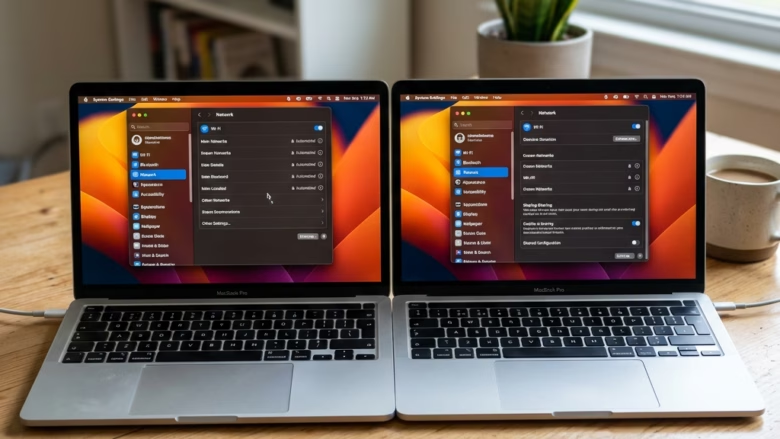
Nearby Sharing in Windows 11 lets you send web links, photos and files from one PC to another over Bluetooth and Wi-Fi . No cables or email are needed. The feature first appeared in Windows 10 version 1803 and is built into Windows 11, in both Home and Pro.
Before you start, turn on Bluetooth and Wi-Fi on both computers. Your PC’s Bluetooth adapter also needs to support Bluetooth 4.0 or newer (Low Energy). Most PCs made in the last several years do. Then switch on Nearby Sharing, either in Settings (covered below) or with the Nearby sharing tile in quick settings. If you don’t see that tile, click the network or volume icons at the right end of the taskbar , click the pencil icon (Edit quick settings), click Add, and pick Nearby sharing. After that, you can share a page link from your browser in a couple of clicks.
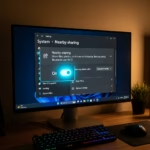
Open Settings System Nearby sharing, choose My devices only or Everyone nearby from the drop-down, then repeat on the second PC. To share a link, open your browser, navigate to the webpage, click the Share button, select the target PC name, and the recipient accepts the incoming link.
Getting Ready: Turn On Nearby Sharing
You’ll switch it on, then choose whether to share with everyone nearby or only your own devices. That choice decides which computers can find each other.
Here’s how to set it up on each computer:
- Open Settings . Click the Start button , then click the Settings gear icon. A faster way is to press
Windows key + Ion your keyboard. The Settings window opens. - Click System. It’s in the left-hand list, usually near the top. The System page opens on the right.
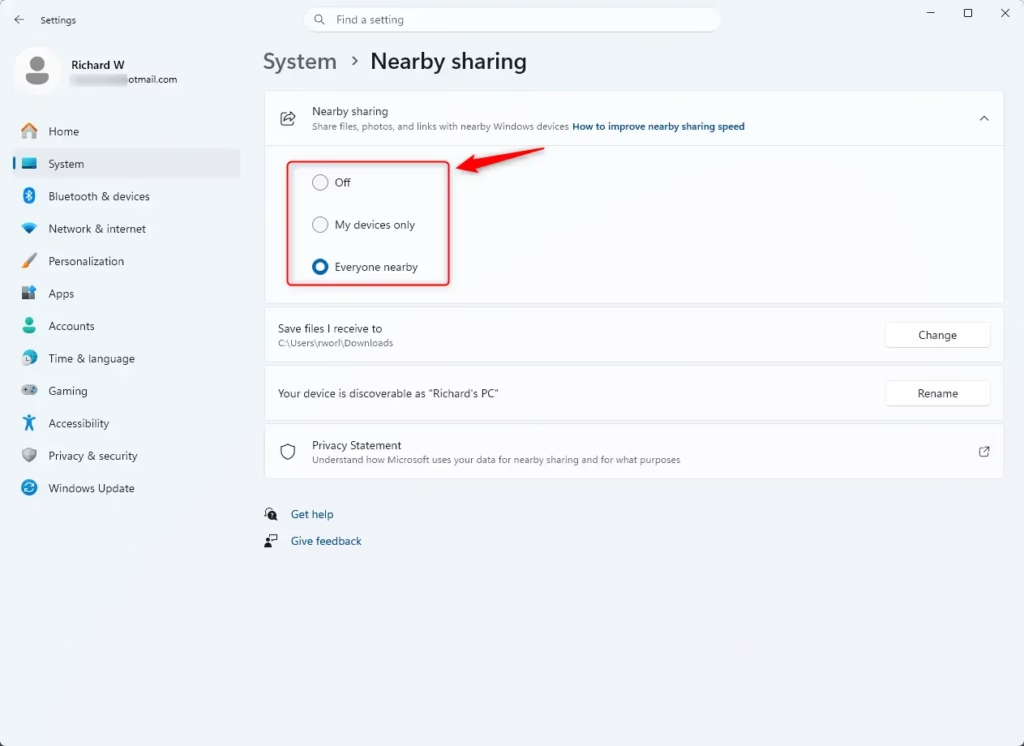
- Click Nearby sharing. Scroll down the System page until you see it, then click it. You’ll see a drop-down for who can share with you and a setting for where received files are saved.
Older versions: In Windows 10, this setting is under Settings System Shared experiences instead. - Choose who you share with. Open the drop-down next to Nearby sharing (the wording can vary slightly between builds). There are three options: Off, My devices only, and Everyone nearby. Pick one of the two active ones:
- My devices only: This is the most private option. You can only share with computers signed in to the same Microsoft account. It’s the right choice for moving links between your own PCs.
- Everyone nearby: Any Windows PC nearby that has Nearby Sharing turned on can send you things, and you can send things to it. This is useful when you share with other people, but it’s less private.
- Repeat on the second computer. Do the same steps there. For sharing between your own machines, the easiest setup is My devices only on both PCs, signed in to the same Microsoft account.
Tip: With Everyone nearby, your computer’s name is broadcast so other people can find it. That’s how the devices connect. If your PC has a generic name, consider giving it a recognizable one so you pick the right target later. - Choose where received files are saved (optional, but recommended). Further down the Nearby sharing page, find Save files I receive to. By default, this is your Downloads folder. To change it, click Change, browse to a folder, and click Select folder. The new path now shows on the page.
Warning: Pick a folder on a drive with enough free space, and remember where it is. A dedicated folder just for Nearby Sharing items keeps things easy to find.
To undo any of this, return to Settings System Nearby sharing and set the drop-down to Off. No restart is needed.
Sharing a Website Link: Step-by-Step
To share a link, open your browser on the sending PC and go to the page you want to send. Open the browser’s share option, choose the Windows share options, and click the name of the nearby computer. The other computer gets a notification where the user can accept or decline the incoming link.
- Open your web browser. On the computer you're sharing from, open your browser. This guide uses Microsoft Edge because it works well with Nearby Sharing.
- Go to the webpage. Visit the website, article or video you want to send, and wait for the page to finish loading.
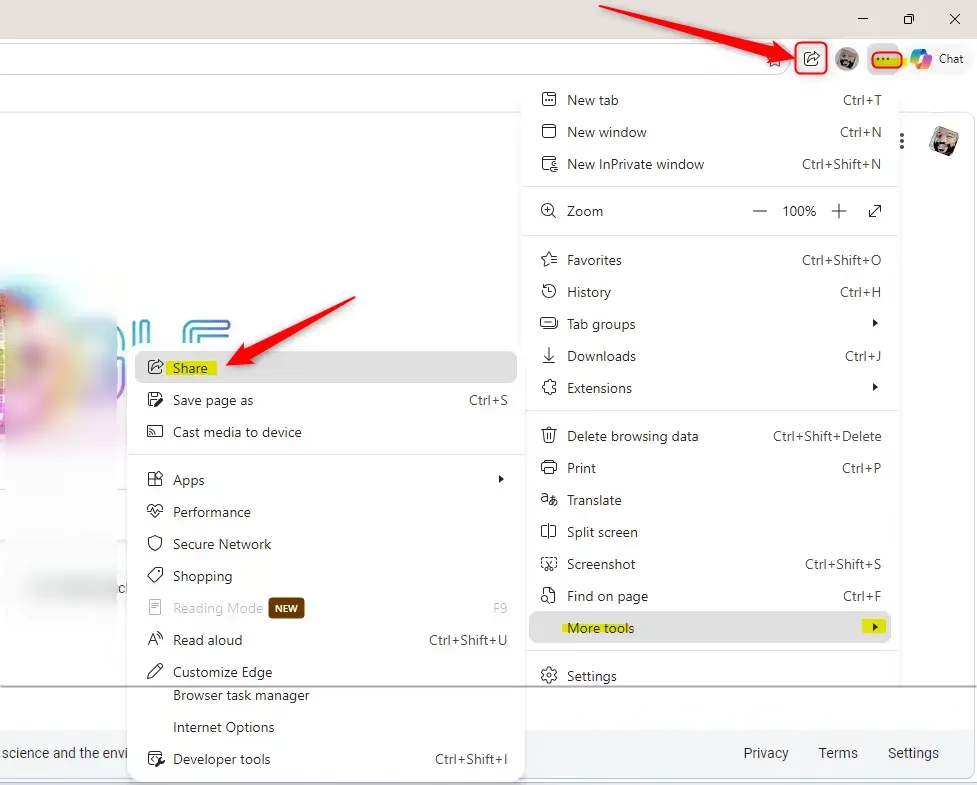
- Open the Share option. In Edge, click the three dots (
...) in the top-right corner. In the menu, go to More tools and click Share. You can also right-click an empty part of the page and look for Share. A share panel opens.
Note: Menu layouts change between Edge versions. In some, Share is directly in the three-dot menu, and you may need to choose Windows share options to get the Windows share window.
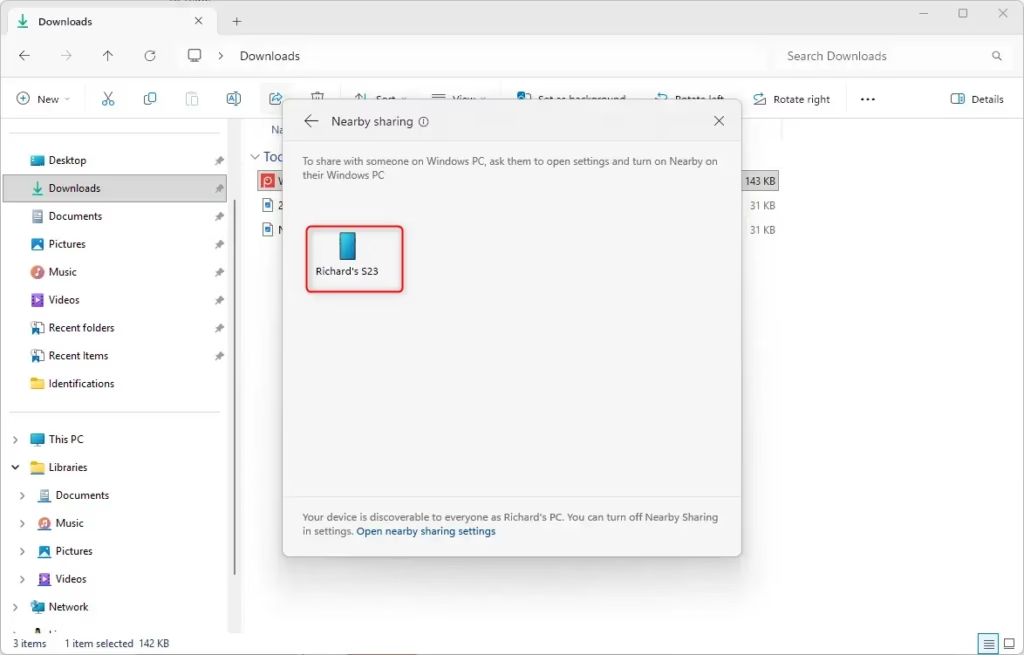
Tip: Some websites have their own Share buttons. Use the browser's share function instead. It's usually more reliable for Nearby Sharing. - Select the other computer. In the Share window, look at the Nearby Share section. Computers with Nearby Sharing turned on appear there. It can take a few seconds for them to show up. Click the name of the PC you want to send the link to. A message appears saying Windows is waiting for the other device to respond.
If you don't see the other PC:- Check that Nearby Sharing is on for both devices.
- Make sure the PCs are close together and that Bluetooth and Wi-Fi are on for both.
- If you chose My devices only, confirm both PCs use the same Microsoft account.
- Restart the browser, or the computers, and try again.
- Accept the link on the receiving computer. A notification appears on the second PC, usually in the bottom-right corner near the clock, saying a link has been shared with you. Click the notification, then click the option to open the link, such as Open. The page loads in that PC's default browser.
Warning: Respond to the notification quickly. If it disappears, open the notification center (click the date and time) to find it again. If Focus assist or Do Not Disturb is on, the notification may be hidden, so check there too. Depending on your setup, the link may also be saved as a small file (such as an .url file) in the folder you chose earlier. You can double-click that file to open it.
Nearby Sharing is a simple way to send small pieces of information between your Windows devices when they are close to each other.
Summary
Turn the feature on in Settings on both PCs, open the page in your browser, and pick the receiving computer from the share menu. It works reliably as long as both devices have Bluetooth and Wi-Fi turned on and are close together.
- Turn on Nearby Sharing on both the sending and receiving computers in Settings System Nearby sharing
- Choose whether to share with "My devices only" or "Everyone nearby."
- On the sending PC, open the webpage in Microsoft Edge (or a similar browser) and use the Share option (
... > More tools > Share). - Pick the other computer from the list.
- Accept the notification on the receiving PC to open the link.
Once it's set up, this is a quick way to move links between your own PCs or to a colleague sitting nearby. Try it the next time you find a page you want to send.
Was this guide helpful?

About the Author
Richard
Tech Writer, IT Professional
Richard is a writer at Geek Rewind who turns complex IT tasks into clear, step-by-step guides. He draws on years of hands-on experience in system administration and enterprise IT operations, focusing on Windows, Linux and WordPress: the problems people actually run into, and the fixes that work. His server and WordPress guides come from systems he runs himself. Richard builds and maintains the platform behind Geek Rewind, from its Ubuntu servers and Nginx configuration to its custom WordPress plugins. Many new tutorials start with readers' questions, and he's always glad to answer them in the comments.



No comments yet — be the first to share your thoughts!