
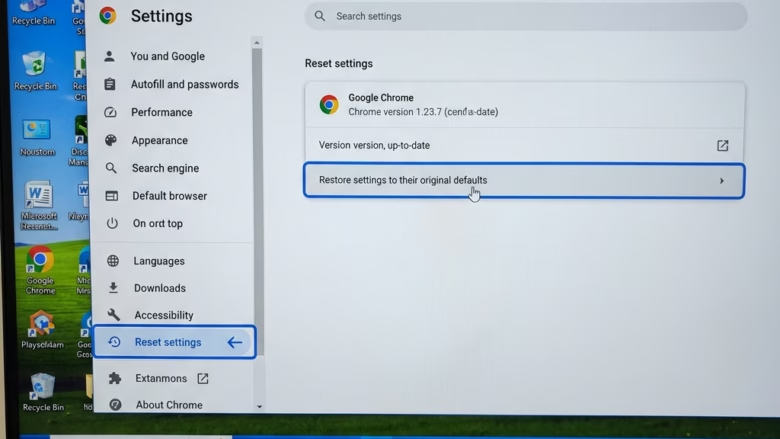
Resetting Microsoft Edge to default settings on Windows 11 returns the browser to its original factory state. It is a good first move when Edge misbehaves and you don’t know why.
The reset clears temporary browsing data such as cookies and cache, and turns off all browser extensions. It also puts startup, search and new tab settings back to their defaults.
Edge runs on version 118 or later in Windows 11. Resetting helps fix problems like slow performance, unwanted ads, or a browser that crashes unexpectedly.
The reset removes your customized settings and disables extensions, but your saved websites and logged-in account details usually stay safe if you’re signed into your Microsoft account. Before you start, check that sync is turned on under Settings Profiles Sync. That way your favorites and passwords are backed up to your account if anything goes wrong.
Open Microsoft Edge, click the three dots in the top-right corner, select Settings, click Reset settings in the left sidebar, then click Restore settings to their default values and confirm. Your extensions will turn off and your browser returns to factory defaults within seconds.
How to Reset Microsoft Edge to Default Settings: The Standard Method
This is generally the safest way to fix most problems, and it needs no administrator rights. Try it first. You can turn your extensions back on one at a time afterward.
- Open Microsoft Edge.
- Click the three dots (…) in the top-right corner. A menu opens.
- Click Settings. The Settings page opens in a new tab.
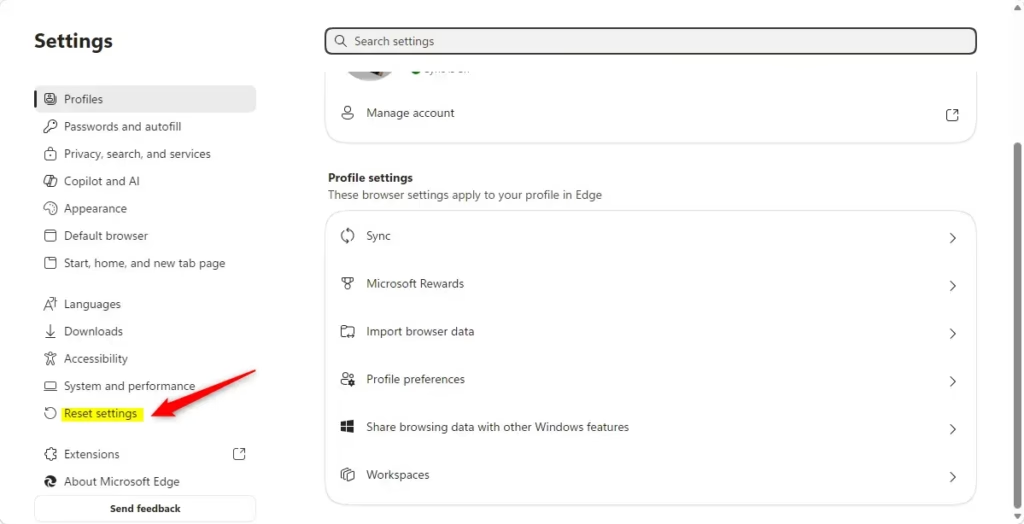
- Click Reset settings in the left-hand list. If you don’t see the list, widen the window or click the menu icon at the top left of the Settings page.
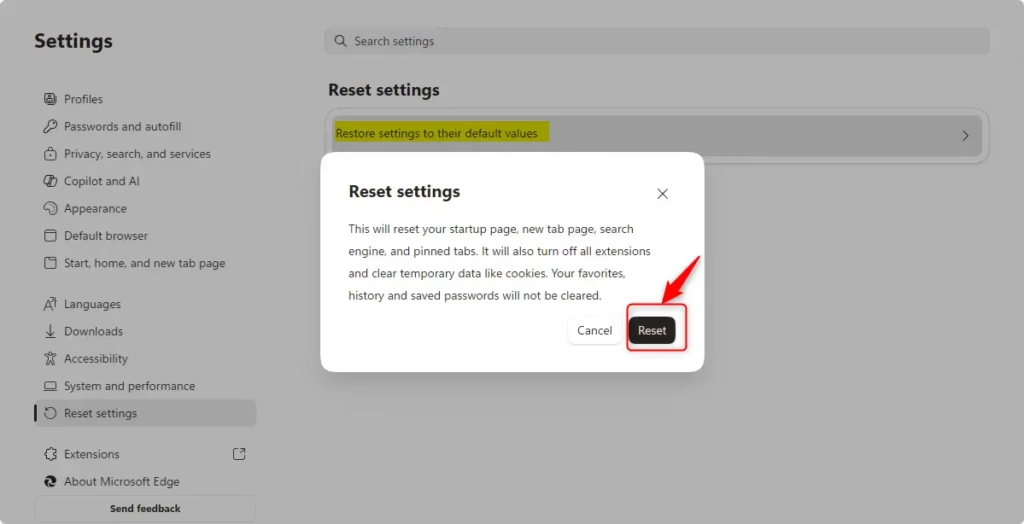
- Click Restore settings to their default values. A confirmation box appears and lists what will be reset.
- Click Reset to confirm.
Your extensions will now show as turned off on the extensions page. Turn back on only the ones you trust and need. If the problem returns after you re-enable one, you’ve found the cause. There is no undo for a reset, so you would have to change the settings back by hand.
Hard Reset by Deleting Local Data
A hard reset by deleting local data clears all stored information, settings, and browsing history when standard reset steps fail to fix problems in Microsoft Edge. This process deletes the folder where Edge saves your personal files on your computer, forcing the browser to rebuild a clean default profile the next time you open it.
That includes local bookmarks, saved passwords, and history. Confirm that sync is working, or export your favorites, before you continue.
- Close all Edge windows. Check the system tray and Task Manager if you aren't sure that Edge has fully stopped, because files that are in use can't be deleted.
- Press Windows Key + R. The Run box opens.
- Type
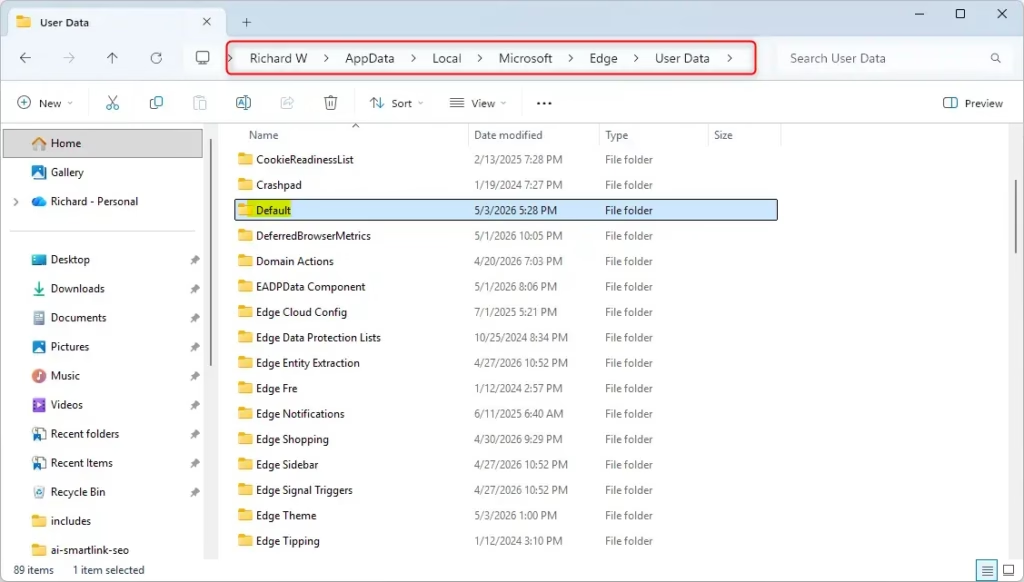
%localappdata%\Microsoft\Edge\User Dataand press Enter. File Explorer opens the folder that holds Edge's profile data. - Find the Default folder and delete it. If Windows says the folder is in use, Edge is still running in the background, so close it and try again.
- Open Edge again to let it create a fresh folder. Edge starts like a first-time launch, so you will need to sign in again to bring your synced data back.
If you would rather be careful, rename the Default folder instead of deleting it. If the problem stays, close Edge, delete the new folder, and rename the old one back to Default to restore your old profile.
Resetting via PowerShell and Command Line
For advanced users, PowerShell (a powerful command-line interface for managing Windows) can be used to clear browser data. Requires Administrator Privileges: you must be signed in as an administrator, or be able to enter an administrator's credentials when prompted. Use this method only when the earlier ones have failed, and save your work first, because the last step restarts the computer.
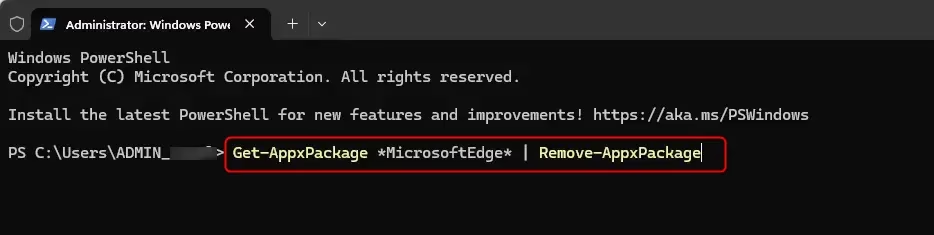
- Right-click the Start button and select Terminal (Admin). Click Yes if the User Account Control prompt appears. A Terminal window opens with administrator rights.
- Type
Get-AppxPackage *MicrosoftEdge* | Remove-AppxPackageand press Enter. Read any message the command prints before moving on, and don't continue if it reports an error. - Restart your computer to reinstall the browser.
After the restart, open Edge and check that it launches. If it doesn't, use the repair method in the next section.
Repairing Edge via Windows Settings
Repairing Edge via Windows Settings: Windows 11 includes a built-in tool for repair. It reinstalls Edge's program files without needing the command line. Requires Administrator Privileges: expect a User Account Control prompt, and enter administrator credentials if you are on a standard account. Make sure you are online, because the repair downloads Edge again.
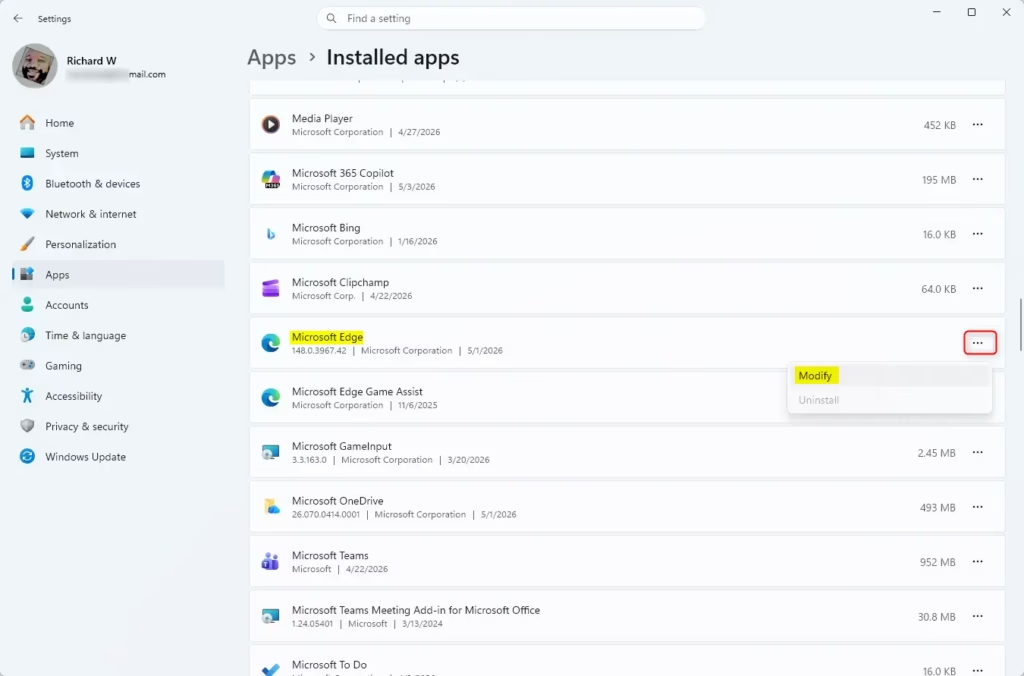
- Go to Settings Apps Installed apps. A list of installed programs appears.
- Find Microsoft Edge. Use the search box at the top of the list if it is hard to spot.
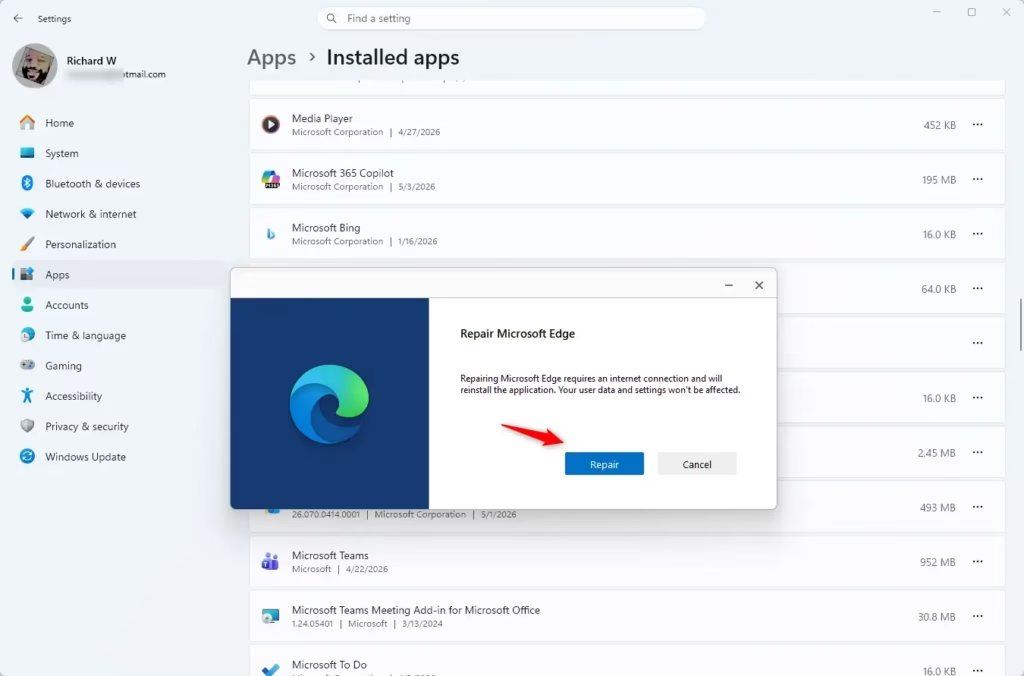
- Click the three dots next to it and select Modify. A repair window opens.
- Click Repair. Edge closes, and the installer downloads and reinstalls the browser.
When the repair finishes, Edge usually reopens by itself. If Modify is greyed out or missing, check that you are signed in as an administrator. Some managed work or school PCs also block this option, and in that case you need to ask your IT department.
Checking for Registry-Level Hijacks
Checking for Registry-Level Hijacks: If your settings are locked, you should check the registry (a central database for Windows settings and configurations). Locked settings often show a "Managed by your organization" message in Edge, which means a policy is controlling the setting. Sometimes unwanted software puts those policies there. Requires Administrator Privileges: you must be able to approve the administrator prompt.
Be careful here, because a wrong deletion can break Windows or other programs. Before you change anything, back up the key. Right-click the key in the left pane, choose Export, and save the file somewhere safe. Double-clicking that file later puts the key back.
- Press Windows Key + R, type
regedit, and hit Enter. Click Yes at the User Account Control prompt. Registry Editor opens. - Go to
HKEY_LOCAL_MACHINE\SOFTWARE\Policies\Microsoft\Edge. You can paste the path into the address bar at the top of Registry Editor, or expand the folders in the left pane one by one. - Delete any suspicious entries. If you don't recognize an entry, leave it alone and look it up first.
Close Registry Editor and restart Edge when you're done. Enter edge://policy in the address bar to check what Edge still reads as active policies. If a policy remains, a security scan for unwanted software is the next step.
Have a question about this guide?
Answered by AI from this guide. Good questions may be added to this page — please don't include personal details.
Did this guide fix your problem?

About the Author
Richard
Tech Writer, IT Professional
Richard is a writer at Geek Rewind who turns complex IT tasks into clear, step-by-step guides. He draws on years of hands-on experience in system administration and enterprise IT operations, focusing on Windows, Linux and WordPress: the problems people actually run into, and the fixes that work. His server and WordPress guides come from systems he runs himself. Richard builds and maintains the platform behind Geek Rewind, from its Ubuntu servers and Nginx configuration to its custom WordPress plugins. Many new tutorials start with readers' questions, and he's always glad to answer them in the comments.
No comments yet — be the first to share your thoughts!