
Microsoft Edge usually fails to open on Windows 11 for one of three reasons: background tasks that are stuck, damaged app or system files, or other software blocking the launch. The fixes below go roughly from quickest to most involved. You can end leftover browser processes in Task Manager (a tool that shows running apps and system performance), run a system file scan, or repair the Edge installation. Try them in order and test Edge after each one, so you know which step actually fixed it.
Press Ctrl+Shift+Esc to open Task Manager , find and right-click every Microsoft Edge entry, and select End task. Then open Edge from the Start menu . If it still won’t open, turn off your antivirus real-time protection temporarily and try again, or repair Edge in Settings Apps Installed apps Microsoft Edge > three dots > Modify Repair
Step 1Close Background Processes
Edge often keeps invisible processes running in the background, and these can freeze. If one is hanging, a new Edge window may never appear. Ending the stuck tasks forces a clean restart.
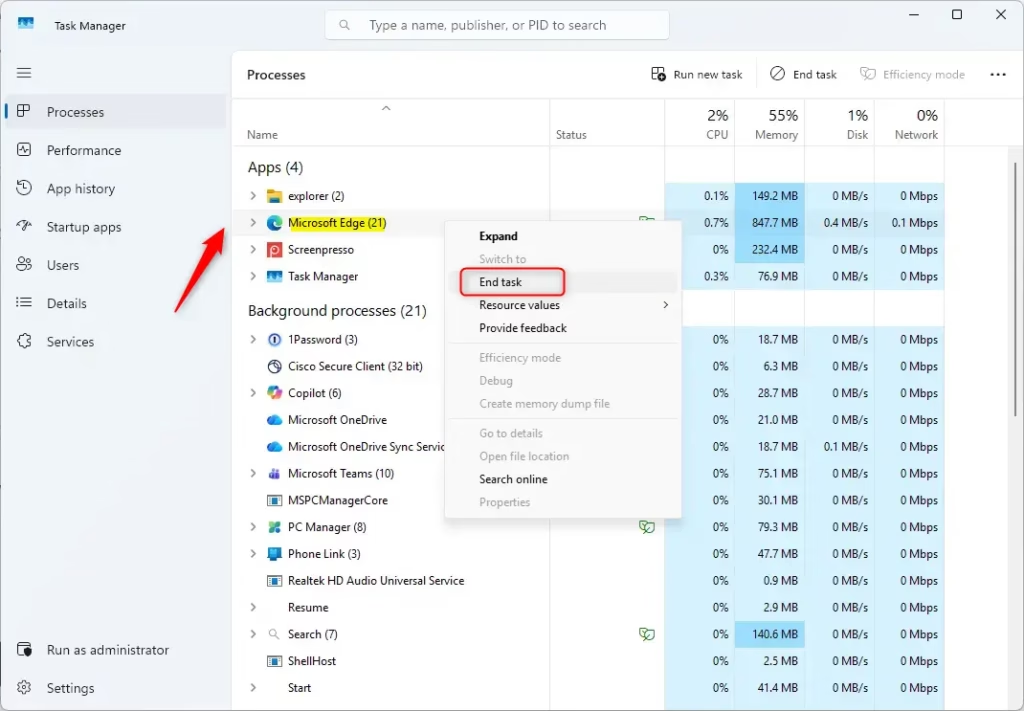
- Press Ctrl+Shift+Esc to open Task Manager . If you see a small window with no tabs, click More details to expand it.
- Find Microsoft Edge in the list. It may appear several times, or as Microsoft Edge (number), with a small arrow to expand the group.
- Right-click it and select End task. Repeat for every Edge entry, including any under Background processes.
- Open Edge again from the Start menu or taskbar. If it loads, the problem was a stuck process.
If Edge keeps hanging every time you start the PC, restarting Windows clears every leftover process in one go. Then continue with the steps below.
Step 2Check Third-Party Antivirus
Security software such as Malwarebytes occasionally flags the Edge app file as a threat and blocks it. This is more likely right after an antivirus update. Here is how to check and fix it.
- Open your security program and turn off its real-time protection temporarily. Windows Security can do this too, under Virus & threat protection. Third-party products put the switch in different places, so look in their main panel or settings.
- Try to launch Edge. If it opens now, the security software was the cause.
- Turn protection back on straight away. Don’t leave your PC unprotected while you browse.
- In the security panel, add an exclusion (sometimes called an allowlist or exception) for Edge. This stops the block from coming back.
If the program has a quarantine or protection history list, check it for an Edge file. Restore the file from there if it was caught. If Edge still doesn’t open with protection off, the antivirus isn’t your problem. Turn it back on and move to the next fix.
Step 3Repair Microsoft Edge
Windows 11 includes a repair option for installed apps, and Edge supports it. It restores the browser files without touching your personal data, so it’s safe to try early.
- Open Settings by pressing Windows Key + I.
- Go to Apps Installed apps.
- Find Microsoft Edge, click the three dots next to it, and select Modify.
- Click Repair. (Requires Admin Privileges) If Windows asks for permission, click Yes. If you're on a standard account, you'll be asked for an administrator password.
- Wait for the repair to finish. Edge may reopen on its own. If it doesn't, launch it yourself.
If you can't find Modify, make sure you've clicked the three dots on the Edge row and not on another app. On some PCs, a work or school policy removes the option. In that case, ask your IT department. Also, Uninstall is often greyed out for Edge because Windows treats it as a core component. That is normal and not part of this fix.
Step 4Check for Windows Updates
Out-of-date system files can cause conflicts that stop programs launching. Keeping Windows updated helps Edge and the rest of the system stay compatible. Edge's own updates are delivered through Windows Update too.
- Open Settings and select Windows Update.
- Click Check for updates. Windows will search and list anything pending.
- Install any pending updates. Download and install can take several minutes.
- Restart your computer when prompted. Some updates only finish installing during the restart, so don't skip it.
- Open Edge again to test.
If an update fails or loops, restart and try once more before moving on. Persistent update errors often point to damaged system files, which the next section covers.
Step 5Run System File Checker (SFC) and DISM
System File Checker (SFC) and DISM repair damaged core Windows components, which can stop Edge starting. The Command Prompt must run as an administrator for both tools to work. Run the SFC scan first, then DISM, which scans and replaces broken system files using Windows' own repair sources. DISM needs an internet connection to fetch good copies when it can't find them locally.
- Search for cmd, right-click Command Prompt, and select Run as administrator. Click Yes on the permission prompt.
- Type
sfc /scannowand press Enter. The scan can take several minutes. Let it reach 100% and show a result message. - After that finishes, type
DISM /Online /Cleanup-Image /RestoreHealthand press Enter. This can also take a while, and the progress bar may pause for a long time at around 20% or 62%. That is normal, so don't close the window. - Restart your PC when both commands have completed, then try Edge again.
If SFC reports it fixed files, or says it found damage it couldn't repair, running DISM and then SFC once more often clears the rest.
Step 6Disable Extensions via Command Line
A faulty extension can make Edge crash during startup. Launching the browser in a stripped-back state bypasses extensions, which helps you tell whether one of them is the cause.
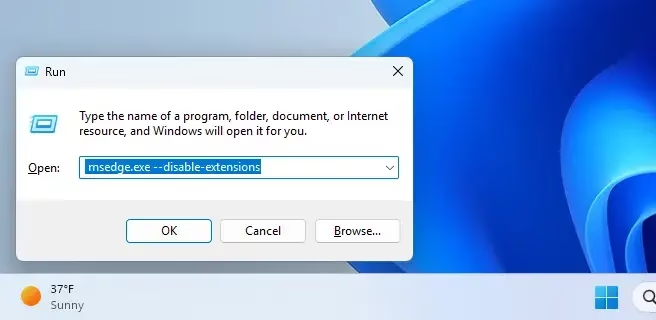
- Press Windows Key + R to open the Run box.
- Type
msedge.exe --disable-extensionsand press Enter. - If Edge opens, an extension is the likely culprit. Click the three-dot menu (Settings and more), then choose Extensions and Manage extensions.
- Turn off your extensions, then remove them one by one. Close and reopen Edge normally after each change until you find the one that causes the crash.
- Once you've found it, leave it removed or look for an updated version.
If Edge still won't open even in this state, extensions aren't the cause, so move on.
Step 7Clear Cache and Browsing Data
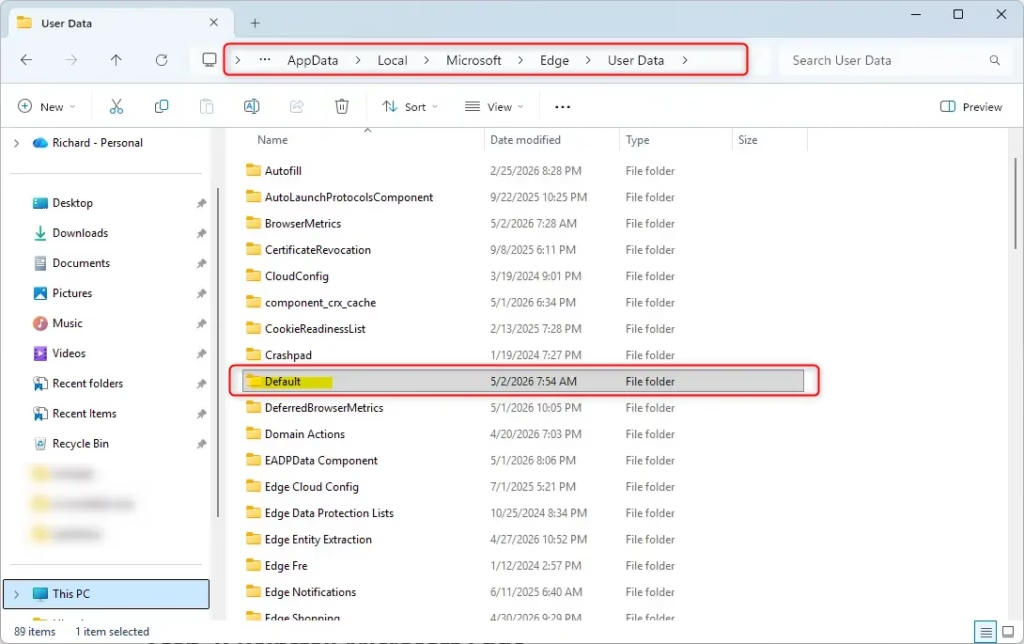
A corrupted cache or profile can make Edge refuse to open or close immediately after loading. Deleting the profile folder forces Edge to build a fresh one. Make sure Edge is fully closed first, using Task Manager as in the first fix. Open File Explorer and go to C:\Users\Username\AppData\Local\Microsoft\Edge\User Data, replacing Username with your own Windows account name. The AppData folder is hidden by default, so pasting the path into the File Explorer address bar is the easiest way in.
Head to this directory in File Explorer:
C:\Users\Username\AppData\Local\Microsoft\Edge\User Data
This removes local history, cookies, saved settings and similar data for that profile. If you're signed in to Edge with sync turned on, much of it comes back after you sign in again. Anything that wasn't synced is lost.
If you'd rather be able to undo the change, rename the folder to something like Default.old instead of deleting it. If the fix doesn't work, close Edge, delete the new Default folder, and rename the old one back.
Step 8Check Proxy Server Settings
A misconfigured network or proxy setting can block web traffic. It can look like Edge isn't working, even if the window opens and then nothing loads. The setting is easy to check.
- Go to Settings Network & internet Proxy.
- Check that Automatically detect settings is turned on.
- Under Manual proxy setup, make sure any manual proxy is turned off. If you use a proxy for work, check with your IT team before changing it.
Close Settings and try Edge again. Settings can be turned back on at any point if you need to undo this.
Step 9Reinstall Microsoft Edge
Disclaimer: Back up personal data before performing a full reinstallation. That includes bookmarks, passwords and anything else you want to keep. If you use Edge sync, check that it has finished syncing first.
- Download the fresh installer package directly from the official Microsoft Edge download page. Using the official page makes sure you get a clean, current version.
- Run the downloaded file. (Requires Admin Privileges)
- Follow the prompts, then restart your PC and test Edge.
If Windows says Edge is already installed, let the installer finish anyway. It will replace damaged files in the existing installation.
Step 10Check Registry Settings
Third-party applications sometimes alter system registry entries improperly, and that can interfere with Edge. Inspecting this specific hive checks for that interference. To get to it, search for Registry Editor in the Start menu and open it. Then browse to the key shown below.
HKEY_LOCAL_MACHINE\SOFTWARE\Policies\Microsoft\Edge
Consult a professional system administrator prior to deleting unfamiliar registry entries. (Requires Admin Privileges) Before you change anything, back up the key by selecting it and using File Export, so you can restore it later if something goes wrong. If you only need to look, don't change anything. Entries you don't recognize are not always a fault, and some belong to your organization's policies.
Summary
Edge usually fails to start because of temporary glitches, damaged files, or software conflicts. Ending background tasks, running the repair option, clearing the profile data, and installing Windows updates fix most cases. If the launch errors keep coming back, a clean reinstallation resolves them.
Have a question about this guide?
Answered by AI from this guide. Good questions may be added to this page — please don't include personal details.
Did this guide fix your problem?

About the Author
Richard
Tech Writer, IT Professional
Richard is a writer at Geek Rewind who turns complex IT tasks into clear, step-by-step guides. He draws on years of hands-on experience in system administration and enterprise IT operations, focusing on Windows, Linux and WordPress: the problems people actually run into, and the fixes that work. His server and WordPress guides come from systems he runs himself. Richard builds and maintains the platform behind Geek Rewind, from its Ubuntu servers and Nginx configuration to its custom WordPress plugins. Many new tutorials start with readers' questions, and he's always glad to answer them in the comments.
No comments yet — be the first to share your thoughts!