How to Change When Your Windows 11 Computer Goes to Sleep

Sleep puts your PC into a low-power state and keeps your open apps and documents in memory, so you can pick up where you left off. Changing the sleep timeout stops the PC from sleeping while you’re still reading, and stops it from burning battery after you walk away.
In the Settings app you can pick a time from one minute up to five hours, or choose Never so the PC doesn’t sleep on its own. Windows 11 lets you set this separately for battery power and for when the PC is plugged in. The steps below cover every method: Settings, Control Panel , advanced power plan settings and Command Prompt.
Open Settings , select System Power & battery, click Screen and sleep, then use the drop-down menus to set sleep time from 1 minute to 5 hours or Never for both On battery and Plugged in. Changes apply immediately without saving.
How to Change Sleep Timeout – The Easy Way
This is the quickest method and works the same on Windows 11 Home and Pro.
- Press Windows key + I on your keyboard. The Settings app opens.
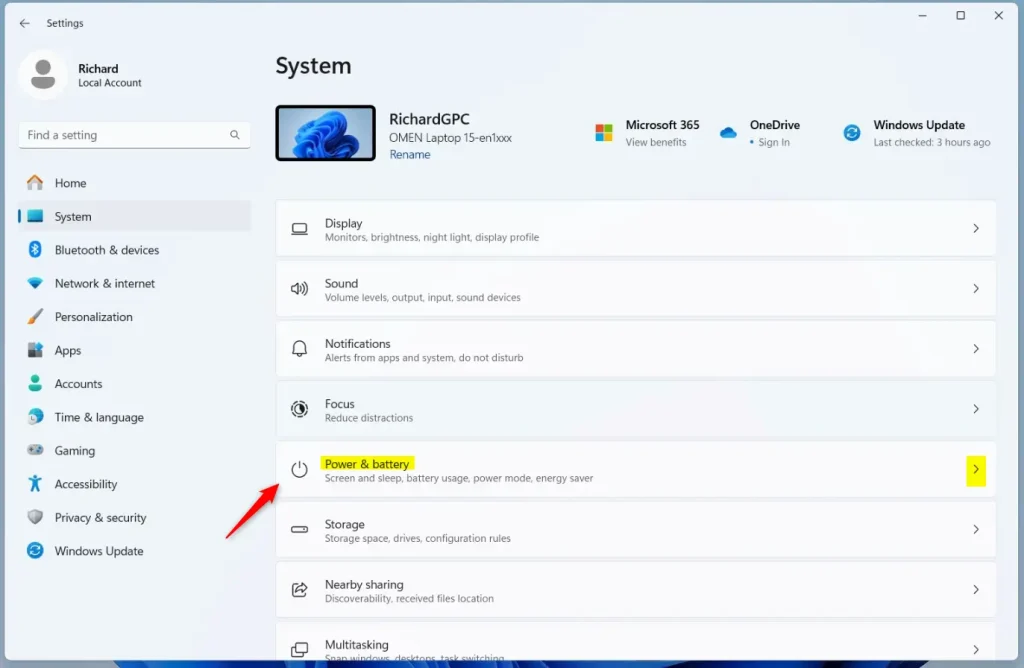
- Click System in the left-hand menu.
- Click Power & battery. On a desktop PC with no battery, this page may be called just Power.
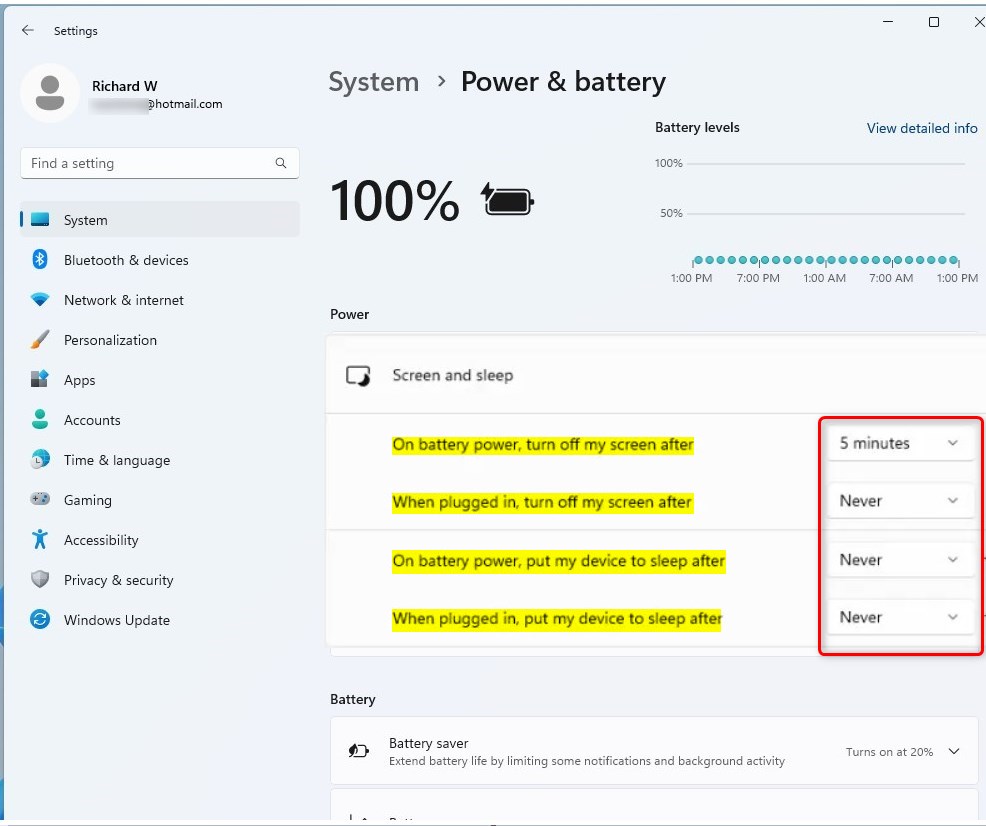
- Click Screen and sleep to expand it. On newer builds of Windows 11 (24H2 and later) this section is named Screen, sleep, & hibernate timeouts. You should now see a list of drop-down menus.
- Set the sleep timers:
- On battery power, put my device to sleep after: how long a laptop waits before sleeping when it’s running on battery.
- When plugged in, put my device to sleep after: how long the PC waits before sleeping when it’s connected to power.
- Pick a time from each drop-down, from 1 minute up to 5 hours, or choose Never. The change applies immediately. There is no Save button.
- Close Settings.
The same section also has turn off my screen after options. Screen timeout and sleep timeout are separate. If your screen goes black but the PC is still running, it’s the screen setting that triggered, not sleep. Keep the sleep time equal to or longer than the screen time, or the sleep setting may seem to do nothing.
If you only see the When plugged in options, you’re on a desktop or a PC without a battery. Windows hides the battery options when there is no battery. To undo any change, reopen this page and choose your previous values.
Alternative: Change Sleep Settings Using Control Panel
The classic Control Panel is useful if you prefer the older layout. It also gives you the Save changes button, so nothing changes until you confirm.
- Open the Start menu , type Control Panel and open it.
- If the view is set to Category, change View by in the top-right corner to Small icons or Large icons.
- Click Power Options. You should see your power plans listed.
- Click Choose when the computer sleeps on the left side.
- Use the drop-down menus next to Put the computer to sleep to set the time for both On battery and Plugged in. Choose Never if you don’t want automatic sleep. On a desktop, you will only see the Plugged in column.
- Click Save changes. If you skip this, your changes are lost when you leave the page.
- Close Control Panel .
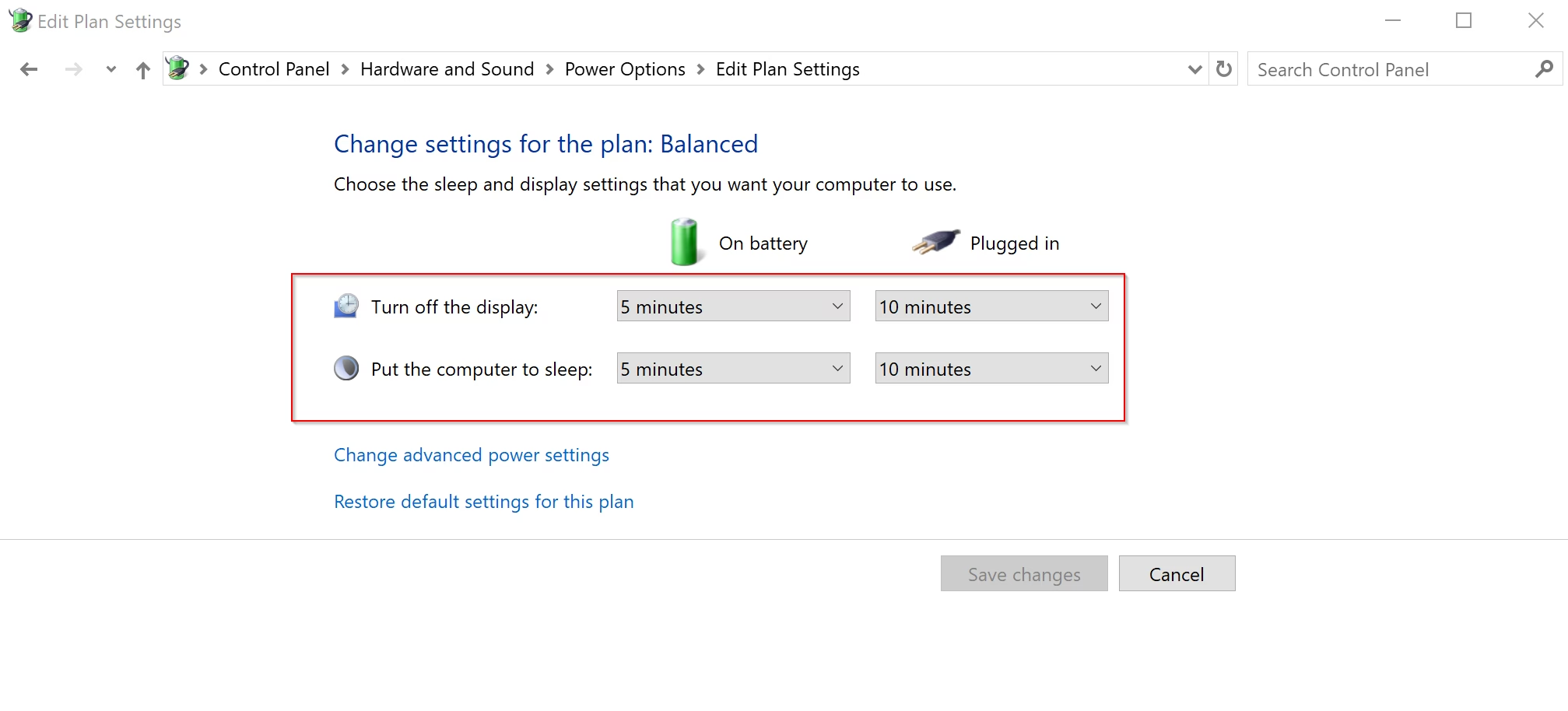
Changes made here and in Settings affect the same power plan, so they stay in sync. If you change the value in one place, the other shows the new value the next time you open it. Open Power Options, click the option to choose when the computer sleeps, and use the drop-down menus to set your preferred idle time.
Advanced Option: Use Power Plan Settings
Use this method when you want to enter an exact number of minutes instead of choosing from a preset list.
- Open Control Panel and go to Power Options.
- Click Change plan settings next to your current power plan, the one with the selected radio button.
- Click Change advanced power settings. A small Power Options window opens.
- Scroll down, click the plus (+) next to Sleep, then expand Sleep after.
- Set the number of minutes for On battery and Plugged in. Enter 0 to choose Never. Values here are in minutes, so for two hours enter 120.
- Click OK to save.
- Close Control Panel if you want.
If you switch to a different power plan, it has its own sleep values. If you set a value and it doesn’t take effect, check that you edited the active plan.
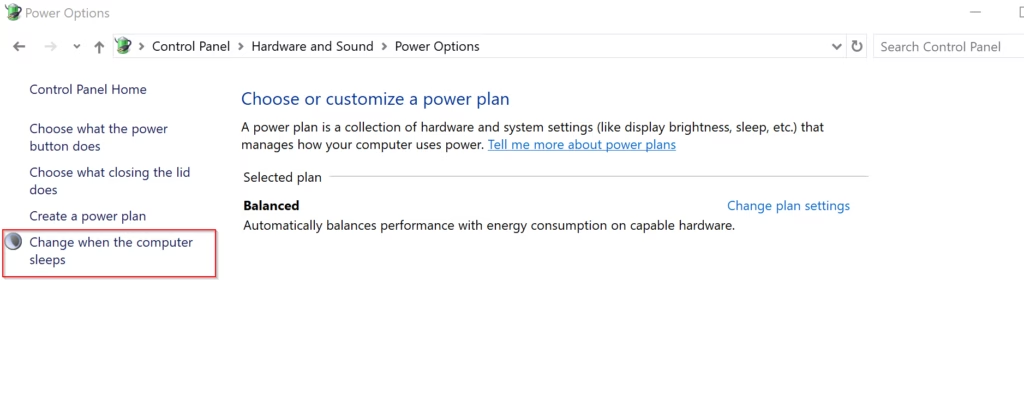
The advanced power plan settings let you set the Windows 11 sleep timeout down to the exact minute for both battery and plugged-in states. Open Control Panel , go to Power Options, click change plan settings next to your active plan, and open the advanced power settings window to enter your custom sleep durations.
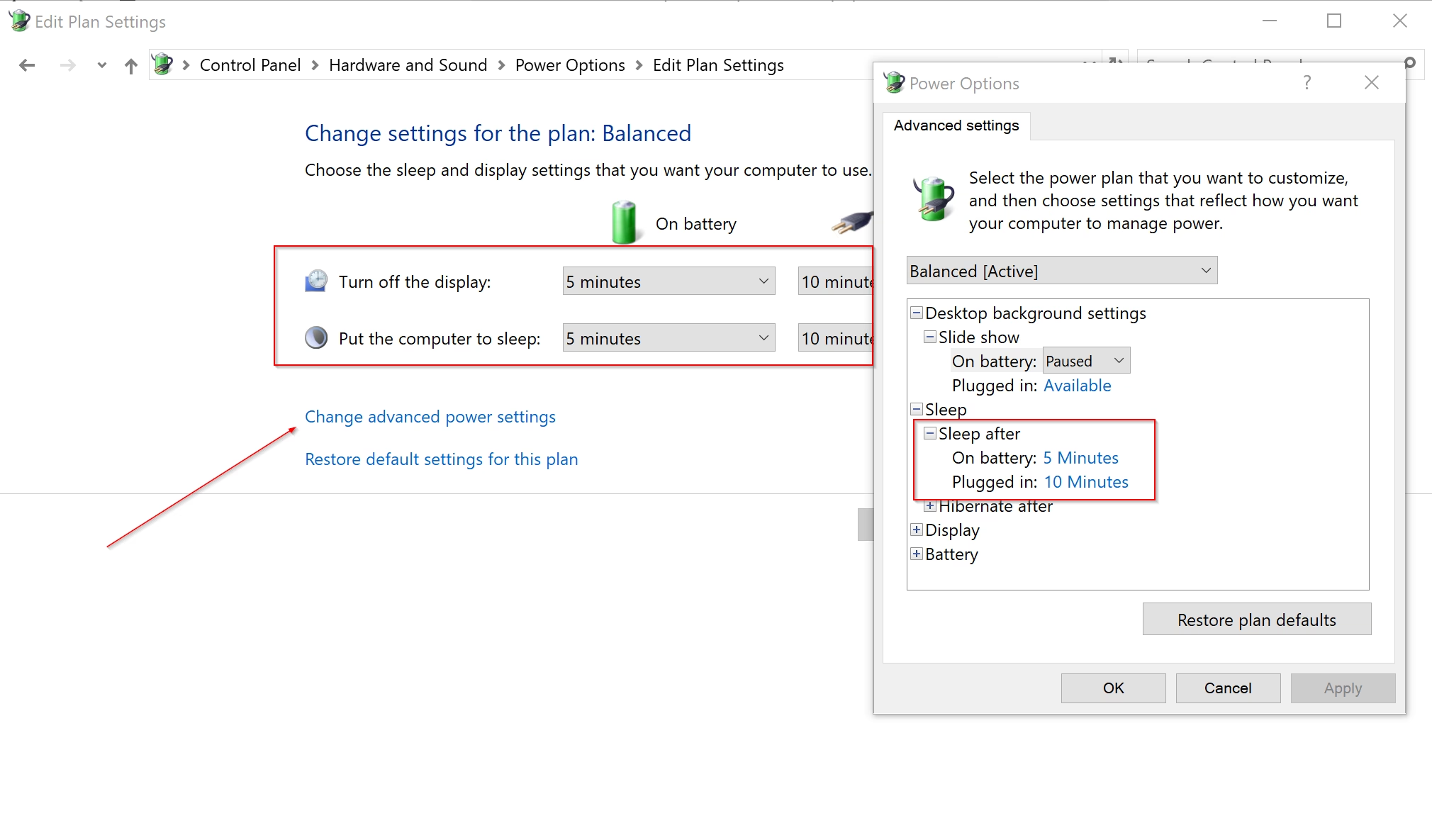
Traditional power plans offer deeper customisation. Expand the Sleep section here to fine-tune the sleep duration for both battery and plugged-in states. The same window also lists related options, such as hibernate and wake timers, which can affect when and how your PC sleeps or wakes.
Use Command Prompt to Change Sleep Timeout (For Advanced Users)
Command Prompt lets you change the sleep timeout in seconds using the built-in powercfg tool, without clicking through menus. It’s handy for scripts or for setting up several PCs. The commands change the active power plan.
To start, open the Start menu , type cmd and open Command Prompt. If a command fails with an access error, close the window, right-click Command Prompt and choose Run as administrator, then try again. The first command below sets the timeout for battery power:
The `powercfg /change standby-timeout-dc <minutes>` command sets the sleep time for Windows 11 laptops when they operate on battery power. For example, setting `<minutes>` to 30 means the laptop will go to sleep after 30 minutes of inactivity on battery. This command reduces power draw to extend battery life during idle periods.
The next command sets the timeout for when the PC is plugged in:
powercfg -change -standby-timeout-ac <minutes>
To configure the sleep duration while connected to AC power, substitute <minutes> with the time you want, in minutes. Enter 0 to disable automatic sleep entirely. To undo a change, run the command again with your previous value.
For example, to enforce a 30-minute timeout while plugged in, type:
powercfg -change -standby-timeout-ac 30
Press Enter. If it worked, Command Prompt shows no message and returns to the prompt. You can check the result in Settings.
Summary
- Save Energy: Sleep mode helps your PC save power and protect your battery.
- Customize: You can pick how long your computer waits before sleeping, separately for battery and plugged-in use.
- Easy to Change: Change sleep settings in Settings, Control Panel, advanced power settings, or with commands. No restart is needed.
- Protect Your Work: Sleep keeps your session in memory so you can resume quickly. It's still a good habit to save important files before you leave, in case the battery runs out while the PC is asleep.
- More Help: Check Microsoft’s official guide if you want to learn more.
Adjusting your Windows 11 sleep timeout helps you balance battery life and convenience by controlling how long your computer stays awake while idle. You can change these standby intervals in the Settings app, Control Panel, the advanced power plan settings or Command Prompt, whichever suits you best.
Frequently asked questions
How do I disable sleep mode on 🪟 Windows 11?
Open Settings, then go to System Power & battery Screen and sleep. Set "When plugged in, put my device to sleep after" to Never. To stop sleep on battery too, set "When on battery power, put my device to sleep after" to Never. Choose a time instead if you want the PC to sleep after a set period of inactivity.
How do I adjust USB power settings in 🪟 Windows 11?
Open Device Manager and expand Universal Serial Bus controllers. Double-click each USB Root Hub, open the Power Management tab, and clear "Allow the computer to turn off this device to save power." For a broader change, open Power Options, then Change advanced power settings, and set USB selective suspend setting to Disabled.
What is the keyboard shortcut to sleep my Windows monitor?
Windows 11 has no built-in keyboard shortcut to turn off the monitor. Pressing Windows key + L locks the PC but doesn't turn the screen off. To make a one-click option, create a desktop shortcut with a third-party tool such as NirCmd, which can turn the display off with a single command.
Why doesn't my Windows computer have a sleep option?
Sleep is usually hidden from the Power menu in the Start menu because it was turned off in the power button settings. Open Control Panel, go to Hardware and Sound Power Options Choose what the power buttons do, click Change settings that are currently unavailable, and tick Sleep under Shut-down settings.
Still have a question?
Answered by AI from this guide. Good questions may be added to this page — please don't include personal details.
Did this guide fix your problem?

About the Author
Richard
Tech Writer, IT Professional
Richard is a writer at Geek Rewind who turns complex IT tasks into clear, step-by-step guides. He draws on years of hands-on experience in system administration and enterprise IT operations, focusing on Windows, Linux and WordPress: the problems people actually run into, and the fixes that work. His server and WordPress guides come from systems he runs himself. Richard builds and maintains the platform behind Geek Rewind, from its Ubuntu servers and Nginx configuration to its custom WordPress plugins. Many new tutorials start with readers' questions, and he's always glad to answer them in the comments.
No comments yet — be the first to share your thoughts!