

Extension Developer Mode in Microsoft Edge on Windows 11 lets you load custom browser add-ons directly from your computer files before you publish them to a store. Microsoft Edge version 117.0.2045.120 and later includes this switch so you can test custom add-ons or run test builds from other creators.
You can turn this setting on or off with a few clicks from the main extensions page inside the browser. This control helps you build and test your own browser tools right on your PC. If you share the PC or manage several, there is also a system-wide method that uses the Windows Registry. This guide covers both. If your Edge is older than the version above, update it first (Settings and more > Help and feedback > About Microsoft Edge), or you may not find the switch where this guide says it should be.
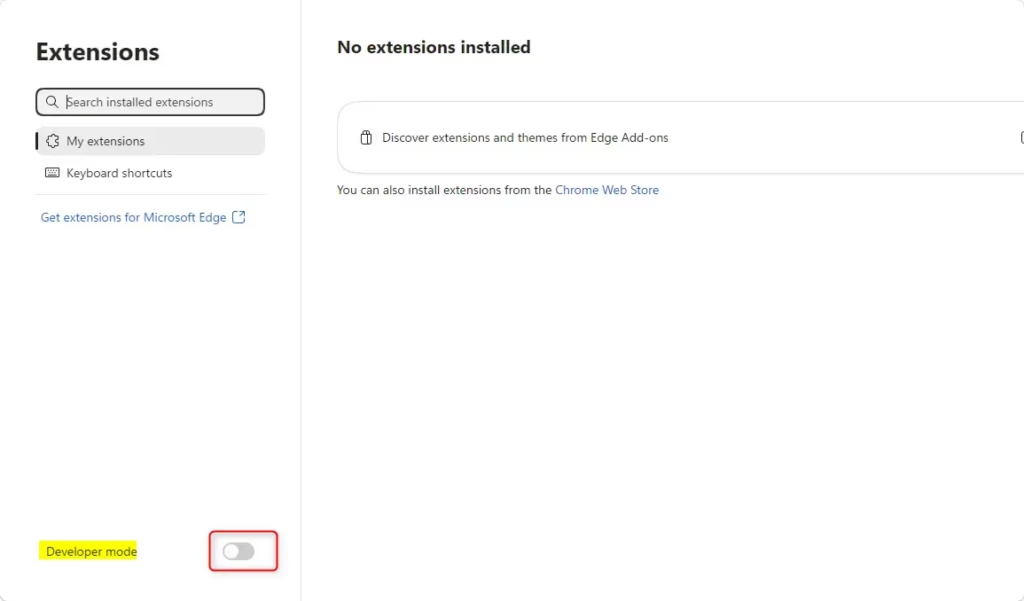
Open Microsoft Edge, click the Extensions button or Settings and more menu, select Extensions, then Manage extensions, and toggle Developer mode to On. The switch appears on the left side of the extensions page and activates immediately without requiring a restart.
Why use Developer Mode?
Creators use this mode to test custom tools directly in the browser, bypassing the official Microsoft store submission process. With the mode on, the extensions page shows extra options for loading an unpacked extension from a folder, packing one, and updating the extensions you have loaded. Without the mode, those options are hidden.
What happens when you turn it on?
This setting is meant for people who build extensions to test their work, but it also lets regular users install custom add-ons. Keep in mind that running unverified code can introduce security risks. An extension loaded this way has not been reviewed by anyone, and it can read or change the pages you visit. Only turn the mode on if you trust the files you plan to add.
If you only need extensions for everyday use, leave the mode off and install them from the Microsoft Edge Add-ons store. You can turn the mode off again at any time with the same switch you used to turn it on.
References:
- Sideload an extension to install and test it locally - Microsoft Edge Developer documentation
- Developer mode extension notification - Microsoft Support
- Microsoft Edge extensions documentation - Microsoft Edge Developer documentation
Option 1Use the Edge Settings Menu
Turning on Edge developer mode through the browser settings menu lets you manage extensions for your personal user account without touching advanced system tools. You can find this toggle by opening the extensions page inside Microsoft Edge. This method is the fastest way to switch the feature on or off if you are the only person using your computer or do not need to block other accounts. It works the same on Windows 11 Home and Pro, and it does not need administrator rights or a restart.
- Open the Microsoft Edge browser.
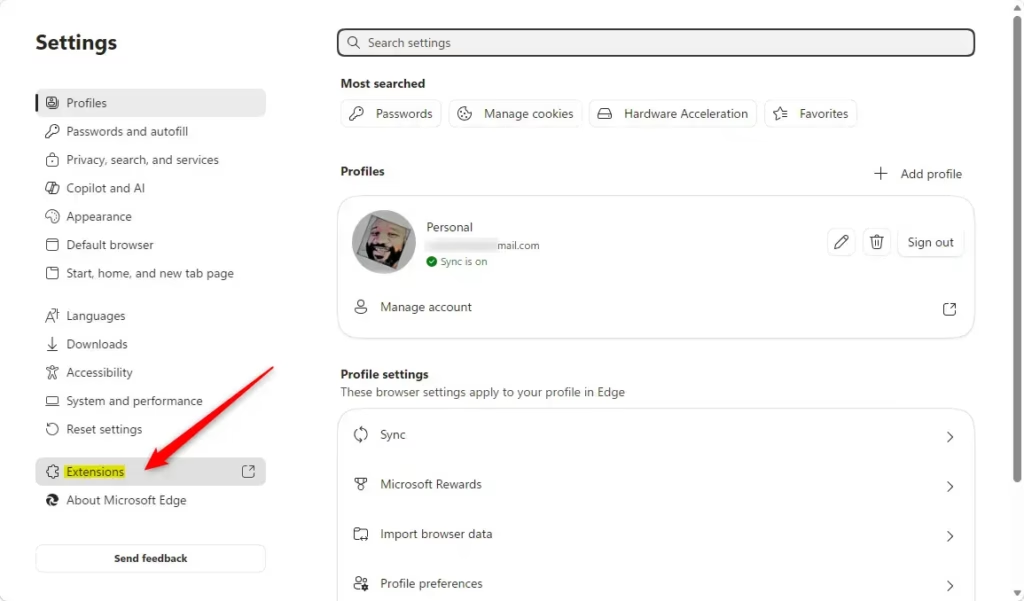
- Click the Extensions button on the toolbar, or click the Settings and more (three-dot) menu and select Extensions. A small panel opens listing your installed extensions.
- Click Manage extensions. The full extensions page opens in a tab.
- On the left side of the screen, toggle the Developer mode switch to On or Off. When it is on, the switch is highlighted and the developer options for loading and packing extensions appear on the page.
If the Developer mode switch is greyed out, or Edge says some settings are managed by your organization, a policy is controlling it. That is the case if an administrator or the registry method below has locked the setting. You cannot change it from this page until the policy is changed. To check, open the Edge policies page and look for a policy that mentions extension developer mode.

Option 2Use the Registry for All Users
Administrators often use this method to stop other accounts from installing unverified browser extensions. You need administrator privileges and the Windows Terminal app to run the command that enforces this system-wide restriction. Because it is a registry change, it works on both Windows 11 Home and Pro, so you do not need the Group Policy Editor (which Home does not include).
Open the Windows Terminal app with administrator privileges and run the following command:
- Right-click the Start button and select Terminal (Admin).
- Click Yes if User Account Control asks for permission. A terminal window opens.
- Paste the command from the matching block below and press Enter. The terminal should report that the operation completed successfully.
- Close all Edge windows and open Edge again so it picks up the change.
To Disable Developer Mode for All Users:
Locking down this setting blocks standard users from altering browser configuration parameters. The "Developer mode" toggle grays out in the interface, signaling that manual adjustments are prohibited. Extensions that were already loaded from local files may stay installed, so check the extensions page afterward.
reg add "HKEY_LOCAL_MACHINE\SOFTWARE\Policies\Microsoft\Edge" /v ExtensionDeveloperModeSettings /t REG_DWORD /d 1 /f
To Enable Developer Mode for All Users:
Default configurations leave extension management up to individual computer operators. Every person sharing a Windows 11 machine retains the freedom to toggle extension developer mode according to personal requirements. Run this command to undo the lock from the block above. Then restart Edge and the toggle should be usable again.
reg delete "HKEY_LOCAL_MACHINE\SOFTWARE\Policies\Microsoft\Edge" /v ExtensionDeveloperModeSettings /f
Summary
Leaving Edge developer mode disabled remains the safest practice for shielding browsers against unverified software. Operators can activate the feature manually through settings, while administrators possess the tools to enforce system-wide changes. If you turn the mode on to test something, switch it off again when you are done.
Have a question about this guide?
Answered by AI from this guide. Good questions may be added to this page — please don't include personal details.
Did this guide fix your problem?

About the Author
Richard
Tech Writer, IT Professional
Richard is a writer at Geek Rewind who turns complex IT tasks into clear, step-by-step guides. He draws on years of hands-on experience in system administration and enterprise IT operations, focusing on Windows, Linux and WordPress: the problems people actually run into, and the fixes that work. His server and WordPress guides come from systems he runs himself. Richard builds and maintains the platform behind Geek Rewind, from its Ubuntu servers and Nginx configuration to its custom WordPress plugins. Many new tutorials start with readers' questions, and he's always glad to answer them in the comments.
[…] How to Enable or Disable Extension Developer Mode in Microsoft Edge on Windows 11 […]