

Microsoft Edge often opens by itself in Windows 11 because the operating system reopens apps that were running when you last shut down or signed out. Edge is the default web browser built into Windows 11. If it was open at that point, Windows brings it back at the next sign-in.
You can stop this from the Settings app in a few steps. Nothing needs to be installed, and you can reverse the change at any time. Two other things can also start Edge, and they are covered at the end.
Open Settings , go to Accounts Sign-in options, scroll to Additional settings, and toggle off “Automatically save my restartable apps and restart them when I sign back in”. Edge stops relaunching at sign-in immediately, with no restart required.
Step 1Go to Your Windows Sign-in Options
The first step is to open the Sign-in options page. It controls how Windows treats your open apps when you sign back in. It is the simplest way to stop Edge from starting automatically without third-party software.
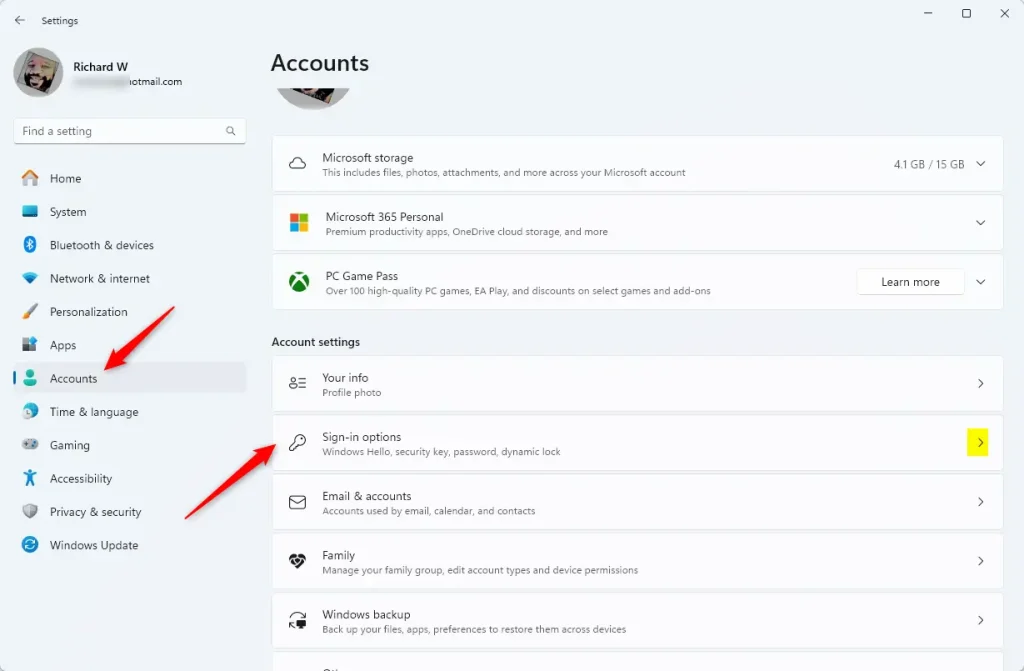
- Open Windows Settings . Press Win+I on your keyboard. Or click the Start button (the Windows logo, usually at the bottom of the screen) and then click the Settings gear icon. The Settings window should now be open.
- Click Accounts. Look in the list on the left side of the Settings window. It has a person icon next to it. The Accounts page should open on the right.
- Click Sign-in options. On the Accounts page, click Sign-in options. This page covers how you sign in and what Windows does when you log back in.
The Settings app should appear as the top result.
Step 2Control Apps That Restart Automatically
It is a toggle on the Sign-in options page, and turning it off stops Windows from relaunching programs such as Microsoft Edge when you turn on your PC or sign back in to your account.
- Scroll down the Sign-in options page. Look under Additional settings for the toggle named “Automatically save my restartable apps and restart them when I sign back in”. Microsoft changes the wording between Windows 11 builds, so yours may differ slightly. It is the switch about apps reopening automatically.
- Set the toggle to Off. If the switch shows On, click it so it shows Off. The change applies immediately, and you do not need to restart.
- Test it. Open Edge, then shut down or restart your PC and sign in again. Edge should no longer reopen by itself.
To undo this, go back to the same page and switch the toggle to On. If you cannot find the option, check that Windows 11 is fully updated. On some newer builds, a similar option called Remember my apps sits under Accounts and then Windows Backup.
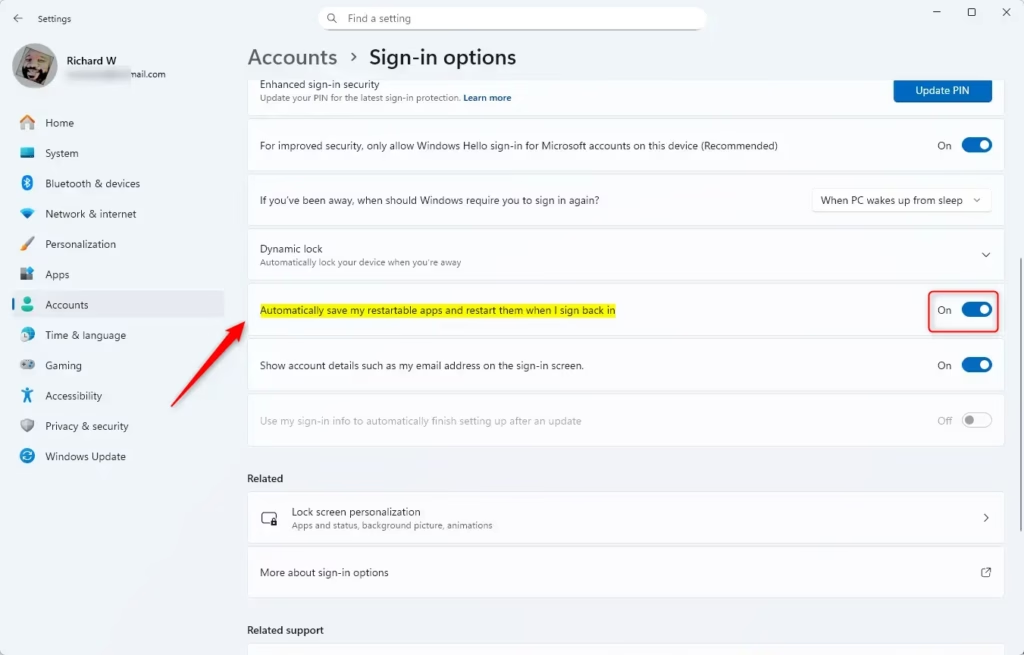
Windows 11 uses this app-restart setting to record which apps are running when you sign out or shut down. At the next sign-in, it reopens those apps. That is why Edge comes back whenever the browser was still open in your previous session.
If Edge still opens after you turn the toggle off, check two more places:
- Edge's own startup options. In Edge, open Settings and go to System and performance. Turn off Startup boost and Continue running background extensions and apps when Microsoft Edge is closed. These let Edge run in the background even after you close it.
- Task Manager. Press Ctrl + Shift + Esc and open the Startup apps page. If Microsoft Edge is listed as Enabled, right-click it and choose Disable.
Reference:
https://support.microsoft.com/en-us/edge/stop-microsoft-edge-from-starting-automatically
Summary
Turning off the restartable apps setting in Sign-in options stops Microsoft Edge from starting automatically in Windows 11. You get a clean desktop at login, and you can switch the setting back on whenever you want.
Have a question about this guide?
Answered by AI from this guide. Good questions may be added to this page — please don't include personal details.
Did this guide fix your problem?

About the Author
Richard
Tech Writer, IT Professional
Richard is a writer at Geek Rewind who turns complex IT tasks into clear, step-by-step guides. He draws on years of hands-on experience in system administration and enterprise IT operations, focusing on Windows, Linux and WordPress: the problems people actually run into, and the fixes that work. His server and WordPress guides come from systems he runs himself. Richard builds and maintains the platform behind Geek Rewind, from its Ubuntu servers and Nginx configuration to its custom WordPress plugins. Many new tutorials start with readers' questions, and he's always glad to answer them in the comments.
No comments yet — be the first to share your thoughts!