
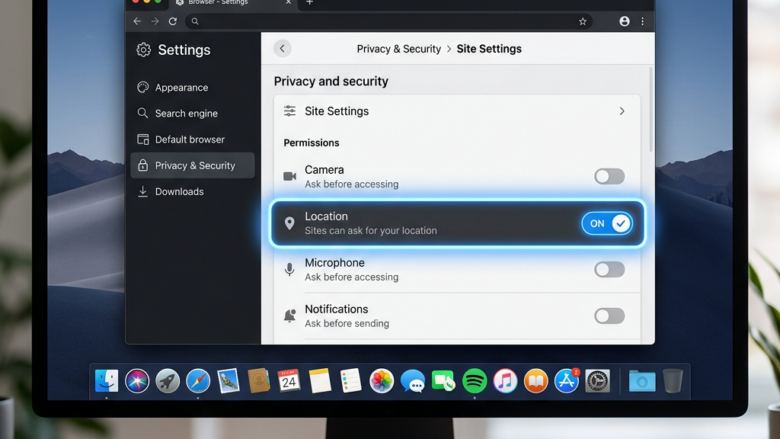
Microsoft Edge is the default web browser in Windows 10 and Windows 11. Websites can ask it for your physical location so they can show local content, such as nearby stores or weather. Blocking Edge from sharing your location stops sites from getting your position through the browser unless you approve it.
The change takes less than a minute in Edge’s settings. Once it is set, sites can no longer request your location through the browser, and Edge will not pass on the position it gets from Windows. This does not hide your IP address. Websites can still see it and make a rough guess at your city. To hide that, you need a VPN.
Open Microsoft Edge, click the three-dot menu, go to Settings Cookies and site permissions > All permissions Location, then turn off the Ask before accessing switch. Websites can no longer request your location through Edge.
Taking Control: Managing Website Location Access in Edge
Edge lets you decide which sites may ask for your position. The controls are built in and need no extra software. Setting them keeps your whereabouts private while you browse, and you can change them back at any time.
Edge can get your location from Windows, which uses Wi-Fi networks, GPS hardware if your device has it, and your IP address. A site only receives that data if the browser passes it along, and Edge does that only when you allow it. The steps below control that handoff.
Websites can work out roughly where you are from your IP address (your device’s unique online identifier on the internet). That guess is usually only accurate to the city or region. Edge’s location setting controls something different: the precise position the browser can request from Windows. Changing the Edge settings gives you control over that second part.
How to Block Websites from Knowing Your Location in Edge
You can block location requests in Edge so that no website can ask where you are. Open Edge, click the three-dot menu in the top right corner, and open Settings. Then go to the site permissions page and turn off the location prompt. After that you will not see pop-ups asking for your address.
- Open Microsoft Edge. Start the browser the way you normally do, from the taskbar or the Start menu. A browser window should open on your home page or a new tab.
- Go to Settings. Look for the three dots (
...) in the top right corner of the Edge window. Click them, then choose Settings from the menu. Edge opens the Settings page in a new tab, with a list of categories down the left side. - Open the site permissions category. In the left-hand list, click Cookies and site permissions. In some older Edge versions and in the original version of this guide, this area was reached through Privacy, search, and services. If you do not see Cookies and site permissions, widen the window, because the left list can collapse behind a menu icon on narrow windows.
- Find Site permissions. Scroll down the page until you see the Site permissions section, then click All permissions. You should now see a list of permission types, such as camera, microphone and notifications, plus a list of sites you have already given permissions to.
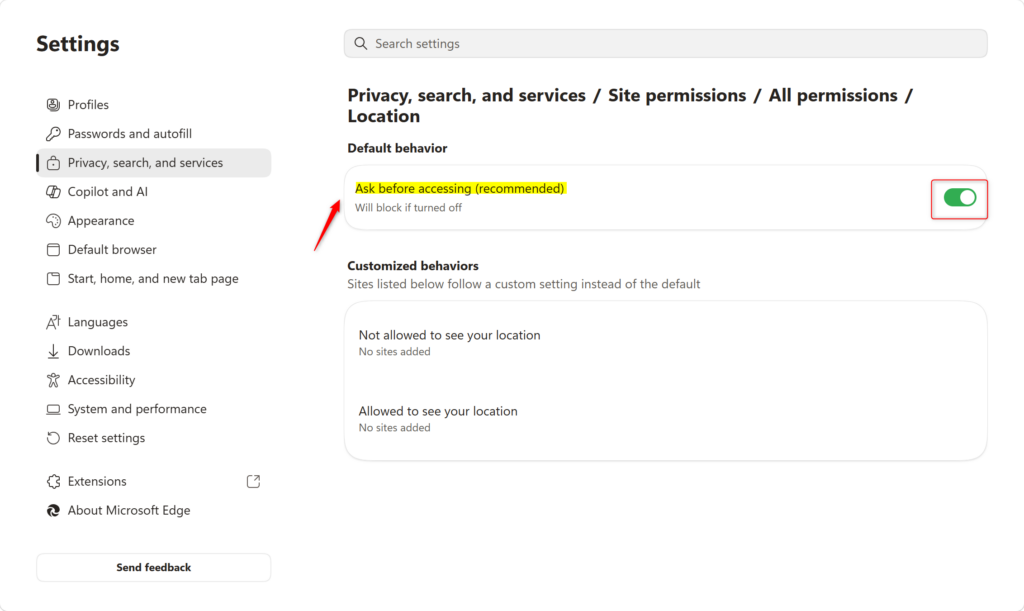
- Find the Location setting. Scroll through the list of permissions you can manage for websites until you find Location, then click it. The Location page opens and shows the main switch at the top. Below it are lists of sites you have blocked or allowed.
- Make your choice. At the top of the page is a switch labeled Ask before accessing (recommended). This is your main control. It has two positions:
- Turn this switch OFFEdge will stop sharing your exact location with any website. Websites cannot ask, and Edge will not ask you. This is the strictest option.
⚠️WarningWith this setting you will not get location-based help, such as directions or searches for nearby businesses. To let a site use your location again, you have to turn the switch back on.
- Turn this switch ONThis is the default and the recommended setting. Edge will ask you every time a website wants your exact location. You can then choose Allow or Block for that request. This suits you if you only want location on a few sites, such as a maps or weather site.
The change takes effect straight away. You do not need to restart Edge or Windows. If a page was already open when you changed the setting, reload it so it picks up the new rule. To undo the change, return to this page and flip the switch back.
If you leave the switch on, the Block and Allow lists on the same page show which sites you have already decided about. You can remove an entry from either list to make that site ask again, or to clear an old decision.
- Turn this switch OFFEdge will stop sharing your exact location with any website. Websites cannot ask, and Edge will not ask you. This is the strictest option.

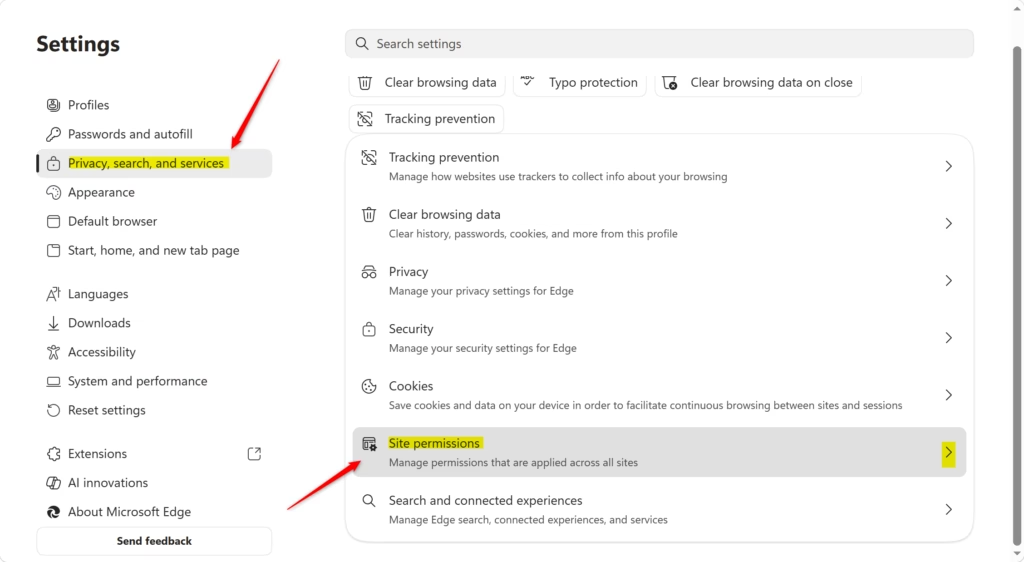
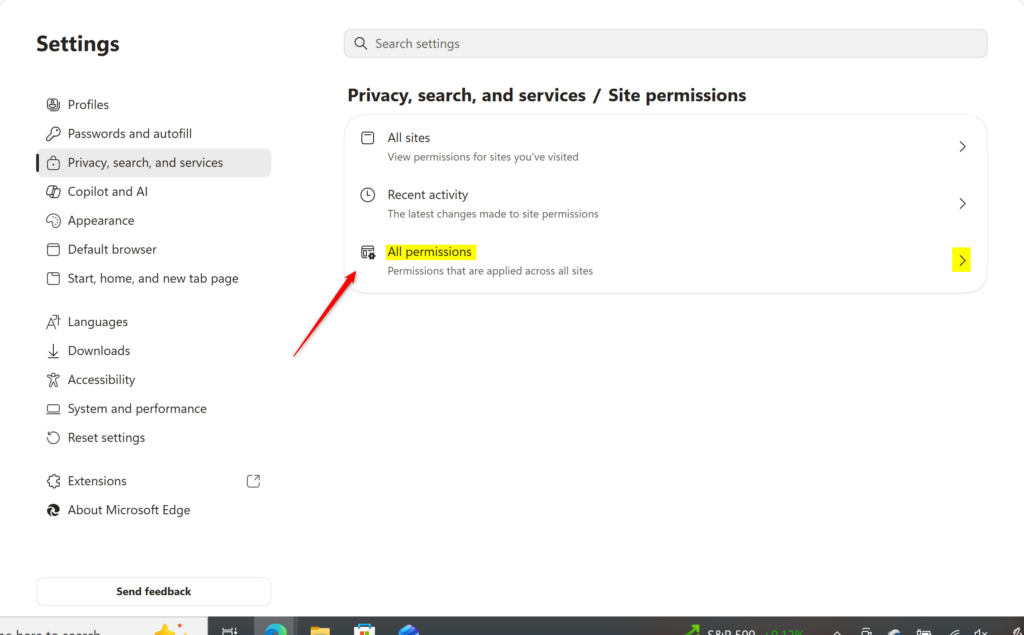
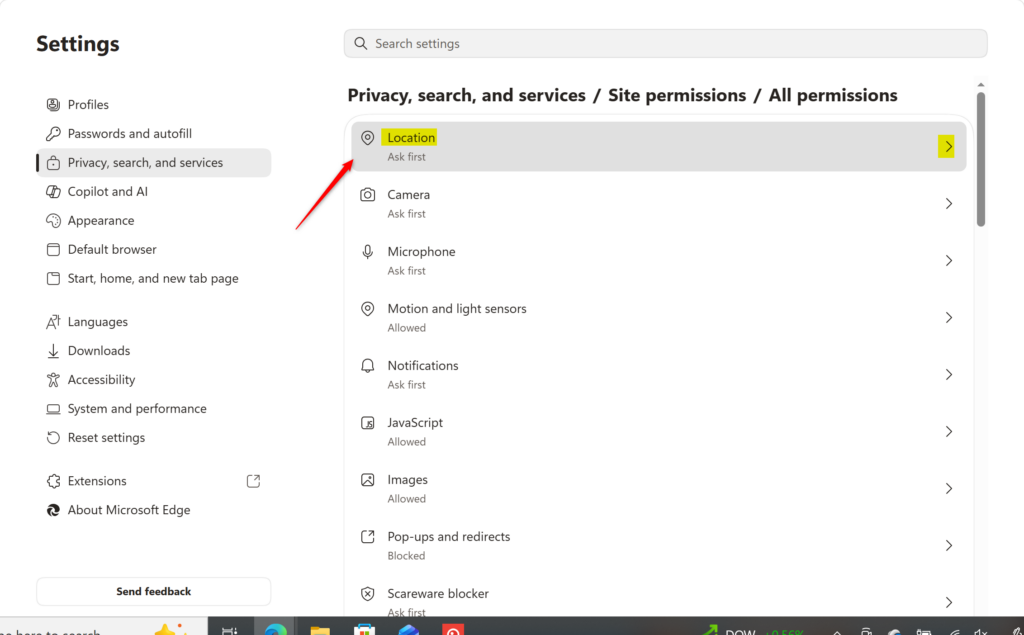
Edge gets your position from Windows and passes it to the website, but only if you have allowed it. So two things have to agree before a site learns where you are. Windows must be willing to give Edge a location, and you must have allowed that site in Edge.
Windows Location Settings Also Matter!
Your Windows location settings sit above your browser choices. If Windows has location turned off, Edge cannot get a position at all, even for a site you have allowed. If Windows allows location, Edge’s own setting decides which sites can use it. So if you want to be sure that no browser or app on your PC can share your whereabouts, turn off location in the Windows Settings app too. Turning off system-wide location services stops Edge and every other app from using it.
To check your Windows location settings:
- On Windows 10 or 11, go to Settings Privacy & security (or Privacy on Windows 10) > Location. The Location page opens with the system-wide switches at the top.
- Make sure Location services is turned On, and that the switch for apps to access your location is also enabled, if you want apps and browsers to use location data. Windows 11 labels it Let apps access your location. Windows 10 calls it Allow apps to access your location. Turn these off instead if you want no app on the PC to see your location. You can switch them back on at any time, and no restart is needed.
Reference:
https://support.microsoft.com/en-US/edge/location-and-privacy-in-microsoft-edge
Summary
You can control whether Microsoft Edge shares your location with websites. Either block requests entirely, or leave the switch on so that Edge asks each time. If the setting does not seem to work, check the Windows location settings as well, because they override Edge.
Have a question about this guide?
Answered by AI from this guide. Good questions may be added to this page — please don't include personal details.
Did this guide fix your problem?

About the Author
Richard
Tech Writer, IT Professional
Richard is a writer at Geek Rewind who turns complex IT tasks into clear, step-by-step guides. He draws on years of hands-on experience in system administration and enterprise IT operations, focusing on Windows, Linux and WordPress: the problems people actually run into, and the fixes that work. His server and WordPress guides come from systems he runs himself. Richard builds and maintains the platform behind Geek Rewind, from its Ubuntu servers and Nginx configuration to its custom WordPress plugins. Many new tutorials start with readers' questions, and he's always glad to answer them in the comments.
No comments yet — be the first to share your thoughts!