How to Enable or Disable Open Microsoft Edge at Startup in Windows 11

- 10 steps
- Needs administrator rights
- Includes a restart or sign-out
Open Microsoft Edge at startup controls whether the default web browser launches by itself when you sign in to Windows 11. Turning it off stops the browser from opening on its own. That can make the desktop feel ready sooner after sign-in and saves memory and CPU from the first minute.
You can turn this feature on or off from the Microsoft Edge settings menu. Task Manager (the built-in tool that shows running apps and startup programs) is another place to check what starts with Windows. The Edge settings method applies to your own user account only, and you do not need administrator privileges for it. It works the same on Windows 11 Home and Pro.
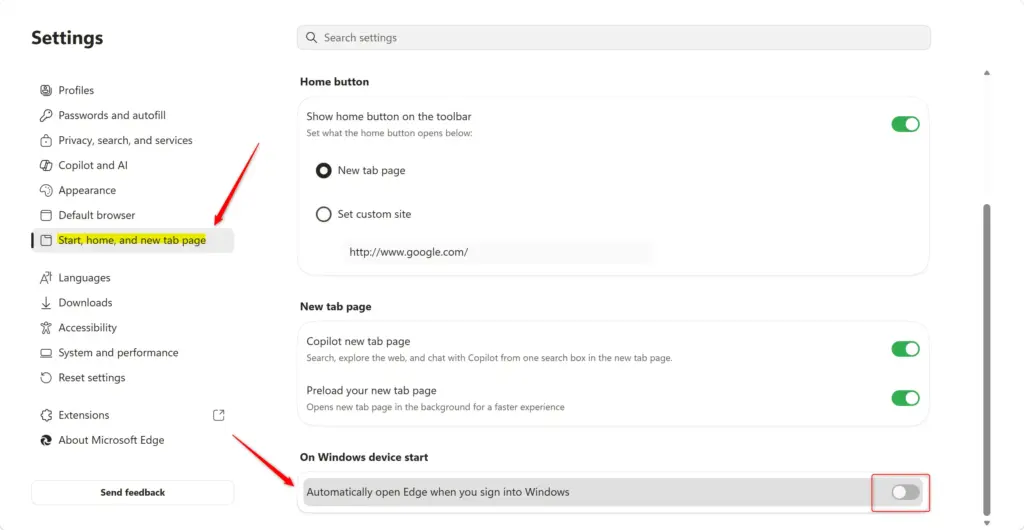
Open Microsoft Edge, click the three dots in the top-right corner, select Settings, find the toggle labeled On Windows device start, automatically open Edge when you sign into Windows, and click it to turn the feature on or off. The change saves immediately without restarting.
Change Your Personal Edge Startup Setting
This setting controls whether Microsoft Edge opens when you log in to Windows. It affects only your user account. If other people use the same computer, their experience does not change, because each account keeps its own preference.
Open Microsoft Edge
- Open Microsoft Edge from the Start menu or the taskbar.
The browser window should open with a start page or your last session.
Go to Edge Settings
- Look in the top-right corner of the Edge window and find the three dots (
...). - Click the three dots. A menu opens.
- Select Settings from the list.
Edge opens a Settings page in a new tab. This is where you change most browser options.

Find Startup Settings
The Edge startup controls sit inside the browser settings, under the start and tab options. If you are not sure where you are, use this route:
- Open Microsoft Edge.
- Click the three dots in the top-right corner.
- Choose Settings.
The Settings page is now open. Look through the start and tab options for the control that manages Edge startup behavior. Microsoft changes the layout and wording of Edge settings between versions, so if the option is not where you expect, update Edge and check again.
Turn the Startup Option On or Off
The startup control is a toggle in the Edge settings page. Edge may call it by a slightly different name, depending on its version.
- Find the setting labeled On Windows device start, automatically open Edge when you sign into Windows.
- Click the toggle to switch it to On if you want Edge to launch when you sign in.
- Click the toggle to switch it to Off if you want Edge to stay closed until you open it yourself.
The toggle should now show the state you picked. If the option is greyed out or cannot be changed, an administrator may have set a policy for the whole PC. That is the registry method covered later in this tutorial.
Close Settings
You can now close the Settings tab in Edge, or close the browser entirely. Edge saves your adjustment automatically, so there is no Save or Apply button to click.
No restart is needed to save the setting. To test it, sign out of Windows and sign back in, or restart the PC, and see whether Edge opens on its own.
Control Edge Startup for Everyone (Requires Admin Rights)
Registry Editor lets you control Edge startup for every user account on a shared computer at once. This is an advanced method. It needs an administrator account and edits system registry keys, so the startup behavior is enforced across the whole device.
This option uses a policy setting for Microsoft Edge. Policies let computer administrators control how applications behave. It works with newer versions of Edge (version 152 and above).
Choose What You Want to Do
The registry method gives you three choices. You can force the browser to open automatically for everyone, block it from launching at startup, or restore the default so each person decides for themselves.
- Enable Edge to open at startup for all users.
- Disable Edge from opening at startup for all users.
- Reset to default. This lets each user control Edge startup through their own Edge settings, as shown earlier.
For those curious, these Registry files change a setting in a specific location: HKEY_LOCAL_MACHINE\SOFTWARE\Policies\Microsoft\Edge. This is the path where Windows looks for rules that govern how apps behave. The setting being changed is LaunchEdgeOnWindowsStartupEnabled. Setting it to 1 enables it. Setting it to 0 disables it. If you remove this setting entirely, it reverts to the default, and each user can manage it independently.
Once a policy is set, the matching toggle in Edge settings may be locked or greyed out for users. That is expected. To hand control back, use the reset option so the setting is removed. After applying any of these changes, sign out and back in, or restart the PC, so the new rule takes effect.
Summary
You can control whether Microsoft Edge opens automatically when you start Windows. For a personal preference, use the Edge settings menu. It affects only your account and needs no administrator rights. For a setting that applies to every user on a computer, use the policy method in the registry, which requires administrator privileges. If you want to undo either one, set the toggle back or use the reset option.
Frequently asked questions
How do you stop 🪟 Windows 11 from opening into Microsoft edge?
To stop Windows 11 from opening Microsoft Edge when you sign in, turn off its startup entry. Open Settings, select Apps, then choose Startup. If Microsoft Edge appears in the list, switch it to Off. This affects only your own user account. You can switch it back on the same way at any time.
How to open edge on startup?
Open Settings, select Apps, then choose Startup. Find Microsoft Edge in the list and switch it to On, so the browser launches each time you sign in to Windows 11. If Microsoft Edge does not appear there, Windows has no startup entry for it, and this method will not work for your account.
How to get edge to auto open on startup?
Turn on Microsoft Edge in the Startup list to make it open automatically. Go to Settings, then Apps, then Startup. Switch Microsoft Edge to On. Windows will open the browser each time you sign in. The change affects only your user account and needs no administrator rights, so you can undo it whenever you like.
Have Windows open edge browser on startup?
Yes. Windows can open Microsoft Edge at sign-in through the Startup list. Open Settings, select Apps, choose Startup, and switch Microsoft Edge to On. Edge then opens by itself after you sign in. Your own account is the only one affected, and you do not need administrator privileges to change this.
How do I get Microsoft edge to automatically start on bootup?
Startup apps launch after you sign in, not during boot. To have Microsoft Edge open automatically, open Settings, select Apps, choose Startup, and switch Microsoft Edge to On. The change affects only your own user account, and you can switch it off again the same way.
How to set edge to open on startup?
Open Settings, go to Apps, then Startup, and switch Microsoft Edge to On. Windows will launch the browser when you sign in. If you see no Microsoft Edge entry, it cannot be set to open at startup from this page, so check Task Manager's Startup apps tab for other options.
Still have a question?
Answered by AI from this guide. Good questions may be added to this page — please don't include personal details.
Did this guide fix your problem?

About the Author
Richard
Tech Writer, IT Professional
Richard is a writer at Geek Rewind who turns complex IT tasks into clear, step-by-step guides. He draws on years of hands-on experience in system administration and enterprise IT operations, focusing on Windows, Linux and WordPress: the problems people actually run into, and the fixes that work. His server and WordPress guides come from systems he runs himself. Richard builds and maintains the platform behind Geek Rewind, from its Ubuntu servers and Nginx configuration to its custom WordPress plugins. Many new tutorials start with readers' questions, and he's always glad to answer them in the comments.
No comments yet — be the first to share your thoughts!