How to Turn SmartScreen for Microsoft Edge on or off in Windows 11


SmartScreen for Microsoft Edge in Windows 11 is a built-in security tool that checks websites and downloads against an online list of known threats. When it finds a match, it blocks the page or file. For a dangerous site, you get a red warning screen the moment you land on it.
You can turn this protection on or off in the Windows Security app. The most common reason to turn it off is that it blocks a safe website or file by mistake. If that is your problem, turn it off only for as long as you need, then switch it back on.
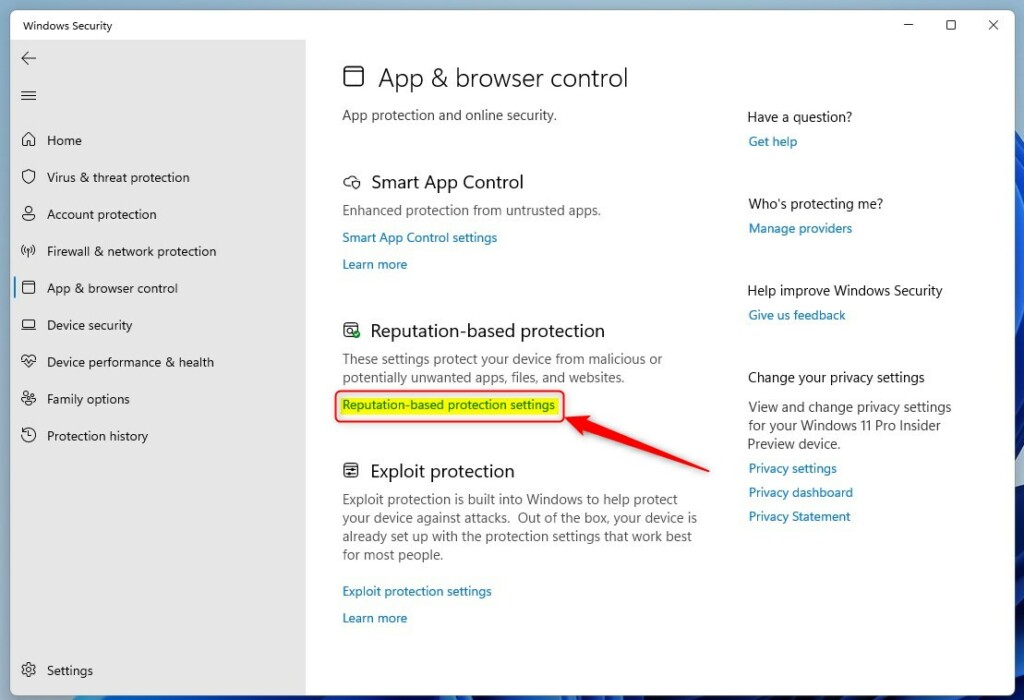
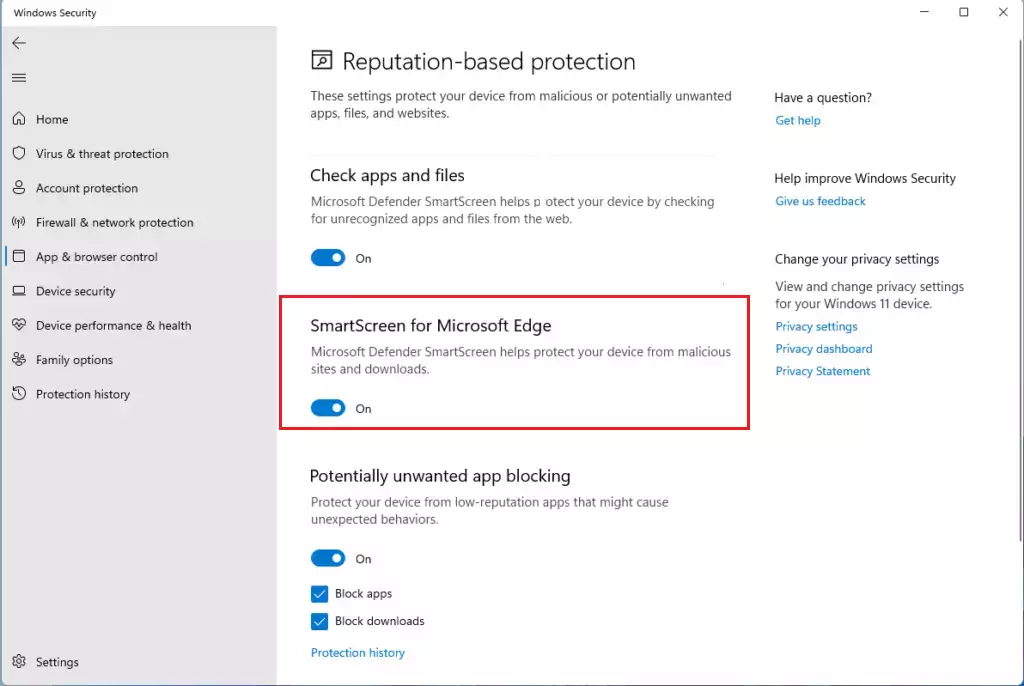
Open Windows Security, navigate to App & browser control, and then Reputation-based protection. Toggle “Check apps and files” to turn SmartScreen on or off for Microsoft Edge and app downloads.
How SmartScreen Helps in Microsoft Edge
SmartScreen protects you while you browse by blocking known phishing websites and dangerous file downloads. Phishing sites try to steal personal information, and other flagged sites spread malicious software. When you open one, Microsoft Edge shows a red warning page and keeps you away from the threat. You can go back to safety, or, if you are sure the site is safe, choose to continue anyway.
The checks happen online. SmartScreen sends the address or file details to Microsoft and compares them with its list of reported threats, so you need an internet connection for it to work fully.
- Website Warnings: If you go to a site known for stealing passwords or personal info (phishing), or one that hosts bad software, SmartScreen shows a full-page warning. It tells you why it is worried. You can usually go back to safety with one click.
- Download Protection: When you download a file in Edge, SmartScreen checks it. If the file looks unsafe or is rarely downloaded and unknown, Edge warns you. This gives you a chance to think twice before the file reaches your computer.
- Phishing Protection (Windows 11 Only): If you type your password into a bad website or app on Windows 11, SmartScreen can alert you. It might even tell you to change your password. It can also warn you if you reuse your Microsoft password on other unsafe sites, which helps break a bad habit. It also helps protect your password if you type it into apps like Notepad or Microsoft 365 programs, stopping it from being stored unsafely. This feature depends on your Windows 11 version, so a very early build may not show every option.
- Blocking Unwanted Apps: Some apps are not viruses but are still a nuisance. They might show too many ads, use your computer for things you never agreed to (like mining cryptocurrency), or install extra software you did not ask for. SmartScreen helps find and block these apps before they install and cause problems.
- Microsoft Store App Safety: SmartScreen also checks the web content that apps from the Microsoft Store load. Store apps are already vetted, but this adds another layer of safety.
How to Check and Change SmartScreen Settings
SmartScreen settings in Windows 11 live in the App & browser control section of Windows Security. To get there, go to Start Windows Security App & browser control From there you can turn website and download protection on or off as needed.
You need to be signed in with an administrator account to change these switches. On Windows 11 Home and Pro the screens look the same. If your PC is managed by an employer or school, the switches may be locked, and you will need to ask your IT team.
- Open Windows Security: Click the Start button and type "Windows Security." Select Windows Security from the results. The app opens in its own window with a menu on the left.
- Go to App & browser control: In the left menu, click App & browser control. The right side now shows the reputation-based protection options and other browser-related settings.
- Find Reputation-based protection: On the App & browser control screen, find the Reputation-based protection section. Click Reputation-based protection settings under it. A page opens with a list of switches, each set to On or Off.
- Change SmartScreen settings: Find the switch you want and click it to turn it on or off. If a User Account Control prompt appears, click Yes. The switch changes right away, and you do not need to restart Windows. The options are:
- Check apps and files: This switch turns on SmartScreen for apps and files you download or run from the web. Leave it on for full protection.
- SmartScreen for Microsoft Edge: This is the switch for Edge's own protection against malicious sites and downloads. It is separate from Check apps and files. To turn SmartScreen off for Edge, set this switch to Off. To turn it back on, set it to On.
- Phishing protection: (Windows 11) This section has its own settings for password protection. You can choose which warnings you want, such as warnings about malicious apps and sites, password reuse, and unsafe password storage.
- Potentially unwanted app blocking: You can choose to get alerts about these apps or block them. For most people, blocking is best. This option is off by default on some systems, so check it.
- SmartScreen for Microsoft Store apps: This makes sure the web content Microsoft Store apps use also gets checked for safety.
If a switch is greyed out, or you see the message "Some of these settings are managed by your organization," a policy is controlling it. Your IT administrator has to change it. A switch that is on but warns you about a site you know is safe is a reason to be cautious, not just to turn it off. Turn the switch off only if you must, then switch it back on once you are done.
Edge also has its own setting for this. In Edge, open Settings Privacy, search, and services, then scroll down to the Security section and find Microsoft Defender SmartScreen. If that setting is greyed out, check Windows Security first.
Reference:
Summary
SmartScreen is a built-in security feature for Microsoft Edge in Windows 11 that stops you from visiting harmful websites and downloading unsafe files. It gives strong automated protection using Microsoft threat data. Even so, you still need to watch out for unfamiliar links and downloads. You can switch SmartScreen on or off at any time in Windows Security, under App & browser control.
Remember, SmartScreen is a useful tool, but it works best alongside your own judgment. Stay aware, trust your instincts, and let SmartScreen catch the known online dangers. Safe browsing!
Frequently asked questions
How to access the security screen on edge?
To open Edge's security settings, select the three dots at the top right of Microsoft Edge, then select Settings. Choose Privacy, search, and services, then scroll to the Security section. There you can turn Microsoft Defender SmartScreen on or off for Microsoft Edge, and the change applies to all sites.
Where do you find the Microsoft defender smartscreen settings to turn it on/off?
Open Windows Security, then select App & browser control. Under Reputation-based protection, select Reputation-based protection settings. Turn Microsoft Defender SmartScreen for Microsoft Edge on or off. Changes take effect right away. You can also change it in Edge's own Security settings.
Why is Microsoft defender smartscreen coming up in Microsoft edge browser?
Microsoft Defender SmartScreen shows up when Edge flags a site or download as possibly dangerous, unknown, or rarely used. It can also appear when a site is new or has a bad reputation. If you trust the site, you can continue, but only do so if you are sure the source is safe.
Why is Microsoft smartscreen blocking my edge homepage opening?
Microsoft Defender SmartScreen blocks a homepage when its address matches a reported threat, or when it cannot confirm the site is safe. Check that the address is correct, since a mistyped address may lead to a harmful site. If you are sure the site is safe, turn off SmartScreen in Edge's Security settings, then turn it back on afterward.
Where is smartscreen in edge?
SmartScreen is not a separate app you open. In Microsoft Edge, find it in Settings under Privacy, search, and services, in the Security section. Its controls for other Windows apps and downloads are in Windows Security under App & browser control.
What is a screen msking browser?
Screen msking browser doesn't match a Windows or Edge feature. It is most likely a misspelling of SmartScreen, the Microsoft Defender feature in Microsoft Edge that checks sites and downloads against a list of known threats and blocks dangerous ones. If you meant another term, check the spelling and search again.
Still have a question?
Answered by AI from this guide. Good questions may be added to this page — please don't include personal details.
Did this guide fix your problem?

About the Author
Richard
Tech Writer, IT Professional
Richard is a writer at Geek Rewind who turns complex IT tasks into clear, step-by-step guides. He draws on years of hands-on experience in system administration and enterprise IT operations, focusing on Windows, Linux and WordPress: the problems people actually run into, and the fixes that work. His server and WordPress guides come from systems he runs himself. Richard builds and maintains the platform behind Geek Rewind, from its Ubuntu servers and Nginx configuration to its custom WordPress plugins. Many new tutorials start with readers' questions, and he's always glad to answer them in the comments.
… liked this!