

Password Monitor in Microsoft Edge is a built-in security tool on Windows 11. It checks your saved login details against a public list of over 500 million leaked credentials. If any of your stored passwords show up in a known data breach, Edge alerts you so you can change them.
You can turn this protection on or off at any time in the browser settings. The change takes effect straight away. You don’t need to restart Edge or Windows.
Open Microsoft Edge, click the three dots menu, select Settings, click Passwords and autofill, click Microsoft Password Manager, click More settings, then toggle Scan passwords for leaks to On. Edge will now check your saved passwords against known data breaches and alert you if any are compromised.
How to Turn On Password Monitor
Your security settings are tied to your profile, so Password Monitor only works properly when you’re signed in. Password Monitor also needs saved passwords to check. If you’ve never saved a login in Edge, there is nothing to scan.
- Open Microsoft Edge. Start the browser on your computer.
- Open the menu. Click the three dots (…) in the top right corner of the browser window. A menu will pop up.
- Click Settings . The Settings page opens in a new tab, with a list of categories down the left side.
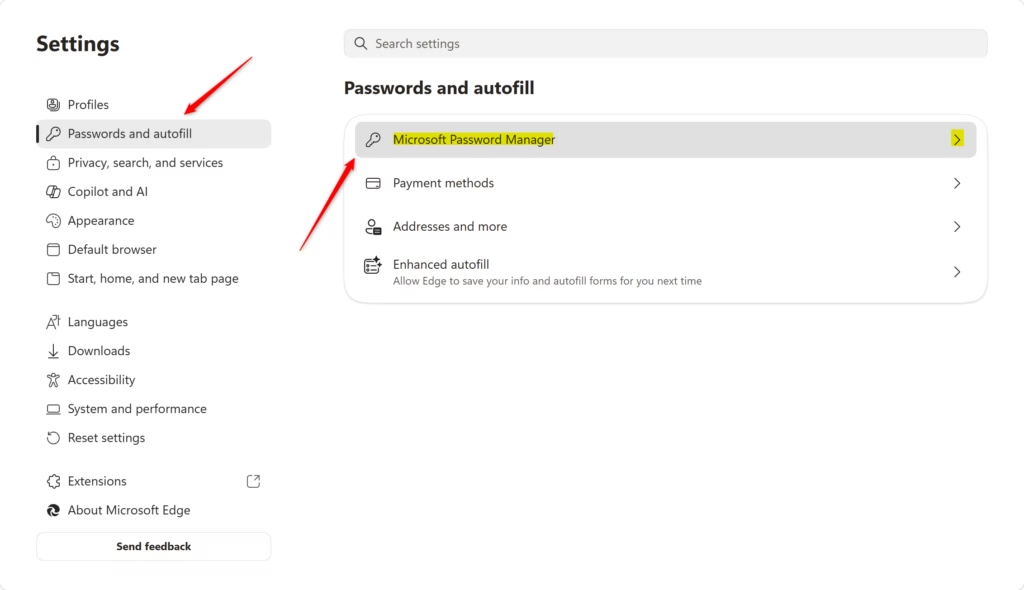
- Click Passwords and autofill on the left side of the Settings page. The password and autofill options appear on the right.
- Click Microsoft Password Manager. This opens the Password Manager settings.
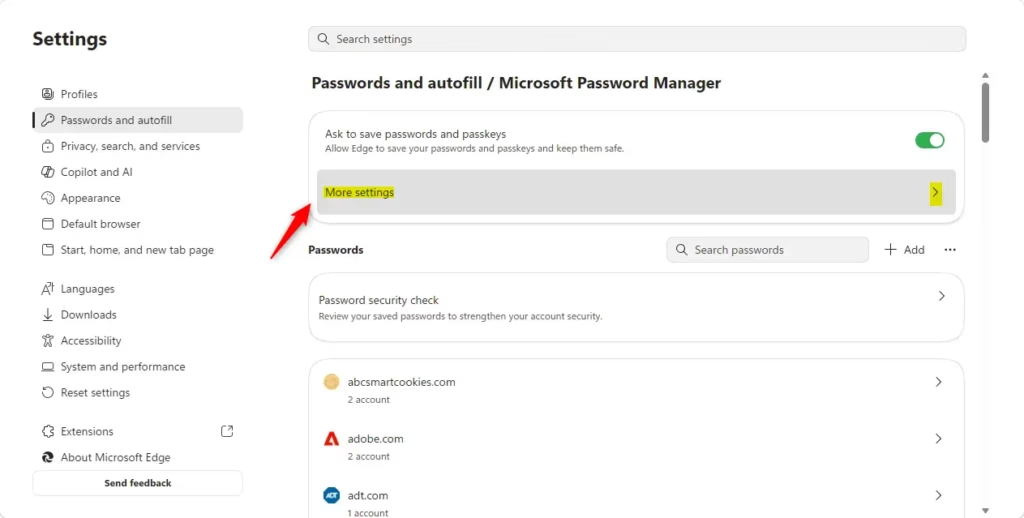
- Click More settings. This section holds the security options for your saved passwords.
- Switch on the leak check. Find Scan passwords for leaks and set the toggle to On. Once it’s on, Edge watches your saved logins for hacked passwords and alerts you if any of your accounts are at risk.
Menu names can change slightly between Edge versions. If you don’t see these exact labels, look in the Password Manager settings for the option that mentions scanning or alerts for leaked passwords. If the toggle is greyed out on a work or school account, your organization may control it through policy. Ask your IT administrator in that case.

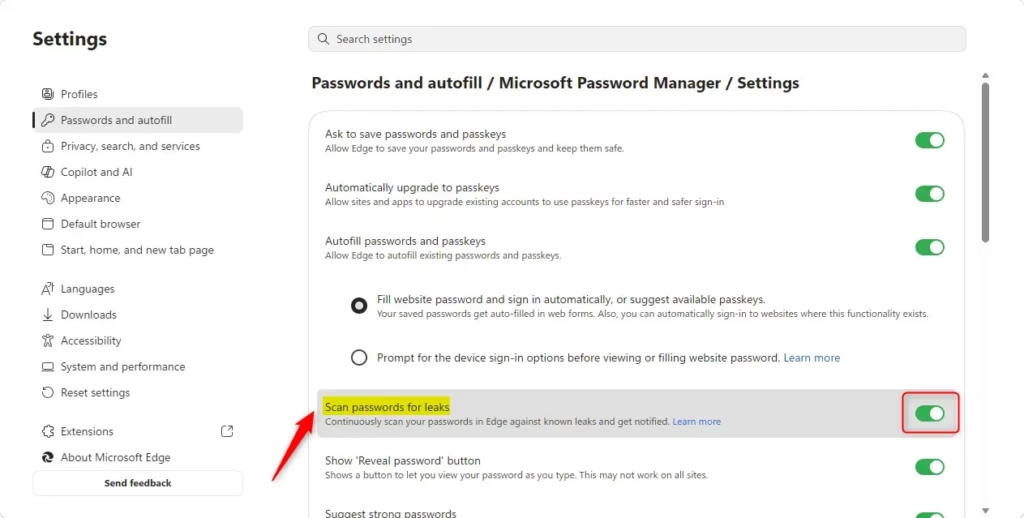
That’s it! Password Monitor is now on. Edge will check your saved passwords in the background to see if they are in danger. If it finds one in a breach, change that password on the affected site and update the saved entry in Edge.
How to Turn Off Password Monitor
If you want to turn off Password Monitor, follow the same path as above:
- Open Microsoft Edge and go to Settings.
- Click Passwords and autofill.
- Click Microsoft Password Manager.
- Click More settings.
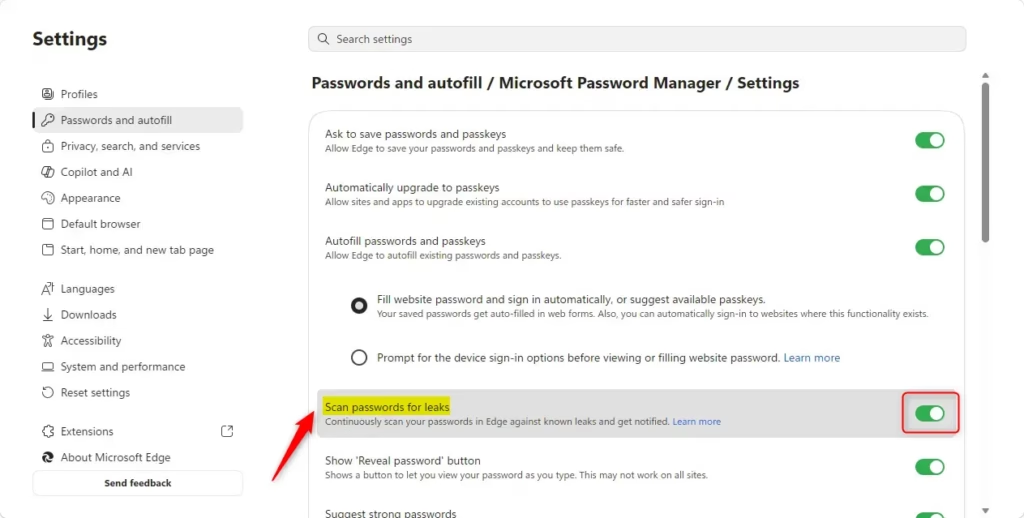
- Find Scan passwords for leaks and switch it to Off. The toggle should now show as off.
To undo this later, go back to the same spot and switch the toggle to On again.
What Happens When You Turn It Off?
You won't get warnings if your passwords are found in a breach. Your saved passwords stay in Edge. Only the checking stops. If you turn it off, check your important accounts by hand from time to time.
Reference:
Summary
Password Monitor in Microsoft Edge helps protect your online accounts by checking whether your saved passwords have been exposed in data breaches. Leave it on unless you have a specific reason to turn it off.
Did this guide fix your problem?

About the Author
Richard
Tech Writer, IT Professional
Richard is a writer at Geek Rewind who turns complex IT tasks into clear, step-by-step guides. He draws on years of hands-on experience in system administration and enterprise IT operations, focusing on Windows, Linux and WordPress: the problems people actually run into, and the fixes that work. His server and WordPress guides come from systems he runs himself. Richard builds and maintains the platform behind Geek Rewind, from its Ubuntu servers and Nginx configuration to its custom WordPress plugins. Many new tutorials start with readers' questions, and he's always glad to answer them in the comments.
No comments yet — be the first to share your thoughts!