How to Import Your Favorites and Passwords from a File in Microsoft Edge

Edge can read an export file and bring your bookmarks and saved logins into the browser in one go. It accepts an HTML file for favorites and a CSV file for passwords, so you do not have to retype anything.
This is useful when you switch from another browser or set up a new computer. The whole job takes a few minutes. You need the export file saved somewhere you can reach, such as the Downloads folder or a USB drive.
Open Microsoft Edge, click the three-dot menu, go to Settings Profiles Import browser data, choose to import from a file, select your CSV password file, and click Open. Edge imports your saved passwords immediately without requiring a restart.
Importing Your Favorites and Passwords from a File
Importing from a file works well when you are changing browsers, or when you already have a backup of your data. Before you start, check that you have the right file type:
- Favoritesan HTML file exported from your old browser.
- Passwordsa CSV file exported from your old browser or password manager.
Keep it somewhere private and delete it once the import is finished.
Step 1Open Microsoft Edge and Go to Settings
- Open Microsoft Edge.
- Click the Settings and more button, the three dots in the top-right corner of the window.
- Click Settings in the drop-down menu.
A new tab opens with the main Edge settings page. A list of categories appears down the left side.

Step 2Find the Import Browser Data Section
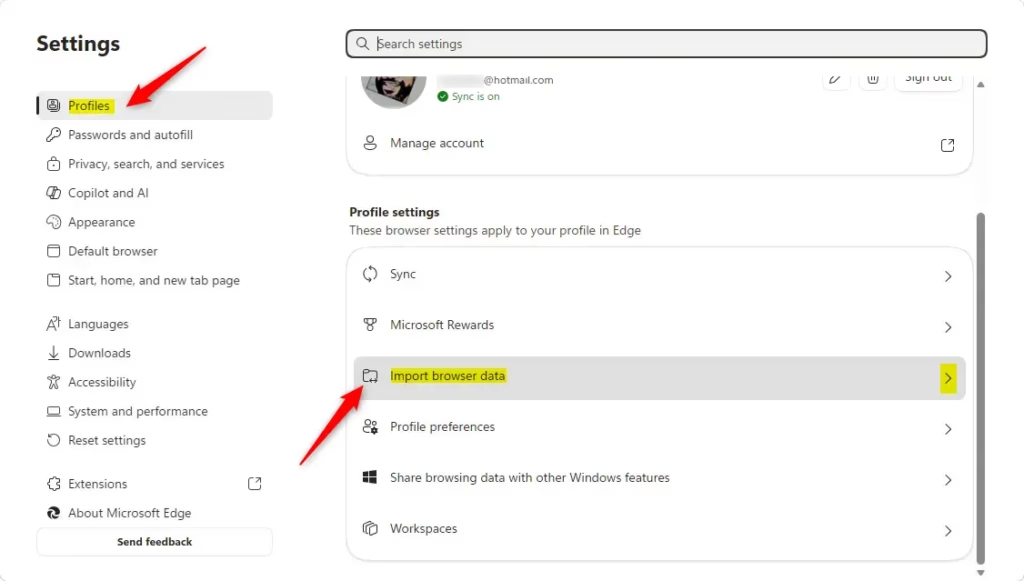
- In the left-hand list, click Profiles.
- Click Import browser data.
The path is Settings Profiles Import browser data. A panel opens with the options for moving favorites, passwords and other data into Edge. If you do not see the left-hand list, the window may be too narrow. Widen it, or click the menu icon at the top left of the settings page.
Step 3Choose to Import from a File
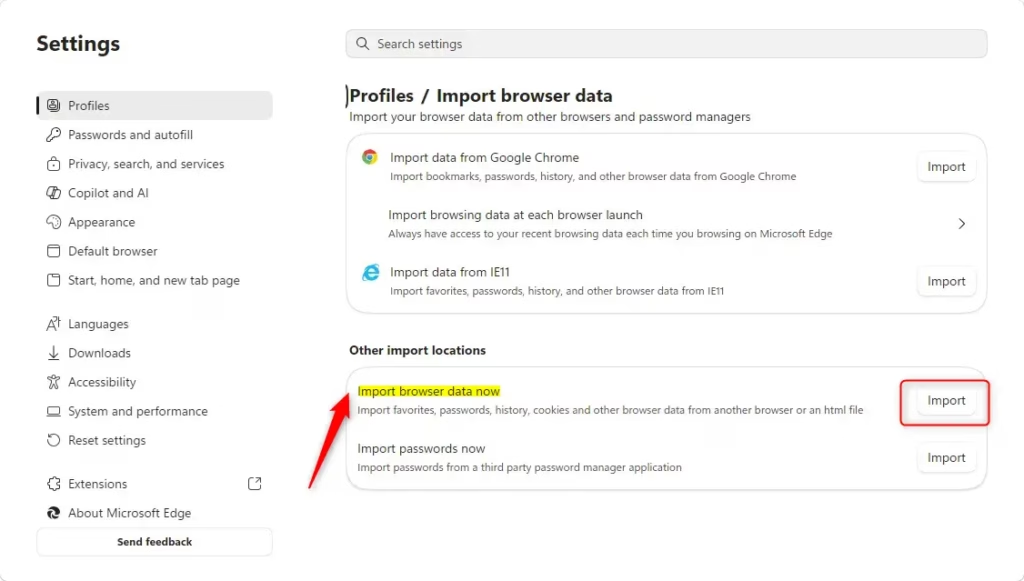
Edge needs to know where the data is coming from before it can import it.
- In the import panel, open the Import from drop-down menu.
- Choose the option that imports from a file.
The list changes to show the file types Edge can read. You can import favorites from an HTML file and passwords from a CSV file. Each is a separate import, so run the process once per file.
Step 4Select Your Favorites or Passwords File
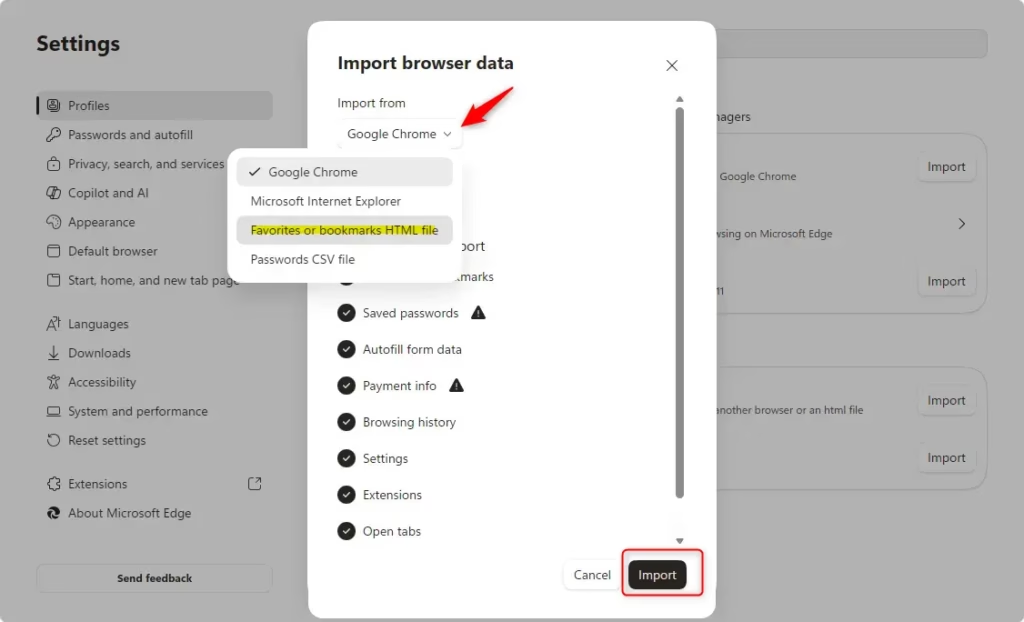
- Pick the file type from the drop-down menu. For passwords, choose Passwords CSV file. For bookmarks, choose the favorites or bookmarks HTML file option.
- Click the Choose file button.
- In the file explorer window that opens, browse to the file you exported from your old browser.
- Click the file to select it. Use the HTML file for favorites or the CSV file for passwords.
- Click Open.
Edge starts reading the file as soon as you click Open. If your file does not show up in the list, check that the file type filter in the explorer window is not hiding it, and that the file really has the .html or .csv extension.
Step 5Confirm and Finish the Import
Edge processes the file by itself once you click Open. Wait for the Import successful message to appear, then click Done. No restart is needed.
Edge puts imported favorites into a new folder on the Favorites bar. The folder may be named “Imported” or after the browser the favorites came from. If you cannot see the Favorites bar, press Ctrl+Shift+B to show it.
Imported passwords are added to the passwords already saved in Edge. They are ready to use the next time you sign in to those sites.
If you also keep it in your Downloads folder, empty the Recycle Bin as well.
Managing Your Imported Passwords
Edge has a built-in password manager where you can check what was imported.
- Go back to Settings in Edge.
- Click Profiles.
- Click Passwords.
You will see a list of your saved logins. Windows may ask you to confirm your identity with your PIN, password or Windows Hello before it shows a password.
From here you can search for a particular site, edit stored details, or delete entries you no longer need. Look through the list after an import to confirm everything transferred correctly. This is also the time to remove old or duplicate entries, especially if you had passwords saved in Edge before the import.
If you want to undo an import, delete the imported folder from your favorites and remove the unwanted entries from the password list. Edge has no single button that reverses an import.
Reference:
https://support.microsoft.com/en-us/edge/import-your-favorites-and-passwords-in-microsoft-edge
Summary
With everything in one browser, day-to-day browsing gets easier. Your imported favorites sit in their own folder on the Favorites bar, and your logins are ready to use.
You can drag the imported sites into your existing favorites folders, or rename or delete the imported folder. You can also tidy up the password list in Edge's settings as you see fit.
Have a question about this guide?
Answered by AI from this guide. Good questions may be added to this page — please don't include personal details.
Did this guide fix your problem?

About the Author
Richard
Tech Writer, IT Professional
Richard is a writer at Geek Rewind who turns complex IT tasks into clear, step-by-step guides. He draws on years of hands-on experience in system administration and enterprise IT operations, focusing on Windows, Linux and WordPress: the problems people actually run into, and the fixes that work. His server and WordPress guides come from systems he runs himself. Richard builds and maintains the platform behind Geek Rewind, from its Ubuntu servers and Nginx configuration to its custom WordPress plugins. Many new tutorials start with readers' questions, and he's always glad to answer them in the comments.
No comments yet — be the first to share your thoughts!