How to Import Your Favorites and Passwords in Microsoft Edge from Other Browsers

Importing favorites and passwords in Microsoft Edge moves your saved website links and login details from another browser, such as Chrome or Firefox, into Edge. The built-in tool usually finishes in under a minute. It copies bookmarks, saved passwords and browsing history, so you don’t have to retype your logins or hunt for sites you saved years ago.
You can also bring over history and settings, and you choose which items to move. Edge uses what you import as soon as the transfer finishes, so you can keep working in the new browser right away. Nothing is removed from the old browser.
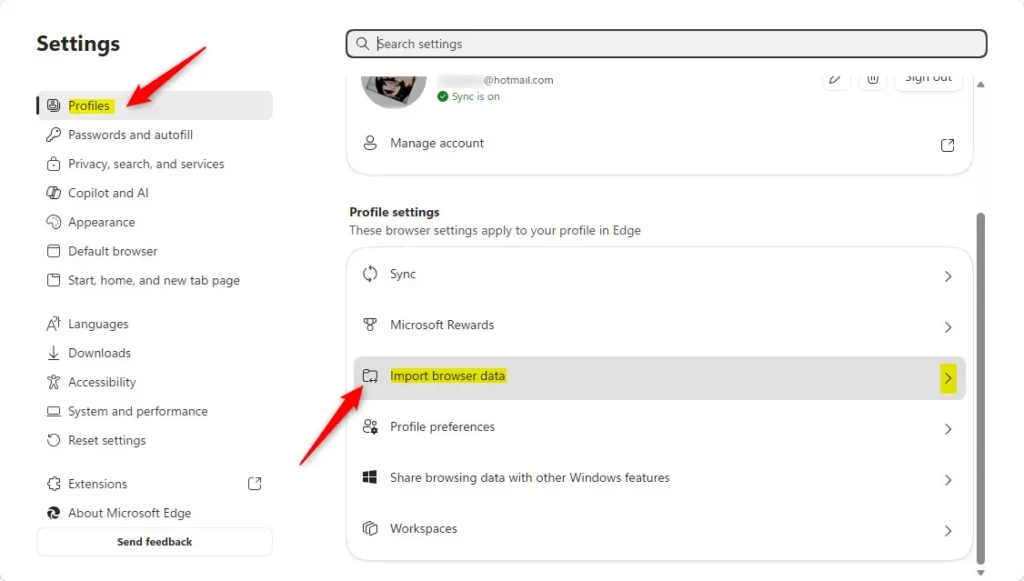
Open Edge, select Settings and more (the three dots), then go to Settings Profiles Import browser data. Pick Chrome or Internet Explorer, tick Passwords and Favorites, and click Import. Edge copies your saved logins and bookmarks in seconds, and your originals stay in the old browser.
How to Bring Favorites and Passwords from Chrome or Internet Explorer
You can import passwords and bookmarks from Chrome or Internet Explorer through the settings menu in Edge, and no extra software is needed. The steps below use the current Edge for Windows 11. Button labels can differ slightly between Edge versions, but the path is the same: Settings Profiles Import browser data.
The data must be in the Windows user account you’re signed in to, because Edge reads the other browser’s profile from that account. Also, if your PC is managed by a work or school, an administrator may have turned the import option off. In that case it can be missing or greyed out, and you’ll need to ask your IT team.
To import favorites to Edge, plus passwords and other data, follow these steps in order.
- Close the browser you are importing from. Edge can have trouble reading data from a browser that is still running, so make sure Chrome, Firefox or IE has no open windows.
- Open Microsoft Edge. Click the Edge icon (blue and green) on the taskbar or in the Start menu . A browser window opens.
- Click the three dots in the top-right corner. This is the “Settings and more” menu, and a list of options drops down.
- Choose Settings from the list. A Settings tab opens with a list of sections on the left.
Quick Tip: You can also typeedge://settings/into the address bar and press Enter. Some Edge versions open the Profiles page directly this way. - Click Profiles in the left-hand list. If you don’t see the list, the window may be narrow. Click the menu icon at the top left of the Settings page to show it. The Profiles page opens.
- Click Import browser data. You should now see the import options for your profile.
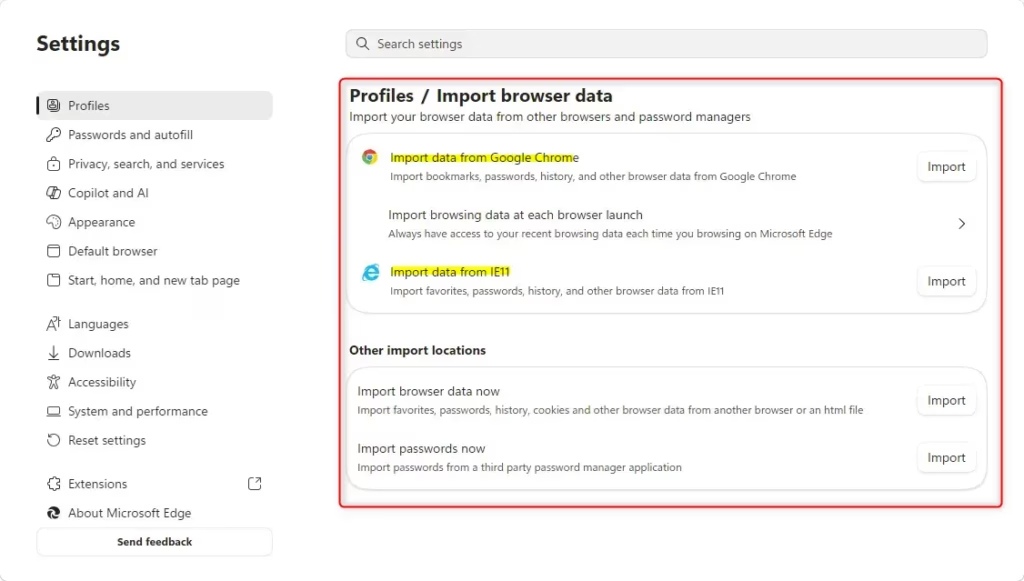
- Pick the browser you’re moving from. For Chrome, click Import data from Google Chrome. For Internet Explorer, click Import data from IE11. For a browser such as Firefox, look for it in the same list or in the Import from drop-down inside the import box. A box opens with the data types you can import.
Note: If the browser you want isn’t listed, it may not be installed for your Windows account, or Edge may not support it directly. The file-based method later in this guide covers that case. - Choose the right profile if the other browser has more than one. Select it from the profile list. If there is only one profile, skip this step.
- Check the boxes for the data you want. The choices are Favorites (bookmarks), History, Passwords and Settings. If you only want bookmarks, check only that box and clear the rest.
Be careful: Only import what you need. Old, unused bookmarks and passwords make the new browser messy. A big history import also fills your address-bar suggestions with sites you no longer use. - Click the blue Import button at the bottom of the box. Edge copies your data. For most people this takes a few seconds, but a very large bookmark or history collection can take longer.
- Confirm your Windows password or PIN if Edge asks. This can appear before passwords are imported. It is normal and protects your saved logins.
- Click Done when the completion message appears. The message tells you the import is finished.
- Check your imported favorites on the Favorites bar. They will usually be in a new folder, often named “Imported” or after the browser you came from. Your passwords are in Edge’s password manager.
No restart is needed. If something looks wrong, you can delete the imported folder from your favorites and run the import again with different choices. Importing does not remove anything from the old browser, so your original data stays where it was.

What if I have a data file?
Archived browser data saved as a file imports just as well. This is useful when the old browser is on another PC, is no longer installed, or isn’t on Edge’s list. Export your bookmarks from the old browser to an HTML file, or export your passwords to a CSV file. Then use the file option in Edge’s import tools. In the Import from drop-down, choose the bookmarks file option and select your file. For passwords, use the import option in Edge’s password manager. The process is the same as a direct browser-to-browser transfer: you choose what to bring over and Edge does the rest.
Keep it on a drive only you can access, and delete it once the import is done. Remember to empty the Recycle Bin too.
Why do this?
Bringing your favorites and credentials across saves you from hunting for lost websites or resetting accounts whose passwords you've forgotten. The sites and logins you rely on are in Edge from the first minute, so switching browsers costs you very little time.
What happens when done?
When the import finishes, your bookmarks appear in a dedicated folder in Edge. Open the Favorites bar or the Favorites menu to check them. You can drag items out of that folder into your own folders.
Saved credentials fill in automatically when you visit a login page Edge recognizes. If a login doesn't fill in, open Edge's password manager and check that the site is listed there. Your browsing history carries over too, so your usual sites show up as suggestions when you type in the address bar.
Summary
In short, you can pull favorite websites and passwords into Microsoft Edge from Chrome, Internet Explorer and other browsers. You can also use exported backup files when a direct import isn't possible. All of these methods use the same settings page and the same few steps.
Have a question about this guide?
Answered by AI from this guide. Good questions may be added to this page — please don't include personal details.
Did this guide fix your problem?

About the Author
Richard
Tech Writer, IT Professional
Richard is a writer at Geek Rewind who turns complex IT tasks into clear, step-by-step guides. He draws on years of hands-on experience in system administration and enterprise IT operations, focusing on Windows, Linux and WordPress: the problems people actually run into, and the fixes that work. His server and WordPress guides come from systems he runs himself. Richard builds and maintains the platform behind Geek Rewind, from its Ubuntu servers and Nginx configuration to its custom WordPress plugins. Many new tutorials start with readers' questions, and he's always glad to answer them in the comments.
No comments yet — be the first to share your thoughts!