How to Use Password Generator to Create More Secure Passwords in Microsoft Edge

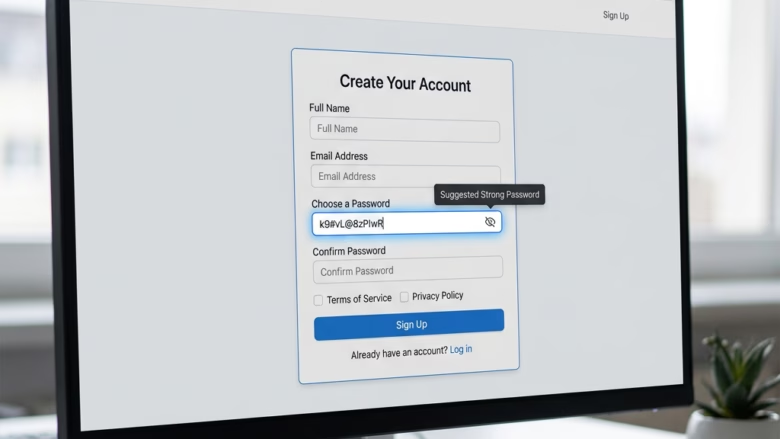
The built-in password generator in Microsoft Edge creates strong, random passwords of at least 12 characters. Each one mixes uppercase letters, lowercase letters, numbers and symbols, so you do not have to invent or remember complicated passwords yourself. That makes it much harder for someone to guess or crack your logins.
Edge suggests one of these passwords when you sign up for a new website or change a login. If you are signed in to Edge with your Microsoft account and sync is on for passwords, the saved password is stored with your account and is available on your other devices. If you are not signed in, Edge keeps the password only in that browser profile on that PC.
Open Microsoft Edge and go to a sign-up or password-change form. Click inside the password field and a suggested password appears in a menu above or next to the box. Click the suggestion to fill the field. Edge creates a strong random password of at least 12 characters with uppercase, lowercase, numbers and symbols mixed in.
How to Let Edge Create Your Next Password
The generator needs no extra apps or extensions. It works inside Edge and offers a suggestion when you click a password box on a sign-up or password-change form. Here is how to use it.
Go to a sign-up or password reset page. Open Microsoft Edge and go to a website where you need to create an account or change a password. You will usually find these on registration forms, or after you click a Forgot Password link.
Click in the password field. Click inside the password box. You do not need to type anything yet.
Look for the suggestion. A small menu should appear above or next to the password box, showing a suggested password. That is the password generator at work. If nothing appears, the page may be a plain sign-in form rather than a sign-up form. Edge only offers suggestions where it detects a new password is being created. A site can also block the prompt. Another cause is that the feature is switched off, which the later section covers.
Accept the suggested password. Click the suggested password in the menu. Edge fills the password box with it. If the form has a "confirm password" box, Edge normally fills that too. If it does not, click the second box and accept the suggestion again, or copy the password from the first box.
- ⚠️Warning
Complete the form and save. Fill in the rest of the form and submit it. Once the website accepts the new password, Edge asks whether you want to save it. Click Save so Edge can fill it in for you at your next sign-in. Do not skip this. You will not know the password yourself, so if you do not save it you will have to reset it the next time you visit the site.
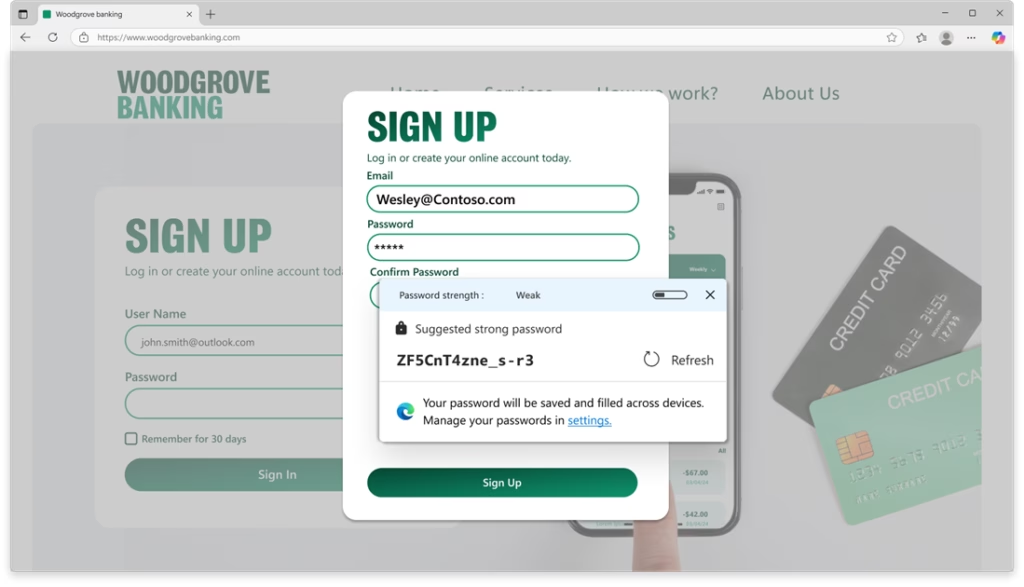
When you finish, Edge has created a strong, unique password for that site and stored it. The next time you visit the site, Edge can fill it in automatically. Because each site gets its own random password, a leak at one site does not put your other accounts at risk.
Turning the Password Generator On or Off
The password generator is on by default, so most people never need to touch a setting. If you prefer to choose your own passwords, or the pop-up gets in the way on certain pages, you can turn the generator off. Turning it back on takes the same few clicks. Either way, you are only changing whether Edge offers suggestions. Your saved passwords are not affected.
Steps to Manage Password Generator Settings
You change the generator in Edge settings, in the password section. From there you can turn suggestions on or off and decide whether Edge asks to save your passwords. The exact wording of menu items can differ slightly between Edge versions, but the steps below follow current Windows 11 builds of Edge.
Open Edge Settings. Click the three dots (...) in the top-right corner of the Edge window. This opens the Settings and more menu. Choose Settings. Settings opens in a new tab.
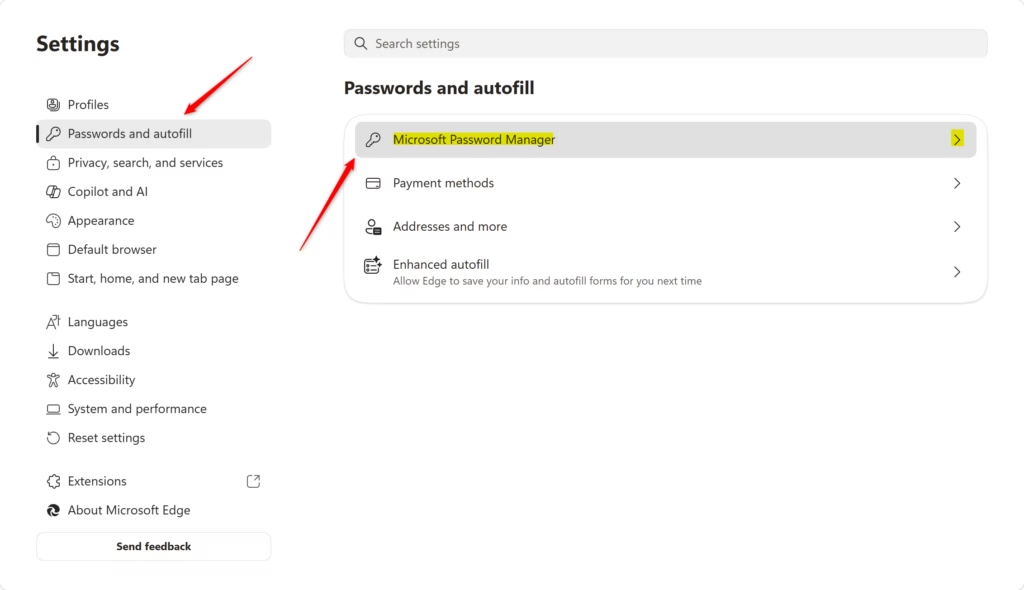
Go to Password Manager. In the left sidebar, click Passwords and autofill. Then click Microsoft Password Manager. In some Edge versions the password options sit under Profiles instead. If you do not see Passwords and autofill, look there.
Open More settings. In the Microsoft Password Manager section, click the More settings link or button. A new screen opens with extra password options.
Adjust the Suggest strong passwords toggle. Find the switch labeled Suggest strong passwords.
- To turn off: Click the switch so it turns gray (off). Edge stops offering generated passwords.
- To turn on: Click the switch so it turns blue (on). Edge offers suggestions again on sign-up and password-change forms.
- ⚠️Warning
Make sure Ask to save passwords is on. Check the save-passwords switch in the same area. In some Edge versions it reads Offer to save passwords. It should be blue (on). If it is off, Edge will not offer to save a generated password, and you could lose it.

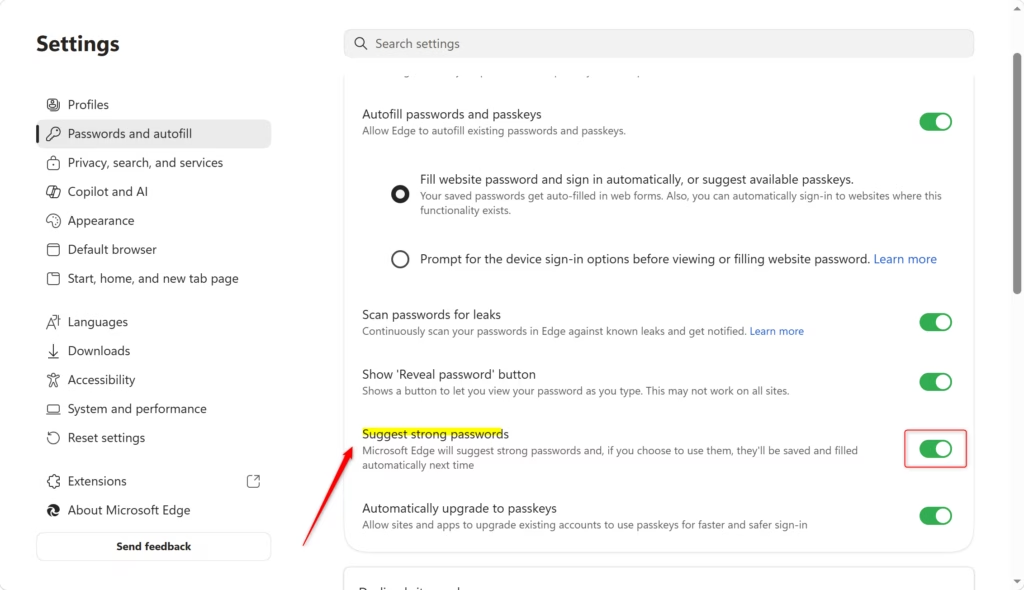
The changes apply as soon as you click a switch, so there is no Save button and no restart is needed. When you are done, close the Settings tab. The password generator now works the way you set it. To undo any change, return to the same screen and flip the switch back.
Reference:
Summary
The Edge password generator is a simple way to improve your online security. It builds a strong, unique password for every account, so you do not have to remember them or reuse the same one across sites. Keep it on, let Edge save what it generates, and you get that protection with very little effort.
Have a question about this guide?
Answered by AI from this guide. Good questions may be added to this page — please don't include personal details.
Did this guide fix your problem?

About the Author
Richard
Tech Writer, IT Professional
Richard is a writer at Geek Rewind who turns complex IT tasks into clear, step-by-step guides. He draws on years of hands-on experience in system administration and enterprise IT operations, focusing on Windows, Linux and WordPress: the problems people actually run into, and the fixes that work. His server and WordPress guides come from systems he runs himself. Richard builds and maintains the platform behind Geek Rewind, from its Ubuntu servers and Nginx configuration to its custom WordPress plugins. Many new tutorials start with readers' questions, and he's always glad to answer them in the comments.
No comments yet — be the first to share your thoughts!