
Managing Microsoft Edge settings and profiles lets you control privacy options such as tracking prevention, block unwanted cookies, and keep your personal and work accounts separate in Windows 10 and Windows 11. Edge is the built-in web browser. It stores your passwords, bookmarks, and browsing history, so it is worth spending a few minutes setting it up properly.
Most options live in one place. To open them:
- Click the Settings and more button (the three dots) in the top right corner of the Edge window.
- Click Settings. A Settings tab opens with a list of categories down the left side.
Setting up multiple profiles also keeps your favorites, extensions, and saved logins organized, because each profile holds its own set. The sections below cover first-time setup, everyday features, advanced options, updates and security, and profile management.
To import your favorites and passwords into Microsoft Edge, go to Edge Settings, then select Profiles, and choose Import browser data. Select the browser you want to import from, choose what data you want to bring over, and click Import.
Getting Started with Your Browser
If you are new to Microsoft Edge, or switching from another browser, start here. These guides cover the basic personal setup: bringing over your old favorites and adjusting the display so pages are comfortable to read.
A sensible order is to import your data first, so your bookmarks and saved sites are in place, and then adjust appearance and zoom. Importing copies data into Edge. It does not remove anything from the other browser.

Everyday Browsing and Features
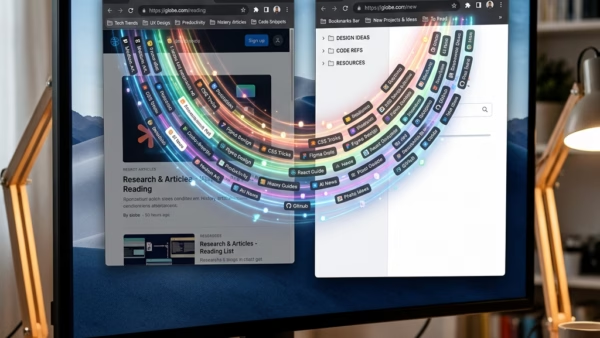
Once the basics are done, a few everyday features save the most time. Collections lets you gather related web pages, notes, and images into one list, which is handy for research or trip planning. Favorites and the built-in password manager cover the rest.
Keeping bookmarks in folders and clearing out old saved credentials keeps browsing quick and your accounts easier to secure. Check what is saved every so often, and delete logins for sites you no longer use.
Advanced Settings and Compatibility
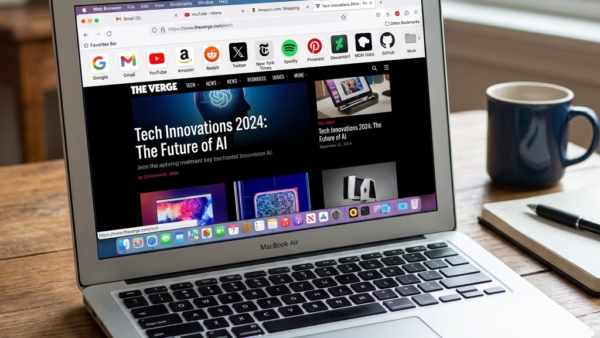
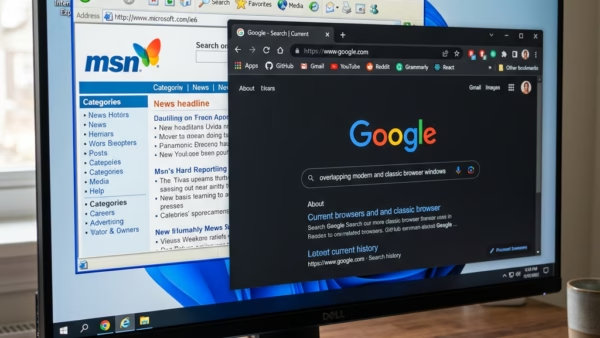
Some needs go beyond the defaults. The guides in this section cover running older web pages with Internet Explorer mode (a tool for legacy sites), controlling what Edge does when it launches, and managing sign-in options.
On a work or school PC, an administrator may control some of these settings through policy. If an option is greyed out, or you see the message Your browser is managed by your organization, that is the usual reason. Only your IT department can change it.

Keeping Edge Updated and Secure
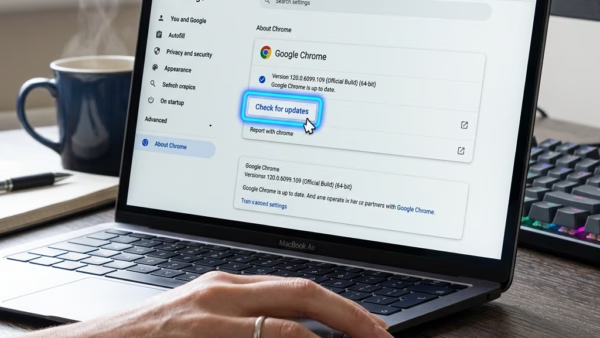
A reliable browsing experience depends on keeping Edge current and its security controls switched on. The articles in this section show how to check that you have the latest version and how to adjust the settings that block online threats.
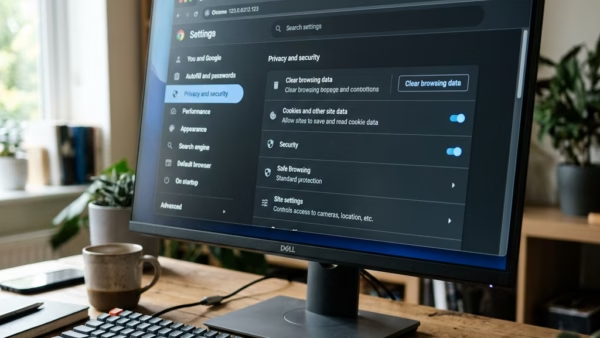
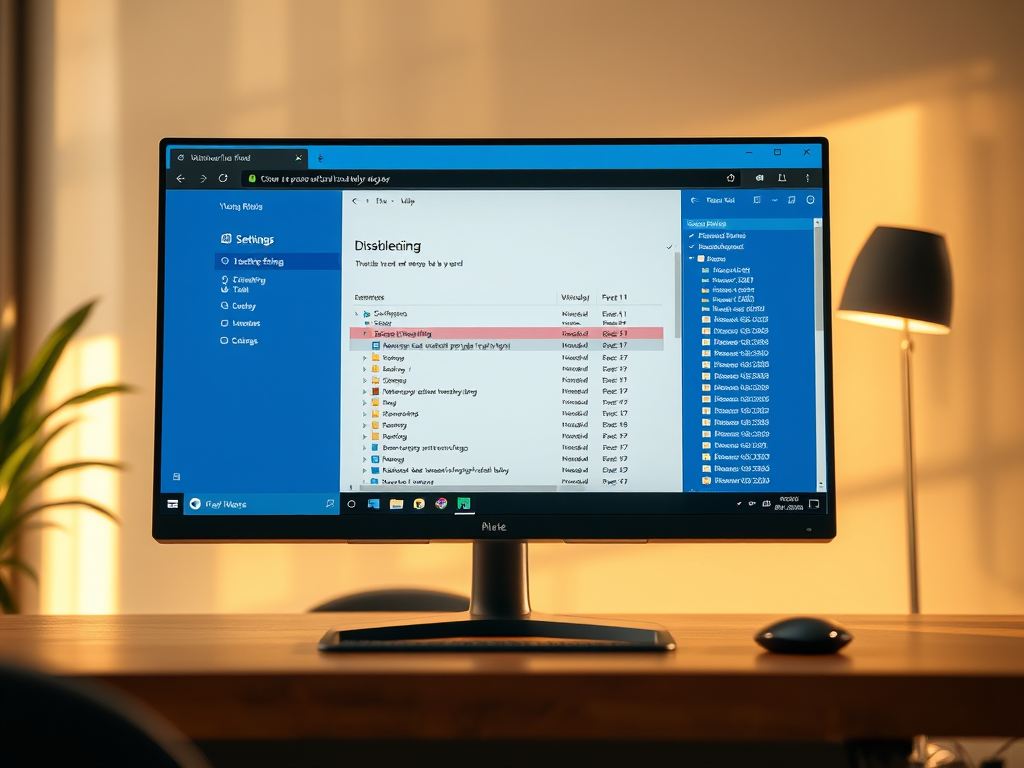
The main security options sit under Settings Privacy, search, and services. There you can pick a Tracking prevention level (Basic, Balanced, or Strict) and review the security options below it, including Microsoft Defender SmartScreen. Balanced is the default. Strict blocks more trackers but can break some sites.
Managing Multiple Users and Profiles
Shared computers, or any situation where you want to keep browsing tasks apart, benefit from separate profiles in Edge. Each profile keeps its own history, favorites, passwords, extensions, and settings, so personal and work browsing never mix.
Profiles separate your browsing data inside Edge. They are not a security barrier between Windows users. If several people share one PC, give each person their own Windows account as well.

More on Microsoft Edge Browser Management
Common questions
How do I get my bookmarks from Chrome to Microsoft Edge?
You can move bookmarks over from Chrome with Edge's import tool. Close Chrome first if you can, since an open browser can sometimes get in the way of the import.
- Open Edge, then open Settings.
- Click Profiles in the left-hand list.
- Click Import browser data. An import pane opens.
- Under the source option, choose Google Chrome. If you use more than one Chrome profile, pick the one you want.
- Tick the items you want to bring over, such as Favorites or bookmarks. You can leave other items unticked.
- Click Import. Edge confirms when the transfer is done, and the imported favorites appear in your Favorites list.
If you change your mind, you can delete the imported favorites folder in Edge. Your Chrome data is left untouched.
How do I make text bigger in Microsoft Edge?
To make text bigger on every page, use the zoom setting in Edge's Appearance options.
- Open Edge, then open Settings.
- Click Appearance.
- Find the Zoom level control. In some Edge versions it is labeled Page zoom and appears as a dropdown rather than a slider.
- Increase the percentage. All pages you load are scaled up to that value.
To undo it, set the value back to 100%. For a single site, you can also hold Ctrl and press the plus or minus key while viewing the page. That change applies only to the site you are on.
How do I stop Microsoft Edge from opening automatically?
Edge can start automatically when Windows starts, if it has been set to do so. To stop that in Windows 11:
- Open Windows Settings.
- Click Apps.
- Click Startup. A list of apps appears, each with an on/off switch.
- Find Microsoft Edge and switch it to Off.
No restart is needed. The change takes effect the next time you sign in. If Edge is not in the list, it is not set to start with Windows. Edge also has a Startup boost option under Settings System and performance, which preloads parts of the browser to speed up launch. Turn that off too if you want Edge to stay completely closed until you open it.
What is Internet Explorer Mode in Edge?
Internet Explorer mode runs older websites that depend on Internet Explorer directly inside Microsoft Edge. It is mainly useful for older internal company sites (legacy applications that require older software).
The setting is in Settings Default browser, under Allow sites to be reloaded in Internet Explorer mode. After you change it, Edge asks you to restart the browser. If the option is missing or greyed out, your organization may be managing it through policy.
How do I create a new profile in Microsoft Edge?
To create a new profile:
- Click the profile icon next to the address bar in Edge. A small profile menu opens.
- Click Add profile.
- Follow the prompts to set up the new profile. You can sign in with a Microsoft account, or a work or school account, to sync your data.
A new Edge window opens for the new profile. Each profile is a separate container that isolates browsing history, preferences, and favorites, so distinct activities like personal errands and work tasks stay apart. To switch, click the profile icon and choose the profile you want. Each profile opens in its own window.
How do I update Microsoft Edge on 🪟 Windows 11?
Edge installs updates automatically in the background, so most of the time you do not need to do anything. To check manually:
- Open Edge, then open Settings.
- Click About Microsoft Edge in the left-hand list.
- Wait a moment. Edge immediately searches for missing patches and downloads any it finds.
- If a Restart button appears, click it to finish the update. Your tabs reopen afterward.
When you are current, the page shows that Microsoft Edge is up to date. If the check fails or the page reports that updates are managed, a network restriction or an administrator policy is the likely cause.
Have a question about this guide?
Answered by AI from this guide. Good questions may be added to this page — please don't include personal details.
Did this guide fix your problem?

About the Author
Richard
Tech Writer, IT Professional
Richard is a writer at Geek Rewind who turns complex IT tasks into clear, step-by-step guides. He draws on years of hands-on experience in system administration and enterprise IT operations, focusing on Windows, Linux and WordPress: the problems people actually run into, and the fixes that work. His server and WordPress guides come from systems he runs himself. Richard builds and maintains the platform behind Geek Rewind, from its Ubuntu servers and Nginx configuration to its custom WordPress plugins. Many new tutorials start with readers' questions, and he's always glad to answer them in the comments.
No comments yet — be the first to share your thoughts!