Disable Printing in Microsoft Edge for Windows 11

Disabling printing in Microsoft Edge on Windows 11 stops people from printing web pages or documents from the browser. You do it with a policy called PrintingEnabled, which you set in the Windows registry. It works on Home, Pro, Enterprise and Education, because it needs only the Registry Editor and no Group Policy editor.
With the policy turned off, Edge removes the print option from its menus and Ctrl+P stops working. Printing from browser extensions is also blocked. Schools and businesses use this to stop people from making paper copies of sensitive web pages on shared computers. The policy is set per computer, so it affects every user who opens Edge on that PC.
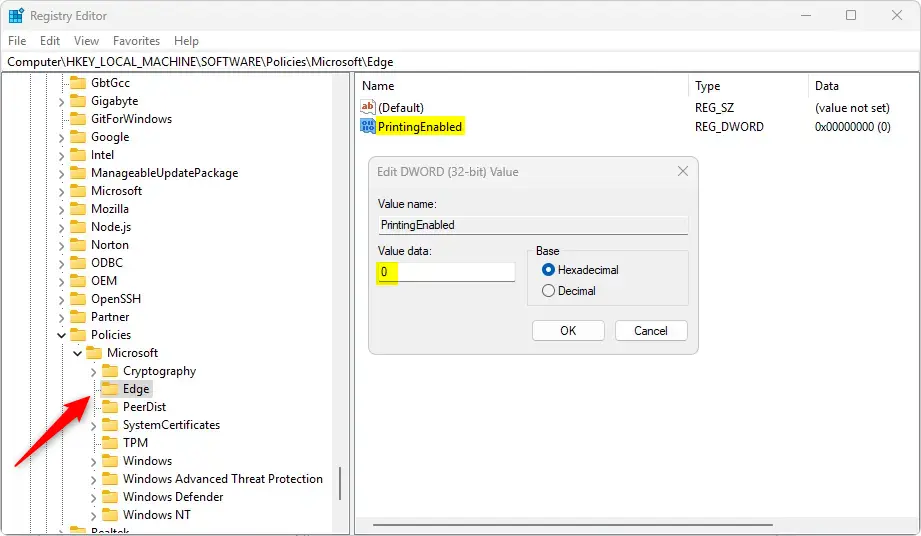
Disable printing in Microsoft Edge by opening the Windows Registry and navigating to the specified folder key. Create a new DWORD value named PrintingEnabled and set its value to 0. A reboot may be required for the change to take effect.
Enable or disable printing from Microsoft Edge
To disable printing in Edge, you edit the Windows registry so Edge no longer sends web pages to physical printers. You open the Registry Editor app and go to the key below, where Edge reads its policy settings. The policy change removes the print option from the browser menu completely.
🗝️HKEY_LOCAL_MACHINE\
Open the Registry Editor from the Start menu by searching for it and choosing Registry Editor. Click Yes if User Account Control asks for permission. You need an administrator account, because you are changing a machine-wide key. In the left pane, expand the folders one by one until you reach the path above.
Before you start, make sure you are signed in as an administrator and close any documents you have open in Edge. Because the key sits under 🗝️HKEY_LOCAL_MACHINE, the setting applies to everyone who uses the PC, not only to your account. If the Edge folder is not under Microsoft, you will create it in a later step.
Remember to back up your registry before making any changes, or create a System Restore point as a precaution. The registry has no undo button. A backup lets you return to the exact state you had before if something goes wrong.
ComputerHKEY_LOCAL_MACHINESOFTWAREPoliciesMicrosoftEdge
Now create the PrintingEnabled value inside the Edge key. Follow these steps:
- In the left pane, click the Edge key so it is selected. If you cannot find it, right-click the Microsoft key, choose New Key, and name the new key Edge.
- Right-click an empty area in the right pane, or right-click the Edge key itself.
- Select New DWORD (32-bit) Value. A new entry appears in the right pane with its name highlighted.
- Type PrintingEnabled as the name and press Enter. Spell it exactly like this. If the name is wrong, Edge ignores the entry.
You should now see PrintingEnabled listed in the right pane with a value of 0x00000000 (0).
Next, set the value that turns printing off:
- Double-click PrintingEnabled. The Edit DWORD (32-bit) Value window opens.
- In the Value data box, enter
0to turn off printing. - Leave Base on Hexadecimal.
- Click OK.
The right pane now shows the new value next to PrintingEnabled. You can close the Registry Editor.
To turn printing back on, delete the entry you created. This restores Edge's default behavior and allows printing from Edge again.
- Open the Registry Editor and go to the Edge key shown earlier.
- Right-click PrintingEnabled in the right pane and select Delete.
- Click Yes to confirm.
- Close all Edge windows and open Edge again.
The print option and Ctrl+P should work again. If you created the Edge key yourself and nothing else is stored in it, you can leave it empty. It does no harm.
PrintingEnabled
A computer restart might be necessary for the modifications to take effect. Edge reads its policies when it starts, so first close every Edge window, including any still running in the background, and open the browser again. If the print option is still there, sign out of Windows and back in, or restart the PC.
Changes apply immediately after the system reads the updated registry data. In practice, that means the next time Edge starts. Once the policy is active, open the Edge menu and check that the print option is gone and Ctrl+P does nothing. Edge may also show a message that your browser is managed by your organization. This is normal whenever a policy is set.
Reference:
Conclusion:
Managing Edge printing restrictions on Windows 11 is entirely feasible with the correct registry configuration. Review these final takeaways:
- Microsoft Edge can use default printing capabilities to control user access better.
- The PrintingEnabled policy provides a simple method to disable or enable printing.
- Always back up the Windows Registry before making any changes.
- Changes may require a system reboot to take effect.
- Users can still print through plug-ins even if printing within Edge is disabled.
Applying these guidelines helps organizations restrict browser printing effectively and secure sensitive web content. Keep in mind that this policy only controls Edge. It does not stop people from printing in other browsers or apps, and it does not stop someone from taking a screenshot, so combine it with other controls if the content is truly sensitive.
Have a question about this guide?
Answered by AI from this guide. Good questions may be added to this page — please don't include personal details.
Did this guide fix your problem?

About the Author
Richard
Tech Writer, IT Professional
Richard is a writer at Geek Rewind who turns complex IT tasks into clear, step-by-step guides. He draws on years of hands-on experience in system administration and enterprise IT operations, focusing on Windows, Linux and WordPress: the problems people actually run into, and the fixes that work. His server and WordPress guides come from systems he runs himself. Richard builds and maintains the platform behind Geek Rewind, from its Ubuntu servers and Nginx configuration to its custom WordPress plugins. Many new tutorials start with readers' questions, and he's always glad to answer them in the comments.
No comments yet — be the first to share your thoughts!