How to Enable or Disable Tracking Prevention in Microsoft Edge

Tracking prevention in Microsoft Edge is a built-in privacy tool. It stops websites and the third-party companies behind them from following your browsing habits across the internet. Edge has 3 protection levels: Basic, Balanced, and Strict. You can change the level at any time, and the change applies as soon as you make it. This guide covers the settings , per-site exceptions, the blocked-trackers list, the registry method, and the sites that tend to break.
Balanced is the default. It blocks most tracking scripts while keeping everyday websites working normally. Strict blocks even more trackers for maximum privacy, but it can break parts of some sites. If you aren’t sure which to pick, stay on Balanced and only move to Strict if you are willing to add exceptions now and then.
Open Microsoft Edge and select Settings Privacy, search, and services. Under Tracking prevention, choose Basic, Balanced, or Strict. Balanced is the default and blocks most trackers while keeping websites working. Strict blocks more trackers but may break some site features.
Why You Need Tracking Prevention
Microsoft Edge tracking prevention stops website tools from collecting your personal information, such as preferences, purchases, and searches. Advertisers frequently buy this data to target ad campaigns at you. Edge blocks much of this tracking by default. You can tighten the settings for stronger protection, and relax them for a single site if it stops working.
What Are Trackers?
Website trackers are small files or code snippets that collect details about your online activity. That includes clicked links, time spent on pages, searches, and purchases. They run quietly in the background and you won’t see them working. Together they map out your digital habits for advertisers.
They remember details like login information or items stored in a shopping cart, so a site needs them to work properly. Microsoft Edge offers three tracking prevention levels: Basic, Balanced (the default in Edge version 118), and Strict.
Third-party trackers come from outside companies and follow you across many websites. They build detailed profiles of your online activity, which are then sold to advertisers. Edge’s tracking prevention blocks these scripts, which reduces the intrusion on your privacy.
What Is Tracking Prevention?
Edge tracking prevention automatically blocks third-party trackers. This stops companies from following you online and limits how much data websites collect. The feature is on by default in modern versions of the browser. If a site has functionality problems, you can adjust the level or add an exception for that site, as shown later in this guide.
Edge checks the sites you visit against a regularly updated list of known trackers. When it finds a match, it blocks the item. That prevents the tracker from collecting data or following you to other sites. How many trackers are blocked depends on the level you choose.
The Three Levels of Tracking Prevention in Microsoft Edge
Edge offers three levels of tracking prevention, each with a different degree of protection. Pick the level that matches how you browse. The next three sections describe each level and what you give up with it.
Basic Tracking Prevention
Basic offers the least protection of the three. It blocks only trackers known to be harmful, such as those used for cryptomining and fingerprinting, and it allows most other trackers. Sites behave as they were designed to, and ads and content can still be personalized. The cost is that your regular browsing is much less private. Note that InPrivate windows use Strict by default, whichever level you choose for regular windows.
Balanced Tracking Prevention
Balanced is the middle ground. It blocks known third-party trackers on all websites, plus trackers from sites you haven’t visited, and it is the default setting. Most websites work without problems. Minor glitches can still happen, for example a comment section that loads slowly or not at all.
Strict Tracking Prevention
It blocks the majority of outside trackers and some internal ones. Video players or shopping carts may break at this level. Expect to add manual exceptions when a page fails to load properly. The exceptions procedure is covered below.
How to Change Your Tracking Prevention Level
Changing the level takes a few clicks in Edge settings. You can switch between Basic, Balanced, and Strict whenever you like, depending on your privacy needs and how well sites load on your computer.
- Open Microsoft Edge on your computer.
- Click the three-dot menu button (Settings and more) in the top right corner of the window. A dropdown menu opens.
- Select Settings from the dropdown menu. Settings opens in a new tab.
- Click Privacy, search, and services in the left sidebar. If the sidebar isn’t visible, the window may be narrow. Widen it or click the menu icon at the top left of the Settings page.
- Scroll down to the section labeled Tracking prevention. Make sure the toggle at the top of that section is on. The level options only appear when it is.
- Look at the three options: Basic, Balanced, and Strict. The current level is highlighted.
- Click the option you prefer. It becomes highlighted. If the options are greyed out and the page says your browser is managed by your organization, a policy controls this setting, and you will need your administrator to change it.
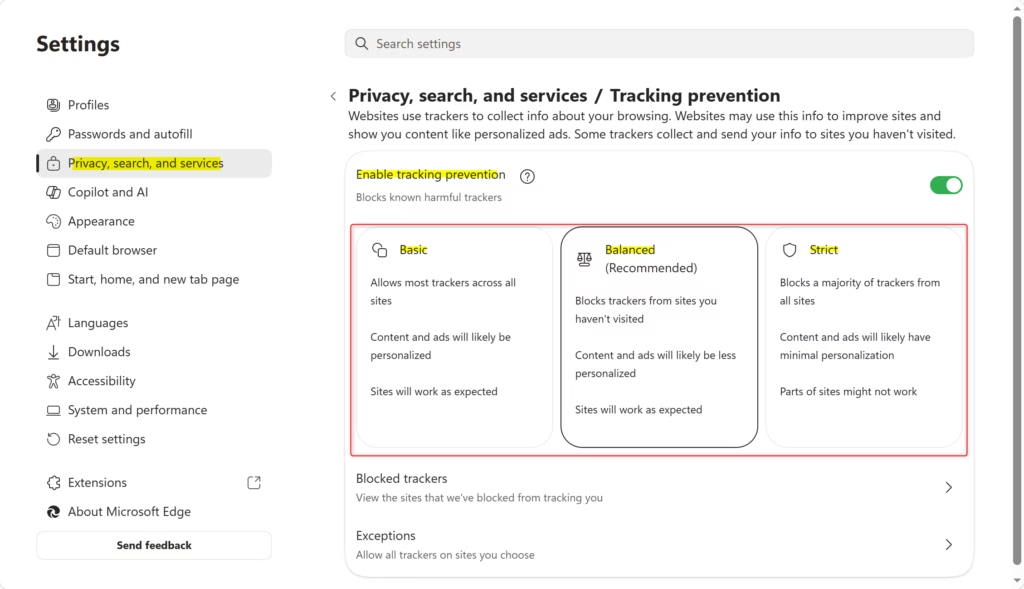
Your selection saves automatically, so you don’t need to restart Edge. The browser starts blocking trackers at the chosen level right away. Pages that were already open may need a refresh before you see the difference. To undo the change, repeat the steps and click the previous level.
Making Exceptions: Allow Specific Trackers on Certain Websites
A tracking prevention exception tells Edge to allow trackers on one specific website. It resolves problems like broken video playback or unresponsive forms. Because the rule applies to a single site, your protection stays the same everywhere else.
Adding a tracking prevention exception involves these steps:
- Go to the website that isn’t working properly.
- Click the lock icon in the address bar. It is on the left side where the website address is shown. A small panel with site information opens.
- Select “Tracking prevention” for this site. The exact wording and layout of this panel can differ slightly between Edge versions.
- Toggle the switch to Off for that website.
- Refresh the page. The website should now work properly. If it still doesn’t, tracking prevention probably isn’t the cause. Try the troubleshooting steps later in this guide.
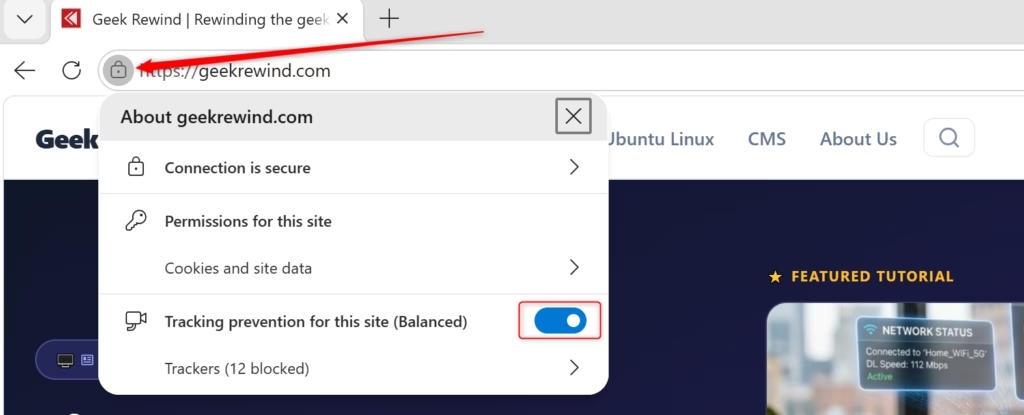
Disabling tracking prevention for a specific website stops Edge from blocking trackers on that domain only. Tracking prevention remains active everywhere else.
Removing an exception later requires the following procedure:
- Go back to that website.
- Click the lock icon in the address bar. The site information panel opens.
- Click Manage next to “Tracking prevention”.
- Toggle the switch back to On.
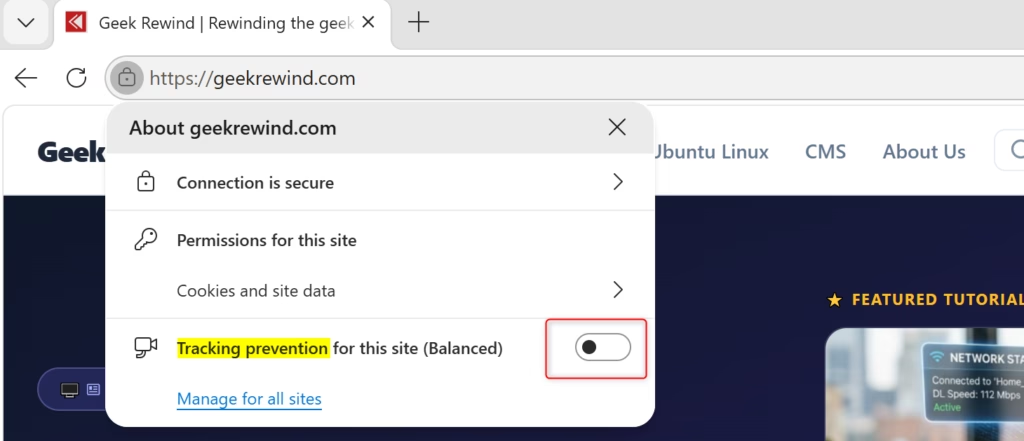
Edge resumes blocking trackers on that website immediately. Reload the page if you want the site to load without the trackers it allowed before.
Viewing Blocked Trackers: See What Edge Protected You From
Edge keeps a detailed list of the trackers it blocks. It shows why tracking prevention matters and how many companies try to track you. You can check the data for the current site directly from the address bar.
Viewing blocked trackers requires these steps:
- Click the lock icon in the address bar of any website.
- Look for the line that says “Trackers blocked on this page”. If it isn’t there, Edge hasn’t blocked anything on that page, or tracking prevention is off for the site.
- Click See details.
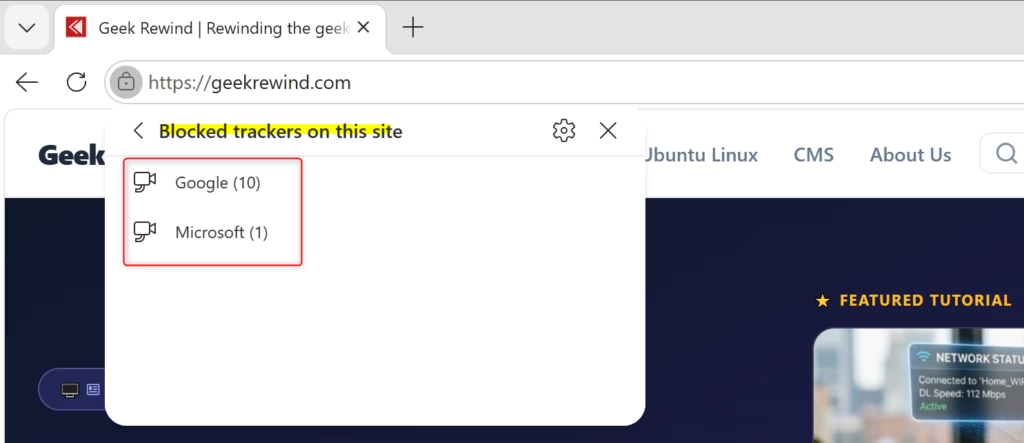
Edge displays the blocked trackers on a dedicated page. It lists the tracking company names alongside the number of tracking attempts from each one. For instance, the browser might show 5 tracking attempts from Company X on a particular website.
Edge also keeps a tracker summary of what it has blocked on a weekly or monthly basis. You find it in Edge privacy settings, reached from the main menu. Looking over this data shows you how much protection Edge is actually providing.
- Open Edge and click the three-dot menu.
- Select Settings.
- Click Privacy, search, and services.
- Scroll to Tracking prevention.
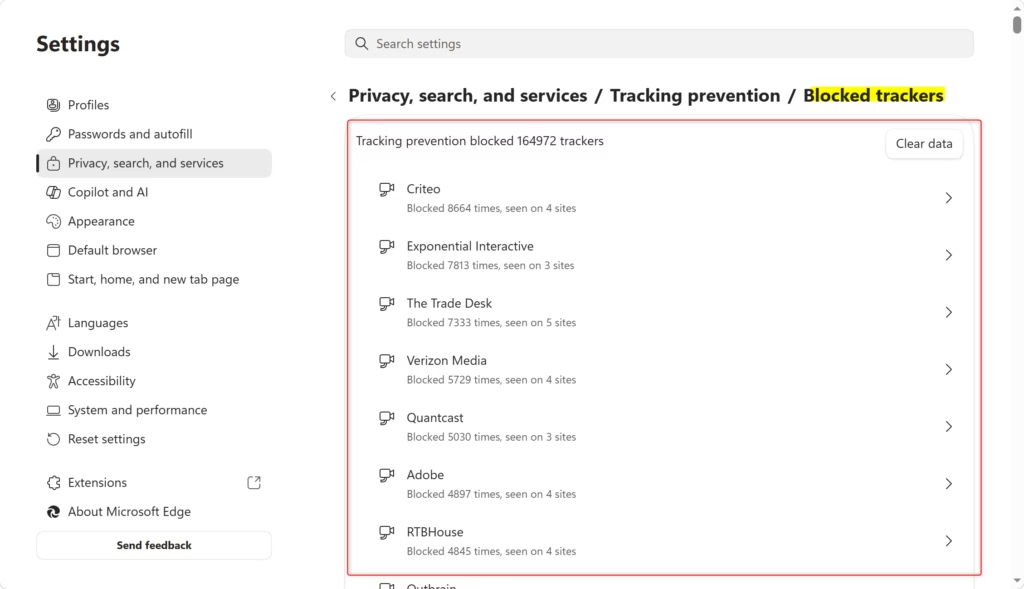
- Below the three level options, click Blocked trackers.
The page that opens lists websites and the exact count of trackers Edge blocked for each one. Use it to see which sites track you the most, and to spot a site that may be affected if something stops working.
Enable or disable Tracking Prevention in Edge via Registry
Advanced users can set tracking prevention in Edge through the Windows Registry, the central database that stores core operating system settings. IT departments often use this method to lock the setting on work or school devices. It works on both Windows 11 Home and Pro, because it only needs the Registry Editor. You need to be signed in with an administrator account.
This is a tool that lets you make changes to core Windows settings. Back up the registry or create a System Restore point before you change anything, as a precaution.
Navigate to: Computer\HKEY_LOCAL_MACHINE\SOFTWARE\Policies\Microsoft\Edge
If the Edge key doesn't exist yet, right-click its parent key, select New, then Key, and name it Edge. Then right-click Edge, select New, and then choose DWORD (32-bit) Value. Name this new value TrackingPrevention. The name must match exactly.
Double-click the new entry and type one of these numbers in the Value data box, then click OK:
- 1: Basic
- 2: Balanced
- 3: Strict
- 0: Disable
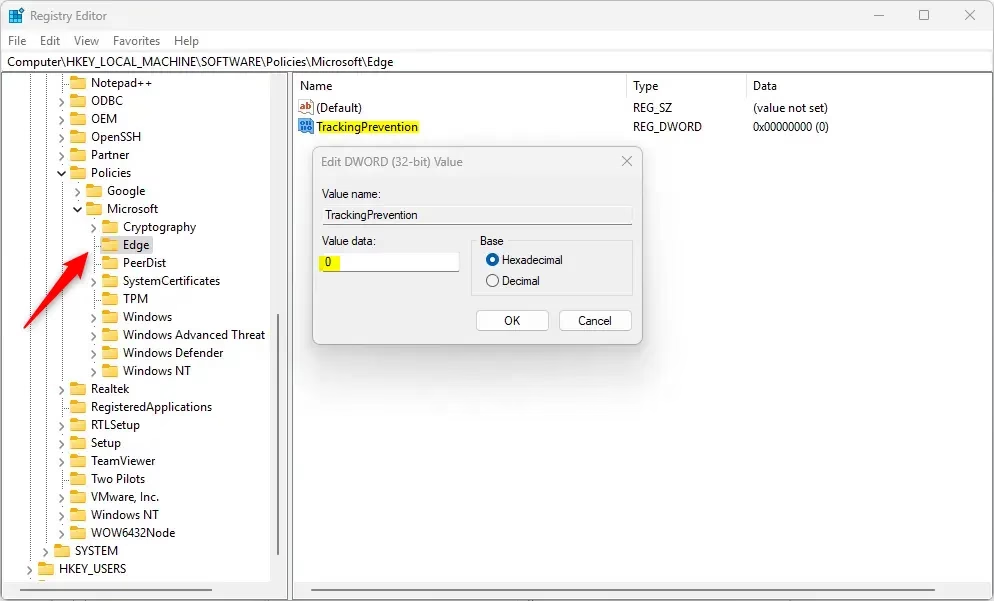
Close and reopen Edge after changing the value. If the setting doesn't take effect, restart the computer. Once a policy value is set, the tracking prevention options in Edge settings will usually be greyed out and show a message that the browser is managed by your organization. To revert, delete the TrackingPrevention entry and reopen Edge. The setting goes back to the default and the options become available again.
Advanced Settings: Fine-Tune Your Tracking Prevention
Edge also has related privacy settings for users who want more control. These change how Edge handles features such as search suggestions and personalized content. You adjust them in Settings Privacy, search, and services.
Search and Site Suggestions
Edge search and site suggestions use your typing history to help you find information faster. To stop this, turn off the related settings in Edge's privacy menu. That stops the browser from saving your search history for suggestions, and it prevents data collection meant for feature improvement. Suggestions may become less relevant afterwards.
Personalized Content and Ads
Microsoft may display personalized ads based on your browsing habits. To receive generic ads instead, turn off Personalize your web experience. You can also control whether websites can see if you have saved payment information, by toggling Allow sites to check if you have payment methods saved.
Privacy-Preserving Product Improvements
Microsoft collects some browsing data to help improve Edge. If you'd rather not share it, turn off Help improve Microsoft products by sending the optional diagnostic data about how you use the browser. You can turn it back on later in the same place.
Understanding InPrivate Browsing and Tracking Prevention
InPrivate browsing is the private mode in Edge. Each InPrivate window turns on extra privacy features, including stronger tracking prevention. Your regular windows may use a lighter level, but InPrivate windows get the stronger protection automatically, which keeps your session private.
Opening an InPrivate window requires these actions:
- Click the three-dot menu in Edge.
- Select New InPrivate window. A new window opens with a blue InPrivate indicator. You can also press Ctrl + Shift + N.
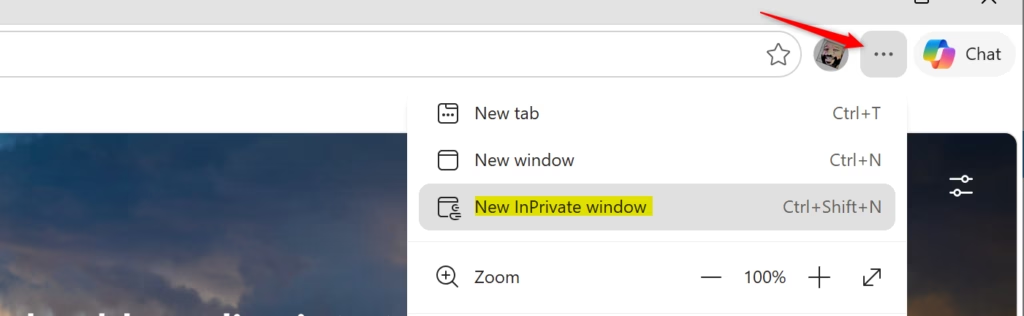
InPrivate mode offers stronger privacy for your browsing. The window displays a blue InPrivate indicator. Activity inside it isn't saved to your browsing history. The mode blocks more trackers, and cookies are deleted automatically when you close the InPrivate window. This makes it useful for sensitive searches or when you want your browsing left untracked on that device. It doesn't hide your activity from your ISP, employer, or the sites you visit.
Troubleshooting Websites That Break with Tracking Prevention
Troubleshooting sites that break with tracking prevention helps you fix broken layouts, unresponsive features, or error messages. Start by checking whether aggressive tracker blocking is causing the site to malfunction.
Determining whether tracking prevention is the cause requires this check:
- Go to the website that isn't working.
- Click the lock icon in the address bar.
- Look at what it says about tracking prevention.
The status shows whether Edge is actively filtering scripts on that domain. If it says "Tracking prevention is on for this site," tracking prevention might be causing the problem. A quick test is to open the same page in an InPrivate window with your extensions off, or turn tracking prevention off for the site and refresh. If the site then works, you have your answer.
Once you have confirmed that tracking prevention is the cause, you have several options:
Option 1Turn Off Tracking Prevention for That Site
The first option is to turn off tracking prevention for that one website. Click the lock icon, switch the tracking prevention setting off, and refresh the page. This lets the site work correctly and leaves everything else protected.
Option 2Lower Your Tracking Prevention Level
The second option is to lower the tracking prevention level for better compatibility. You can move from Strict to Balanced, or from Balanced to Basic. Lowering the level improves how sites work but gives slightly less privacy protection. Use this when many sites are misbehaving, rather than just one.
Option 3Clear Browsing Data and Cache
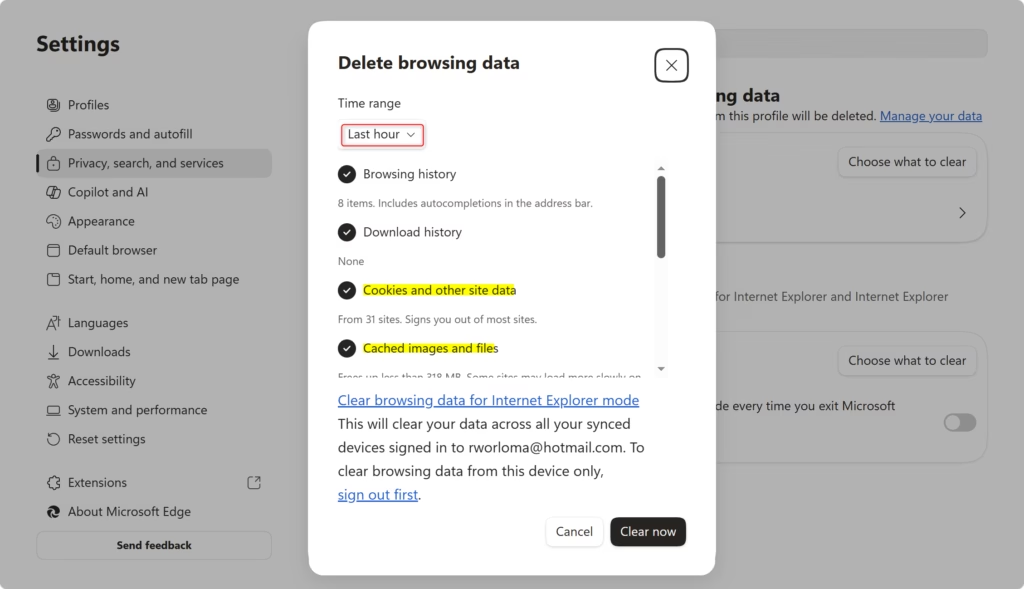
The third option is to clear your browsing data and cache. This can fix stubborn glitches caused by old cached data that conflicts with your tracking prevention settings. Clearing the stored files forces Edge to load fresh site elements. It also signs you out of most sites, so have your passwords ready.
- Press Ctrl + Shift + Delete on your keyboard. The Clear browsing data window opens.
- Select the time range. Choose All time to clear everything.
- Check the boxes for Cookies and other site data and Cached images and files.
- Click Clear now.
- Reload the website. It should load fresh, and you may need to sign in again.
Option 4Try a Different Browser Profile
Edge lets you create multiple browser profiles. Each profile keeps its own settings, including the tracking prevention level. You could set up one profile with Basic tracking prevention for problematic websites, and keep your main profile on Strict for maximum privacy.
Tracking Prevention vs. Other Privacy Tools in Edge
Tracking prevention uses built-in features to protect your privacy. It is one of several privacy tools within Edge version 119 or later. The next few sections compare it with other features you may have seen.
Do Not Track (DNT)
The Do Not Track feature sends websites a request asking them to stop following your online activity. Many websites ignore the request. That makes Do Not Track much less effective than the tracking prevention built into Edge, which blocks trackers instead of asking nicely.
Windows Defender SmartScreen
Microsoft Defender SmartScreen protects you from dangerous websites. It blocks sites known for malware or phishing scams. It works separately from tracking prevention, which focuses entirely on privacy. Keep both turned on, because they do different jobs.
Collections and Saving to Reading List
These privacy features run locally on your device. Collections store only on local hardware and never reach external servers, so they avoid tracking entirely. Managing your data regularly, for example by clearing cookies and history now and then, is still important for long-term privacy.
Common Misconceptions About Tracking Prevention
Several common misconceptions exist about how tracking prevention works. Clearing them up helps you set the right expectations.
Misconception 1: Tracking Prevention Blocks All Ads
Tracking prevention blocks websites from following your activity around the web. Sites stop collecting your browsing history for targeted advertising. Ads still appear, but they are generic instead of reflecting your recent searches or the pages you viewed.
Misconception 2: Tracking Prevention Makes You Anonymous
Tracking prevention stops websites from using outside companies to follow you, but it does not make you anonymous. Your Internet Service Provider can still see which sites you visit, and employers can monitor browsing on corporate networks. Tracking prevention increases your privacy but does not guarantee total anonymity.
Misconception 3: Turning Off Tracking Prevention Makes Sites Faster
Blocking trackers can speed up browsing. Trackers are small pieces of code that collect information about your activity. Removing them reduces the data a page needs to load, so pages can load faster. The reverse is also true: turning tracking prevention off can slow browsing down. The difference is usually small on a fast connection.
Misconception 4: You Need Tracking Prevention if You Have Nothing to Hide
Tracking prevention tools in Edge protect your control over personal data. That control means deciding how your personal data is used, and it remains a fundamental right for everyone.
How Tracking Prevention Affects Website Functionality
Some website features rely on technologies that tracking prevention blocks, so it helps to know what can break. The following sections cover the most common cases and the usual fix, which is a per-site exception.
Social Media Buttons
Tracking prevention may stop social media sharing buttons, such as those for Facebook or Twitter, from working correctly or even appearing on a page. Only the sharing feature is affected. The main content of the site keeps working normally.
Comment Sections
Tracking prevention can block website comment systems. Strict settings may stop systems like Disqus from loading, which leaves a blank space where the comments should be. Adding an exception for that site resolves the problem.
Video Players
Some video players include tracking technology. If a video player is broken, tracking prevention is often the cause. Add an exception for that website, and the video should play once the trackers are allowed.
Login Systems
Tracking prevention might block third-party login tools, such as "sign in with" buttons. Adding the website to the exception list in Edge version 98 often fixes login problems. The exception tells Edge to allow the login tools for that specific site only.
E-Commerce Features
Strict tracking prevention can interfere with the technologies behind shopping carts, wishlists, and product recommendations. For example, with Strict active, product recommendations become generic, though you can still complete purchases. If a cart empties or a wishlist won't save, add an exception for that store.
Summary
Edge tracking prevention is a key feature for protecting your privacy while you browse. You can choose Basic, Balanced, or Strict, with Balanced as the default mix of privacy and site compatibility. Checking the blocked trackers list and adding per-site exceptions lets you deal with any site problems without giving up protection everywhere else.
Have a question about this guide?
Answered by AI from this guide. Good questions may be added to this page — please don't include personal details.
Did this guide fix your problem?

About the Author
Richard
Tech Writer, IT Professional
Richard is a writer at Geek Rewind who turns complex IT tasks into clear, step-by-step guides. He draws on years of hands-on experience in system administration and enterprise IT operations, focusing on Windows, Linux and WordPress: the problems people actually run into, and the fixes that work. His server and WordPress guides come from systems he runs himself. Richard builds and maintains the platform behind Geek Rewind, from its Ubuntu servers and Nginx configuration to its custom WordPress plugins. Many new tutorials start with readers' questions, and he's always glad to answer them in the comments.
No comments yet — be the first to share your thoughts!