
Microsoft Edge toolbar buttons are the small icons next to the address bar. They give you quick access to tools like Collections, history, or extensions. In Microsoft Edge version 120 and later you can add, remove, or rearrange these buttons to keep your browsing space clean and match how you work.
Hiding icons you never touch removes clutter from the top of the window. Keeping your favorite tools on the toolbar leaves them one click away. There are two ways to do it: a right-click on the button itself, or the Edge appearance settings. Each takes a few seconds.
Right-click any toolbar button next to the Edge address bar and select Hide from toolbar to remove it at once. For a full list with on/off switches, open Settings and more (…) > Settings Appearance, then turn buttons on or off under Customize toolbar. Changes apply immediately, with no restart needed.
Option 1Quickly Hide Buttons Directly from the Toolbar
- Open Microsoft Edge. Start the browser. It is the one with the blue and green wave icon.
- Find the button you want to remove. Look at the icons next to the address bar, such as Collections, Share, or an extension’s icon. Move your mouse pointer over the one you don’t need.
- Right-click the button. A small context menu opens next to it.
- Select Hide from toolbar. Depending on the button, the wording may be slightly different, such as “Remove from toolbar”. Click that option. The icon disappears from the toolbar straight away.

The button is now gone from your toolbar. This is a quick way to clean up when you know exactly what you want to remove. If you want to see every available option, or bring a button back, use the settings page instead.
Option 2Customize Your Toolbar Through Edge Settings
The settings page shows every available toolbar button in one list, each with its own switch. Use it when you want to review everything at once instead of right-clicking icons one by one. It also shows buttons you have already hidden, which the right-click method can’t do.
- Open Microsoft Edge. Start the browser again.
- Open the Settings and more menu. Click the three dots (
...) in the top-right corner of the window. You can also press Alt+F to open the same menu. A drop-down list appears. - Click Settings. Use Settings and more > Settings. Edge opens its settings in a new tab, with a list of categories down the left side.
- Click Appearance. This category controls how the browser looks. The page on the right changes to show the appearance options.
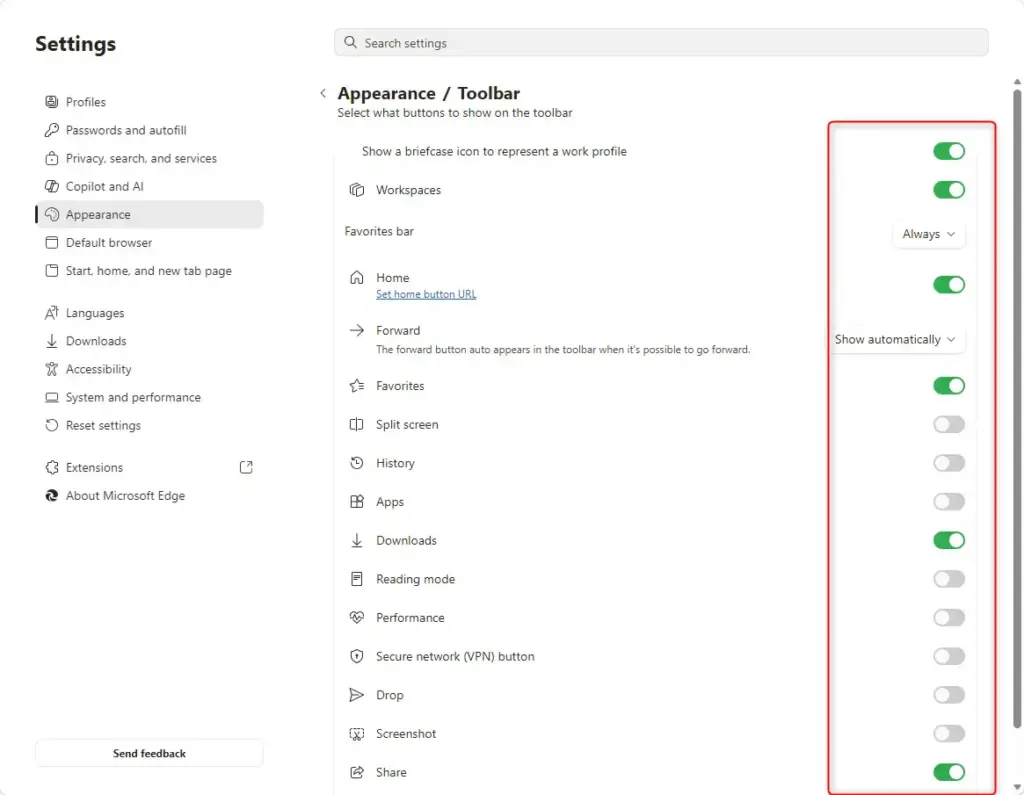
- Find the toolbar section. Scroll down until you reach the toolbar options. In current versions the section is called Customize toolbar. Older builds may label it Toolbar or place it under Other appearance settings. Click it if it is collapsed. You should see a list of toolbar buttons, each with a switch.
- Turn buttons on or off. Set a switch to On to show that button on the toolbar, or Off to hide it. The toolbar updates as you click, so you can watch it change in the other tabs.
The exact list depends on your Edge version, your region, and whether you are signed in. Some items may not appear for you. Buttons you may see include:
- Collections: a feature to save and organize content.
- Send tab to your devices: lets you share a webpage with other devices where you are signed into Edge.
- Discover: shows content suggestions.
- Shopping: helps find deals while you browse.
- Microsoft Rewards: useful only if you use Microsoft Rewards.
- Extensions: icons for any extensions you have installed.
Toolbar changes take effect immediately. You do not need to restart Edge, including on version 119.0.2151.77 or later. Switch back to a normal browsing tab to see the updated toolbar. If a button still looks wrong, check that you changed the switch for the right item, since some names are similar.
Bringing Back a Button You Removed
To bring back a button you hid, go back into the appearance settings and find the toolbar section again. Hidden buttons stay in the list with their switch set to Off.
- Open the toolbar settings. Use Settings and more > Settings Appearance, then scroll to the toolbar section.
- Find the button you want back. Look through the list for the tool you hid.
- Flip its switch to On. The button reappears on the toolbar right away.
This also fixes the case where you hid something by accident and can’t remember what it was. Scan the list for switches set to Off and turn on the ones you want.
Summary
Customizing Edge toolbar buttons removes clutter and keeps the tools you use within reach. Use the right-click method for a quick fix to one or two icons. Use the settings page when you want to review everything or restore a button. A few minutes spent on this gives you a cleaner browsing window, and you can change it back at any time.
Frequently asked questions
How to display toolbar mircosoft edge?
To display the toolbar in Microsoft Edge, open Settings and more (the three dots at the top right), then select Settings and Appearance. Under Customize toolbar, turn on the buttons you want, such as Collections or Extensions. The buttons appear next to the address bar right away, and you can turn any of them off the same way.
How to show toolbar in edge?
To show the toolbar in Edge, open Settings and more, select Settings, then choose Appearance. Scroll to Customize toolbar and switch on the buttons you want to see. They appear next to the address bar immediately. If a button is still missing, check that its switch is on.
How to remove icons under search bar on edge?
The icons under the address bar are most likely the favorites bar. Open Settings and more, select Settings, then Appearance, and turn off Show favorites bar. Your saved websites stay in Favorites, so nothing is deleted. Turn the switch back on at any time to bring the bar back.
When trying to add a website to the toolbar I need to remove my husband's PC from this laptop?
Edge does not place a website on the toolbar itself. Websites go on the favorites bar or can be installed as an app. Your husband's PC is only linked to this laptop if you both signed in with the same Microsoft account or Edge profile. To separate them, select your own profile icon at the top right of Edge.
How to get color picker on toolbar in edge?
Microsoft Edge does not include a color picker on its toolbar. Press F12 to open Developer Tools, which has a built-in eyedropper for picking colors from a web page. For a color picker that works across Windows, install Microsoft PowerToys and use its Color Picker tool.
How to edit Microsoft edge toolbar?
To edit the Edge toolbar, open Settings and more, select Settings, then Appearance, and scroll to Customize toolbar. Turn buttons on or off there to change what appears next to the address bar. Changes take effect right away, and you can reverse any of them by switching the button back on.
Still have a question?
Answered by AI from this guide. Good questions may be added to this page — please don't include personal details.
Did this guide fix your problem?

About the Author
Richard
Tech Writer, IT Professional
Richard is a writer at Geek Rewind who turns complex IT tasks into clear, step-by-step guides. He draws on years of hands-on experience in system administration and enterprise IT operations, focusing on Windows, Linux and WordPress: the problems people actually run into, and the fixes that work. His server and WordPress guides come from systems he runs himself. Richard builds and maintains the platform behind Geek Rewind, from its Ubuntu servers and Nginx configuration to its custom WordPress plugins. Many new tutorials start with readers' questions, and he's always glad to answer them in the comments.
No comments yet — be the first to share your thoughts!