
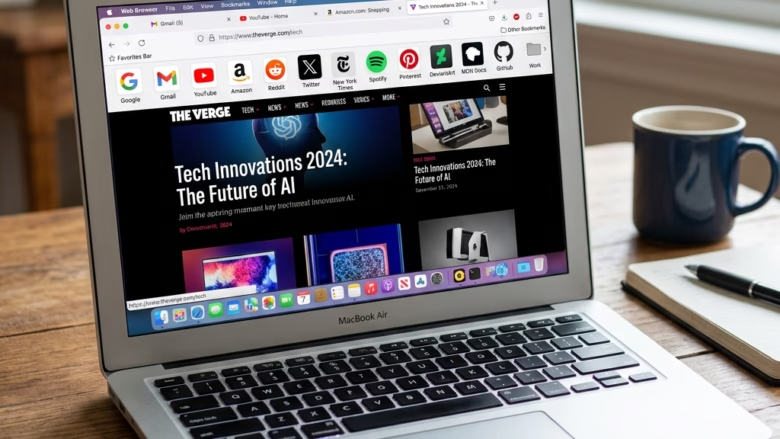
The Favorites bar sits right below the address bar in Microsoft Edge and holds links to the sites you use most. It has three display options: always visible, hidden entirely, or shown only when you open a new tab. The steps are the same on Windows 11 Home and Pro, and you don’t need to restart anything.
To turn on the Favorites bar in Microsoft Edge, click the three-dot menu, choose Settings, then select Appearance. Under Other appearance settings, open the Favorites drop-down next to Toolbar and pick Always, Never, or Only on new tabs. The change saves immediately, and you can also press Ctrl+Shift+B to toggle the bar.
Step 1Find the Settings Menu
These steps make Edge show the Favorites bar, or hide it, using the Favorites setting on the Appearance page. Start from the main browser menu, the three dots in the top-right corner of the Edge window. That menu leads to the Settings page, where the toolbar options live.
- Open Microsoft Edge. The browser window appears.
- Click the three-dot button in the top-right corner. Its tooltip reads Settings and more. A drop-down menu opens.
- Click Settings in that menu. Edge opens the Settings page in a new tab.

Step 2Go to Appearance Settings
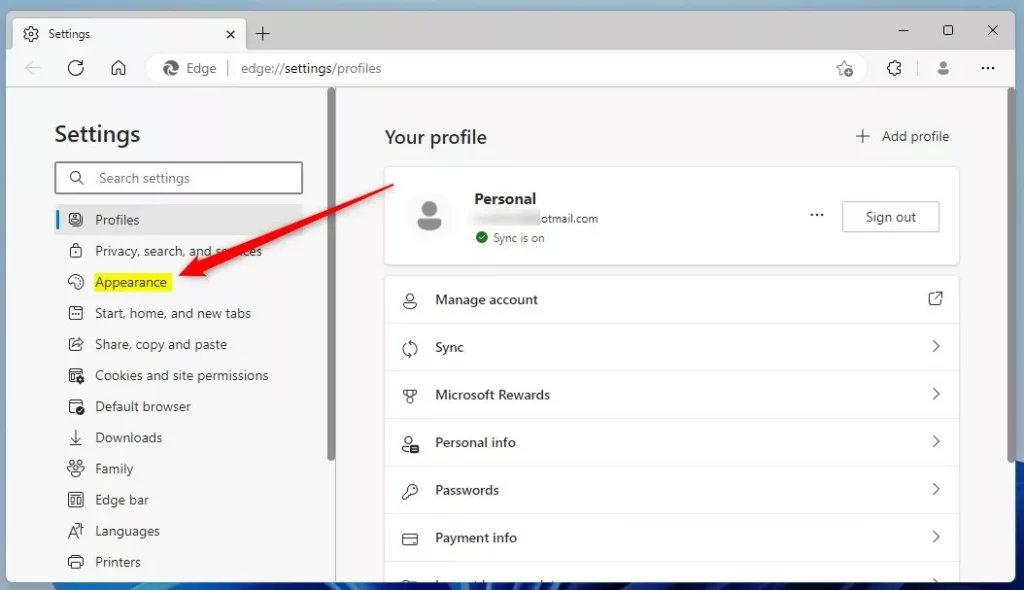
The Settings page has a vertical list of categories on the left side. The toolbar options are under Appearance.
- Click Appearance in the category list on the left. The right-hand pane now shows the display and toolbar settings.
Widen the window, or click the menu icon at the top left of the Settings page to bring the list back.
Step 3Change Your Toolbar Settings
Next, go to the toolbar section of the Appearance page. A drop-down menu there controls whether your saved bookmarks always stay visible, stay hidden, or only appear on new tabs.
- Scroll down the Appearance page to Other appearance settings. It sits well below the theme and zoom options, so keep scrolling.
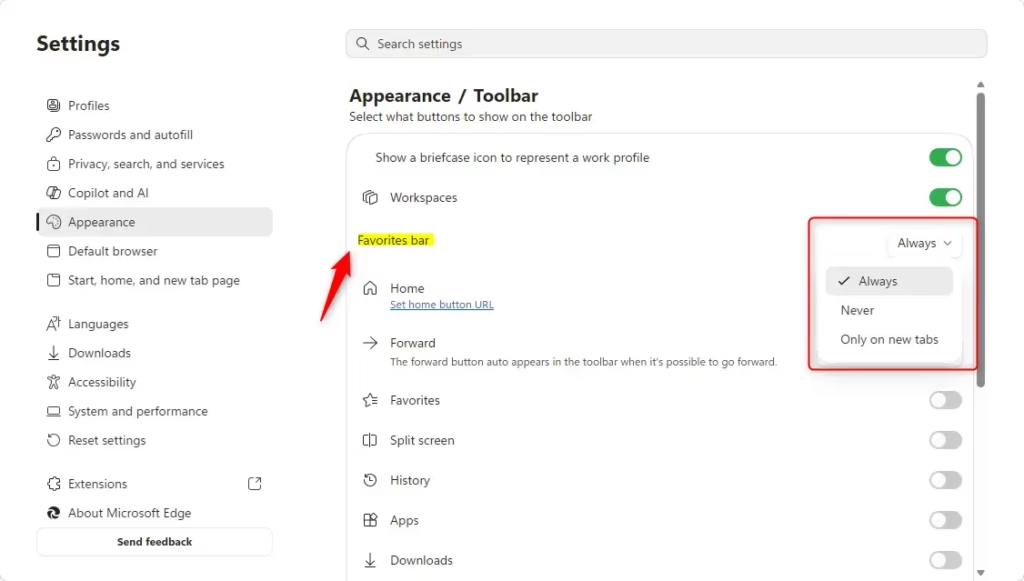
- Find the Toolbar option under Other appearance settings. Next to it is a drop-down menu labeled Favorites. This is the setting you want.
- Click the Favorites drop-down menu. Three options appear:
- AlwaysThe Favorites bar shows on every page and every tab. Pick this if you click your bookmarks all day.
- NeverThe Favorites bar is hidden completely. Pick this if you want a cleaner window and rarely use your favorites.
- Only on new tabsThe bar appears only when you open a new tab. It keeps regular browsing windows tidy but still puts your links one click away when you start something new.
- Click the option you want. The setting saves as soon as you pick it, so there is no Save or Apply button.
Depending on your Edge version, this section may be named differently. Newer builds can list the setting under a Customize toolbar section as Show favorites bar, with the same three choices. If you can’t find the option, scroll through the whole Appearance page and look for either label.
Edge usually shows a “Your browser is managed by your organization” notice in that case. You’ll need to ask your IT administrator to change it.
Step 4Check Your Favorites Bar
To check the result, close the Settings tab and look at the area directly under the address bar. The change applies right away, so your saved links should appear or disappear based on the option you chose.
- Close the Settings tab. If Settings opened in a separate window, close that window instead. You are back in your normal browsing window.
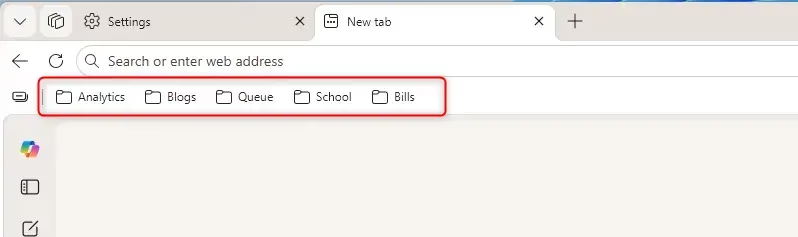
- Look just below the address bar. If you chose Always, the Favorites bar is visible now. If you chose Only on new tabs, open a new tab to see it. If you chose Never, nothing appears there.
The bar can look empty even when it is switched on. That just means you haven't saved any favorites to it yet. To undo the change at any time, go back to the same Favorites drop-down and choose a different option. The Ctrl+Shift+B keyboard shortcut also toggles the bar without opening Settings.
Reference:
Summary
The Microsoft Edge Favorites bar gives you quick access to saved sites, or stays hidden when you want more room for the page. Available on Edge version 105 and later, this setting lets you balance screen space against fast navigation.
The change takes effect immediately across all open browser windows on Edge version 105 and later, with no restart needed.
Have a question about this guide?
Answered by AI from this guide. Good questions may be added to this page — please don't include personal details.
Did this guide fix your problem?

About the Author
Richard
Tech Writer, IT Professional
Richard is a writer at Geek Rewind who turns complex IT tasks into clear, step-by-step guides. He draws on years of hands-on experience in system administration and enterprise IT operations, focusing on Windows, Linux and WordPress: the problems people actually run into, and the fixes that work. His server and WordPress guides come from systems he runs himself. Richard builds and maintains the platform behind Geek Rewind, from its Ubuntu servers and Nginx configuration to its custom WordPress plugins. Many new tutorials start with readers' questions, and he's always glad to answer them in the comments.
No comments yet — be the first to share your thoughts!