

Sorting your favorites alphabetically in Microsoft Edge puts your saved websites in A to Z order with a single click. Edge is a web browser (an app used to view pages on the internet), and its favorites list can grow to hundreds of bookmarks.
A cluttered list slows you down when you want to reopen a specific page. Dragging items into order by hand takes ages. The built-in sort tool does the whole list in one go.
Before you start, know that sorting changes the saved order of your favorites. If you have arranged some items in a deliberate order, such as your most-used sites first, note it down before sorting. If you are signed in to Edge with sync turned on, the new order will normally carry over to your other devices as well.
Open the Favorites panel in Microsoft Edge by clicking the star icon, then click the three dots in the panel and select Open favorites page. Right-click an empty area on the page and choose Sort by name to arrange all your bookmarks alphabetically from A to Z.
Step 1Go to Your Favorites in Microsoft Edge
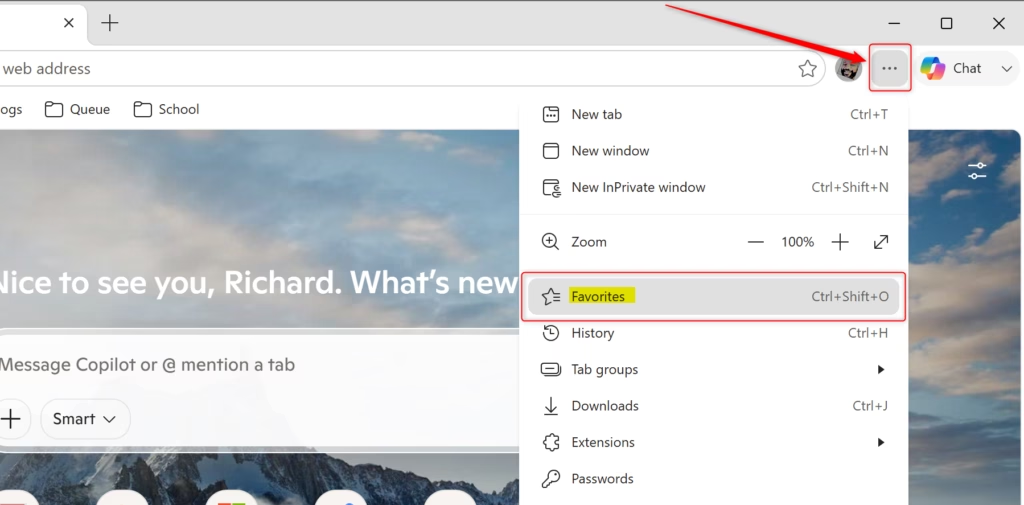
First, open the favorites panel. Click the star icon in the top-right corner of the Edge window. If the star is missing, click the three-dot menu in the top right and choose Favorites from the list.
- Look in the top-right corner of the Edge window. Find the Favorites button, which looks like a star, and click it.
- If you don’t see the star, click the three dots (the Settings and more menu) and select Favorites from the list. You can also press
Ctrl + Shift + Oon your keyboard. - Check the side panel. A panel opens beside the page. It shows your favorites bar and any folders you have made. This is where the organizing starts.
The star is often hidden because the toolbar button was turned off in Edge’s settings. The three-dot menu always works, so use that if you can’t find it.

Step 2Open the Full Favorites Page for Better Organizing
The side panel is cramped, and the sort option is on the full Favorites page. Open that page from the three-dot menu inside the panel. It opens in its own browser tab and shows all your saved links and folders at once.
- Find the "More options" button. In the Favorites panel, look for another set of three dots. This is the More options menu for your favorites. Click it.
- Choose "Open favorites page." A new tab opens just for managing your saved websites. You should now see your folders and links laid out across the whole tab. It's like looking at the whole map before you start moving things.
If you close it by accident, repeat the two steps above to get back.
Step 3How to Sort Favorites Alphabetically
Now sort the list. Right-click an empty area of the main Favorites page and choose the option to sort by name. The right-click has to land on blank space. If you click on a link or folder, you get a menu for that item instead, and the sort option won't be there.
- Right-click an empty spot on the full Favorites page (the one in the new tab). Pick a blank area between your links or folders. Do not right-click on a link or folder.
- Click "Sort by name." A small menu appears. Find Sort by name and click it. The list should immediately reshuffle into alphabetical order.
- Scan the list. Check that the names now run from A to Z. If nothing changed, you probably right-clicked an item. Click an empty area and try again.
You can drag items back into your own order by hand.
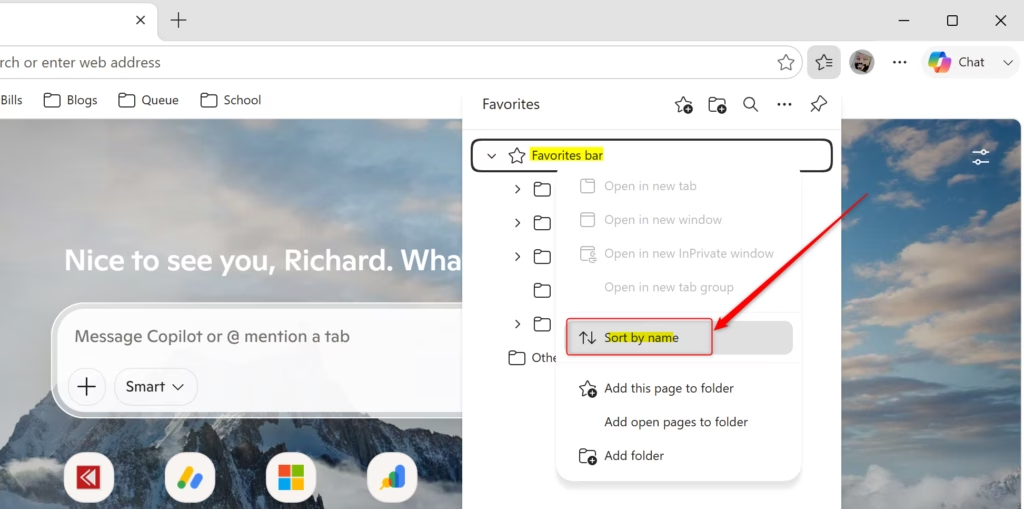
What happens: When you choose Sort by name, Edge arranges the websites and folders shown on the main Favorites page from A to Z. Folders are sorted by their names, and the items inside each folder are sorted alphabetically too.
The sort applies to the items on the page you are viewing. Subfolders may need to be sorted on their own. Open each subfolder, check that its contents are in order, and if they aren't, right-click an empty spot inside it and choose Sort by name again. Do this for any folders nested inside other folders.
Reference:
https://support.microsoft.com/en-us/edge/organize-favorites-in-microsoft-edge
Summary
To sum up: open the Favorites panel, go to the full Favorites page, right-click an empty area and choose Sort by name. Edge puts your saved websites and folders in alphabetical order on the main management page, which makes specific links much faster to find later.
The sort covers the main Favorites page and the items inside the folders you have opened. Check any subfolders afterward and sort them individually if they still look out of order.
Have a question about this guide?
Answered by AI from this guide. Good questions may be added to this page — please don't include personal details.
Did this guide fix your problem?

About the Author
Richard
Tech Writer, IT Professional
Richard is a writer at Geek Rewind who turns complex IT tasks into clear, step-by-step guides. He draws on years of hands-on experience in system administration and enterprise IT operations, focusing on Windows, Linux and WordPress: the problems people actually run into, and the fixes that work. His server and WordPress guides come from systems he runs himself. Richard builds and maintains the platform behind Geek Rewind, from its Ubuntu servers and Nginx configuration to its custom WordPress plugins. Many new tutorials start with readers' questions, and he's always glad to answer them in the comments.
No comments yet — be the first to share your thoughts!