How to Always Keep These Sites Active When Using Sleeping Tabs in Microsoft Edge


The Always keep these sites active list in Microsoft Edge stops specific web pages from going to sleep when you use Sleeping Tabs. Sleeping Tabs is a memory-saving feature that freezes background tabs after they have been idle for a set time. A site on this list stays awake, so it doesn’t reload or lose your place when you click back on it.
This works best for email inboxes, chat tools and live dashboards that need to run all day without pausing. It also helps with web apps that drop a connection or a draft when the tab freezes.
Open Microsoft Edge, click the three dots and select Settings. Go to System and performance, find Always keep these sites active, click Add site, type the full web address and click Add. The site stays awake and ready when you switch back to it.
What Happens When You Do This?
Microsoft Edge’s list of sites that never sleep keeps the tabs you choose ready for immediate use. Edge leaves those tabs alone while it puts your other idle tabs to sleep. You get the memory savings on most tabs and full control over the few that matter.
In some newer Edge builds, Microsoft has renamed this list Never put these sites to sleep. It is the same list with a different label, so use whichever name you see.
Steps to Keep Your Sites Active
- Open Edge Settings. Start Microsoft Edge and click the three dots
...in the top right corner. A menu opens. - Click Settings. The Settings page opens in a new tab.
- Or skip the menu: type
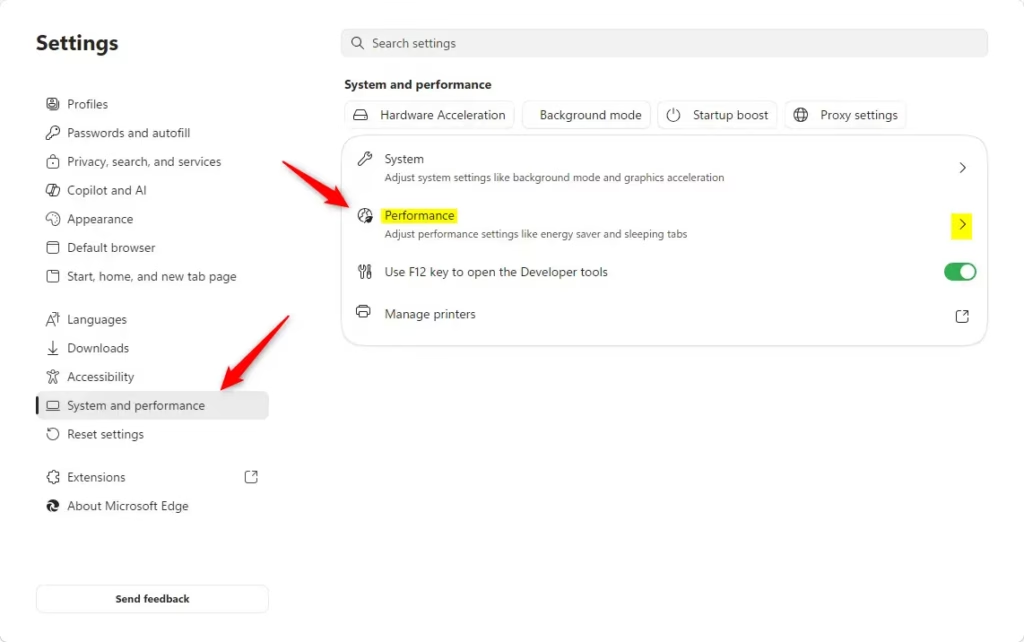
edge://settings/system/manageSystemedge://settingsinto the address bar and press Enter. This takes you straight to the right page. - Go to System and performance. Look at the list on the left side of the Settings page and click System and performance. If the left pane is hidden because the window is narrow, click the menu icon at the top left of the Settings page to show it.
- Find the “Always keep these sites active” section. Under System and performance, find the Performance section (some builds label it Optimize Performance). Click on it if it is collapsed.
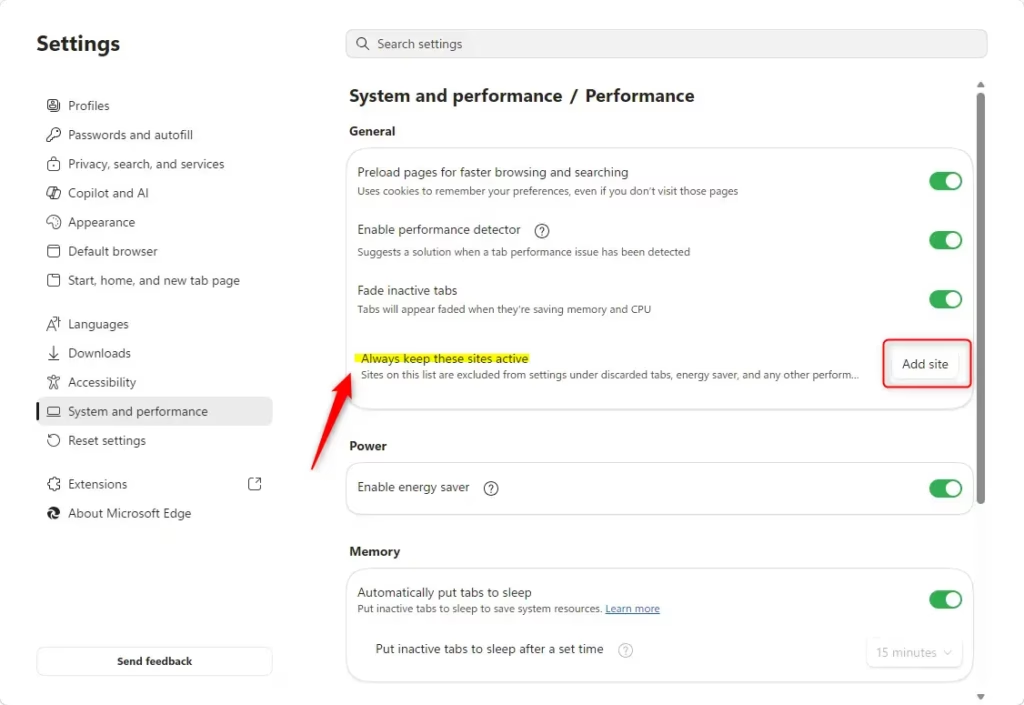
- Scroll down until you see Always keep these sites active. This is where you tell Edge which sites should never sleep. It sits near the Sleeping Tabs options, which also set how long a tab must be idle before it sleeps.
- Add a site to your list. Click the Add site button. A small box pops up.
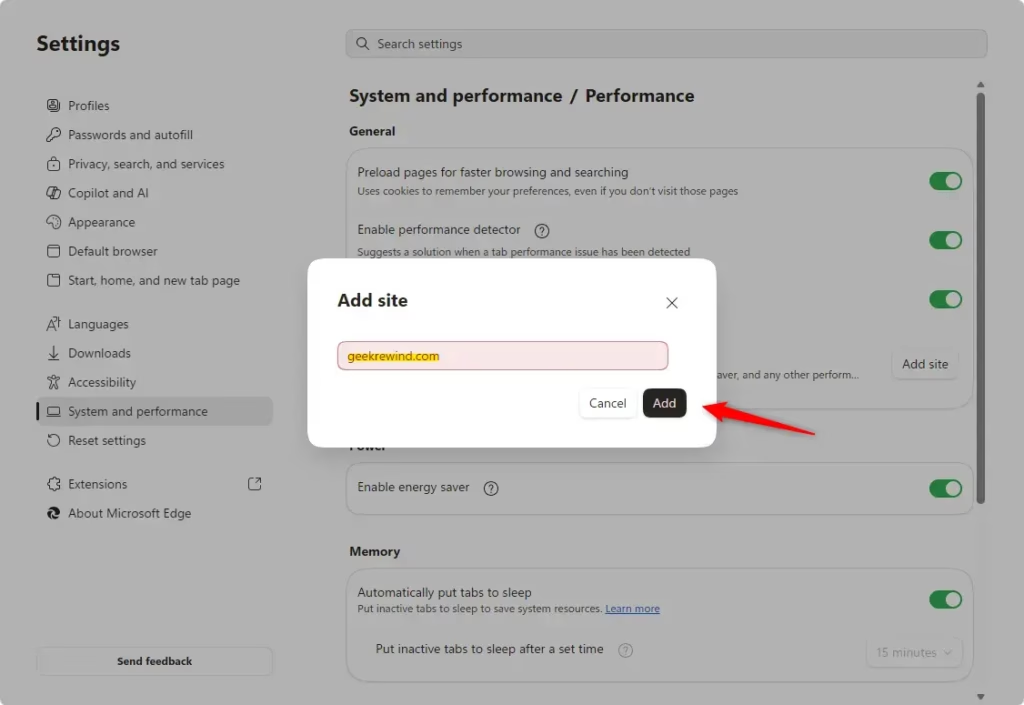
- Type the full web address (URL) of the site you want to keep active. For example, to keep your email always active, you might type
https://mail.google.comhttps://mail.google.com/. - Click the Add button. The site should now appear in the list below. Repeat these steps for each extra site.
- Manage your list. Changed your mind? On the same page, you’ll see every site you’ve added.
- Click the three dots
...next to a site to see its options. Choose Edit to change the web address, or Remove to take the site off the list completely.
You don’t need to restart Edge or Windows. If the section is missing or greyed out, check that Sleeping Tabs is turned on in the same part of Settings. If your PC is managed by an employer or school, an administrator policy may be controlling these options, and you’ll need to ask them to change it.
Edge already avoids putting some tabs to sleep, such as ones that are playing audio or video. The list is for pages that sit quietly in the background, such as an inbox or a dashboard.

Managing the Edge sleeping tabs exclusion list lets you stop important web pages from going to sleep when you step away. Open Microsoft Edge, go to Settings and then System and performance, and add your most-used websites to the list. They then stay loaded and ready whenever you switch back to them.
Keep the list short. Every site you add keeps using memory and some processing power in the background, which is what Sleeping Tabs is meant to reduce. This matters most on a laptop running on battery. If a site doesn't need to stay live, remove it from the list.
https://support.microsoft.com/en-us/edge/learn-about-performance-features-in-microsoft-edge
Summary
The Sleeping Tabs exclusion list stops specific websites from going to sleep after a period of inactivity. Add your dashboard, music or work tools to it and they stay fully loaded, opening instantly when you click them again. You can edit or remove any entry later from the same page.
Have a question about this guide?
Answered by AI from this guide. Good questions may be added to this page — please don't include personal details.
Did this guide fix your problem?

About the Author
Richard
Tech Writer, IT Professional
Richard is a writer at Geek Rewind who turns complex IT tasks into clear, step-by-step guides. He draws on years of hands-on experience in system administration and enterprise IT operations, focusing on Windows, Linux and WordPress: the problems people actually run into, and the fixes that work. His server and WordPress guides come from systems he runs himself. Richard builds and maintains the platform behind Geek Rewind, from its Ubuntu servers and Nginx configuration to its custom WordPress plugins. Many new tutorials start with readers' questions, and he's always glad to answer them in the comments.
No comments yet — be the first to share your thoughts!