
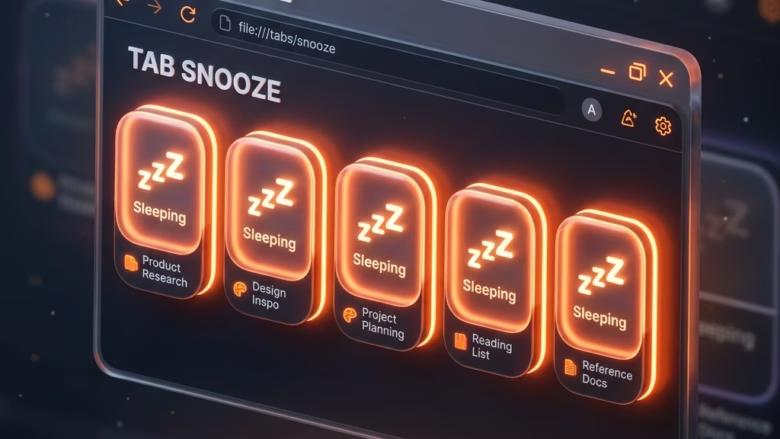
Sleeping tabs in Microsoft Edge pause background web pages after a set period of inactivity (30 minutes in the setup this guide describes) to save memory and battery. A sleeping tab stays in the tab strip, but Edge frees most of the resources it was using. When you click it, the page reloads. If you keep a lot of sites open at once, this stops idle pages from slowing your PC down.
You can turn sleeping tabs on or off in the Microsoft Edge settings whenever you want to change how the browser handles inactive pages. The steps are the same on Windows 11 Home and Pro.
Open Microsoft Edge, click the three dots in the top-right corner, select Settings, then System and performance. Scroll to the performance section and toggle on Save resources with sleeping tabs, or toggle it off to disable the feature. The change takes effect immediately.
How to Turn on Automatically Put Tabs to Sleep in Microsoft Edge
Recent versions of Edge usually have sleeping tabs turned on by default, but it is worth checking, especially on a PC that someone else set up. You can also choose how long a tab must be inactive before it goes to sleep.
- Open the Edge menu. Click the three dots (Settings and more) in the top-right corner of the Edge window. A drop-down menu appears.
- Click Settings . Edge opens the Settings page in a new tab.
- Click System and performance. Find it in the list on the left side of the Settings page. If you don’t see the list, the window may be too narrow. Widen it, or click the menu icon at the top left of the page. The right-hand pane now shows the settings that control how Edge uses your PC’s power and memory.
- Find the sleeping tabs section. Scroll to the performance part of the page, which has the sleeping tabs switch. In current versions the switch may be worded Save resources with sleeping tabs. Older builds call it Automatically put tabs to sleep. They are the same feature.
- Set the switch. Turn it On to let Edge put inactive tabs to sleep, or Off to stop it. The change applies immediately. You don’t need to restart Edge or Windows.
- Choose the inactivity time (optional). With the switch on, open the drop-down for how long a tab must be inactive before it sleeps and pick a value. A shorter time saves more memory but means you reload pages more often. A longer time is gentler on pages you come back to now and then.
If the switch is greyed out or missing, you are probably on an older Edge build (go to About Microsoft Edge to update it). A work or school PC may also have the setting locked by an administrator policy.

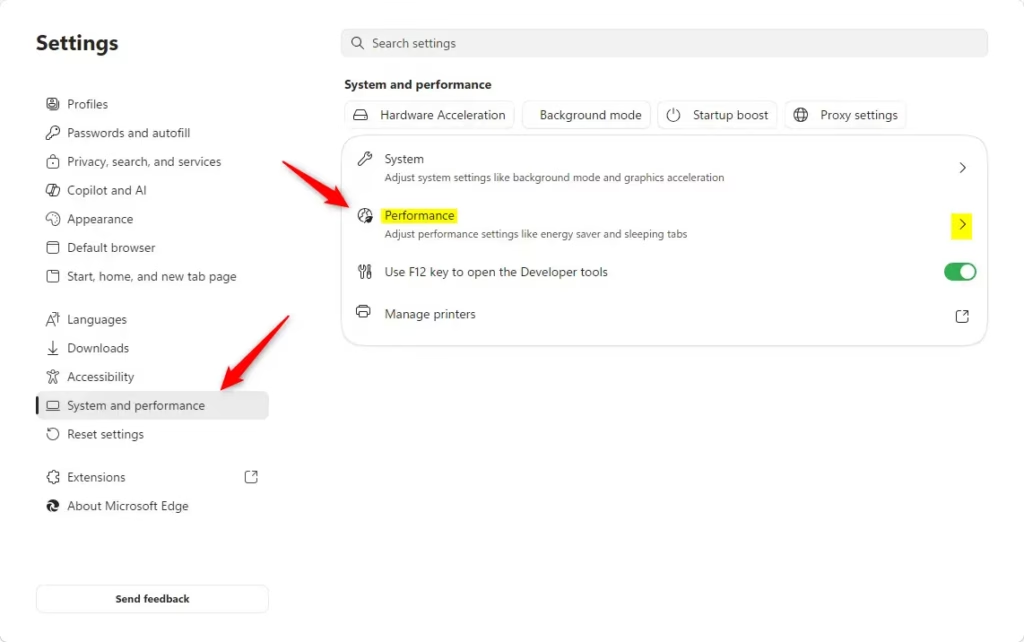
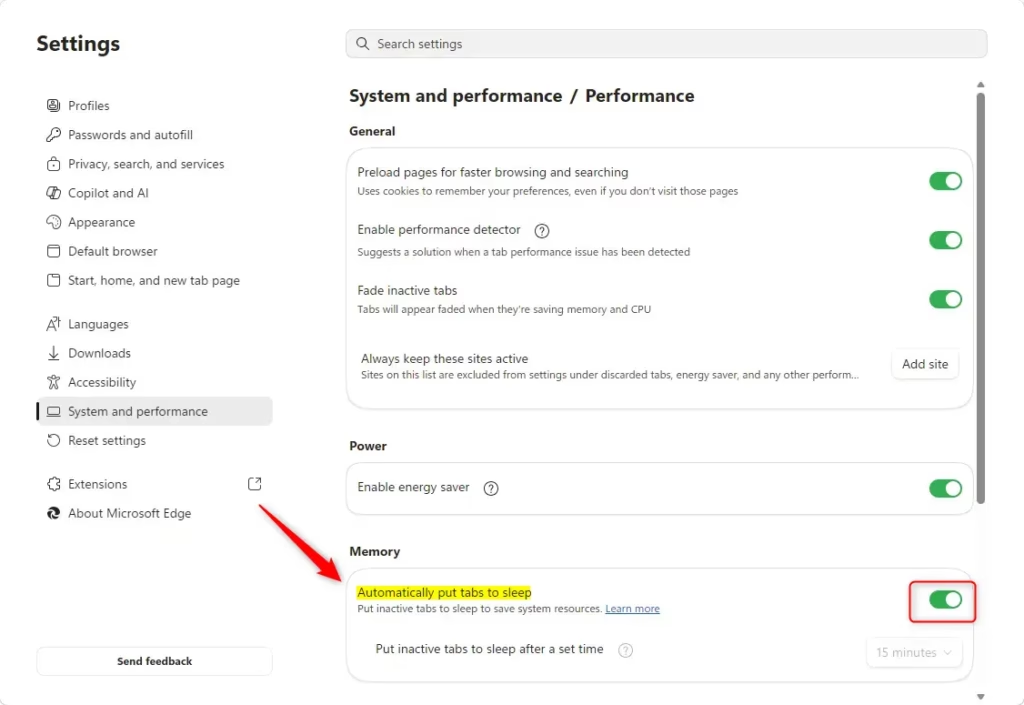
Open the Microsoft Edge settings menu, go to System and performance, and scroll down until you see the main toggle for putting inactive tabs to sleep.
Edge doesn’t put every tab to sleep. Tabs that are playing audio or video, or that are in active use for things like screen sharing, are usually left alone. If a particular site keeps reloading when you return to it, look in the same section for the list of sites that should never sleep and add that site there.
https://support.microsoft.com/en-us/edge/learn-about-performance-features-in-microsoft-edge
Summary
Sleeping tabs help your computer run faster by pausing tabs you aren't using, which saves memory and power. It is a setting you can turn on, off or tune in under a minute.
Have a question about this guide?
Answered by AI from this guide. Good questions may be added to this page — please don't include personal details.
Did this guide fix your problem?

About the Author
Richard
Tech Writer, IT Professional
Richard is a writer at Geek Rewind who turns complex IT tasks into clear, step-by-step guides. He draws on years of hands-on experience in system administration and enterprise IT operations, focusing on Windows, Linux and WordPress: the problems people actually run into, and the fixes that work. His server and WordPress guides come from systems he runs himself. Richard builds and maintains the platform behind Geek Rewind, from its Ubuntu servers and Nginx configuration to its custom WordPress plugins. Many new tutorials start with readers' questions, and he's always glad to answer them in the comments.
No comments yet — be the first to share your thoughts!