How to Enable or Disable Microsoft Defender SmartScreen Check Apps and Files from Web in Windows 11

Microsoft Defender SmartScreen checks apps and files you download from the web and warns you before you run something risky. This tutorial covers the Check apps and files setting in Windows 11. It shows four ways to turn it on or off: Windows Security, the Registry Editor, the Local Group Policy Editor, and the Registry Editor again for the Warn and Block modes.
Open Windows Security, click App & browser control, then Reputation-based protection settings, find Check for apps and files, and toggle it On or Off. The change takes effect immediately without restarting.
What Does SmartScreen Do?
Think of SmartScreen as a security guard for your downloads. It compares files and apps from the internet against Microsoft’s reputation data. If a file is unknown or has a bad reputation, SmartScreen steps in. It works in the background, and you don’t need to start it.
On (default): SmartScreen warns you when a download might be dangerous. You can then choose to run it anyway or stop.
You get no alerts about potentially dangerous downloads, so your PC is more exposed. Only turn it off if you have a good reason, such as testing software you trust. Turn it back on when you’re done.
What You Need
You must be signed in as an administrator, or be able to enter an administrator’s credentials, to change these settings. ⚠️ Admin Required
If an option is greyed out, or you see the message “Some settings are managed by your organization”, a policy is controlling SmartScreen. This is common on work or school PCs. Settings made through Group Policy or the registry override the toggles in Windows Security.
Option 1Using Windows Security (Easiest)
This is the easiest method and works on every edition of Windows 11, Home and Pro included.
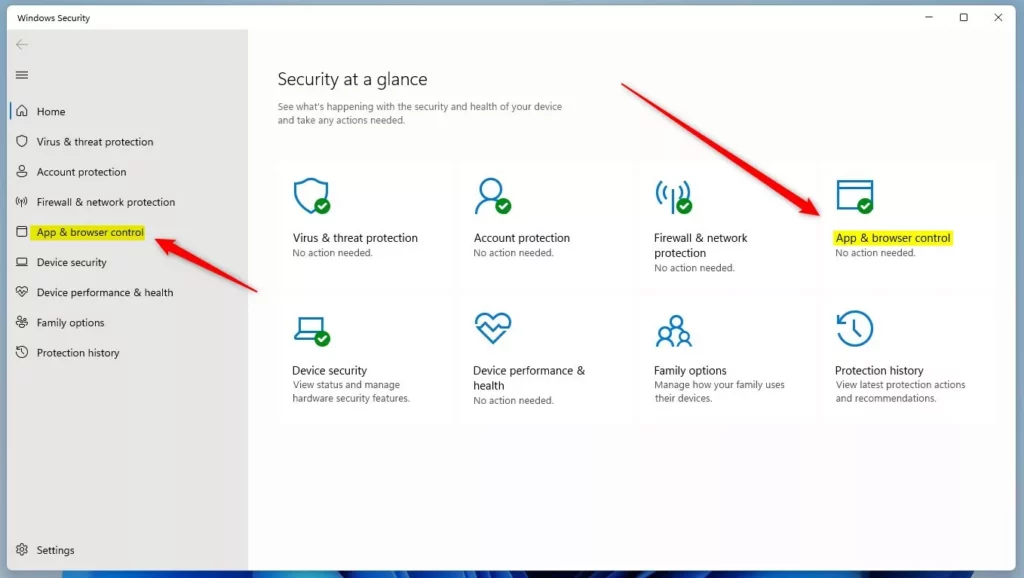
- Open Windows Security. You can search for it in the Start menu. The Windows Security window opens.
- Click App & browser control in the left pane. The reputation and exploit protection options appear on the right.
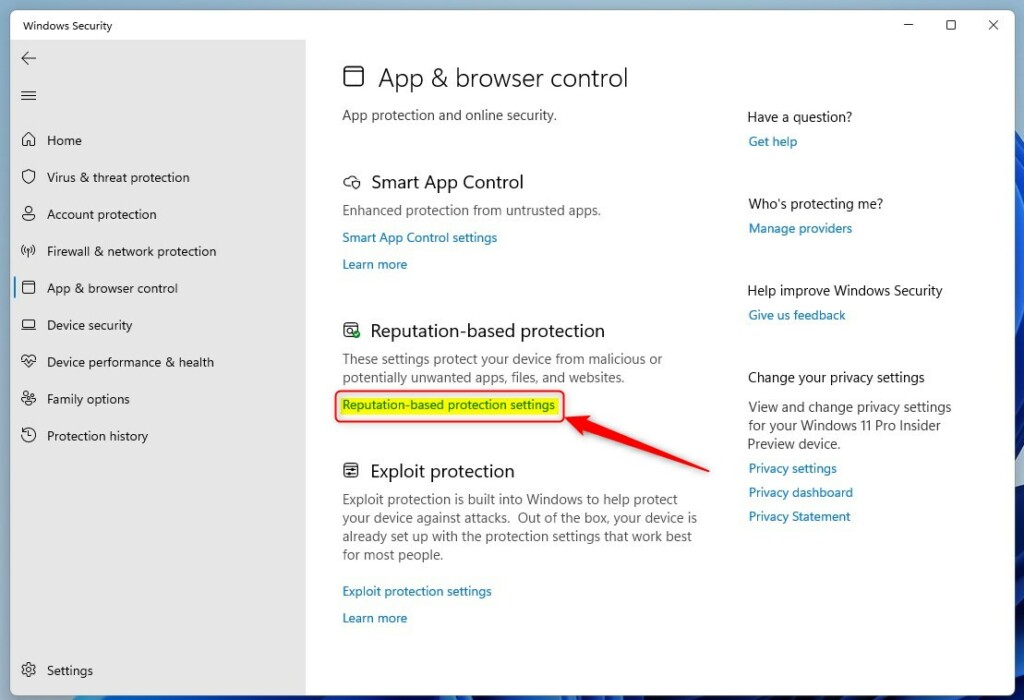
- Click Reputation-based protection settings. A list of SmartScreen toggles appears.
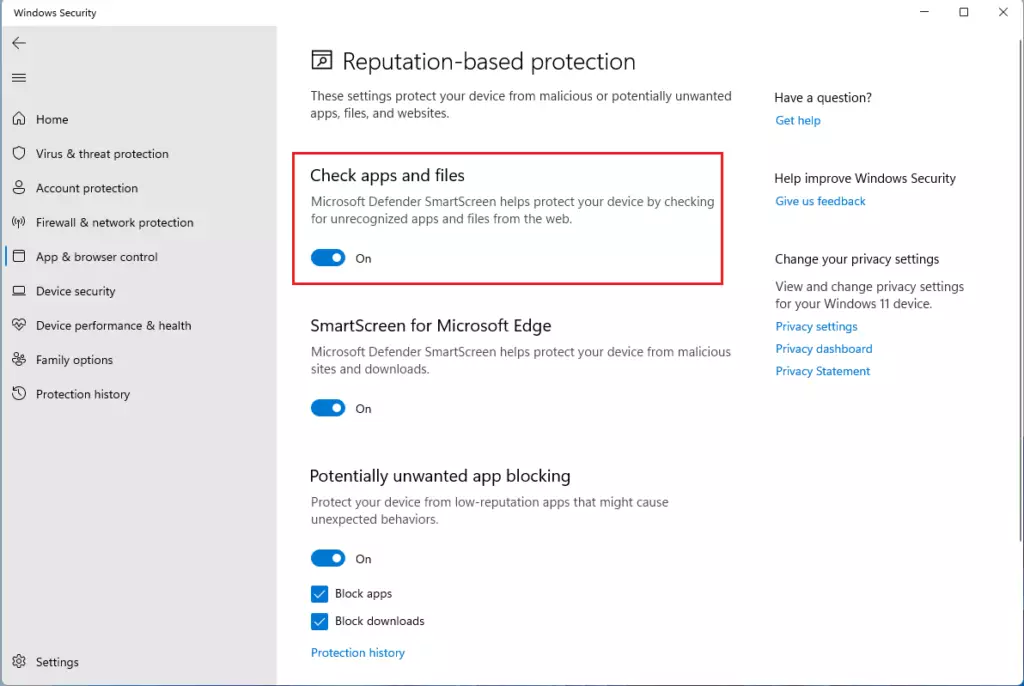
- Find Check for apps and files and set it to On or Off. If it is greyed out, see the note above about managed settings.
- ⚠️ Admin Required: Click Yes when Windows asks for permission. The toggle now shows the new state.
- Close Windows Security when you're done. No restart is needed, and the change takes effect straight away.
To undo the change, repeat the steps and flip the toggle back.
Option 2Using Registry Editor
This method suits you if you are comfortable with advanced settings and want to turn SmartScreen on or off with specific commands. Wrong registry changes can cause problems, so create a restore point or back up the registry before you start. The first block below sets SmartScreen to its default on state.
To Turn On SmartScreen (Default):
reg add "HKEY_LOCAL_MACHINE\SOFTWARE\Microsoft\Windows\CurrentVersion\Explorer" /v SmartScreenEnabled /t REG_SZ /d Warn /fTo Turn Off SmartScreen:
reg add "HKEY_LOCAL_MACHINE\SOFTWARE\Microsoft\Windows\CurrentVersion\Explorer" /v SmartScreenEnabled /t REG_SZ /d Off /fRun only the block that matches what you want, and approve any administrator prompt. Sign out and back in, or restart, if the change doesn't show up in Windows Security. To undo it, run the other block.
Option 3Using Local Group Policy Editor
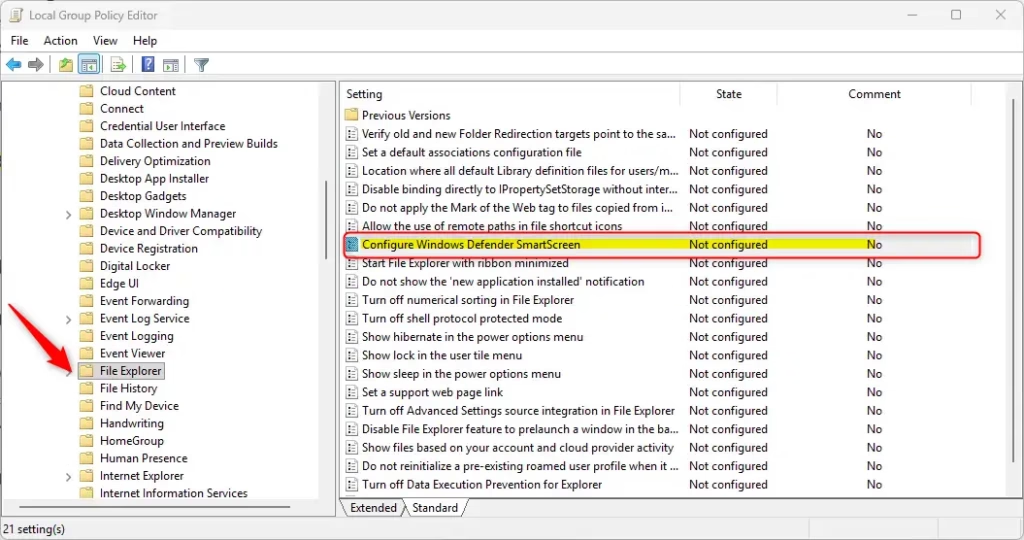
Windows 11 Pro, Enterprise, and Education can manage SmartScreen with the Local Group Policy Editor, an administrative tool for system settings. Windows 11 Home doesn't include it, so Home users should use Option One or one of the registry options. Group Policy lets you choose how SmartScreen behaves, not just whether it is on or off.
- Press Windows Key + R to open the Run box, type
gpedit.msc, and press Enter. The Local Group Policy Editor opens. - In the left pane, go to Computer Configuration Administrative Templates Windows Components File Explorer. The policies appear in the right pane.
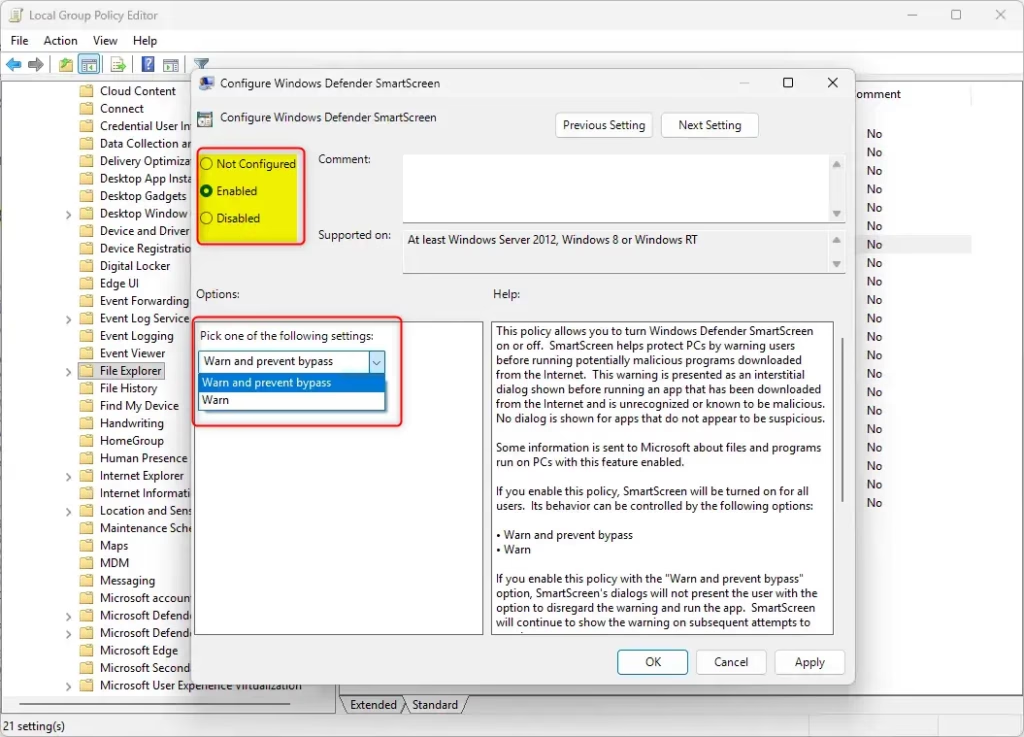
- Double-click Configure Windows Defender SmartScreen. The policy window opens. Select Enabled to see the choices below. Selecting Disabled turns the policy off.
- Choose one of these options:
- Warn: SmartScreen warns you about dangerous apps but lets you download them.
- Block: SmartScreen stops you from downloading dangerous apps.
- Off: SmartScreen doesn't check anything.
- Click OK. The policy now shows its new state.
- ⚠️ Admin Required: Close the Local Group Policy Editor when you're done. If the change doesn't apply right away, sign out and back in or restart.
To undo it, open the same policy and set it to Not Configured. Windows then goes back to using the setting in Windows Security.
Option 4Using Registry Editor (Advanced)
The Registry Editor also lets you set how SmartScreen handles risky downloads. It can show a warning, or it can block dangerous files outright. This gives you finer control than the on/off toggle, and it works on Home as well as Pro. As before, back up the registry or create a restore point first, and sign in as an administrator.
reg add "HKEY_LOCAL_MACHINE\SOFTWARE\Policies\Microsoft\Windows\System" /v EnableSmartScreen /t REG_DWORD /d 1 /f
reg add "HKEY_LOCAL_MACHINE\SOFTWARE\Policies\Microsoft\Windows\System" /v ShellSmartScreenLevel /t REG_SZ /d Block /f
To Turn On SmartScreen and Warn About Dangerous Files:
reg add "HKEY_LOCAL_MACHINE\SOFTWARE\Policies\Microsoft\Windows\System" /v EnableSmartScreen /t REG_DWORD /d 1 /f
reg add "HKEY_LOCAL_MACHINE\SOFTWARE\Policies\Microsoft\Windows\System" /v ShellSmartScreenLevel /t REG_SZ /d Warn /f
To Turn Off SmartScreen:
reg add "HKEY_LOCAL_MACHINE\SOFTWARE\Policies\Microsoft\Windows\System" /v EnableSmartScreen /t REG_DWORD /d 0 /f
Run only the block for the result you want. Sign out and back in, or restart, so Windows picks up the change. Run a different block later to switch modes. If the Windows Security toggle is greyed out afterwards, that is expected, because a policy-based setting now controls SmartScreen.
Summary
SmartScreen is one of the most useful protections against unsafe downloads, and it is easy to manage. Most people should use the standard Windows settings. Advanced users can use the Registry Editor or the Local Group Policy Editor for finer control.
- Option One is the easiest and best for most people.
- Options Two and Four use Registry Editor for advanced users.
- Option Three uses Group Policy Editor (only on Pro, Enterprise, and Education editions).
SmartScreen gives you protection by default, so keep it enabled for the best safety. Set it to Warn to get an alert before you run a risky file. Set it to Block to stop dangerous downloads entirely.
Have a question about this guide?
Answered by AI from this guide. Good questions may be added to this page — please don't include personal details.
Did this guide fix your problem?

About the Author
Richard
Tech Writer, IT Professional
Richard is a writer at Geek Rewind who turns complex IT tasks into clear, step-by-step guides. He draws on years of hands-on experience in system administration and enterprise IT operations, focusing on Windows, Linux and WordPress: the problems people actually run into, and the fixes that work. His server and WordPress guides come from systems he runs himself. Richard builds and maintains the platform behind Geek Rewind, from its Ubuntu servers and Nginx configuration to its custom WordPress plugins. Many new tutorials start with readers' questions, and he's always glad to answer them in the comments.
No comments yet — be the first to share your thoughts!