How to Secure Windows 11: Built-in Features Guide

- 23 steps
- Includes a restart or sign-out
Potentially Unwanted Application (PUA) protection in Microsoft Defender blocks bundled software, adware, and hidden junk apps that slow down Windows 11 PCs. These programs are not always classed as malware. They often arrive as an extra checkbox in a free app’s installer. PUA protection catches them before they install, so they never get the chance to affect performance.
This setting is off by default on most Windows 11 PCs. To turn it on:
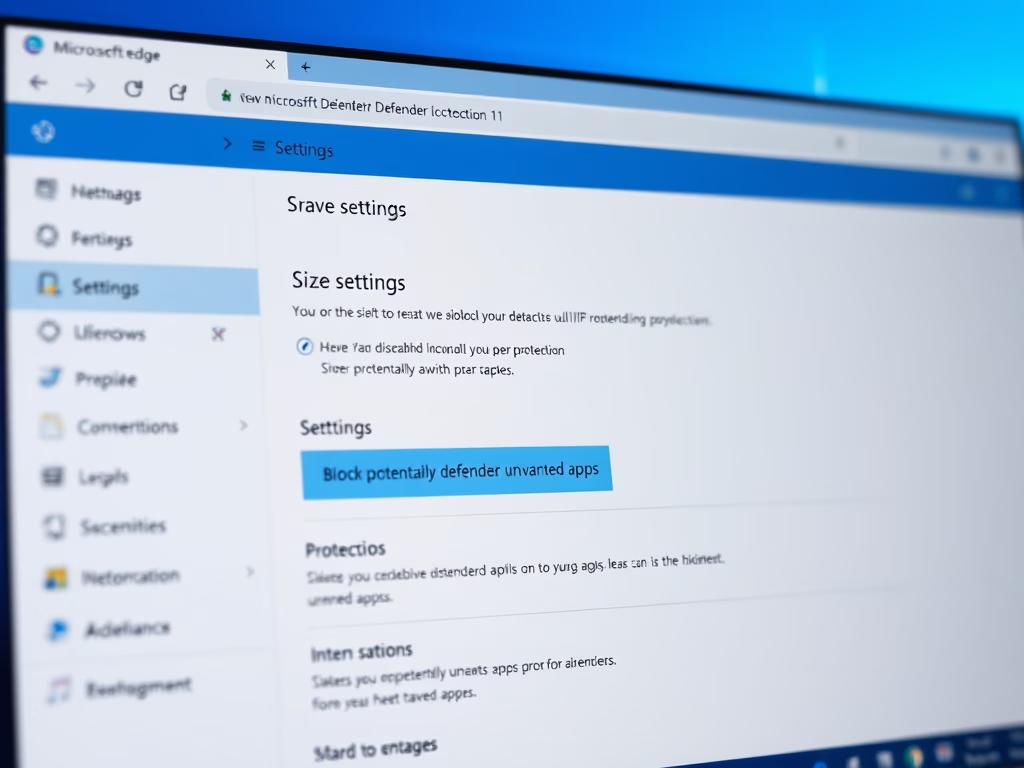
- Open Settings Privacy & security Windows Security, then select Open Windows Security.
- Select App & browser control.
- Under Reputation-based protection, select Reputation-based protection settings.
- Switch on Potentially unwanted app blocking. Then tick Block apps, Block downloads, or both. I turn on both.
You should see the toggle read On. If it is greyed out, a work or school policy is managing the PC, or another antivirus product has taken over from Defender. No restart is needed. To undo the change, switch the same toggle off.
Windows 11 includes security features like Microsoft Defender SmartScreen to block harmful apps and websites, BitLocker to encrypt your drive, Dynamic Lock to automatically lock your PC when you leave, and Windows Hello for secure sign-ins using your face or fingerprint.
Get Started with Basic Protections
Start with the basics. Most compromises on a home or small-office PC come from missed updates, a disabled firewall, or protection that was switched off and never switched back on. Before you touch anything advanced, check these three things:
- Open Settings Windows Update and confirm the page says You’re up to date. If it does not, select Check for updates and install what it finds.
- Open Windows Security and select Virus & threat protection. Confirm there are no warnings and that real-time protection is on.
- In Windows Security, select Firewall & network protection and confirm the firewall is on for your active network profile.
A green check mark on each page means that area is healthy. A yellow or red icon comes with a button to fix the problem, so use it.
Protect Your Data with Encryption and Locking
Safeguarding sensitive files keeps your data secure when you walk away from the desk or when a device is lost. The features below add extra layers of protection for personal information. Some protect the data itself, and others make sure nobody can reach the desktop in the first place.

Advanced Sign-in and Hardware Security
Advanced configurations secure your login credentials and harden the operating system at a deeper level. Some of them depend on hardware, such as a TPM chip, a camera, or a fingerprint reader. If an option is missing or greyed out, the PC may not support it, or the setting may be off in the BIOS/UEFI. Check the hardware before assuming something is broken.


Common questions
What is Microsoft Defender SmartScreen?
SmartScreen is a feature in Windows 11 that helps protect against potentially dangerous apps, files, and websites. It checks downloads and links against a database of known threats and reputation data. If something looks risky, it warns you before you run or open it.
- Open Windows Security and select App & browser control.
- Select Reputation-based protection settings.
- Switch on Check apps and files. This covers downloaded files and apps from outside the Store.
- Switch on SmartScreen for Microsoft Edge and SmartScreen for Microsoft Store apps.
Each toggle should now read On. If a toggle is greyed out, an organization policy is controlling it. When SmartScreen warns about a file you trust, think twice before choosing to run it anyway. To undo any of these, switch the toggle off.
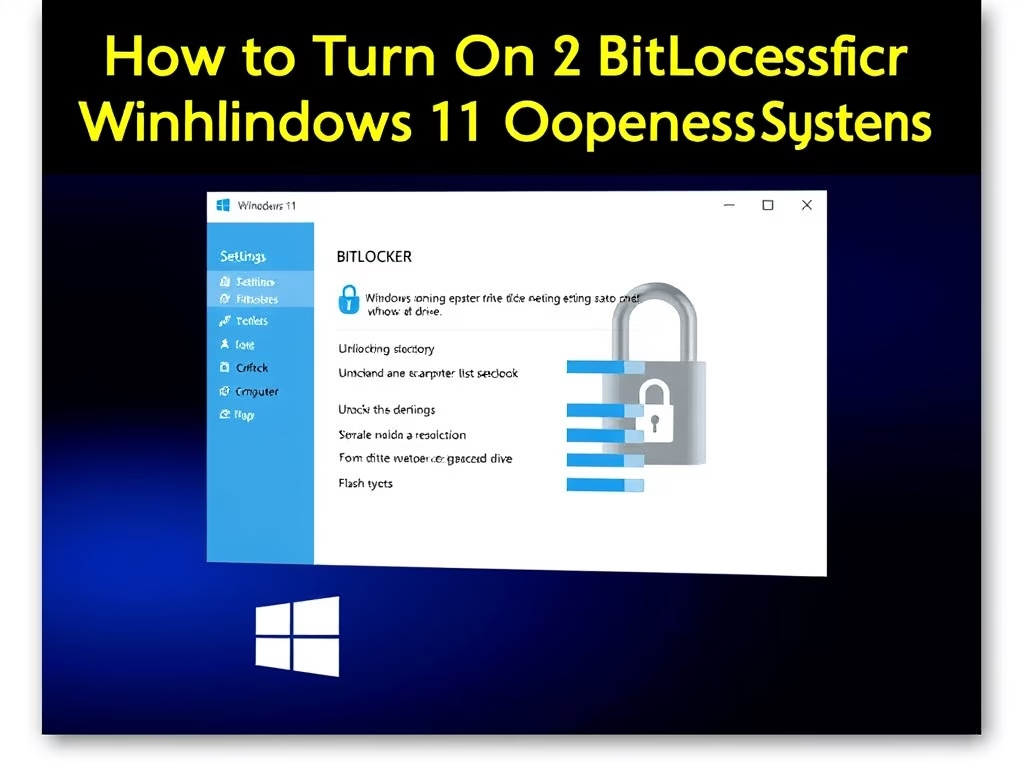
What is BitLocker?
BitLocker encrypts the entire drive, so the data is unreadable without the correct password or recovery key. It matters most if a laptop is lost or stolen, because removing the drive and reading it elsewhere no longer works.
Which version you get depends on your edition of Windows 11:
- Pro, Enterprise and Educationfull BitLocker Drive Encryption is available. Open Control Panel System and Security BitLocker Drive Encryption and turn it on for the drive you want to protect.
- Homethere is no full BitLocker management. Many devices with supported hardware offer Device encryption instead, under Settings Privacy & security Device encryption. If that page is missing, the hardware does not meet the requirements.
When you turn it on, Windows asks you to back up the recovery key. Save it to your Microsoft account or print it, and do not store it only on the encrypted drive. Without that key, a locked drive cannot be recovered. Encryption runs in the background, and you can keep working while it finishes. You can turn it off later from the same page, and the drive will be decrypted.
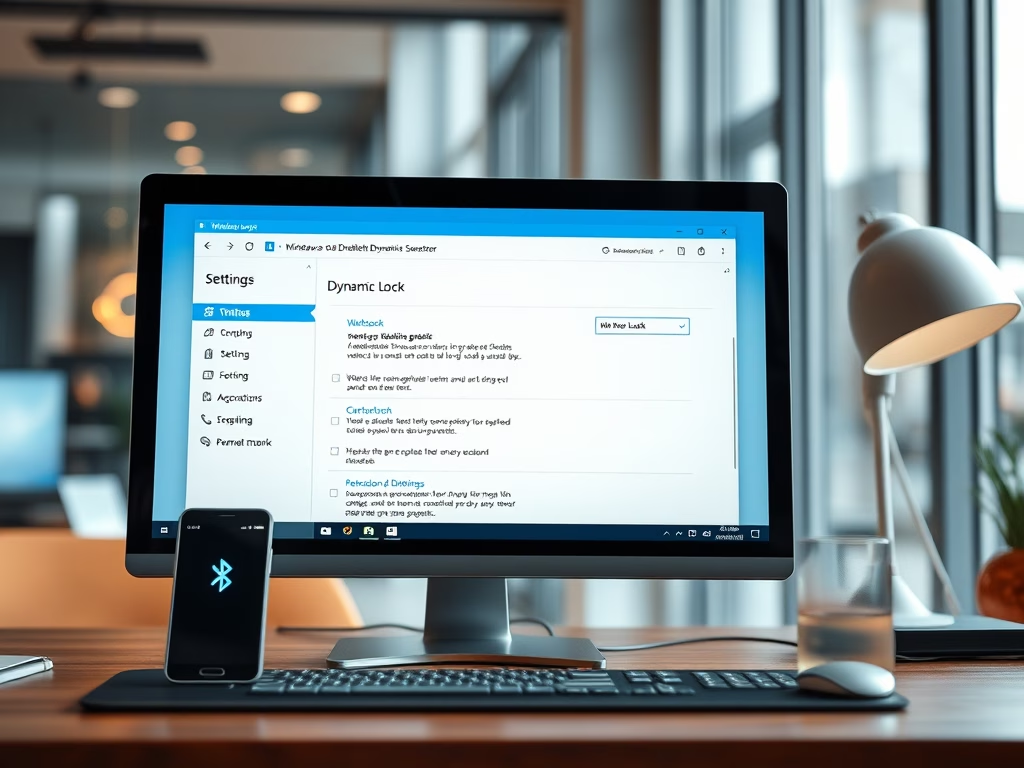
What is Dynamic Lock?
Dynamic Lock uses a paired phone’s Bluetooth connection to lock the PC automatically when you step away. It closes the gap left when you forget to press Win+L, which prevents unauthorized access during your absences.
- Pair your phone first. Open Settings Bluetooth & devices, select Add device, and pair the phone with the PC.
- Open Settings Accounts Sign-in options.
- Expand Dynamic lock.
- Tick Allow Windows to automatically lock your device when you’re away.
The PC will now lock shortly after the phone moves out of Bluetooth range. It is not instant, and it can take about a minute. Keep the phone’s Bluetooth turned on, or the feature cannot work. To undo it, untick the same box.
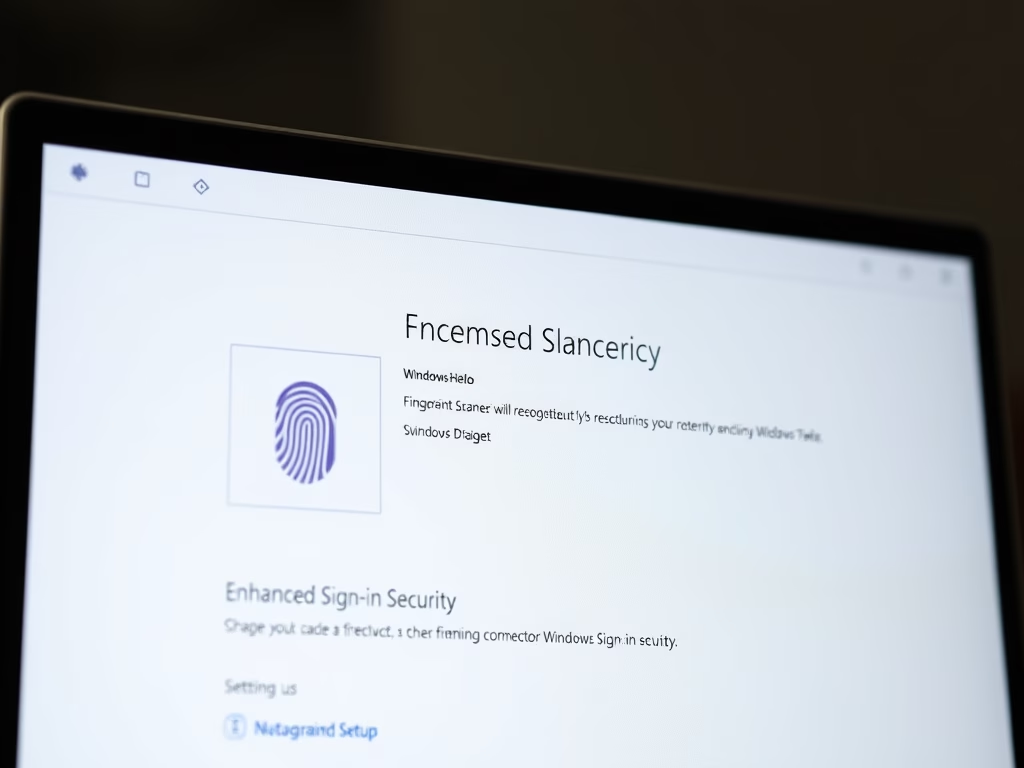
What is Windows Hello?
Windows Hello lets you sign in to a Windows 11 device using facial recognition or a fingerprint instead of a password. Biometrics are faster to use, and they are harder to steal than a typed password. Hello also requires a PIN as a backup.
- Open Settings Accounts Sign-in options.
- Choose Facial recognition (Windows Hello) or Fingerprint recognition (Windows Hello).
- Select Set up, then select Get started.
- Confirm your current PIN or password if asked, then follow the prompts to scan your face or fingerprint.
You should see a message that setup is complete. The option is greyed out if the PC has no compatible infrared camera or fingerprint reader. Hello works on both Home and Pro. To remove it, return to the same page and select Remove.
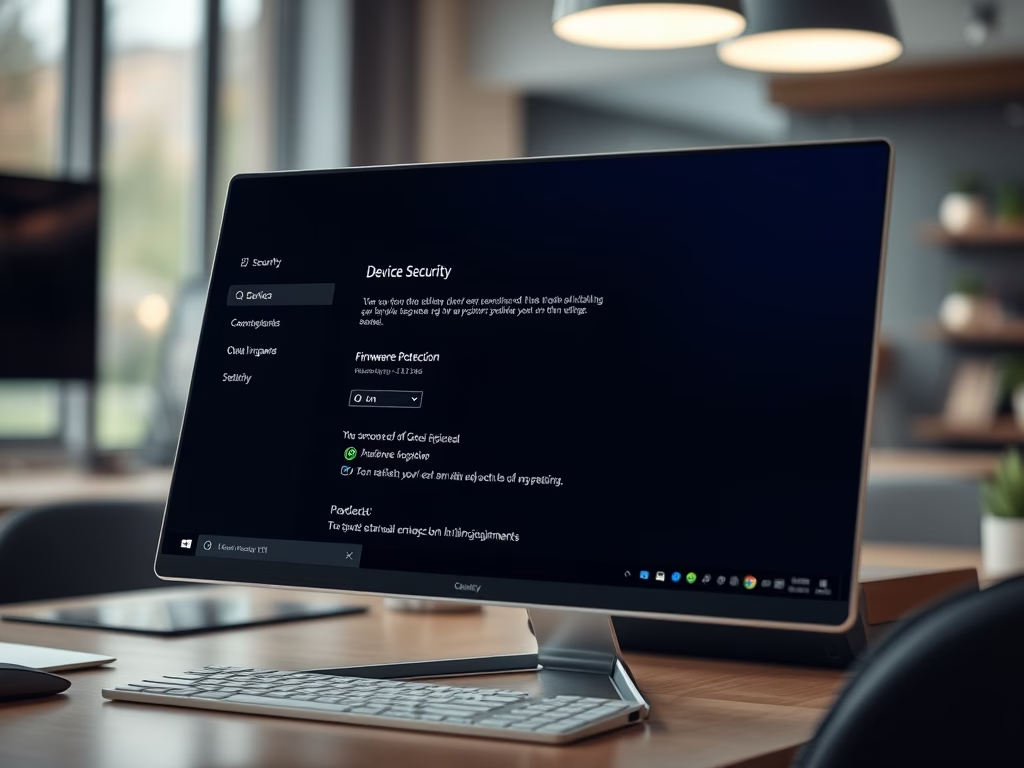
What is Firmware Protection?
Firmware protection safeguards the low-level code that boots the hardware. Shielding this startup layer stops advanced attacks from taking over the machine before the operating system even loads, which is the point where ordinary antivirus cannot see.
- Open Windows Security and select Device security.
- Check the Security processor and Secure boot sections. Both should show a standard hardware security status.
- Under Core isolation, select Core isolation details and look for the Firmware protection toggle, if your PC offers one.
- Switch it on if it is available. Restart the PC when Windows asks.
Not every PC shows this option. It depends on the processor, firmware, and TPM, and some BIOS/UEFI settings must be enabled first. If your PC does not support it, the page will say so. In that case, make sure Secure Boot is on and install firmware updates from the PC maker.
Have a question about this guide?
Answered by AI from this guide. Good questions may be added to this page — please don't include personal details.
Did this guide fix your problem?

About the Author
Richard
Tech Writer, IT Professional
Richard is a writer at Geek Rewind who turns complex IT tasks into clear, step-by-step guides. He draws on years of hands-on experience in system administration and enterprise IT operations, focusing on Windows, Linux and WordPress: the problems people actually run into, and the fixes that work. His server and WordPress guides come from systems he runs himself. Richard builds and maintains the platform behind Geek Rewind, from its Ubuntu servers and Nginx configuration to its custom WordPress plugins. Many new tutorials start with readers' questions, and he's always glad to answer them in the comments.
No comments yet — be the first to share your thoughts!